Check out another of my videos: “BREAKDOWN: Select and Mask vs. Refine Edge – Photoshop CC”
-~-~~-~~~-~~-~-
Pick up my advanced photoshop tutorial package ($21) right here: http://bit.ly/support-tutvid-2
Find the written tutorial here: http://tutvid.com/photoshop-tutorials/four-best-ways-to-sharpen-in-photoshop/
Of all the sharp things in life that can hurt you, the sharpness in Photoshop will actually do good things for your photos and this tutorial is all about how to find the best sharpening for your photos. We’re going to cover the Unsharp Mask Sharpening, the Smart Sharpening, Sharpening in Camera RAW, and a High Pass layer to apply a global layer of sharpening. Which is best? Do you have a favorite kind of sharpening for your images? Leave a comment below and let me know!
VIDEO GUIDE:
01:10 Convert to Smart Object
01:37 Unsharp Mask
04:54 Smart Sharpen
08:43 Camera RAW Sharpening
11:33 High Pass Global Sharpening
SNAPCHAT & MORE:
http://instagram.com/tutvid Tweets by tutvid
https://www.facebook.com/tutvid
? tutvid.com
Check out another of my videos: “BREAKDOWN: Select and Mask vs. Refine Edge – Photoshop CC”
-~-~~-~~~-~~-~-
Pick up my image retouching tutorial package ($27) right here: http://bit.ly/support-tutvid
Find the written tutorial here: http://tutvid.com/photoshop-tutorials/three-ways-to-reduce-noisegrain-in-photoshop/
In the age of incredibly high ISOs and camera sensors that seem to get better by the day, noise and grain are not nearly as much of a problem as they used to be, but when you need some help turning down the grain or noise in your photos there are some great options in Photoshop. We’ll talk about the subtle noise reduction that Smart Sharpen has available, how to use Reduce Noise with the Blend If sliders to get a great mix of noise-reduction only in the areas that we need it, and also the very useful and powerful noise reduction tool in the Camera RAW editor and how you can use that on any photo you have in Photoshop (even if it’s not a RAW image.) Check out this tutorial and I hope you love it!
VIDEO GUIDE:
01:00 Working with a Smart Object
01:29 Smart Sharpen to Reduce Noise
02:42 Reduce Noise + Blend If Slider
07:28 Camera RAW Noise Reduction
SNAPCHAT & MORE:
http://instagram.com/tutvid Tweets by tutvid
https://www.facebook.com/tutvid
? tutvid.com
Check out another of my videos: “BREAKDOWN: Select and Mask vs. Refine Edge – Photoshop CC”
-~-~~-~~~-~~-~-
Link to written tutorial: http://tutvid.com/curves-curves-curves-photoshop-cs6-tutorial/
Follow me on Facebook: https://www.facebook.com/tutvid
The Curves Image Adjustment is one of the single most powerful options available to you in Photoshop and it’s been around forever. Curves is the feature that many pros use for nearly all light and contrast adjustments. I use Curves on virtually every image I pass through Photoshop and can hardly think of a time when I wouldn’t use Curves while retouching. Let’s jump in and have some fun with Curves.
Check out another of my videos: “BREAKDOWN: Select and Mask vs. Refine Edge – Photoshop CC”
-~-~~-~~~-~~-~-
Like Me! Follow Me! (I’m desperate for attention!)
http://www.facebook.com/tutvidFan | http://www.twitter.com/tutvid
Check out Howard from IceflowStudios Search Bar Tutorial! http://iceflowstudios.com/2012/tutorials/photoshop-search-bar/
Tutorial Inspiration: http://365psd.com/day/195/
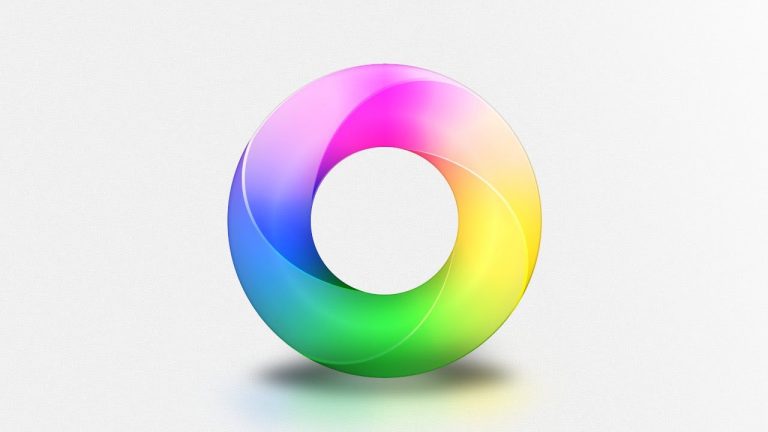
Create a Vibrant Color Ring — Advanced Photoshop Tutorial
In this tutorial we will tackle intermediate and advanced methods of creating this amazing piece of artwork! We will talk a bunch about creating and manipulating complex paths and working with multiple Adjustment Layers and Layer Styles to non-destructively create this graphic which can be made many different colors with the click of the mouse and can be scaled up or down within your Photoshop document without losing detail. It’s vector-based! It’s advanced and complex, but if you jump in you’re going to love it!
Check out another of my videos: “BREAKDOWN: Select and Mask vs. Refine Edge – Photoshop CC”
-~-~~-~~~-~~-~-
Pick up my image retouching tutorial package ($27) right here: http://bit.ly/support-tutvid
Find the written tutorial here: http://tutvid.com/photoshop-tutorials/the-art-of-the-retouched-image-photoshop-retouching-process/
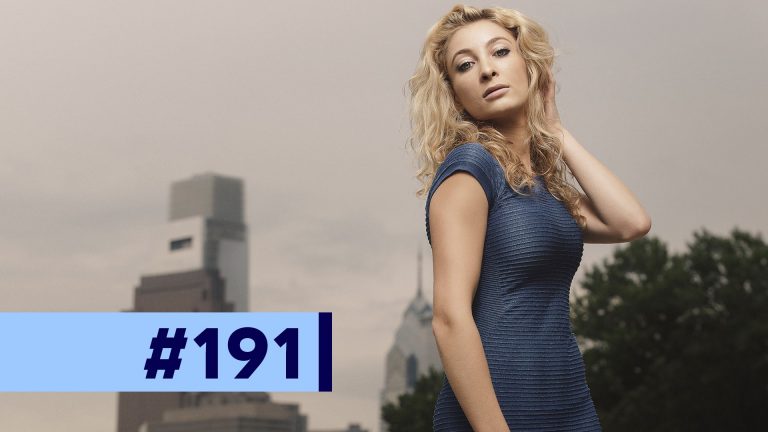
This tutorial is not about any specific technique, but instead about how I look at an image as I go through a retouching process and why I do one thing after another in the order I do when retouching images.
A little while ago I got a comment on one of my YouTube videos asking about the steps I take to retouch an image in Photoshop and I thought that it would make an interesting video, so here goes! The process looks a little something like this (click the time link to see where I talk about it):
01:19 Camera RAW Processing
03:07 Pixel Pushing (Liquify, Transform, Lens Correction, etc…)
04:39 Blemish Removal (Non-destructive!)
05:28 Facial Details (Eyes, Nose, Lips)
05:49 Retouching the Hair
06:20 Dodging and Burning
07:14 Contrast and Tonal Adjustments
09:14 Color Grading
10:22 Sharpening
11:24 Catch All Layer (80/20)
12:07 Tone Smoothing Grain
14:15 Digital Re-Lighting
SEE ALL 12 PARTS!
Part 1: Camera RAW Processing: https://www.youtube.com/watch?v=xlfRoXn20Js
Part 2: How to Liquify & Pushing Pixels: https://www.youtube.com/watch?v=qV7LJzJgPMg
Part 3: How to Retouch the Skin: https://www.youtube.com/watch?v=MtJVPHR5E4A
Part 4: How to Retouch Eyes, Lips, & Eyebrows: https://www.youtube.com/watch?v=wsCM58GAbWk
Part 5: How to Retouch Hair: https://www.youtube.com/watch?v=LmoXgKQRwsc
Part 6: Dodging and Burning the Photo: https://www.youtube.com/watch?v=5tWgz9Pkw3g
Part 7: How to Get Moody Contrast & Tone: https://www.youtube.com/watch?v=N1cBARrXP1w
Part 8: How to Color Grade the Photo: https://www.youtube.com/watch?v=6GXeCV4AExk
Part 9: How to Sharpen the Photo: https://www.youtube.com/watch?v=Qo5JHUFdDns
Part 10: The Benefits of Destructive Editing: https://www.youtube.com/watch?v=iPWyYEibm5c
Part 11: Create Lens Flare and Digital Lighting: https://www.youtube.com/watch?v=RHxgNmxsJbU
Part 12: Tone Smoothing Grain and Finishing: https://www.youtube.com/watch?v=Rj-lFuMt9c8
SNAPCHAT & MORE:
http://instagram.com/tutvid Tweets by tutvid
https://www.facebook.com/tutvid
? tutvid.com
Check out another of my videos: “BREAKDOWN: Select and Mask vs. Refine Edge – Photoshop CC”
-~-~~-~~~-~~-~-
Join the discussion and view the tutorial on Tutvid.com: http://tutvid.com/photoshop/retouch-a-child-photo-photoshop-tutorial
INSTAGRAM & MORE:
http://instagram.com/tutvid Tweets by tutvid
https://www.facebook.com/tutvid
https://plus.google.com/+NathanielDodson
DESCRIPTION:
How to Retouch and Edit Child Photo – Photoshop CC Tutorial
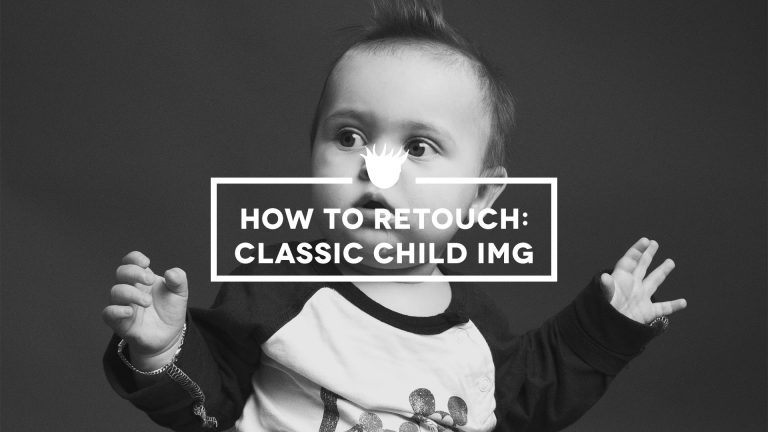
Welcome to this tutorial! We’re going to retouch a child and create a classic black and white image that will be timeless. No fancy effects, just healing blemishes, adding grain, and creating a killer black and white. If you have Photoshop CC, or even an older version of Photoshop, you’ll be able to create this exact effect. Download the RAW image and follow along below!
Check out another of my videos: “BREAKDOWN: Select and Mask vs. Refine Edge – Photoshop CC”
-~-~~-~~~-~~-~-
Link to written tutorial: http://tutvid.com/avatar-navi-photoshop-cs6-tutorial/ (Download the mask file at this link too!)
Model – Christina Rush: http://www.modelmayhem.com/574113
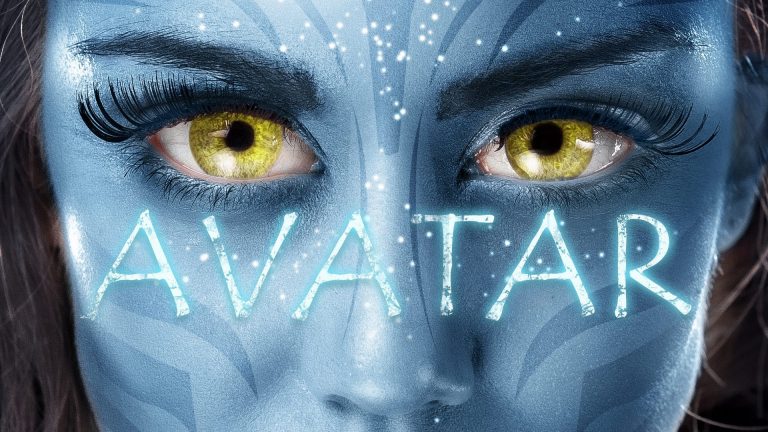
There are certain projects that I take on to challenge myself in Photoshop that often prove to me just how powerful Photoshop really is. Creating an Avatar Navi character from a photograph I shot a few years ago was just one of those moment. No intro can prepare you for this fun tutorial, just find a sharp photo with nice light and jump right in. Enjoy!
Check out another of my videos: “BREAKDOWN: Select and Mask vs. Refine Edge – Photoshop CC”
-~-~~-~~~-~~-~-
Pick up my image retouching tutorial package ($27) right here: http://bit.ly/support-tutvid
Find the written tutorial here: http://tutvid.com/photoshop-tutorials/how-to-retouch-pt-1-camera-raw-processing/
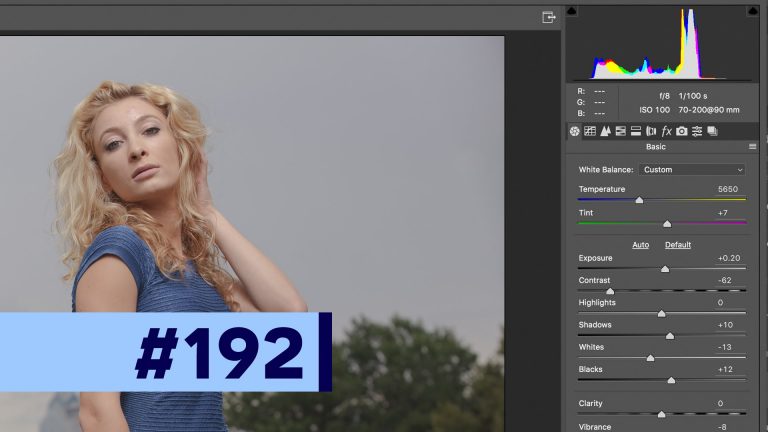
In this tutorial we’ll talk about using the Camera RAW editor to edit and begin the long photo retouch in Photoshop CC. I’ll teach you what I look for in terms of the tones in the image, the sharpness, camera profile, creating a smart object, and more! I will also take a moment and cover exactly how I captured the shot on location so you can take a tip or two away from your own photography learning!
Download the RAW photo and follow along: https://www.dropbox.com/s/sddrbfvk4ggtqoj/how-i-retouch-raw-file.dng?dl=0
“HOW TO RETOUCH” is a 12-part tutorial series walking you through the steps I typically take to retouch an image in Photoshop. We’ll talk about the what, why, and how of each step. Check out the 12 step overview video here: https://www.youtube.com/watch?v=Qg7cKTGJZBA
VIDEO GUIDE:
01:13 How I shot the photo
04:03 Opening Camera RAW
04:45 Tones in Camera RAW
07:07 Sharpening
07:28 Hue/Saturation
08:23 Lens Correction
09:08 Camera Profiles
09:42 Graduated Filter Tool
10:52 Workflow Options (Create Smart Object)
SEE ALL 12 PARTS!
Part 1: Camera RAW Processing: https://www.youtube.com/watch?v=xlfRoXn20Js
Part 2: How to Liquify & Pushing Pixels: https://www.youtube.com/watch?v=qV7LJzJgPMg
Part 3: How to Retouch the Skin: https://www.youtube.com/watch?v=MtJVPHR5E4A
Part 4: How to Retouch Eyes, Lips, & Eyebrows: https://www.youtube.com/watch?v=wsCM58GAbWk
Part 5: How to Retouch Hair: https://www.youtube.com/watch?v=LmoXgKQRwsc
Part 6: Dodging and Burning the Photo: https://www.youtube.com/watch?v=5tWgz9Pkw3g
Part 7: How to Get Moody Contrast & Tone: https://www.youtube.com/watch?v=N1cBARrXP1w
Part 8: How to Color Grade the Photo: https://www.youtube.com/watch?v=6GXeCV4AExk
Part 9: How to Sharpen the Photo: https://www.youtube.com/watch?v=Qo5JHUFdDns
Part 10: The Benefits of Destructive Editing: https://www.youtube.com/watch?v=iPWyYEibm5c
Part 11: Create Lens Flare and Digital Lighting: https://www.youtube.com/watch?v=RHxgNmxsJbU
Part 12: Tone Smoothing Grain and Finishing: https://www.youtube.com/watch?v=Rj-lFuMt9c8
Follow Alex (the model) on Instagram: https://www.instagram.com/_alexcerr_/
SNAPCHAT & MORE:
http://instagram.com/tutvid Tweets by tutvid
https://www.facebook.com/tutvid
? tutvid.com
Check out another of my videos: “BREAKDOWN: Select and Mask vs. Refine Edge – Photoshop CC”
-~-~~-~~~-~~-~-
Download the RAW image HERE to follow along: https://hive.am/706fw
INSTAGRAM & MORE:
http://instagram.com/tutvid Tweets by tutvid
https://www.facebook.com/tutvid
https://plus.google.com/+NathanielDodson
DESCRIPTION:
Sometimes your typical “professional” headshot just isn’t enough and you need drama. That is this tutorial! We’re going to retouch a dramatic and very cool headshot image. The techniques that we’ll use in this tutorial can be used with headshots or even full portraits as well! We’re going to cover changing tones and contrast in an image, correcting skin, adding artificial light, and much, much more!
Check out another of my videos: “BREAKDOWN: Select and Mask vs. Refine Edge – Photoshop CC”
-~-~~-~~~-~~-~-
Pick up my image retouching tutorial package ($27) right here: http://bit.ly/support-tutvid
Find the written tutorial here: http://tutvid.com/photoshop-tutorials/how-to-retouch-pt-2-liquify-removing-something-from-your-photo-photoshop-tutorial/
In this part 2 of the “HOW TO RETOUCH” series I will focus on making any big “pixel pushing” changes to my image before we do anything else in terms of skin retouching, tonal adjustments, sharpening, or dodging and burning. We will cover using Liquify on a Smart Object non-destructively and also removing a large object from the background of the image as non-destructively as we can. This tutorial builds the foundation which we’ll build off of in the next 10 tutorials, check it out!
VIDEO GUIDE:
01:19 What we want to do
01:36 Working with Liquify
01:51 16-bit Liquify glitch
02:55 Making moves with Liquify
05:09 Getting rid of something in the background
07:35 Blending the colors in the sky
SEE ALL 12 PARTS!
Part 1: Camera RAW Processing: https://www.youtube.com/watch?v=xlfRoXn20Js
Part 2: How to Liquify & Pushing Pixels: https://www.youtube.com/watch?v=qV7LJzJgPMg
Part 3: How to Retouch the Skin: https://www.youtube.com/watch?v=MtJVPHR5E4A
Part 4: How to Retouch Eyes, Lips, & Eyebrows: https://www.youtube.com/watch?v=wsCM58GAbWk
Part 5: How to Retouch Hair: https://www.youtube.com/watch?v=LmoXgKQRwsc
Part 6: Dodging and Burning the Photo: https://www.youtube.com/watch?v=5tWgz9Pkw3g
Part 7: How to Get Moody Contrast & Tone: https://www.youtube.com/watch?v=N1cBARrXP1w
Part 8: How to Color Grade the Photo: https://www.youtube.com/watch?v=6GXeCV4AExk
Part 9: How to Sharpen the Photo: https://www.youtube.com/watch?v=Qo5JHUFdDns
Part 10: The Benefits of Destructive Editing: https://www.youtube.com/watch?v=iPWyYEibm5c
Part 11: Create Lens Flare and Digital Lighting: https://www.youtube.com/watch?v=RHxgNmxsJbU
Part 12: Tone Smoothing Grain and Finishing: https://www.youtube.com/watch?v=Rj-lFuMt9c8
SNAPCHAT & MORE:
http://instagram.com/tutvid Tweets by tutvid
https://www.facebook.com/tutvid
? tutvid.com