Check out another of my videos: “BREAKDOWN: Select and Mask vs. Refine Edge – Photoshop CC”
-~-~~-~~~-~~-~-
Written tutorial and downloadable files are HERE: http://tutvid.com/photoshop/how-to-create-a-lomography-effect-in-photoshop-cc
http://instagram.com/tutvid Tweets by tutvid
https://www.facebook.com/tutvid
DESCRIPTION:
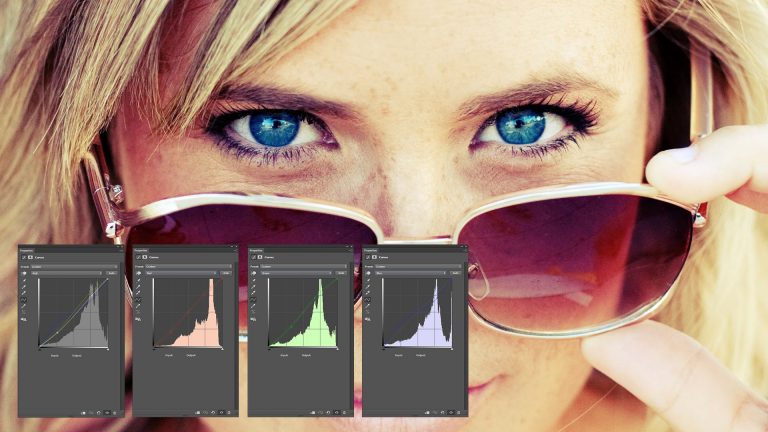
Years ago I did a lomography effect tutorial using Photoshop and it’s time for an updated, latest and greatest lomography style tutorial. To make things even better, we’ll attack this effect using a single Adjustment Layer in Photoshop. This will give us maximum flexibility as we move forward with our image.
Check out another of my videos: “BREAKDOWN: Select and Mask vs. Refine Edge – Photoshop CC”
-~-~~-~~~-~~-~-
View the written tutorial here: http://tutvid.com/photoshop/photoshop-cc-tutorial-smart-filters-are-simple/
INSTAGRAM & MORE:
http://instagram.com/tutvid Tweets by tutvid
https://www.facebook.com/tutvid
DESCRIPTION:
Smart Filters are an insanely powerful and addictive feature of Photoshop that you absolutely MUST know about. They’re easy to implement and there is absolutely no reason not to be using them! I’ll explain what they’re all about in this tutorial!
Check out another of my videos: “BREAKDOWN: Select and Mask vs. Refine Edge – Photoshop CC”
-~-~~-~~~-~~-~-
Pick up my image retouching tutorial package ($27) right here: http://bit.ly/support-tutvid
Download Frequency Separation action on the written tutorial! Here: http://tutvid.com/photoshop-tutorials/how-i-retouch-pt-3-skin-retouching-healing-frequency-separation/
This is part 3 of my “HOW TO RETOUCH” Photoshop series. This tutorial will focus on how to retouch skin and the right way to smooth skin and remove blemishes like acne or scars from the skin of your subject. We will use a method called frequency separation to split the colors and details apart in our image and lend additional power to our healing/cloning brushes as we heal away blemishes in the skin. Our frequency separation will allow us to copy the texture from different parts of the skin, but not the colors. This will allow us to get very smooth skin that still has texture and also has beautiful color as well.
VIDEO GUIDE:
00:53 Getting started
01:26 Creating the layers
01:42 Blurring the skin
02:43 Applying the image
05:02 Healing
07:03 Healing the colors
10:06 Flatten color/light
12:55 Bonus: Contrast/Sharpness Trick w/ Frequency Separation
SEE ALL 12 PARTS!
Part 1: Camera RAW Processing: https://www.youtube.com/watch?v=xlfRoXn20Js
Part 2: How to Liquify & Pushing Pixels: https://www.youtube.com/watch?v=qV7LJzJgPMg
Part 3: How to Retouch the Skin: https://www.youtube.com/watch?v=MtJVPHR5E4A
Part 4: How to Retouch Eyes, Lips, & Eyebrows: https://www.youtube.com/watch?v=wsCM58GAbWk
Part 5: How to Retouch Hair: https://www.youtube.com/watch?v=LmoXgKQRwsc
Part 6: Dodging and Burning the Photo: https://www.youtube.com/watch?v=5tWgz9Pkw3g
Part 7: How to Get Moody Contrast & Tone: https://www.youtube.com/watch?v=N1cBARrXP1w
Part 8: How to Color Grade the Photo: https://www.youtube.com/watch?v=6GXeCV4AExk
Part 9: How to Sharpen the Photo: https://www.youtube.com/watch?v=Qo5JHUFdDns
Part 10: The Benefits of Destructive Editing: https://www.youtube.com/watch?v=iPWyYEibm5c
Part 11: Create Lens Flare and Digital Lighting: https://www.youtube.com/watch?v=RHxgNmxsJbU
Part 12: Tone Smoothing Grain and Finishing: https://www.youtube.com/watch?v=Rj-lFuMt9c8
SNAPCHAT & MORE:
http://instagram.com/tutvid Tweets by tutvid
https://www.facebook.com/tutvid
? tutvid.com
Check out another of my videos: “BREAKDOWN: Select and Mask vs. Refine Edge – Photoshop CC”
-~-~~-~~~-~~-~-
Join the discussion and view the tutorial on Tutvid.com: http://tutvid.com/photoshop/create-amazing-wedding-photos-photoshop-cc-tutorial
INSTAGRAM & MORE:
http://instagram.com/tutvid Tweets by tutvid
https://www.facebook.com/tutvid
https://plus.google.com/+NathanielDodson
DESCRIPTION:
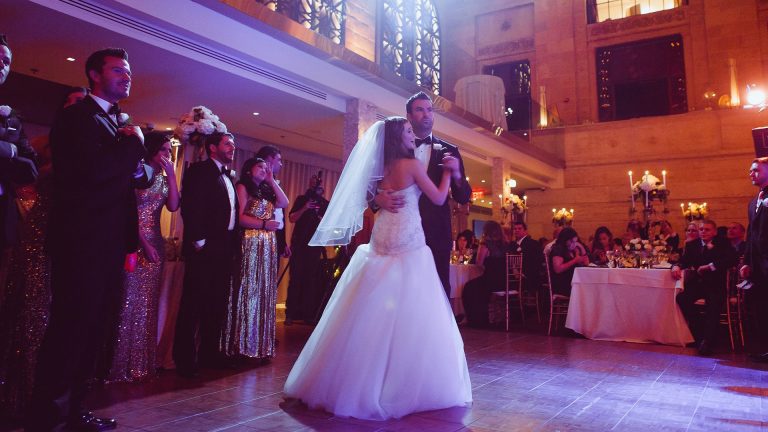
Learn how to use Photoshop and the power of Camera RAW to edit your wedding photos today! Learn about adjusting exposure, color, tone, contrast, noise reduction, cropping and more! It’s the little details that make big things happen, and this tutorial is full of little tips and tricks that will set your work apart.
Check out another of my videos: “BREAKDOWN: Select and Mask vs. Refine Edge – Photoshop CC”
-~-~~-~~~-~~-~-
Pick up my image retouching tutorial package ($27) right here: http://bit.ly/support-tutvid
Check out the full written tutorial and DOWNLOAD my free action for retouching eyes professionally: http://tutvid.com/photoshop-tutorials/how-to-retouch-pt-4-retouch-eyes-lips-eyebrows-photoshop-tutorial/
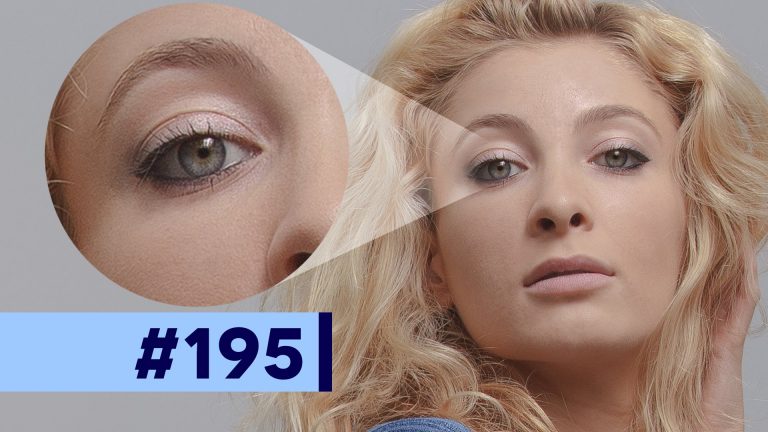
We’re up to part 4 of this 12-part series! Today we’ll talk about all those important facial details, how to retouch eyes professionally, how to clean up a pair of lips, and how to trim the eyebrows to get a perfect line and cover any stray hair. We’ll tag-team off of the frequency separation that we created in part 3 to get rid of veins in the eyes and talk about working with our layers to trim the edges of the eyebrows.
VIDEO GUIDE:
01:06 Retouching Lips
02:10 Add Gloss to the Lips
04:39 Begin Retouching the Eyes
05:51 Brighten and Darken Eyes
06:47 Painting the Eyes
08:26 Brighten the Eyes
09:54 Neutralize Color in the Eyes
11:00 Building Catchlights
16:42 Trimming the Eyebrows
SEE ALL 12 PARTS!
Part 1: Camera RAW Processing: https://www.youtube.com/watch?v=xlfRoXn20Js
Part 2: How to Liquify & Pushing Pixels: https://www.youtube.com/watch?v=qV7LJzJgPMg
Part 3: How to Retouch the Skin: https://www.youtube.com/watch?v=MtJVPHR5E4A
Part 4: How to Retouch Eyes, Lips, & Eyebrows: https://www.youtube.com/watch?v=wsCM58GAbWk
Part 5: How to Retouch Hair: https://www.youtube.com/watch?v=LmoXgKQRwsc
Part 6: Dodging and Burning the Photo: https://www.youtube.com/watch?v=5tWgz9Pkw3g
Part 7: How to Get Moody Contrast & Tone: https://www.youtube.com/watch?v=N1cBARrXP1w
Part 8: How to Color Grade the Photo: https://www.youtube.com/watch?v=6GXeCV4AExk
Part 9: How to Sharpen the Photo: https://www.youtube.com/watch?v=Qo5JHUFdDns
Part 10: The Benefits of Destructive Editing: https://www.youtube.com/watch?v=iPWyYEibm5c
Part 11: Create Lens Flare and Digital Lighting: https://www.youtube.com/watch?v=RHxgNmxsJbU
Part 12: Tone Smoothing Grain and Finishing: https://www.youtube.com/watch?v=Rj-lFuMt9c8
SNAPCHAT & MORE:
http://instagram.com/tutvid Tweets by tutvid
https://www.facebook.com/tutvid
? tutvid.com
Check out another of my videos: “BREAKDOWN: Select and Mask vs. Refine Edge – Photoshop CC”
-~-~~-~~~-~~-~-
Join the discussion and view the tutorial on Tutvid.com: http://tutvid.com/photoshop/how-to-retouch-a-professional-headshot-photoshop-cc
INSTAGRAM & MORE:
http://instagram.com/tutvid Tweets by tutvid
https://www.facebook.com/tutvid
https://plus.google.com/+NathanielDodson
DESCRIPTION:
In this tutorial we’ll talk about how to retouch a professional headshot with Photoshop CC. We cover touching up skin blemishes, making the eyes look deep and realistic, and sharpening, and additional tips and tricks for getting a great headshot. These techniques could also be used to retouch and touch up a photo for an online dating site as well. Hope you enjoy the tutorial!
Check out another of my videos: “BREAKDOWN: Select and Mask vs. Refine Edge – Photoshop CC”
-~-~~-~~~-~~-~-
Pick up my image retouching tutorial package ($27) right here: http://bit.ly/support-tutvid
Go check out the written post for this tutorial to grab the free action to set up your hair retouching as I have done in this tutorial: http://tutvid.com/photoshop-tutorials/how-to-retouch-pt-5-how-to-retouch-hair-in-photoshop-cc/
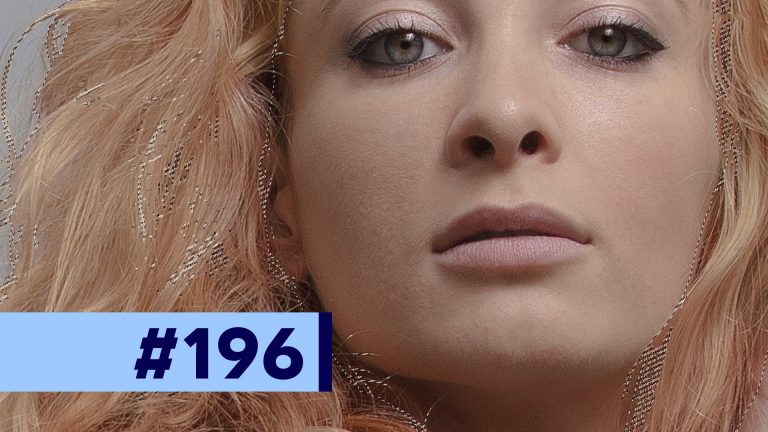
Moving along in this series to part 5, we’re going to talk about fine hair retouching and doubling down on frequency separation (covered in part 3) to create the layers we need and then zoom in on the hair and fill in areas that are missing hair and cleaning up dark streaks in the hair to start to get a very smooth finish to the hair. You can use this method and get extremely fine, smooth hair, or you can use it sparingly like I will in this tutorial to get a more realistic portrait look.
VIDEO GUIDE:
01:18 Looking at what this can do
02:09 Getting rid of fly-aways
03:59 Frequency Separation again!
06:20 Cloning hair
09:26 Cloning away small lines/imperfections in hair
11:22 Cloning away additional imperfections
11:58 Correcting colors and flattening the hair
14:47 Duplicating the details for more retouching
16:39 Adjusting hair color and brightness to match hair throughout
19:46 Before/After
SEE ALL 12 PARTS!
Part 1: Camera RAW Processing: https://www.youtube.com/watch?v=xlfRoXn20Js
Part 2: How to Liquify & Pushing Pixels: https://www.youtube.com/watch?v=qV7LJzJgPMg
Part 3: How to Retouch the Skin: https://www.youtube.com/watch?v=MtJVPHR5E4A
Part 4: How to Retouch Eyes, Lips, & Eyebrows: https://www.youtube.com/watch?v=wsCM58GAbWk
Part 5: How to Retouch Hair: https://www.youtube.com/watch?v=LmoXgKQRwsc
Part 6: Dodging and Burning the Photo: https://www.youtube.com/watch?v=5tWgz9Pkw3g
Part 7: How to Get Moody Contrast & Tone: https://www.youtube.com/watch?v=N1cBARrXP1w
Part 8: How to Color Grade the Photo: https://www.youtube.com/watch?v=6GXeCV4AExk
Part 9: How to Sharpen the Photo: https://www.youtube.com/watch?v=Qo5JHUFdDns
Part 10: The Benefits of Destructive Editing: https://www.youtube.com/watch?v=iPWyYEibm5c
Part 11: Create Lens Flare and Digital Lighting: https://www.youtube.com/watch?v=RHxgNmxsJbU
Part 12: Tone Smoothing Grain and Finishing: https://www.youtube.com/watch?v=Rj-lFuMt9c8
SNAPCHAT & MORE:
http://instagram.com/tutvid Tweets by tutvid
https://www.facebook.com/tutvid
? tutvid.com
DESCRIPTION:
My buddy Jared, from Froknowsphoto.com told me about a project video he was getting ready to launch about photographing and how to photograph the Apple Watch. He asked if I would be willing to do some retouching for the watch project and now here comes a tutorial on how I retouched the Apple Watch and how you can too! We’re going to cover color correction in Camera RAW, retouching product and commercial images, rebuilding shadows and highlights, and finally creating a full Apple ad mockup in the end. It may be a long one, but it’s a good one! Let’s get started on this tutorial now!
Check out another of my videos: “BREAKDOWN: Select and Mask vs. Refine Edge – Photoshop CC”
-~-~~-~~~-~~-~-
Pick up my image retouching tutorial package ($27) right here: http://bit.ly/support-tutvid
Check out the written tutorial and grab the free action I have so you can get your Dodge & Burn layers instantly! http://bit.ly/28RaU5F
Here in part 6 of our 12-part series, we will talk about dodging and burning and how to use it to bring in that selective contrast that we talked about way back in part 1 of this series. I’ll show you my two favorite techniques for non-destructive dodging and burning and how I like to duplicate and blur my dodge and burn layers to blend the effect into the image and get a great effect.
VIDEO GUIDE:
01:27 Quick & dirty dodge and burn method
03:13 Setting up the Curves Adjustment Layers
03:49 Setting the Brush tool
04:33 Begin with burning
09:06 Highlights and dodging
12:54 Smoothing the dodging and burning
SEE ALL 12 PARTS!
Part 1: Camera RAW Processing: https://www.youtube.com/watch?v=xlfRoXn20Js
Part 2: How to Liquify & Pushing Pixels: https://www.youtube.com/watch?v=qV7LJzJgPMg
Part 3: How to Retouch the Skin: https://www.youtube.com/watch?v=MtJVPHR5E4A
Part 4: How to Retouch Eyes, Lips, & Eyebrows: https://www.youtube.com/watch?v=wsCM58GAbWk
Part 5: How to Retouch Hair: https://www.youtube.com/watch?v=LmoXgKQRwsc
Part 6: Dodging and Burning the Photo: https://www.youtube.com/watch?v=5tWgz9Pkw3g
Part 7: How to Get Moody Contrast & Tone: https://www.youtube.com/watch?v=N1cBARrXP1w
Part 8: How to Color Grade the Photo: https://www.youtube.com/watch?v=6GXeCV4AExk
Part 9: How to Sharpen the Photo: https://www.youtube.com/watch?v=Qo5JHUFdDns
Part 10: The Benefits of Destructive Editing: https://www.youtube.com/watch?v=iPWyYEibm5c
Part 11: Create Lens Flare and Digital Lighting: https://www.youtube.com/watch?v=RHxgNmxsJbU
Part 12: Tone Smoothing Grain and Finishing: https://www.youtube.com/watch?v=Rj-lFuMt9c8
SNAPCHAT & MORE:
http://instagram.com/tutvid Tweets by tutvid
https://www.facebook.com/tutvid
? tutvid.com
Check out another of my videos: “BREAKDOWN: Select and Mask vs. Refine Edge – Photoshop CC”
-~-~~-~~~-~~-~-
Join the discussion and view the tutorial on Tutvid.com: http://tutvid.com/photoshop/retouch-a-group-photo-photoshop
INSTAGRAM & MORE:
http://instagram.com/tutvid Tweets by tutvid
https://www.facebook.com/tutvid
https://plus.google.com/+NathanielDodson
DESCRIPTION:
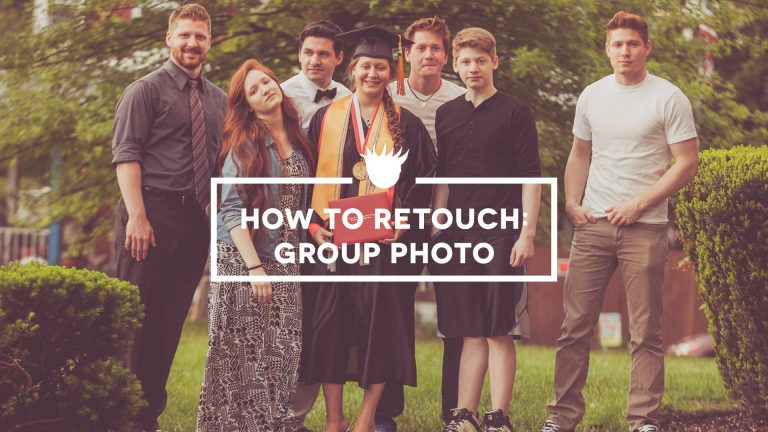
In this tutorial on how to retouch a group photo in Photoshop CC, I’ll cover using the Camera RAW editor to edit your RAW or JPEG images and some of the power of toning and lighting adjustments with group photos. We’ll then bring the shot into Photoshop and work on replacing a person’s face from the group and also blemish removal done non-destructively as well as sharpening and final cropping. Follow along with the downloadable RAW file! More after the jump!

![How to Retouch an Apple Watch! [UNSCRIPTED]](https://adobelessons.com/wp-content/uploads/2016/12/cCykOsNgJpkmaxresdefault-768x432.jpg "How to Retouch an Apple Watch! [UNSCRIPTED]")