Home Blog Page 451

After Effects Tutorial: Corporate Intro Animation

0

In this Adobe After Effects tutorial, create a corporate styled intro for your business or client. These techniques will allow you to quickly create professional intros that are not hard to create. You will need Optical Flares to follow along with this tutorial.

Visit our website https://www.sonduckfilm.com for more tutorials, giveaways and film and photo gear!

Download Project Files Here:

After Effects: Corporate Intro Animation

Social Media:
Drop a like on Facebook: https://www.facebook.com/sonduckfilm
Hit me up on Instagram: http://instagram.com/sonduckfilm
Connect with me on Linkedin: https://www.linkedin.com/in/joshnoel
Follow me on Twitter: https://twitter.com/SonduckFilm

Suggested After Effects Tutorials:
RGB Splitting Glitch Effect: https://youtu.be/gV5vlD6Psv0
Audio React Anything: https://youtu.be/k6xZUlhlZxs
Liquid Logo Animation: https://youtu.be/OJ-VubqjyxM
Design Beautiful Motion Titles: https://youtu.be/RpW8zn-AFO0
Automated Glitch Intro: https://youtu.be/k_64KhB-hWM

After Effects Tutorial: Color Correcting with SA Color Finesse “The Film Look”

0

In this After Effects tutorial, we talk about color correcting and “the film look.” The problem with most “Film Look” After Effects color correcting tutorials, is that they don’t use any sort of video scopes. We use SA Color Finesse to correct our video with the proper scopes.

Visit our website https://www.sonduckfilm.com for more tutorials, giveaways and film and photo gear!

Social Media:
Drop a like on Facebook: https://www.facebook.com/sonduckfilm
Hit me up on Instagram: http://instagram.com/sonduckfilm
Connect with me on Linkedin: https://www.linkedin.com/in/joshnoel
Follow me on Twitter: https://twitter.com/SonduckFilm

Suggested Tutorials:
Understanding Video & Photo Exposure:https://youtu.be/_KbB4IQfXXI
Top 5 Cameras Under $3K: https://youtu.be/91MJbpJ-yBI
Create Instagram Filters for Video: https://youtu.be/PVUPTcfJ5HY
DaVinci Resolve Color Grading: https://youtu.be/ZN5484XDGw8
Lumetri Color Grading: https://youtu.be/0F–8fDrOI4

10K SUBS!!! | Free GRAPHIC & 11 LUTS GIVEAWAY

0

THANK YOU FOR SUBSCRIBING to the channel! Please accept my token of appreciation by downloading the pack below. I am giving away 3 Youtube Banners and 11 LUTS for color correction!

New Channel SonduckOne:
https://www.youtube.com/channel/UCq-_sRKHoHPOjYeA4P5vF7A

Visit our website https://www.sonduckfilm.com for more tutorials, giveaways and film and photo gear!

Download the banners and LUTS here:

10K Subs Free Giveaway

Please also check out and subscribe to my new channel SonduckOne:
https://www.youtube.com/channel/UCq-_sRKHoHPOjYeA4P5vF7A

Social Media:
Drop a like on Facebook: https://www.facebook.com/sonduckfilm
Hit me up on Instagram: http://instagram.com/sonduckfilm
Connect with me on Linkedin: https://www.linkedin.com/in/joshnoel
Follow me on Twitter: https://twitter.com/SonduckFilm

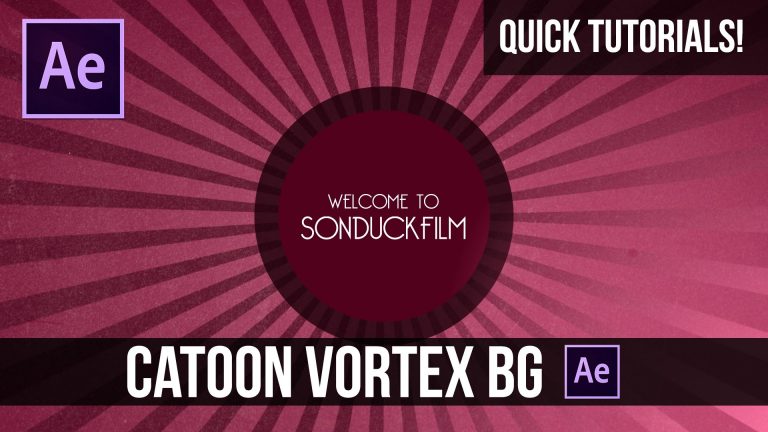
Quick Tutorials: Create a Cool Cartoon Vortex Background in After Effects

0

In this quick tutorial we will create a quick cartoon Vortex background in After Effects. Then we will add animation make make an intro!

Visit our website https://www.sonduckfilm.com for more tutorials, giveaways and film and photo gear!

Download Project Files Here:

Quick Tutorials: Create a Cool Cartoon Vortex Background

Previous Quick Tutorials:
Picture Slideshow Presentation: https://youtu.be/KQxLTgBZcYg
Custom Distortion: https://youtu.be/Ri51–HlLck

Social Media:
Drop a like on Facebook: https://www.facebook.com/sonduckfilm
Hit me up on Instagram: http://instagram.com/sonduckfilm
Connect with me on Linkedin: https://www.linkedin.com/in/joshnoel
Follow me on Twitter: https://twitter.com/SonduckFilm

Script:
Here we have a 1920×1080 Composition. Let’s start off by creating a new solid and calling it BG. With the solid selected, go to effect – generate – gradient ramp. Set the Ramp Shape to Radial Ramp and move the start color crosshair to the center of the Comp. Then change the two colors to create an interesting gradient. Then go to layer – new – shape layer – Click on the rectangle tool and draw out a vertical rectangle shape. Make sure the layer is selected and go to Composition – Pre-Compose. Move all Attributes into new comp. Open up the shape layer comp and go to Composition and click on composition settings. Make the comp double the size of your main comp. Then Open up the contents of the share layer and delete or turn off the stroke. Then click on add and click repeater. Expand the repeater and set the number of copies to fill the screen. Then go to the transform properties and move the rectangles over to the left edge of your comp. Expand the copies of the repeater just enough to fill the entire comp. Make sure your shape layer is selected and go to effect – Distort – Polar coordinates. Set the Type of conversion to Rect to Polar and set the value to 100%

Back in the main comp, copy the gradient Ramp of the BG and paste it on the shape layer. Set the background gradient to be a little darker. Let’s drag in a texture and set it to screen and lower the opacity. Set the shape layer comp to Alpha Inverted Matte and turn the texture back on.

Let’s create some animation. Go back into the shape layer comp and click the stop watch. Set the number of copies to zero and move forward in time. Create enough copies to fill the circle. Set the keyframe to be an easy ease keyframe.

Back in the main comp, go to the shape layer hit R on your keyboard to bring up rotation. Keyframe the rotation to animate.
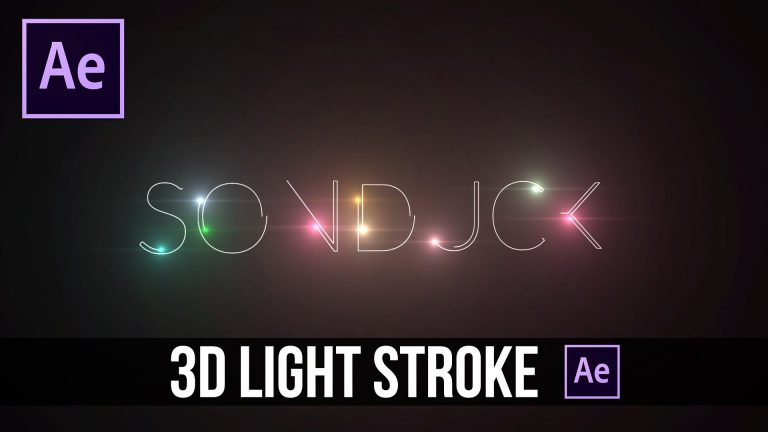
After Effects Tutorial: 3D Light Text Stroke Effect

0

In this After Effects tutorial, convert your text into a stroke and animate it with a light. We will also be talking about turning this into a 3D scene.

Visit our website https://www.sonduckfilm.com for more tutorials, giveaways and film and photo gear!

Social Media:
Drop a like on Facebook: https://www.facebook.com/sonduckfilm
Hit me up on Instagram: http://instagram.com/sonduckfilm
Connect with me on Linkedin: https://www.linkedin.com/in/joshnoel
Follow me on Twitter: https://twitter.com/SonduckFilm

Suggested After Effects Tutorials:
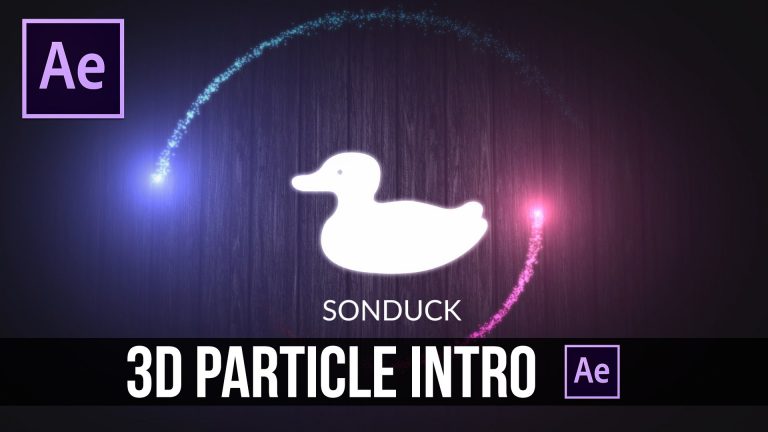
3D Particle Intro: https://youtu.be/jt0o5ca1sFE
Design Beautiful Motion Titles: https://youtu.be/RpW8zn-AFO0
Star Trek Cinematic Titles: https://youtu.be/bB81o49zesY
Top 10 Plugins: https://youtu.be/PtVgo-WaXEE
Particle Logo Animation: https://youtu.be/yCRm_50vAJA

After Effects Tutorial: Millions of Particles with Audio Reaction – Trapcode Particular

0

In this Adobe After Effects tutorial, we will use Trapcode Particular to create millions of particles that react to audio. Focusing on creating a particle stream, learn how to control the particles and animate them in any way that you want!

Visit our website https://www.sonduckfilm.com for more tutorials, giveaways and film and photo gear!

Social Media:
Drop a like on Facebook: https://www.facebook.com/sonduckfilm
Hit me up on Instagram: http://instagram.com/sonduckfilm
Connect with me on Linkedin: https://www.linkedin.com/in/joshnoel
Follow me on Twitter: https://twitter.com/SonduckFilm

Suggested After Effects Tutorials:
3D Particle Intro: https://youtu.be/jt0o5ca1sFE
3D Light Text Stroke Effect: https://youtu.be/r4hYFOcRwoY
Design Beautiful Motion Titles: https://youtu.be/RpW8zn-AFO0
Star Trek Cinematic Titles: https://youtu.be/bB81o49zesY
RGB Splitting Glitch Effect: https://youtu.be/gV5vlD6Psv0

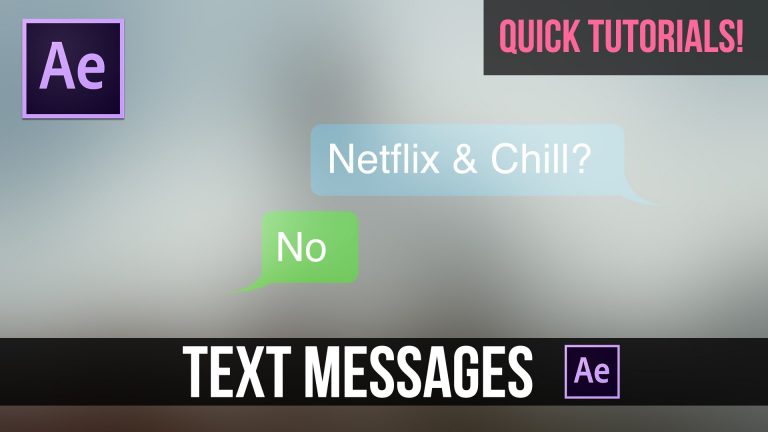
Quick Tutorials: Text Message Chat Animation in After Effects

0

In this After Effects Quick Tutorial, we will create a text message animation.

Visit our website https://www.sonduckfilm.com for more tutorials, giveaways and film and photo gear!

Download Project Files Here:

Quick Tutorials: Text Message Chat Animation in After Effects

Script: We already have a 1080p comp with a background. Create a new solid by going up to Layer – New Solid. Change the color to blue or any color of your choice. Select the rounded rectangle tool and draw out a box. Then create another solid with the same color. Select the pen tool and draw out a message tail. When you create the tip of the tail, drag in the right vertices and then finish the shape. Move the tail to wherever you like on the bottom of the rounded rectangle. Precompose both solid elements. Set the new comp layer to Softlight. Go to your text tool and type out your text. Then let’s go to the Effects & presets window and search for the typewriter preset. Add the preset to the text. Keep in mind this is optional. Move the anchor point of the text message background to the tail. Then animate the scale from 0% to 100%

Copy and paste the background elements of the text message and paste them into your comp. Go up to layer – Transform – Flip Horizontal. Move the tail back into position. Readjust your new elements and type your new text.

For the last step, Lets create a null object by going up to layer – Null Object. Parent the layers to the null and hit p on your keyboard for position. Animate the null to move up as the new text message appears. Now you have the basic elements to build a longer text message chat.

Social Media:
Drop a like on Facebook: https://www.facebook.com/sonduckfilm
Hit me up on Instagram: http://instagram.com/sonduckfilm
Connect with me on Linkedin: https://www.linkedin.com/in/joshnoel
Follow me on Twitter: https://twitter.com/SonduckFilm

Suggested After Effects Tutorials:
Design Beautiful Motion Titles: https://youtu.be/RpW8zn-AFO0
Stroke Lower Third: https://youtu.be/hyEATndKkYo
Best Free Fonts: https://youtu.be/OtyibmNGDGM
Audio React Anything: https://youtu.be/k6xZUlhlZxs
Quick Tutorial Custom Distortion: https://youtu.be/Ri51–HlLck
3D Light Text Stroke Effect: https://youtu.be/r4hYFOcRwoY

After Effects Tutorial: Particle Reveal on Path for Text & Logos (NO PLUGINS)

0

In this After Effects Tutorial, we will be creating a particle reveal along a path for text and logos. No plugins are required for this tutorial. We will be using Optical Flares, but I will show you how to use the built lens flare effect as well. The main effect used is CC Particle World.

Expressions Used:
target = thisComp.layer(“Null 1”); // this would be your layer to track
(target.position[0]-(thisComp.width/2))/thisComp.width

target = thisComp.layer(“Null 1”); // this would be your layer to track
(target.position[1]-(thisComp.height/2))/thisComp.width

target = thisComp.layer(“Null 1”); // this would be your layer to track
target.position[2]/thisComp.width

Visit our website https://www.sonduckfilm.com for more tutorials, giveaways and film and photo gear!

Download Project Files Here:

After Effects: Particle Reveal on Path for Text & Logos

Social Media:
Drop a like on Facebook: https://www.facebook.com/sonduckfilm
Hit me up on Instagram: http://instagram.com/sonduckfilm
Connect with me on Linkedin: https://www.linkedin.com/in/joshnoel
Follow me on Twitter: https://twitter.com/SonduckFilm

Suggested After Effects Tutorials:
3D Particle Intro: https://youtu.be/jt0o5ca1sFE
3D Light Text Stroke Effect: https://youtu.be/r4hYFOcRwoY
Corporate Logo Intro: https://youtu.be/gxSy90VCHxI
Particle Logo Animation: https://youtu.be/yCRm_50vAJA
Design Beautiful Motion Titles: https://youtu.be/RpW8zn-AFO0
Quick Tutorial Custom Distortion: https://youtu.be/Ri51–HlLck

Flat Icon Design for Motion Graphics & Graphic Artists – Adobe Illustrator Tutorial

0

In this Adobe Illustrator tutorial, we will talk about designing flat icons and how to create any vector that you want. This tutorial is great for Graphic Designers and Motion Graphic Artist. This tutorial explores 2D Flat Design and 3D Flat design. Create vectors will fill shapes and from stroke paths.

Visit our website https://www.sonduckfilm.com for more tutorials, giveaways and film and photo gear!

Download Project Files Here:

Adobe Illustrator: Flat Icon Design

Social Media:
Drop a like on Facebook: https://www.facebook.com/sonduckfilm
Hit me up on Instagram: http://instagram.com/sonduckfilm
Connect with me on Linkedin: https://www.linkedin.com/in/joshnoel
Follow me on Twitter: https://twitter.com/SonduckFilm

Suggested Tutorials:
Illustrator Vector City: https://youtu.be/8gKx4-1ZJSg
Best Free Fonts: https://youtu.be/OtyibmNGDGM
Photoshop Actions & Light Leaks: https://youtu.be/XUf8zt4PEfU
Design Beautiful Motion Titles: https://youtu.be/RpW8zn-AFO0
Design a Two Page Spread: https://youtu.be/aOZCY12o1pc
How to Design a Magazine in Indesign: https://youtu.be/qF8DjE0KlPk
Easy 2D Animation: https://youtu.be/X3i3MtdmoEI