Home Blog Page 490

Behind the Scenes: Fashion & Dogs

0

A look Inside Our Canine Inspired Fashion Shoot:

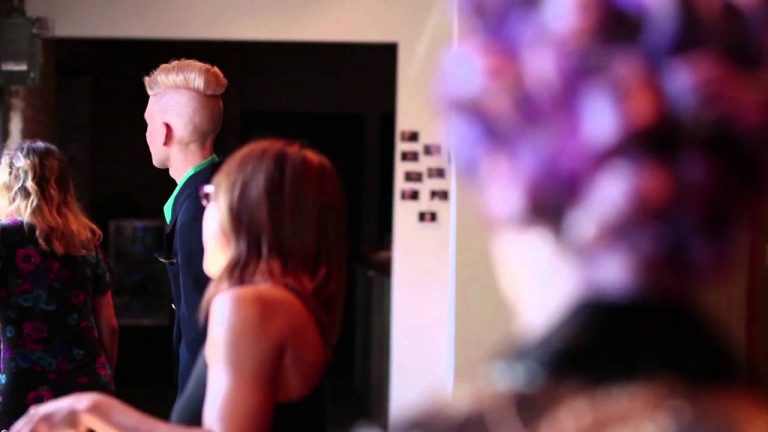
A salon recently contacted us with a great concept for a series of images. The salon owner wanted to enter her team of stylist in a hair styling competition and had the great idea to theme the styles off various breeds of dogs. And we that concept was just too cool to pass up.

We wanted to show off our models and fury friends in extravagant locations. We had originally planned to shoot the series at different locations across Chicago, but after thinking about it we decided it was best to shoot in studio and composite the subjects into their backgrounds. Not only was it logistically easier, it also allowed us to “travel the globe” for our background images.

Website: http://phlearn.com/
Facebook: https://www.facebook.com/Phlearn
Twitter: https://twitter.com/aknacer
Google+: https://plus.google.com/105267656376269695918/posts

For more tutorials and how to videos check out our extensive Photoshop and photography video channel: http://www.youtube.com/user/PhlearnLLC
We cover everything from Photoshop tutorials, photography tutorials, how to videos and more!
Creating a Movie Poster in Photoshop: Riddick – Part 1

0

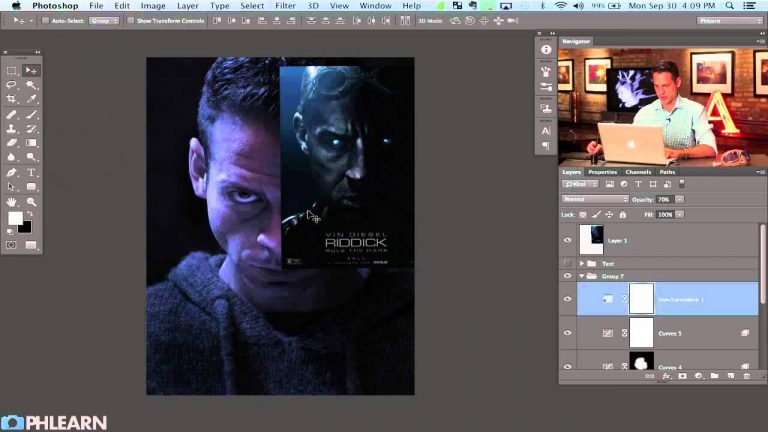
Movie posters are a wonderful place to look for inspiration when creating art. They are the culmination of countless creative people working together towards a common goal. A movie poster has to be so much more than a simple image. It must tell the story of the movie and pull people into the theaters.

In this episode we show you how to go from an image straight out of camera, into the dark image you see as the final. We cover how to color your images to strip everything down to one Hue. Then you will learn how to cover your subject in shadow, leaving only the necessary details.

Here are some of the tools we use:
Curves — Curves are the foundation of editing images in Photoshop.
Blend If — Blend-if allows you to restrict a layer to be visible only where highlights or shadows exist.
Hue & Saturation — Colorize your image to make more of an impact

Website: http://phlearn.com/
Facebook: https://www.facebook.com/Phlearn
Twitter: https://twitter.com/aknacer
Google+: https://plus.google.com/105267656376269695918/posts

For more tutorials and how to videos check out our extensive Photoshop and photography video channel: http://www.youtube.com/user/PhlearnLLC
We cover everything from Photoshop tutorials, photography tutorials, how to videos and more!
Creating a Movie Poster in Photoshop: Riddick – Part 2

0

Movie posters are a wonderful place to look for inspiration when creating art. They are the culmination of countless creative people working together towards a common goal. A movie poster has to be so much more than a simple image. It must tell the story of the movie and pull people into the theaters.

In today’s episode we pick up where we left off in creating a movie poster:

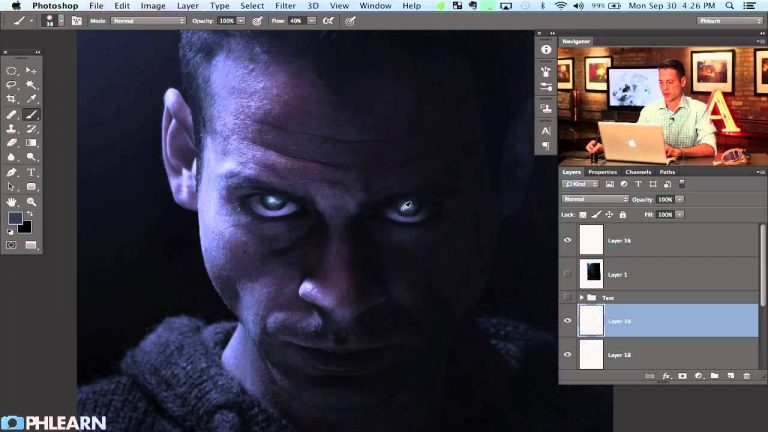
Riddick — Part 1. Having taken care of most of the coloring and shadow work in part one, now it is time to create the eyes that make this image stand out.

Creating the glowing eyes in this tutorial can be done simply with the brush tool and a layer mask. Learning how to paint these eyes will give you more practice in understanding light and shape.

Here are some of the tools we use:
Brush Tool — Allows you to “paint” on your image, any color you want!
Layer Mask — Layer masks dictate what part of a layer remains visible. Black makes things invisible, White makes things visible.

View all this particular episode details here:
http://bit.ly/19PG5Lk

Website: http://phlearn.com/
Facebook: https://www.facebook.com/Phlearn
Twitter: https://twitter.com/aknacer
Google+: https://plus.google.com/105267656376269695918/posts

For more tutorials and how to videos check out our extensive Photoshop and photography video channel: http://www.youtube.com/user/PhlearnLLC

We cover everything from Photoshop tutorials, photography tutorials, how to videos and more!
How to Add a Motion Blur in Photoshop

0

View this post at http://bit.ly/1eubrGu to see the before/after image and other great information

Taking An Image To The Next Level:
This started as an incredible image by Daniel. We noticed just a couple small improvements that could really help to give it the magazine feel. The hardest part is always capturing your vision in camera, and Daniel nailed that. We’re just going to add a touch of style and refinement.

Basic Retouching:
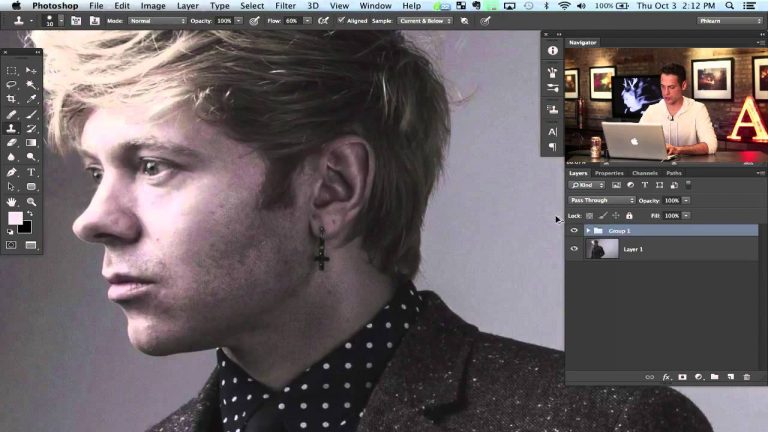
To start we did some simple retouching to the image. We used the liquify tool to help mold the hair and emphasize the styling. We also used the clone stamp tool and paint brush to clean up some of the hair around his eyes to give more definition to his face.

Adding Color to the Face:
We did some very basic clean up on the models skin. For male subjects we typically prefer to leave the skin a little rougher and textured, it just looks more natural. The face lacked color for our taste so we used some curves adjustment layers to add a touch of color back to his skin.

Adding Style:
The final part of our edit was to add a bit more interest to the image. We used a motion blur to add an element to the negative space and added some coloring to give it that magazine fashion feel.

For more tutorials and how to videos check out our extensive Photoshop and photography video channel: http://www.youtube.com/user/PhlearnLLC
We cover everything from Photoshop tutorials, photography tutorials, how to videos and more!
Phlearn Interviews: Jamie Bayer

0

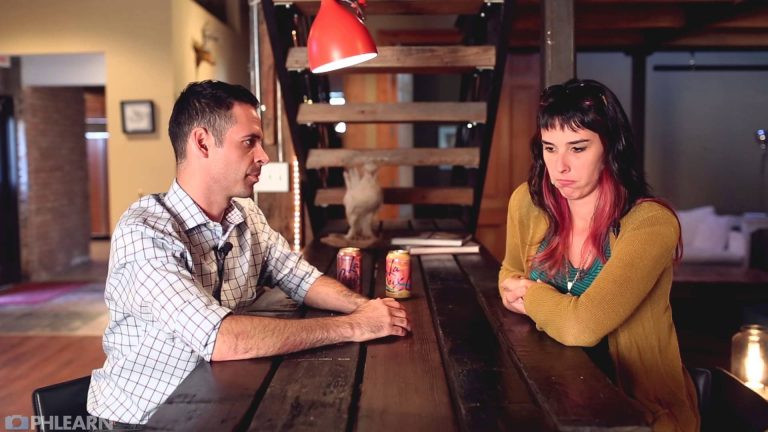
Jamie Bayer is Pure Awesomeness

Jamie is a professional Retoucher and Digital Technician based out of our lovely city of Chicago. On top of being uber talented she’s a fantastic person who fits right in with everything Phlearn stands for; hard working and caring, pushing ever harder while staying grounded.

More Information Here: http://bit.ly/16qkQPi

Facebook: https://www.facebook.com/Phlearn
Twitter: https://twitter.com/aknacer
Google+: https://plus.google.com/105267656376269695918/posts

For more tutorials and how to videos check out our extensive Photoshop and photography video channel: http://www.youtube.com/user/PhlearnLLC
We cover everything from Photoshop tutorials, photography tutorials, how to videos and more!
Using Curves for Color in Photoshop

0

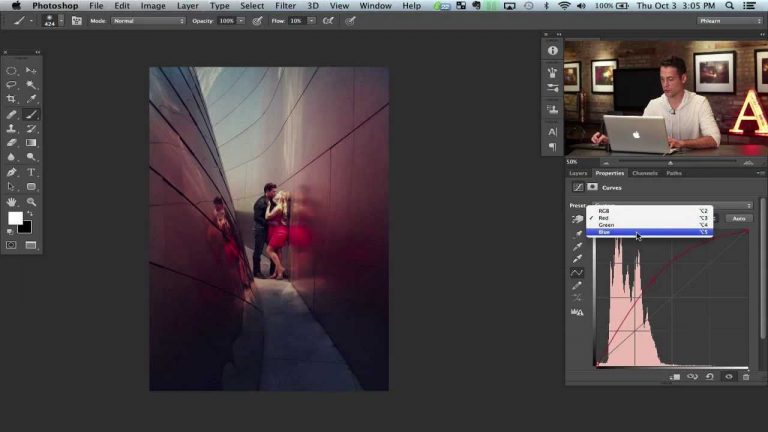
“Wanna” make your image pop with color? Curves are one of Photoshop’s most powerful tools. And color can be be an amazingly powerful element in an image. Using curves to enhance a photo’s color is an awesome way to add some pop. Yet that doesn’t mean it needs to be a complicated process. A couple curves adjustment layers with some quick hand painted layer masks is all it takes to add some incredible style to your images.

For more information on this episode select here: http://bit.ly/1gJqBw7

Website: http://phlearn.com/
Facebook: https://www.facebook.com/Phlearn
Twitter: https://twitter.com/aknacer
Google+: https://plus.google.com/105267656376269695918/posts

For more tutorials and how to videos check out our extensive Photoshop and photography video channel: http://www.youtube.com/user/PhlearnLLC. We cover everything from Photoshop tutorials, photography tutorials, how to videos and more!
Add Depth and Color to Any Image in Photoshop

0

For more information on this episode click here: http://bit.ly/1gWrfqe

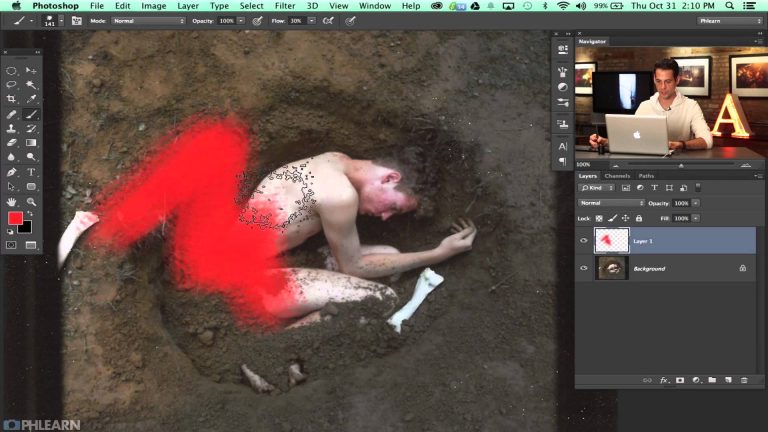
Today we are using an image from our latest Halloween contest to show you how to add color to enhance the overall feel of an image. We start off by cropping the image in a little giving more attention to the subject and getting rid of some negative space.

When creating special effects with makeup and costuming often there will be a subtle transition between skin and the makeup. In this image there was a small gap between the person’s face and the headpiece that covers their hair. We use a clone stamp to cover over this gap and make it look as though the transition is seamless. It only takes about a minute and can really help being an effect together.

Sharpening
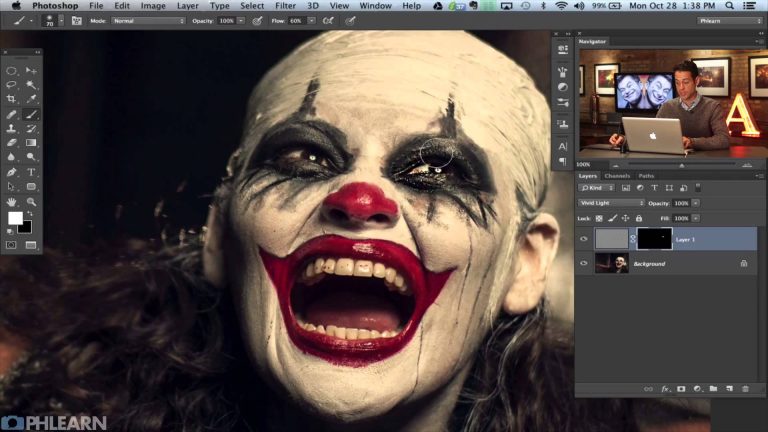
A great way to pull attention to a specific part of an image is through sharpening. To sharpen just one part of an image we use a stamp visible layer set to blending mode VIVID LIGHT and then apply a high pass filter to bring out the detail. Then we place a layer mask on the layer and invert it to make the entire layer invisible. Painting white over the eyes on the layer mask allows the layer to be visible in that are and bring the sharpening to the eyes. The resulting effect is a lot more attention being brought to the eyes.

Coloring
A couple minutes with curves adjustment layers can dramatically transform an image. In this case we add complimentary colors to an image that was relatively desaturated beforehand. Adding a bit of orange to the hair and foreground while adding blue to the background adds a bit of color depth and makes the image a bit more dynamic.

Website: http://phlearn.com/
Facebook: https://www.facebook.com/Phlearn
Twitter: https://twitter.com/aknacer
Google+: https://plus.google.com/105267656376269695918/posts

For more tutorials and how to videos check out our extensive Photoshop and photography video channel: http://www.youtube.com/user/PhlearnLLC
We cover everything from Photoshop tutorials, photography tutorials, how to videos and more!
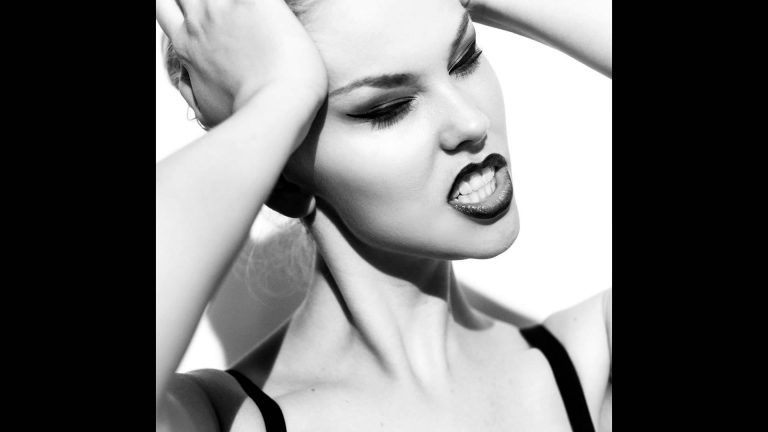
Combine Custom Brushes and Clone Stamp in Photoshop

0

Phlearn Accounts
Website: http://phlearn.com
Facebook: https://www.facebook.com/Phlearn
Twitter: https://twitter.com/phlearn
Google+: https://plus.google.com/u/0/116791098…
Instagram: https://instagram.com/phlearn

For more tutorials and how to videos check out our extensive Photoshop and photography video channel: http://www.youtube.com/user/PhlearnLLC
We cover everything from Photoshop tutorials, photography tutorials, how to videos and more!
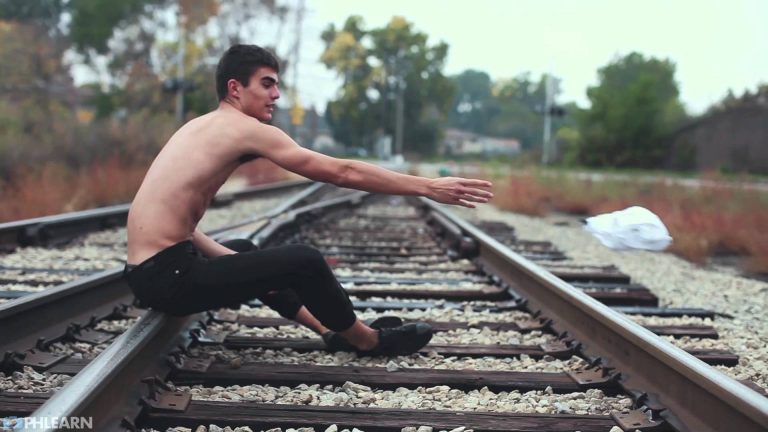
Phlearn Features: Grant Legan (Part 1 of 3)

0

Grant Legan: Photographer
Grant Legan is a Chicago based photographer who works very closely with modeling agencies, testing new models and filling out their portfolio’s with a variety of looks. The photos he takes of them are the photos that get the models their future jobs. The agencies give Grant a great amount of creative freedom, leaving styling and location decisions up to him. There is a fine balance Grant maintains to put his personal style on all his images, while also providing the portfolio pieces the agencies need to get work. And the agencies keep coming back to him so he must be doing something right.

Full Description Here:
http://bit.ly/HCHucs

Phlearn Accounts
Website: http://phlearn.com
Facebook: https://www.facebook.com/Phlearn
Twitter: https://twitter.com/phlearn
Google+: https://plus.google.com/u/0/116791098…
Instagram: https://instagram.com/phlearn

For more tutorials and how to videos check out our extensive Photoshop and photography video channel: http://www.youtube.com/user/PhlearnLLC
We cover everything from Photoshop tutorials, photography tutorials, how to videos and more!

Phlearn Features: Grant Legan (Part 2 of 3)

0

Phlearn Accounts
Website: http://phlearn.com
Facebook: https://www.facebook.com/Phlearn
Twitter: https://twitter.com/phlearn
Google+: https://plus.google.com/u/0/116791098…
Instagram: https://instagram.com/phlearn

For more tutorials and how to videos check out our extensive Photoshop and photography video channel: http://www.youtube.com/user/PhlearnLLC
We cover everything from Photoshop tutorials, photography tutorials, how to videos and more!