Home Blog Page 499

Creating Patterns On Clothing in Photoshop

0

You can turn anything into a pattern in Photoshop using the Define Pattern command. It will take what ever is visible on a canvas and turn it into a repeatable pattern stored on the computer.

It is a good idea to use a “seamless” or “repeatable” pattern here, making sure that when tiled the patterns will not break. In this episode we download a pattern and use it as a starting place.

You can create your own patterns in Photoshop but to save time we use a pre-made pattern from Christina Jewels. Download her pattern here. http://www.christinajewels.com/1/post/2012/11/free-seamless-vector-houndstooth-pattern.html

Creating and tiling a pattern is the first step to getting a pattern on someone’s clothing. Next you have to make the pattern look as though it actually follows the clothing lines. To do this we use the warp command and layer blending modes.

Soft Light blending mode will always do a good job blending in one layer into another. We set our blending mode to Soft Light and lower the opacity to see through to the original image.

After getting the pattern to blend in better we warp it to follow the general shape of the garment. The next step is taking care of each fold of the fabric.

In order to make the pattern look as though it really is applied on the skirt we have to take into account each fold and turn of the fabric. This can be a tricky process depending on what piece of clothing you are using but the principles are the same.

We use the Pen Tool to make selections of each fabric fold and then use the warp tool to contour the pattern to match the fabric. To make this process a bit easier we use the Hide (Cmd + H) Command to remove guides as we make the transformation.

Repeat this process for each fold and bend of the fabric and before you know it you will be done.

If you thought this episode was great our “Pro Tutorials” are about 10 times better, more in-depth detailed information, and are priced perfectly for the photographers and photoshoppers wanting to become the best. Of course we teach it the right way, you just have to get access to the lesson check out http://phlearn.com/pro-tutorials.

Make sure to subscribe to our Youtube channel for great videos, hangout with us on Google+, like us on Facebook, chat on Twitter, and capture moments on Instagram. All of our accounts have something fun to offer.

Phlearn Accounts
Website: http://phlearn.com
Youtube: https://www.youtube.com/channel/UC47XN5bhLTBH5TRFyKaUpKg
Facebook: https://www.facebook.com/Phlearn
Twitter: https://twitter.com/phlearn
Google+: https://plus.google.com/u/0/116791098…
Instagram: https://instagram.com/phlearn
The Beginners Guide to Compositing

0

Click HERE: http://phlearn.com/pro/beginners-guide-compositing
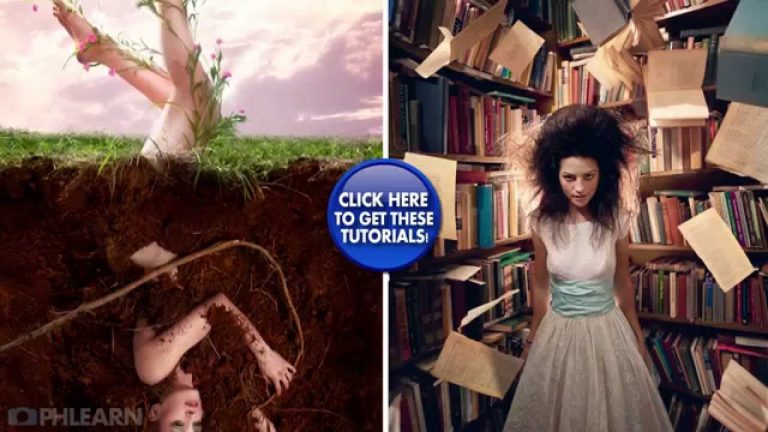
The Beginners Guide to Compositing is designed to make you familiar with the fundamentals of compositing and teach you the necessary techniques to compositing images together.

2 Complete Photoshop Tutorials

Over 4 hours of Photoshop instruction taking you from the beginning to the end on 2 separate composite images.

3d Lighting Diagram Video — lighting for each shot discussed as well as a 3d lighting diagram for Floating Books and Going Home

Source Images — We provide every photo necessary to complete the final images so you can work along side the tutorials

Pen Tool Video — Bonus video included explaining the Pen Tool and the best ways to use it in Photoshop

Compositing For Beginners Video — 30 Minute video explaining the most important elements in compositing including

Fundamentals of Compositing

Photographing for compositing

Where compositing is used

Why learning to composite is important

If you thought this episode was great our “Pro Tutorials” are about 10 times better, more in-depth detailed information, and are priced perfectly for the photographers and photoshoppers wanting to become the best. Of course we teach it the right way, you just have to get access to the lesson check out http://phlearn.com/pro-tutorials.

Make sure to subscribe to our Youtube channel for great videos, hangout with us on Google+, like us on Facebook, chat on Twitter, and capture moments on Instagram. All of our accounts have something fun to offer.

Phlearn Accounts
Website: http://phlearn.com
Youtube: https://www.youtube.com/channel/UC47XN5bhLTBH5TRFyKaUpKg
Facebook: https://www.facebook.com/Phlearn
Twitter: https://twitter.com/phlearn
Google+: https://plus.google.com/u/0/116791098…
Instagram: https://instagram.com/phlearn
How to Master the Motion Blur in Photoshop

0

The 3 Steps of Applying Motion Blur in Photoshop
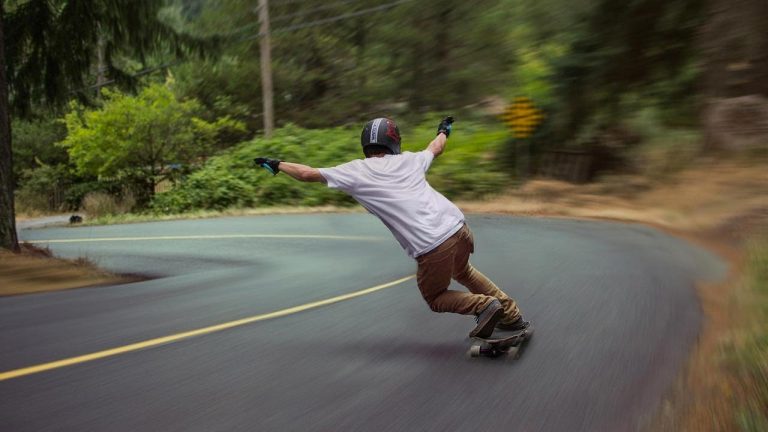
In order to apply motion blur to an image in Photoshop and make it look realistic there are 3 things you must keep in mind. In this episode we show you how to make a realistic motion blur using these techniques and give some insights on how to make motion blurs look real.

Step One: Cut Your Subject Out
The first step you will need to do when applying motion blur to an image is to cut out your subject. Most of the time you will want your subject to remain still while the rest of your image looks blurred.

The best way to cut out your subject is by using the Pen Tool. If you need help with this, check out some of our other episodes involving the use of the Pen Tool.
http://phlearn.com/tag/pen-tool

Step Two: Remove Your Subject From Background
It is important to remove your subject from the background before applying the blur because these blur filters effect the entire layer, including your subject. If you don’t remove your subject from the background first you will see a blurred “halo” around your subject in the final image.

In order for there to be a clean blur on the background and no haloing on your subject simply copy the background over top your subject. In this episode we use the Clone Stamp tool to cover the subject with the background. Now we have a cut out of our subject as well as a clean background.

Apply the Appropriate Blur
The last step is to apply a motion blur that is appropriate for your image. In many cases a simple “Motion Blur” will do the job.

If the blur needed for your photo is a bit more complex you will need to be a little more creative. In this episode we show you how to make a complex blur that changes with the direction of the photo.

If you thought this episode was great our “Pro Tutorials” are about 10 times better, more in-depth detailed information, and are priced perfectly for the photographers and photoshoppers wanting to become the best. Of course we teach it the right way, you just have to get access to the lesson check out http://phlearn.com/pro-tutorials.

Make sure to subscribe to our Youtube channel for great videos, hangout with us on Google+, like us on Facebook, chat on Twitter, and capture moments on Instagram. All of our accounts have something fun to offer.

Phlearn Accounts
Website: http://phlearn.com
Youtube: https://www.youtube.com/channel/UC47XN5bhLTBH5TRFyKaUpKg
Facebook: https://www.facebook.com/Phlearn
Twitter: https://twitter.com/phlearn
Google+: https://plus.google.com/u/0/116791098…
Instagram: https://instagram.com/phlearn
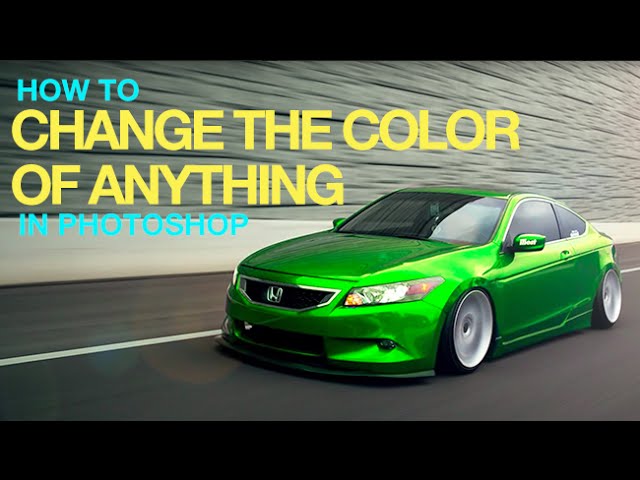
How to Change the Color of Anything in Photoshop

0

OUR #1 PRO TUTORIAL EVER IS NOW ON SALE! https://phlearn.com/product/photoshop-101-301

How to Change the Color of Anything in Photoshop

When changing the color of an object in Photoshop there are ways of changing both the base and highlight color of an object. We go
over each of these methods in this episode!

Base Color and Highlight Color

Today we will be changing the color of a car from blue to green. Cars have base colors and often times the highlights reflect a variation of that color. We use Hue/Saturation to target Blues and then adjust the hue slider until we have a color we like.

After choosing green as a base color we select out the highlights using Select Color Range and bring that selection into the Color Balance Adjustment layer. From here we show you how to adjust highlights, mid tones, and shadows separately.

Adding Style with Lens Flare

After we change the color of the car we couldn’t resist adding a nice lens flare to the image. The Lens Flare gets a bad rap but when used well it can be very nice. We show you how to get a lens flare on its own layer and make adjustments to it.

You will learn how you can layer mask a lens flare in Photoshop and even how to mask and blur it.

Using Color Balance to Style Your Image

To finish the image off we use a Color Balance adjustment layer. Color Balance will allow you to change the highlight, mid tone, and shadow colors separately. This ability makes Color Balance ideal when it comes to adding style to an image.

In this case we add more yellow and red into the highlights while at the same time adding blues and greens into the shadows. The effect is subtle enough but gives the image a bit more of an edge.

——————————————————————————————————-

VISIT PHLEARN.COM FOR MORE FREE TUTORIALS

Homepage

SUBSCRIBE NOW FOR MORE FREE TIPS AND TRICKS
http://www.youtube.com/subscription_center?add_user=phlearnllc

GET FREE TUTORIALS SENT TO YOUR EMAIL + DISCOUNTS ON OUR PRO TUTORIALS!
https://phlearn.com/mail

Use the same Tablet as Aaron: http://amzn.to/1Eykaoh

LET’S BE FRIENDS!
Instagram ► https://www.instagram.com/phlearn/
Facebook ► https://facebook.com/phlearn
Twitter ► https://twitter.com/phlearn
Google+ ► https://plus.google.com/116791098059215639405
Phlearn ► https://phlearn.com

Create an Amazing Cracked Skin Effect in Photoshop (Part 1)

0

Our #1 PRO Tutorial ever is now on Sale! https://phlearn.com/popular

Create an Amazing Cracked Skin Effect in Photoshop (Part 1)

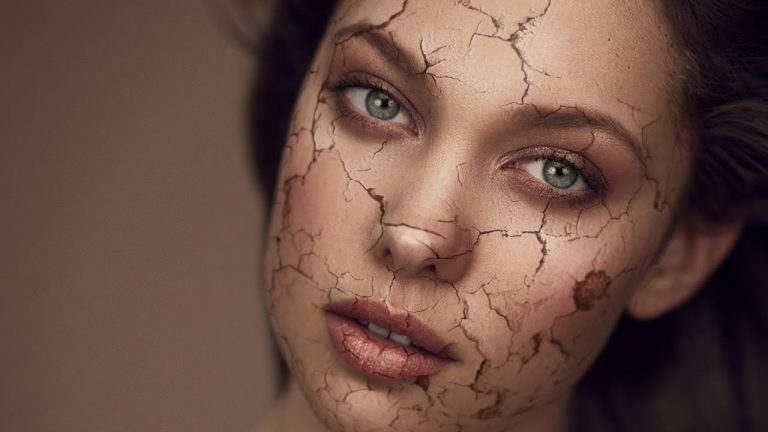
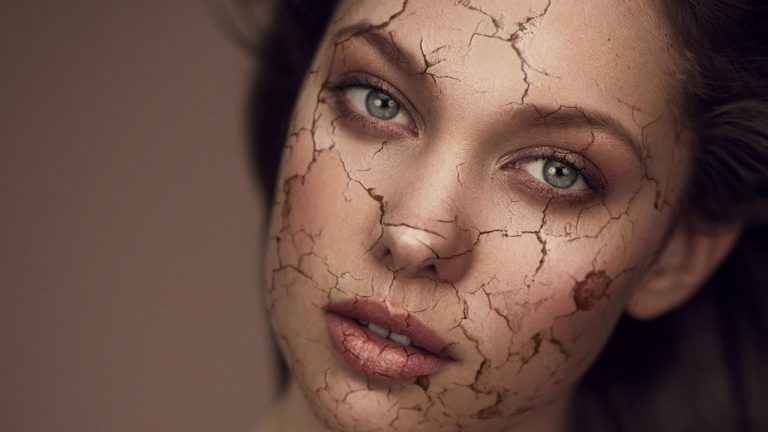
In this tutorial we show you how to create a really cool cracked skin effect in Photoshop. This is obviously not something you are going to do on every portrait you take but when you are looking for a creative outlet, adding texture to skin is a lot of fun. Our goal is to take a flat image and make it look like it wraps around the subject’s face and blend the images together to make the effect realistic. This part one of two episodes teaching how to make cracked skin in Photoshop.

How to Transform and Warp the Crack Texture

The first step is choosing the proper textures for the face. For an added challenge try taking the photos yourself, you would be amazed at how many textures you can photograph during an afternoon walk. For this tutorial we use an image by Liz West.

After choosing the best texture it is time to transform and warp it into place. Lower the opacity of your texture layer so you can see through to the original photo and hit CMD+T to start the transform. From here it is up to you to rotate and scale the texture so it fits the face. After getting the sizing and rotation correct hit CMD+T and right click on the layer and go down to Warp. This is where you want to do the majority of the wrapping around your subject’s face. Pull in the corners and adjust the handles to shape the texture around the face.

Use the Liquify Tool for Details and Wrapping

After transforming and warping the texture it is time to take care of the smaller details and the wrapping. The Liquify tool is prefect for doing just that. In this episode we show you how to use the liquify tool to push and pull the texture to wrap perfectly around the face, making sure to give the edges special attention, making the texture look as though it is wrapping around the face.

We also show you how to use the Freeze Mask tool to take care of tricky areas like eyes and the nose.

Layer Blend Modes

After the texture is in place and warped correctly we use blending modes to make it look as though it interacts with the skin. Using a Multiply blending mode will make the light areas of a texture invisible and the darker areas blend in, the perfect choice for cracks. After changing the layer blend mode we use a Hue/Saturation adjustment layer to color the texture similar to skin color.

Check out Part 2

Be sure to check out Part 2 of this episode where we show you how to make the cracks look 3 dimensional and add a blur effect the the cracks.

VISIT PHLEARN.COM FOR MORE FREE TUTORIALS

Homepage

SUBSCRIBE TO OUR CHANNEL FOR MORE FREE TIPS AND TRICKS
http://www.youtube.com/subscription_center?add_user=phlearnllc

GET FREE TUTORIALS IN YOUR EMAIL + DISCOUNTS ON OUR PRO TUTORIALS!
https://phlearn.com/mail

BUY THE TABLET AARON USES! https://phlearn.com/tablet

LET’S BE FRIENDS!
Instagram ► https://www.instagram.com/phlearn/
Facebook ► https://facebook.com/phlearn
Twitter ► https://twitter.com/phlearn
Google+ ► https://plus.google.com/116791098059215639405
Phlearn ► https://phlearn.com

Create an Amazing Cracked Skin Effect in Photoshop (Part 2)

0

Creating a Cracked Skin Effect
In this episode we finish adding a cracked skin effect to a photo, making it look more three-dimensional and adding blur. Be sure to check out Part 1 where you will learn how to wrap the texture around a subject’s face.

How to Give the Cracks Dimension
To apply the cracks in the first part of this tutorial we used the Multiply blend mode, making the darks interact with the photo and the lights invisible. Now we want to add highlights on the edges of the cracks to give them more dimension. We do this by duplicating the original crack layer, inverting and desaturating it, and changing the blend mode to Screen. Now we have have white cracks on a transparent background. Next we use Blend If to make this layer invisible where the underlying layer is darker, removing it from the cracks. This section of the tutorial is pretty complex but will make a huge difference in the final effect. Next step is to move this layer so it matches the lighting on the original photo.

Create a Peeling Effect on the Cracks
Next step is to make the skin look like it is peeling up in some places just as paint would. To do this we use a soft edged brush, painting white on a Soft Light layer. Painting around the cracks and the using the lasso tool to remove the highlights from unwanted areas makes the skin look as thought it is peeling up. After creating the highlights we do the same thing with the shadows, painting black on a soft light layer. In this tutorial we cover a small part of the image because of time restrictions.

Add a Blur to Blend into the Image
The original image was photographed using a shallow depth of field meaning that some of the face is in focus and some of the face is out of focus. To complete our cracked skin effect we have to duplicate this gradual blur. To match the blur we use the Blur Tool on a new layer. Be sure to check the option “Sample All Layers” and set your strength to about 50%. This will allow you to add the blur on a new blank layer, not effecting the layers underneath.

———————————————————————————————–

Thanks for watching our free Phlearn Tutorials! If you enjoyed this video be sure to subscribe to our channel to receive free weekly videos.

Subscribe: http://goo.gl/LBIEQU

For more advanced Photoshop Tutorials be sure to check out our Phlearn PRO Tutorials. We offer the best Photoshop tutorials available online starting at just $14.99.
http://phlearn.com/pro-tutorials

———————————————————————————————–

Website: http://phlearn.com
Facebook: https://www.facebook.com/Phlearn
Google+: https://plus.google.com/u/0/116791098…

How to Make Beer Look Amazing in Photoshop (Part 1)

0

How to Make Beer Look Amazing in Photoshop
Product photography can be very difficult to master. Every highlight, shadow, and reflection show up in perfect detail and can make or break an image.

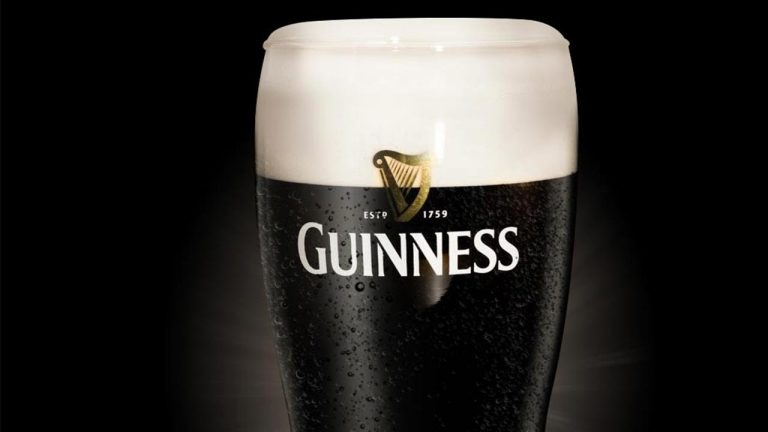
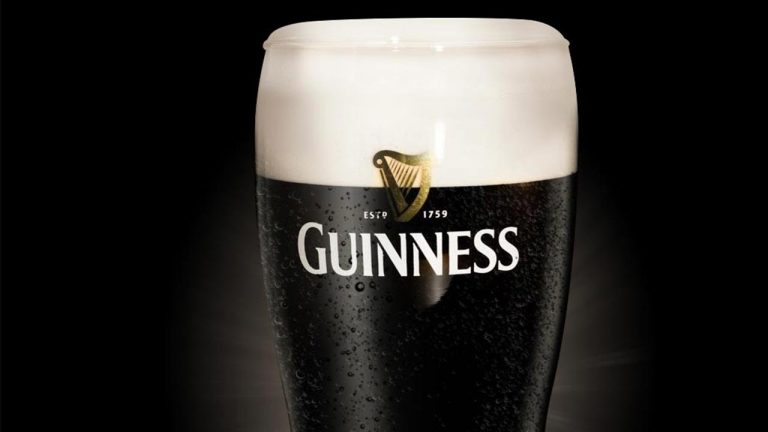
In this two part series we show you how to take a normal photo of a Guiness and make it really stand out. You will learn how to cut the beer out from the background, how to create highlights on the glass, how to give the beer a proper “head”. In part two you will learn how to create bubbles and precipitation on the glass, create a reflection of the glass and add a nice glow to the background.

Cut Out the Beer from the Background
The first step in creating this amazing image is to cut the beer glass out from the background. The first reason why we need to cut the beer out of the background is that we will wind up replacing the background and need clean lines to do so.

By cutting the beer glass out we also make creating the highlights on the glass much easier. We also use the “cut out” process to define the head of the pour.

To cut the glass out of the background we use the Pen Tool combined with an awesome technique that only requires creating a path over half of the glass and then duplicating the selection over the other half. This technique requires less work and is guaranteed to be symmetrical.

Creating Highlights on the Glass
After cutting out the beer glass we use the sections from the edges to create the highlights. Highlights on glass will follow the contour of the original glass.

Once the selections have been made we fill them with a light color, change the layer blend mode to “Screen”, clip the selections to the beer layer and blur each highlight.

Creating the Head
The last thing we cover in this episode is creating the “head” of the beer pour. The head on a Guiness pour is a detail that can’t be missed if you want to properly represent the brand. We use the original pen path we made to cut out the beer and fill it in with a color we borrow from the rest of the head.

At this point there is no definition in the head and we lose all detail from the glass. We take care of this by duplicating the glass over top of the head and changing the blend modes until the highlights and shadows show through. This is a vital step in making the end image look real.

Join Us for Part 2
Join us for part two of this episode where we cover how to add bubbles and condensation to the glass, create a reflection of the glass, and create a background glow to help define the bottle.

———————————————————————————————–

Thanks for watching our free Phlearn Tutorials! If you enjoyed this video be sure to subscribe to our channel to receive free weekly videos.

Subscribe: http://goo.gl/LBIEQU

For more advanced Photoshop Tutorials be sure to check out our Phlearn PRO Tutorials. We offer the best Photoshop tutorials available online starting at just $14.99.
http://phlearn.com/pro-tutorials

———————————————————————————————–

Website: http://phlearn.com
Facebook: https://www.facebook.com/Phlearn
Google+: https://plus.google.com/u/0/116791098…

How to Make Beer Look Amazing in Photoshop (Part 2)

0

How to Make Beer Look Amazing in Photoshop
Product photography can be very difficult to master. Every highlight, shadow, and reflection show up in perfect detail and can make or break an image.

In this two part series we show you how to take a normal photo of a Guiness and make it really stand out. You will learn how to cut the beer out from the background, how to create highlights on the glass, how to give the beer a proper “head”. In part two you will learn how to create bubbles and precipitation on the glass, create a reflection of the glass and add a nice glow to the background.

Creating Bubbles and Precipitation
After creating the reflections on the glass of beer it is time to add some bubbles and precipitation to make it look more realistic. The trick here is to use the opposite color from what appears on the glass.

To Achieve the precipitation effect we create two custom brushes. The first custom brush is a detailed “bubble” and is used to paint over top of the highlights. The second custom brush is just the outline of a “bubble” and is used to paint detail over the dark areas of the image. These details are obviously not photo real but will work if you don’t have anything to start with on your image.

Creating the Reflection
After finishing the glass it is time to create it’s reflection. To do this we group all of the layers necessary to create the glass and then duplicate the group. Next we merge the group with itself and transform it, flipping vertical. Then we place it under the original beer glass, lower it down, lower the opacity and add a layer mask to allow it to fade out of the image.

Adding a Glow
To finish the image off we add a subtle glow behind the Guiness. This gives us some nice separation between the glass and the background as well as calls some of the color from the Guiness itself.

Watch Part One
This episode is the second part of a two part tutorial. Be sure to check out part one here.

———————————————————————————————–

Thanks for watching our free Phlearn Tutorials! If you enjoyed this video be sure to subscribe to our channel to receive free weekly videos.

Subscribe: http://goo.gl/LBIEQU

For more advanced Photoshop Tutorials be sure to check out our Phlearn PRO Tutorials. We offer the best Photoshop tutorials available online starting at just $14.99.
http://phlearn.com/pro-tutorials

———————————————————————————————–

Website: http://phlearn.com
Facebook: https://www.facebook.com/Phlearn
Google+: https://plus.google.com/u/0/116791098…

How to Master the Clone Stamp Tool in Photoshop

0

Our #1 PRO Tutorial ever is now on Sale! https://phlearn.com/popular

#phlearnmethod – Photoshop Made Simple.
Download Your Free 5 Pack Today – http://bit.ly/1GfvyEq

The Importance of the Clone Stamp Tool
The Clone Stamp Tool is one of the most important tools that Photoshop has to offer. It allows you to copy areas of an image and i very useful for getting rid of distractions or skin blemishes.

In this episode we focus on getting the most out of the Clone Stamp Tool. You will learn how to navigate the settings and preferences for the tool. We also show you how we use the tool through several examples.

Using the Clone Source Dialog
The Clone Source Dialog is available by going to ‘Window – Clone Source’. Here you will see options for Clone Source, Transformation options, as well as overlay options. We go through each of these options and show you how we set up our Clone Stamp tool.

Photoshop has the “Show Overlay” option checked by default however we prefer to keep it unchecked. The overlay can get in the way and is always available by hitting OPTN + SHIFT.

Adjusting Clone Stamp Selections
After using the Clone Stamp Tool to cover the lapel microphone there are still some adjustments that need to be made. It is best to use the Clone Stamp tool on new layers so you can transform the selection afterwards. To do this hit CMD + T then right click on the layer. You will be able to rotate, skew, transform and warp the selection so it fits with the image better.

After getting the Clone Stamp selection in place we use a great technique to blend exposures. Some areas of this layer need to be lighter and some need to be darker and we accomplish this using a combination of a brush tool set to blending mode “Soft Light” and the “Lock Transparency” Option in the layer dialog; This will allow you to only paint over non-transparent pixels.

We then paint black and white over the layer to brighten or darken it accordingly.

Use Clone Stamp with Different Brushes
Many people think that you are limited to a soft round brush when it comes to the Clone Stamp tool. The Clone Stamp tool can use any custom brush the regular Brush Tool can use. Try adjusting your brush shape or creating your own custom brush to best complete your project.

VISIT PHLEARN.COM FOR MORE FREE TUTORIALS

Homepage

SUBSCRIBE TO OUR CHANNEL FOR MORE FREE TIPS AND TRICKS
http://www.youtube.com/subscription_center?add_user=phlearnllc

GET FREE TUTORIALS IN YOUR EMAIL + DISCOUNTS ON OUR PRO TUTORIALS!
https://phlearn.com/mail

BUY THE TABLET AARON USES! https://phlearn.com/tablet

LET’S BE FRIENDS!
Instagram ► https://www.instagram.com/phlearn/
Facebook ► https://facebook.com/phlearn
Twitter ► https://twitter.com/phlearn
Google+ ► https://plus.google.com/116791098059215639405
Phlearn ► https://phlearn.com

———————————————————————————————–
To see more from DeepEnd Imagery, click here: http://www.deependimagery.com/

How to Create Freckles in Photoshop

0

Creating a Custom Brush in Photoshop
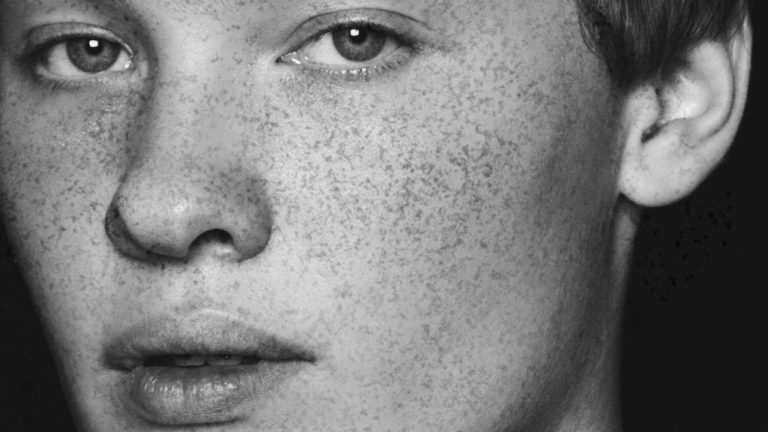
In order to make freckles look real when applied in Photoshop we have to start with a texture that is organic and random. In this episode we choose to use a photo of granite as our base for creating freckles.

After choosing the best image we start to extract the “freckles”. To start we select the color range of the details we want to become the granite. After making a good selection we create a new layer and fill it with black. Then we create a new layer and fill it with white and place it under the black freckle layer. This will give us black freckles on a white background.

Next it is important to paint white on the edges of your document so that the brush pattern will not look like a rectangle with visible edges. If the edges are visible you will lose the illusion that this is a natural and random pattern.

Next we resize the document down to 600PX in width and create the brush template by going to Edit Define Brush Preset…

This gives you the shape of your brush but you will still need to alter some brush settings to make it perfect. For this brush we alter Shape Dynamics as well as Spacing.

Download the Phlearn Freckle Brush
Click here to download the custom brush we created in this episode. Brush is compatible with Photoshop CC and newer.

Applying the Freckles onto a Face
After creating your custom brush (which will only have to be done once) you are ready to start creating freckles. Choose a dark color and start to paint with your freckle brush on a new layer. Be sure to size the brush appropriately to your subject. The closer the subject is to the camera, the larger the brush will need to be.

It is best to create these effects in a a few different layers. Each layer will give a bit more depth and make the freckles look truly organic.

In this episode we show you how to paint the freckles over skin and then use a layer mask the fade the freckles away from areas they are not needed.

Completing the Effect
To finish off our freckle effect in Photoshop we group all of the freckle layer and place a layer mask on that group. We then paint black over areas like the eyes and mouth, making sure no freckles are visible.

Now it is time for you to try! Create your own freckle brush or download the Phlearn Freckle Brush.

———————————————————————————————–

Thanks for watching our free Phlearn Tutorials! If you enjoyed this video be sure to subscribe to our channel to receive free weekly videos.

Subscribe: http://goo.gl/LBIEQU

For more advanced Photoshop Tutorials be sure to check out our Phlearn PRO Tutorials. We offer the best Photoshop tutorials available online starting at just $14.99.
http://phlearn.com/pro-tutorials

———————————————————————————————–

Website: http://phlearn.com
Facebook: https://www.facebook.com/Phlearn
Google+: https://plus.google.com/u/0/116791098…