Home Blog Page 500

The Ultimate Guide to Workflow in Lightroom and Photoshop

0

#phlearnmethod – Photoshop Made Simple.
Download Your Free 5 Pack Today – http://bit.ly/1GfvyEq

The Ultimate Guide to Workflow in Lightroom and Photoshop

Importing Images Into Lightroom
The first step in your workflow will be getting your images from your memory card onto your computer. We prefer to use Lightroom for importing as well as file naming and structure.

We choose to have Lightroom organize everything by date and convert to DNG when importing RAW files. DNG files take up less space on your hard drive and allow cleaner long term storage.

File Structure and Naming
After importing your files onto your computer or portable hard drive (we use a Promise Pegasus R4), it is time to get everything organized. We change the name of the main folder to include the theme from the photo shoot. In this example our folder is named “2014-05-27 Bahamas Shoot”.

After naming your main folder it is time to bring each of the images from the shoot together and create sub-folders for organization. We create 4 different subfolders titled “Capture”, “Master”, Selects”, and “Output”.

The Capture folder is where all of the RAW images from the shoot are placed. When you complete a complex shoot it is often a good idea to create subfolders in the Capture folder that describe different parts of the shoot. In this example we use both “Landscapes” and “Portraits”

The Selects folder is where your selects will go, usually exported as TIFs. This will help you to organize and quickly identify the best images from the shoot as well as get them in a file format ready for editing in Photoshop.

The Master folder is where your layered PSD or TIF files will go. Anytime you need to go back and make edits to the file you will be accessing images from this folder.

The Output folder is where images are placed after editing is complete. Images here are ready to be printed or uploaded to the web.

Editing Images in Lightroom and Photoshop
We use Lightroom for base editing techniques such as changing exposure, white balance, highlight and shadow levels and some base sharpening. After these changes are made to your selects it is time to export them to the Selects folder as TIFs.

In Photoshop we open those TIFs from the selects folder and make our final edits. These Master files are then saved into the Master folder. You can use layered TIFs (our preferred file format) or PSD files. Your Master files should contain layers and should be easily editable.

Exporting Images and Location
After completing your edits in Photoshop and Lightroom you are ready to get your files on the internet. We export from Lightroom using JPEG and Convert to sRGB options. These final JPEGs are saved to the Output folder and named appropriately.

Syncing Folders
By now you have created new folders and files within each of those folders. Right click on the original folder in Lightroom, in this example it is named “2014-05-27 Bahamas Shoot”. Click on “Synchronize Folder” and you will get a new import dialog, click “Synchronize”. Now you will see each of your folders populated with the files you created and everything should be in its proper place.

Now you have created a file structure that is robust and simple to access at any time. Years from now you will be able to go back to these folders and easily find what you are looking for.

Lightroom is linked to your operating system so when you create folders in Lightroom they will appear on your computer as well.

———————————————————————————————–

Thanks for watching our free Phlearn Tutorials! If you enjoyed this video be sure to subscribe to our channel to receive free weekly videos.

Subscribe: http://goo.gl/LBIEQU

For more advanced Photoshop Tutorials be sure to check out our Phlearn PRO Tutorials. We offer the best Photoshop tutorials available online starting at just $14.99.
http://phlearn.com/pro-tutorials

———————————————————————————————–

Website: http://phlearn.com
Facebook: https://www.facebook.com/Phlearn
Google+: https://plus.google.com/u/0/116791098…
How to Remove Anything from a Photo in Photoshop

0

Learn to Master Retouching Here: https://phlearn.com/rtremovetatoo

Our #1 PRO Tutorial ever is now on Sale! https://phlearn.com/popular

How to Remove Anything from a Photo in Photoshop

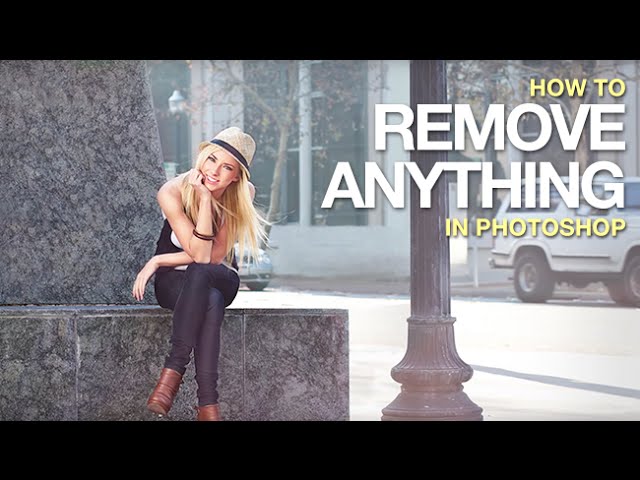
We have all taken photos that were close to perfect except for some object in the background. If given the chance it is always better to remove that object in person, it will take much less time than doing it in Photoshop and will look more natural. Sometimes however that is not an option; either you didn’t see it or were not able to move it.

That is where Photoshop comes in! In this episode we show you how to remove objects from your photos to make your subject stand out more.

Selections Are the Key to Removing Objects

Often times the objects you want to remove are behind other objects. In this episode we remove a trashcan and a street sign, both of which are behind a lamp post and a stone seat. In order to remove the objects from the background we have to make a selection that keeps the lamp post and stone seat from being affected.

To make this selection we use the Pen Tool. It is one of the more complicated tools to use in Photoshop but it is well worth learning because of how powerful it is.

If you want to learn more about compositing and using the Pen Tool be sure to check out our

Your Friend, the Clone Stamp Tool

After your selection is made it is time to use any tools available to build the background. If you are lucky there will be plenty of area to sample from that looks like the area you need to cover.

Start out using the Clone Stamp Tool, it will duplicate a sampled area and can do most of the job for you providing you have an area to sample.

Sometimes you will have to remove and object and that means creating something “behind” that object from scratch. This is where the brush tool comes in.

When All Else Fails, Use the Brush Tool

The brush tool is incredibly powerful and shouldn’t be overlooked when creating a new background. it may not have as much detail as the Clone Stamp Tool but you are not limited to sampling areas.

With the brush tool you can “paint” anything you can think of, including the background over top of an object you want to remove. This may sound really hard but using color samples from the surrounding image and a little creativity you would be amazed at what you can do.

In this example we completely remove a trash can from the image and paint the building and the sidewalk in behind it.

VISIT PHLEARN.COM FOR MORE FREE TUTORIALS

Homepage

SUBSCRIBE TO OUR CHANNEL FOR MORE FREE TIPS AND TRICKS
http://www.youtube.com/subscription_center?add_user=phlearnllc

GET FREE TUTORIALS IN YOUR EMAIL + DISCOUNTS ON OUR PRO TUTORIALS!
https://phlearn.com/mail

BUY THE TABLET AARON USES! https://phlearn.com/tablet

LET’S BE FRIENDS!
Instagram ► https://www.instagram.com/phlearn/
Facebook ► https://facebook.com/phlearn
Twitter ► https://twitter.com/phlearn
Google+ ► https://plus.google.com/116791098059215639405
Phlearn ► https://phlearn.com

The Amazing Power of Frequency Separation Retouching in Photoshop

0

Learn How to Become a Master Retoucher Here: https://phlearn.com/rtfreqyt

Download our free frequency separation action here: https://phlearn.com/amazing-power-frequency-separation-retouching-photoshop

What is Frequency Separation?

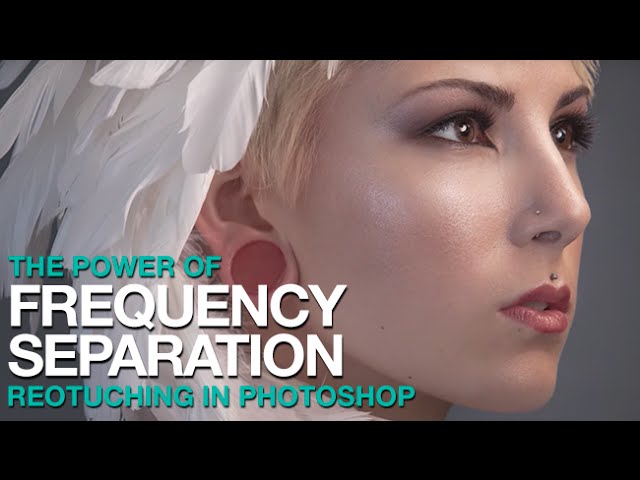
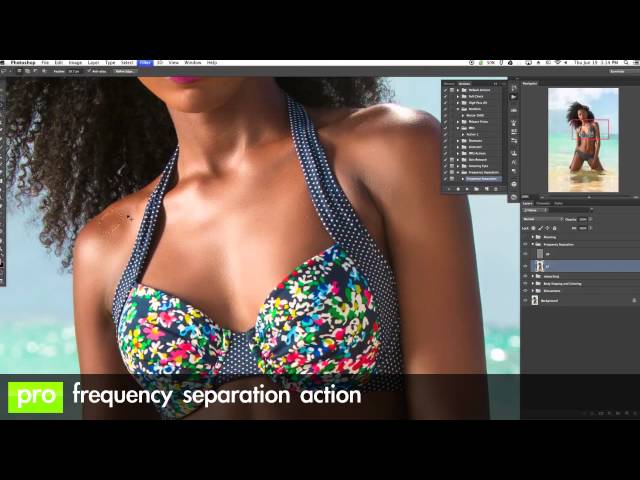
Frequency separation helps make retouching a portrait easier in Photoshop. Frequency separation works because it allows you to separate the texture of an image from the tone and color. When retouching you can focus on just the texture or the skin beneath it.

It sounds quite complex but in practice it is quite simple. If you want to work with texture, choose the high frequency layer, if you want to work with skin choose the low frequency layer.

Getting Started with Frequency Separation

To get your image set up for frequency separation you will have to make 2 copies of your background layer. If you are not starting from the beginning, add a Stamp Visible layer over all layers by typing CTRL+ALT+OPTN+E. One of these copies will be for your low frequency (skin) and one will be for your high frequency (texture).

First apply a Gaussian Blur to the lower (low frequency) layer. Choose a radius that blurs out the skin texture, but don’t go too far as to make the face unrecognizable.

Next choose your high frequency layer and go to Image, Apply Image. Here you will want to se the Layer: to the low frequency layer. For blending choose Subtract and for Scale:2, Offset:128. These will be your settings every time, no need to change them.

Now you should have one layer with a blur (low frequency) and a layer above it that looks mostly gray (high frequency). Select the high frequency layer and change the blending mode to “Linear Light”.

Your image should now look identical to the image before you started the process.

Correcting Underlying Color

To correct the underlying color (skin) choose an area with the lasso tool. I suggest feathering the selection to make it look more realistic. Use Q for Quick Mask as a quick way to see what your selection looks like. After you have made your selection choose the low frequency (blurred) layer and apply a Gaussian Blur in the selection. Choose a radius high enough to blend the tones together.

Repeat this process over different areas of the portrait to smooth the skin tones. Because the texture is on a different layer, it should stay in tact during this entire process.

Correcting Texture

If you need to correct texture, we recommend waiting until after you do the tone. Select the high frequency layer and choose the Clone Stamp Tool. In the Clone Stamp Tool settings be sure to hit Sample: Current Layer. This will make sure you are just using the texture and not sampling anything else. Then on your high frequency layer sample good skin texture using ALT and then paint over “bad” skin texture. This will work very well for stray hairs, acne, wrinkles and other small blemishes.

Free Frequency Separation Action

If you want to skip making your own frequency separation layers be sure to download our Frequency Separation Retouching Photoshop Action. It is designed for use in Photoshop CC.

VISIT PHLEARN.COM FOR MORE FREE TUTORIALS

Homepage

SUBSCRIBE TO OUR CHANNEL FOR MORE FREE TIPS AND TRICKS
http://www.youtube.com/subscription_center?add_user=phlearnllc

GET FREE TUTORIALS IN YOUR EMAIL + DISCOUNTS ON OUR PRO TUTORIALS!
https://phlearn.com/mail

BUY THE TABLET AARON USES! https://phlearn.com/tablet

LET’S BE FRIENDS!
Instagram ► https://www.instagram.com/phlearn/
Facebook ► https://facebook.com/phlearn
Twitter ► https://twitter.com/phlearn
Google+ ► https://plus.google.com/116791098059215639405
Phlearn ► https://phlearn.com

————————————————————————————————————
Download the Frequency Separation Brush here: https://phlearn.com/amazing-power-frequency-separation-retouching-photoshop

How to Remove Tan Lines and Sunburn in Photoshop!

0

Making Selections and Changing Skin Tones

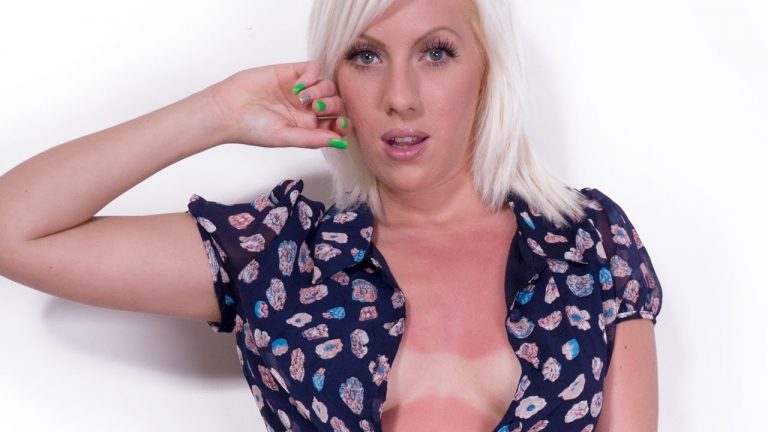
When you have a visible difference between two areas of skin the best way to bring them back together is to make a selection of one of the areas then alter it to look like the other.

Because the red skin is more saturated than the normal skin tone we use it to make a selection. Select, Color Range is a great tool for selecting an area of color like red skin. We adjust the Range so as not to select the entire image, just the “problem area”.

After turning the red skin into a selection we use a Hue/Saturation Adjustment Layer to change the values in the selection. When you create a new Adjustment Layer with a selection active the selection will automatically load into the layer mask of the Adjustment Layer, NICE!

We use “Colorize” in the Hue/Sat Adj Layer and change the sliders to match the red area to the lighter skin. Bring Saturation down and Lightness up.

Blending the Visible Tan Lines

After matching the two areas of skin it is time to take care of the transition area. Use the healing brush tool on a new layer and sample from the lighter area and heal over the transition line.

You will also need to take care of skin “blotches” that tend to happen with sun damage.

Creating a Tan in Photoshop

It looks like our subject wanted a nice warm tan. Instead of spending time in the sun we are going to give her one in Photoshop. We use Hue/Saturation and the Colorize function to bring the darkness down and adjust the hue to a warm color. Paint the layer mask white over the skin and you have an instant tan.

Dodging and Burning to Bring Back Detail

After we get the skin tones evened out it is time to bring more definition to her chest. We are using a simple method of dodging and burning to add dark under her breasts and light above them.

To do this create a new layer and change the blend mode to “Soft Light” and paint black and white to dodge and burn. To make the transitions more subtle use a low flow (around 10%) and buildup the effect.

———————————————————————————————–

Thanks for watching our free Phlearn Tutorials! If you enjoyed this video be sure to subscribe to our channel to receive free weekly videos.

Subscribe: http://goo.gl/LBIEQU

For more advanced Photoshop Tutorials be sure to check out our Phlearn PRO Tutorials. We offer the best Photoshop tutorials available online starting at just $14.99.
http://phlearn.com/pro-tutorials

———————————————————————————————–

Website: http://phlearn.com
Facebook: https://www.facebook.com/Phlearn
Google+: https://plus.google.com/u/0/116791098…
Swimwear Retouching PRO Tutorial!

0

Included in Your PRO Download

Source Image — We provide every photo necessary to complete the final images so you can work along side the tutorials

Frequency Separation Action — Included Frequency Separation action makes retouching simple.

Retouching Brush — Included retouching brush makes editing skin simple.

Complete Photoshop Tutorial — Over 1:40 hours of Photoshop instruction taking you from Lightroom to the final retouched image

Section 1 — Lightroom Tutorial (Adjusting exposure, light and color levels)

Section 2 — Intro and Planning (Creating a plan for the final retouch)

Section 3 — Removing Distractions (Cleaning up background and extending the frame)

Section 4 — Body Shaping and Coloring (Matching color from head to toe)

Section 5 — Full Body Retouching Including Frequency Separation (Separating texture from skin tone, dodge and burn, face retouching)

Section 6 — Rebuilding Hair and Final Coloring (Adding more hair and balancing composition, coloring and sharpening)

———————————————————————————————–

Thanks for watching our free Phlearn Tutorials! If you enjoyed this video be sure to subscribe to our channel to receive free weekly videos.

Subscribe: http://goo.gl/LBIEQU

For more advanced Photoshop Tutorials be sure to check out our Phlearn PRO Tutorials. We offer the best Photoshop tutorials available online starting at just $14.99.
http://phlearn.com/pro-tutorials

———————————————————————————————–

Website: http://phlearn.com
Facebook: https://www.facebook.com/Phlearn
Google+: https://plus.google.com/u/0/116791098…
The Amazing Power of Focus Area Selections in Photoshop CC 2014

0

Adobe Releases Photoshop CC 2014

Adobe just released updates to Photoshop CC free for all CC subscribers. The new update is simply given a date to help you identify the updated software. The updates, Photoshop CC 2014 is even more powerful and the new tools they added will help you work faster and more precisely in Photoshop.

In today’s episode we will show you how to use some of my favorite new tools – The Focus Area Select and the new Type Tools. We are also throwing in one of our old favorites – Content Aware Scale with Skin Tone Protection.

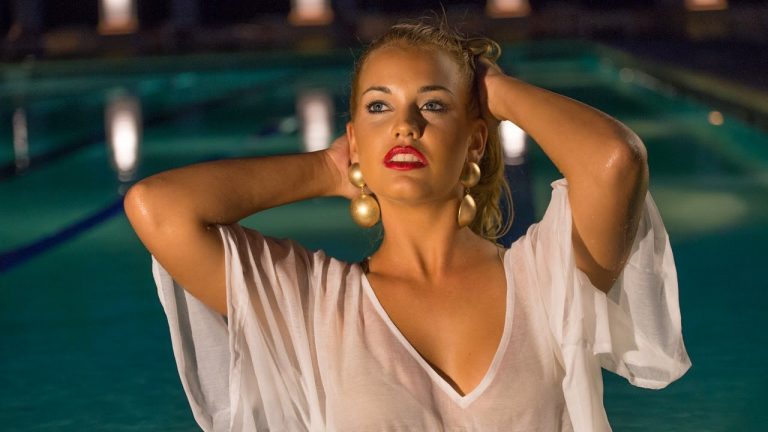
We will be combining these tools and techniques to create a quick mockup of a swimwear advertisement.

Focus Area Selections

Focus Area Selections are all new to Photoshop CC 2014 and the results are pretty impressive. Focus Area Select will figure out what is in focus based on how much detail is present in your image. From there you can choose to make selections out of the in focus area. The tool is equipped with Advanced Features that make it much more accurate and reliable.

Cutting your subject out of their background is easier than ever – as long as they are in focus and your background is not.

in this episode we show you how to use the new Focus Area Selections to cut out our subject from her background and add type behind her.

Enhanced Type Tool

The type tool in Photoshop CC 2014 has seen some updates as well. With the addition of TypeKit, Adobe gives you access to many new fonts as well as the ability to acquire more fonts (for a fee).

One of the big enhancements to the Type tool is instant font previews. Simple hover over fonts in the drop down list and your type will change to reflect the new font selections. This is incredibly useful if you are unsure of what font will look best over your image.

We have found that keeping your font size on the smaller end will help with your computer’s performance. For instance we noticed some lag with using large files and font sizes over 500pt. Not a big deal, just something to keep in mind.

Content Aware Scale

Content Aware Scale is not new to Photoshop CC 2014 but it is a hidden gem for those who don’t already know about it. Content Aware Scale will allow you to stretch your image while keeping detail in tact. This tools is perfect when you have a subject against an out of focus background.

In this episode we show you how to protect skin tones as you scale, keeping your subject from being scaled with the background.

Final Thoughts

Overall we are impressed with the new releases in Photoshop CC 2014. The added tools seem to be very useable and were not that predictable. Adobe is really doing a good job with their new CC platform and we can’t wait to see what they do in the future.

———————————————————————————————–

Thanks for watching our free Phlearn Tutorials! If you enjoyed this video be sure to subscribe to our channel to receive free weekly videos.

Subscribe: http://goo.gl/LBIEQU

For more advanced Photoshop Tutorials be sure to check out our Phlearn PRO Tutorials. We offer the best Photoshop tutorials available online starting at just $14.99.
http://phlearn.com/pro-tutorials

———————————————————————————————–

Website: http://phlearn.com
Facebook: https://www.facebook.com/Phlearn
Google+: https://plus.google.com/u/0/116791098…
How to Rock the New Blur Gallery in Photoshop CC 2014

0

New Blur Gallery in Photoshop CC 2014

Adobe just released updates to Photoshop CC free for all CC subscribers. The new update is simply given a date to help you identify the updated software. Photoshop CC 2014 is even more powerful and the new tools they added will help you work faster and more precisely in Photoshop.

In today’s episode we will show you how to use some of my favorite new tools in The Blur Gallery.

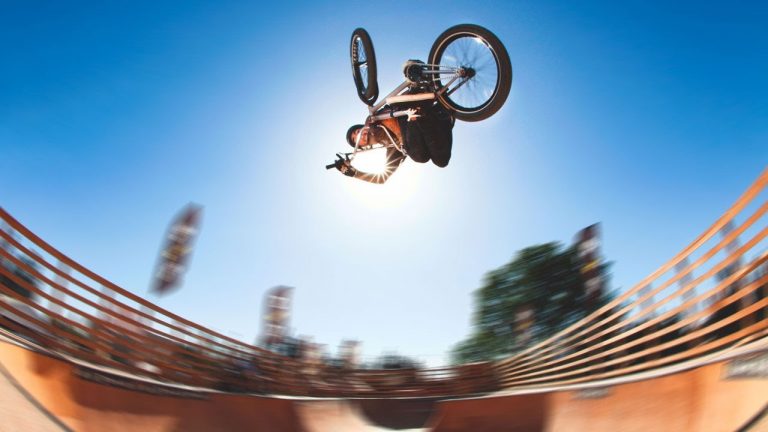
We will be using different blurs within the Blur Gallery to add style to a BMX photo.

Path Blur

For the first time ever you can blur along a curve in Photoshop. The Path Blur will allow you to create a simple or complex curve and it will automatically figure out the blur. This addition will help out automotive photographers who want to show motion blur around a turn. It will also give you more options for adding style to an image like the one in today’s episode.

Blur effects tend to work well for action images.

Spin Blur

The new Spin Blur in Photoshop CC 2014 is similar to the Radial Blur but allows a bit more control and produces a slightly different effect. You will not need to use the Spin Blur on every one of your photos but if you are shooting bikes, cars, or anything else with wheels this blur makes the process of adding blur much easier.

In this episode we show you how to add a Spin Blur to a bicycle wheel and make selections so as not to blur the bike frame.

Making Selections for Blur

Any selection you make on your image will be carried into the Blur Gallery tools. In this episode we start out by selecting our subject and then applying the inverse so the blur only effects the background.

Adding Style to Images with Blur

While these blurs will not always produce results that are true to “Straight Out of Camera”, they will allow you a lot of creative freedom.

———————————————————————————————–

Thanks for watching our free Phlearn Tutorials! If you enjoyed this video be sure to subscribe to our channel to receive free weekly videos.

Subscribe: http://goo.gl/LBIEQU

For more advanced Photoshop Tutorials be sure to check out our Phlearn PRO Tutorials. We offer the best Photoshop tutorials available online starting at just $14.99.
http://phlearn.com/pro-tutorials

———————————————————————————————–

Website: http://phlearn.com
Facebook: https://www.facebook.com/Phlearn
Google+: https://plus.google.com/u/0/116791098…

How to Change Hair Color in Photoshop

0

OUR #1 PRO TUTORIAL EVER IS NOW ON SALE! https://phlearn.com/product/photoshop-101-301

Changing Hair Color in Photoshop

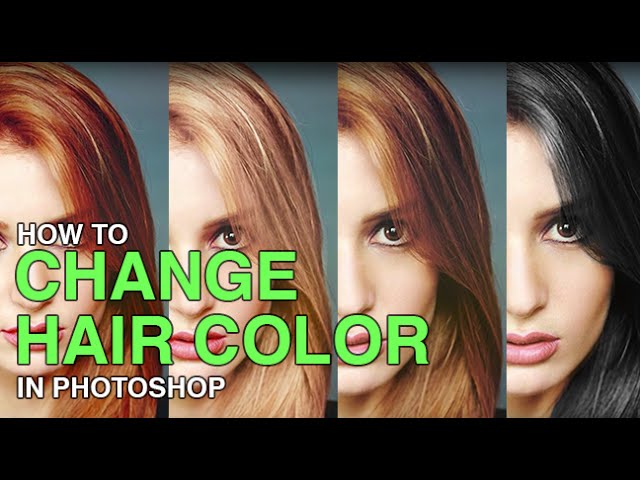
There are many reasons why you may want to change hair color in Photoshop. Perhaps your subject has recently dyed their hair and it doesn’t look natural. Perhaps you want to see what you would look like with dark hair.

Changing Hair color in Photoshop is much easier than doing it in real life and by the time this episode is over you will be on your way to color city!

Some Guidelines on Hair Color

It is much easier to make hair dark than light. If you are starting out with a blonde and want to make her a brunette, not too hard. Turning black hair into blonde hair is nearly impossible. The reason is that you have more information to start with in lighter colors. With black you will see very little detail, making it difficult to make lighter colors realistic.

Also be sure to not over-saturate hair color, there is a big difference between yellow and blonde.

Altering Hair Color in Photoshop

One of the best tools to use here is the “Selective Color” Adjustment Layer. You will be able to pinpoint a hair color (usually in the “red” range) and use the sliders to change the color. This adjustment layer is great because it will allow you to change hair color without going too drastic.

To make black hair use the Hue/Saturation Adjustment layer and bring the saturation close to zero. Then use a Curves Adjustment layer to make the hair darker. As is often the case when making something darker in Photoshop, you will need to take care of the highlights separately. In this example we paint with white over the hair and use “blend-if” to blend it into the lighter areas of hair creating more defined highlights.

VISIT PHLEARN.COM FOR MORE FREE TUTORIALS

Homepage

SUBSCRIBE NOW FOR MORE FREE TIPS AND TRICKS
http://www.youtube.com/subscription_center?add_user=phlearnllc

GET FREE TUTORIALS SENT TO YOUR EMAIL + DISCOUNTS ON OUR PRO TUTORIALS!
https://phlearn.com/mail

Use the same Tablet as Aaron: http://amzn.to/1Eykaoh

LET’S BE FRIENDS!
Instagram ► https://www.instagram.com/phlearn/
Facebook ► https://facebook.com/phlearn
Twitter ► https://twitter.com/phlearn
Google+ ► https://plus.google.com/116791098059215639405
Phlearn ► https://phlearn.com

How to Make a Pure White Background in Photoshop

0

Our #1 PRO Tutorial ever is now on Sale! https://phlearn.com/popular

How to Make a Pure White Background in Photoshop

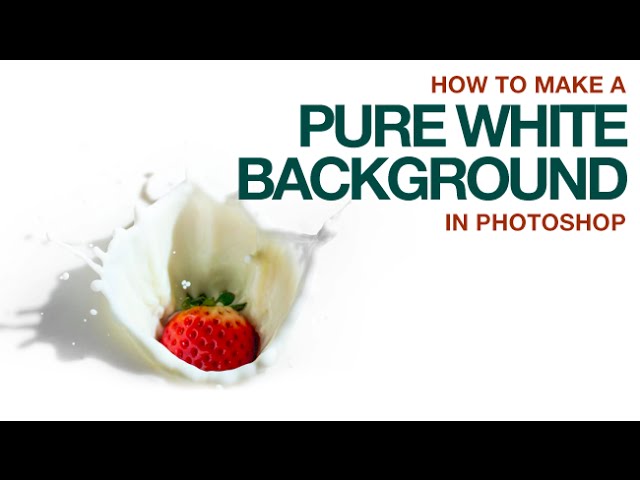
If you have ever photographed someone on a “white” backdrop only to find the white came out more of a gray you know why this episode is so important. An image with pure white edges will fade perfectly onto most websites but how do you get your whites to be “oh so white”?

In this episode we show you how to create that perfect white without losing too much detail in your images. As a bonus we also show you how to make pure black.

Testing White and Black with Threshold

The quickest way to test if you have pure white or black in your image is by using a Threshold Adjustment Layer. Create a new Threshold Adjustment Layer and bring the slider all the way to the right. If you see anything on your image, those areas are pure white. If you bring the slider all the way to the left, the areas with detail are pure black.

Paint White and Use Blend-If

Now that you know how to test if your image contains pure white or black it is time to make pure white. The easiest way to do this is with the brush tool. The edges of your image are the most important as they control how an image will look when uploaded online. Paint white over the areas of your image you would like to be lighter and use Blend-If to restrict this layer to the lighter areas of the image. This will make sure that you will keep shadow detail while making the lights lighter. Repeat this process over the image as needed.

View Your Image on White

To view your image on a pure white backdrop right click on the backdrop and go to “choose custom color”, select white and you are done. If you see a shadow or a border between your image and the background in Photoshop go to your Menu and select Photoshop – Preferences – Interface. In the Appearance section choose “None” as your border for all 3 views.

VISIT PHLEARN.COM FOR MORE FREE TUTORIALS

Homepage

SUBSCRIBE TO OUR CHANNEL FOR MORE FREE TIPS AND TRICKS
http://www.youtube.com/subscription_center?add_user=phlearnllc

GET FREE TUTORIALS IN YOUR EMAIL + DISCOUNTS ON OUR PRO TUTORIALS!
https://phlearn.com/mail

BUY THE TABLET AARON USES! https://phlearn.com/tablet

LET’S BE FRIENDS!
Instagram ► https://www.instagram.com/phlearn/
Facebook ► https://facebook.com/phlearn
Twitter ► https://twitter.com/phlearn
Google+ ► https://plus.google.com/116791098059215639405
Phlearn ► https://phlearn.com