Home Blog Page 501

How to Remove Acne in Photoshop

0

Our #1 PRO Tutorial ever is now on Sale! https://phlearn.com/popular

How to Remove Acne in Photoshop

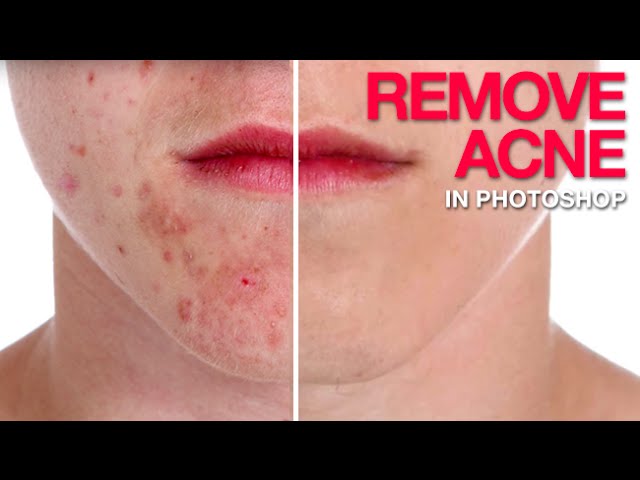
Anyone who has gone through puberty knows that acne can stand out in a photo. Don’t let those spots get you down! In this episode we show you how to get rid of acne and pock marks in Photoshop.

The key to removing acne is to divide the process into two steps; The first step is to get rid of redness and the second step is to remove the blemishes.

How to Remove Redness

Half of the battle is removing the redness around acne and it can be difficult if you don’t use the right tools. In this episode we show you how to use Hue/Saturation to target specific areas of red and alter them so they look like normal skin tone.

Removing Acne Blemishes

After removing the color it is time to remove the blemishes. Adobe has done a great job with the spot healing brush in recent versions of Photoshop (CS6, CC, CC2014). It makes removing zits and blemishes very easy as long as you check a few settings. Be sure to select “content aware” and “sample all layers” so you can use this tool on a new layer and not destroy your original layer.

Simply paint over the blemishes to remove them. We suggest removing small spots first and then moving to the larger areas. To finish off the job, zoom out and paint larger areas. This will help to even out uneven skin tones.

Adding Red Back to Skin

In the first step we removed all the red from the skin. This is a necessary step when getting rid of acne but you will want to add a bit of red back to the skin to make it look more realistic. The difference is that the original red was blotchy and very saturated. This red will be softer and more subtle.

Choose the red color from the lips and paint over the subject’s face, then change the layer blend mode to Soft Light and reduce the opacity to 20%-50% or until the skin looks natural.

VISIT PHLEARN.COM FOR MORE FREE TUTORIALS

Homepage

SUBSCRIBE TO OUR CHANNEL FOR MORE FREE TIPS AND TRICKS
http://www.youtube.com/subscription_center?add_user=phlearnllc

GET FREE TUTORIALS IN YOUR EMAIL + DISCOUNTS ON OUR PRO TUTORIALS!
https://phlearn.com/mail

BUY THE TABLET AARON USES! https://phlearn.com/tablet

LET’S BE FRIENDS!
Instagram ► https://www.instagram.com/phlearn/
Facebook ► https://facebook.com/phlearn
Twitter ► https://twitter.com/phlearn
Google+ ► https://plus.google.com/116791098059215639405
Phlearn ► https://phlearn.com

How To Create a Double Exposure in Photoshop

0

Our #1 PRO Tutorial ever is now on Sale! https://phlearn.com/popular

How To Create a Double Exposure in Photoshop

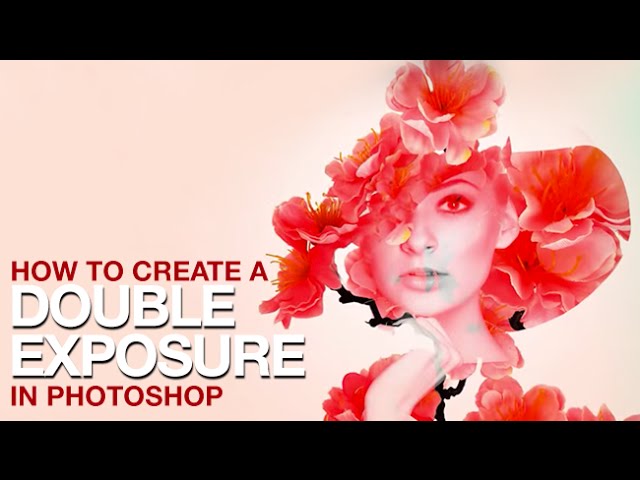
A double exposure is traditionally done using a film camera by taking two different photos on the same exposure of film. The images will combine in unique ways, giving you the “double exposure” effect.

We were asked to create a double exposure and we decided to take it a step further. In this tutorial you will learn how to combine multiple photos together as well as create a unique piece of art.

Choosing images for your double exposure

It is important to choose the right images for your double exposure. You will want to choose images that have a high contrast between light and dark. In this case we chose flowers that were photographed on a white background and a subject that was photographed on gray(which we cut out using a layer mask in Photoshop)

Because we are completing this effect in Photoshop there are no restrictions when it comes to what images you will combine. With endless possibilities it seems appropriate to choose objects that have some relationship with one another. In this case we choose a young, well-dressed woman to pair with flowers. You can also use “opposites” or images that will tell a story when combined.

Blending Images

The real key to creating a double exposure is to combine your images together using Blending Modes in Photoshop. I would recommend flipping through the different blending modes in Photoshop to see which modes will work best for your image. It is also a good idea to change the layer order of the images. A few good blending modes to experiment with are Screen, Multiply, Lighten, Soft Light, and Overlay.

In this tutorial we use a Lighten blending mode on our subject over top of flowers.

Layer Masking for Added Effect

After we blend our images together using blending modes we jump into using layer masks for added effect. In this case I wanted to have part of the subject’s hat defined by flowers. To do so I created a selection of the subject cut out from her background and loaded it onto a duplicate layer of flowers. Then I sized the flowers to fill up the space of the hat.

Next I used another duplicate of the flower layer to fill in an area of her face where there were no flowers. Because we are using a Lighten blending mode on the subject, she will not show up unless there is a dark area underneath (such as the flowers).

Coloring the Image

After the double exposure is complete we add some color to the image to make it a bit more interesting. To add some color to the white background we use a Levels Adjustment Layer. Use the lower sliders that control the Output Levels, bringing the “white point” down on the different color channels. In this image we adjust the Green and Blue Channels to give the image a bit of an orange color to match the flowers.

Then we use a Hue/Saturation Adjustment Layer to add a complimentary color to the outer edges of the image. Using the Colorize button on the adjustment layer allows us to create any color we desire. From here all you have to do is use a layer mask to define where you would like this color to be visible.

VISIT PHLEARN.COM FOR MORE FREE TUTORIALS

Homepage

SUBSCRIBE TO OUR CHANNEL FOR MORE FREE TIPS AND TRICKS
http://www.youtube.com/subscription_center?add_user=phlearnllc

GET FREE TUTORIALS IN YOUR EMAIL + DISCOUNTS ON OUR PRO TUTORIALS!
https://phlearn.com/mail

BUY THE TABLET AARON USES! https://phlearn.com/tablet

LET’S BE FRIENDS!
Instagram ► https://www.instagram.com/phlearn/
Facebook ► https://facebook.com/phlearn
Twitter ► https://twitter.com/phlearn
Google+ ► https://plus.google.com/116791098059215639405
Phlearn ► https://phlearn.com
Welcome to the Phlearn YouTube Channel!

0

Our #1 PRO Tutorial ever is now on Sale! https://phlearn.com/popular

Phlearn’s mission is to provide the skills, confidence and encouragement for creative individuals to pursue their dreams, overcome their fears, and live their passions. We want to provide you with the technical knowledge to make your vision become a reality AND the confidence to craft your art true to your vision. And we want to do it all with a huge smile, because having fun is fun.

We’ve worked at creating multiple resources to assist you on your way. Tune in for our weekly episodes and articles that include Phamily Edits, where a user submitted image gets a makeover, contests, interviews with a wide spectrum of individuals from across the industry, photo battles, and inspirational images from around the web.

———————————————————————————————–

Thanks for watching our free Phlearn Tutorials! If you enjoyed this video be sure to subscribe to our channel to receive free weekly videos.

For more advanced Photoshop Tutorials be sure to check out our Phlearn PRO Tutorials. We offer the best Photoshop tutorials available online starting at just $14.99.
http://phlearn.com/pro-tutorials

———————————————————————————————–

VISIT PHLEARN.COM FOR MORE FREE TUTORIALS

Homepage

SUBSCRIBE TO OUR CHANNEL FOR MORE FREE TIPS AND TRICKS
http://www.youtube.com/subscription_center?add_user=phlearnllc

GET FREE TUTORIALS IN YOUR EMAIL + DISCOUNTS ON OUR PRO TUTORIALS!
https://phlearn.com/mail

BUY THE TABLET AARON USES! https://phlearn.com/tablet

LET’S BE FRIENDS!
Instagram ► https://www.instagram.com/phlearn/
Facebook ► https://facebook.com/phlearn
Twitter ► https://twitter.com/phlearn
Google+ ► https://plus.google.com/116791098059215639405
Phlearn ► https://phlearn.com
How to Create a Stunning Magazine Cover in Photoshop

0

Creating a Magazine Cover in Photoshop

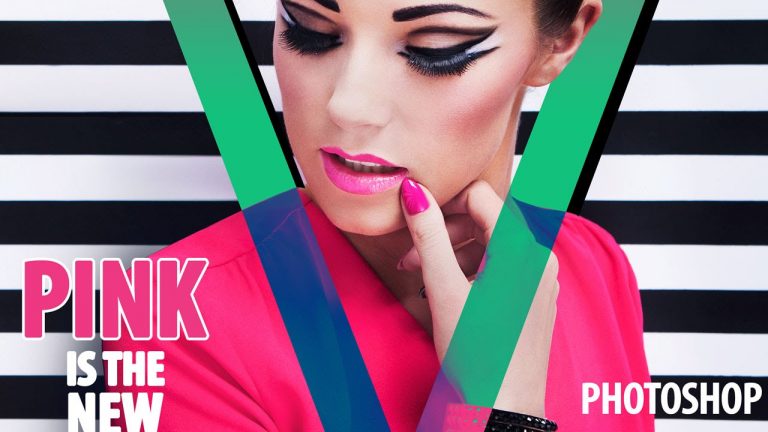
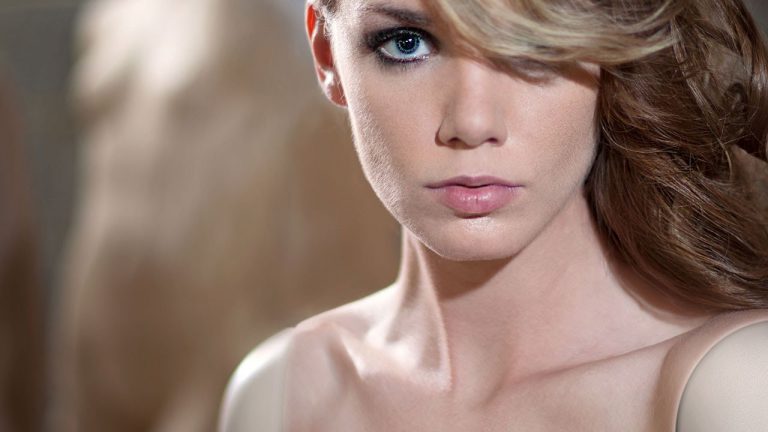
Many modern magazines use their logo or name as an integrated piece of art combined with photos on their covers. It is not uncommon to see a subject peering out from a logo, or the magazine name obscured by a face. Some magazines like “V Magazine” take this a step further and place their logo over the entire cover, forcing interaction with the subject.

In this episode we show you how to turn a photo into a magazine cover by integrating the “V” logo with the subject.

Use the Pen Tool to Make Selections

The Pen Tool is one of the best ways to make accurate selections in Photoshop. When used efficiently, the Pen Tool can be used to cut out just about anything in a photo. You can also use the Pen Tool to make selections, and turn those selections into objects.

In this tutorial we create the “V” logo by tracing an example from a real magazine cover. After creating the “V” we use the Pen Tool to cut out our subject and allow more ways for her to interact with the “V”.

We also use different blending modes to combine the logo with the subject, leading to a more interesting image.

Working with Type

Magazine covers almost always include type. You will often see complimentary colors used to create type so they stand off the background. In this image we create complimentary colors using the Difference Blend Mode.

For the title of the issue “Pink is the New Pink”, we make both of the words “pink” into the color pink. Then to help the type stand out from the background we show you how to add a white outline or Stroke. Then on the right side of the image we play with the background a bit, inserting type over black stripes.

———————————————————————————————–

Thanks for watching our free Phlearn Tutorials! If you enjoyed this video be sure to subscribe to our channel to receive free weekly videos.

Subscribe: http://goo.gl/LBIEQU

For more advanced Photoshop Tutorials be sure to check out our Phlearn PRO Tutorials. We offer the best Photoshop tutorials available online starting at just $14.99.
http://phlearn.com/pro-tutorials

———————————————————————————————–

Website: http://phlearn.com
Facebook: https://www.facebook.com/Phlearn
Google+: https://plus.google.com/u/0/116791098…

The Beginners Guide to Special Effects

0

The Beginners Guide to Special Effects is designed to make you familiar with the fundamentals of special effects and teach you the necessary techniques to compositing images together. To download this awesome tutorial, click HERE:

http://phlearn.com/pro/beginners-guide-special-effects

2 Complete Photoshop Tutorials — Over 4 hours of Photoshop instruction taking you from the beginning to the end on 2 separate special effects images

Source Images — We provide every photo necessary to complete the final images so you can work along side the tutorials

Pen Tool Video — Bonus video included explaining the Pen Tool and the best ways to use it in Photoshop
Tutorial

———————————————————————————————–

Thanks for watching our free Phlearn Tutorials! If you enjoyed this video be sure to subscribe to our channel to receive free weekly videos.

Subscribe: http://goo.gl/LBIEQU

For more advanced Photoshop Tutorials be sure to check out our Phlearn PRO Tutorials. We offer the best Photoshop tutorials available online starting at just $14.99.
http://phlearn.com/pro-tutorials

———————————————————————————————–

Website: http://phlearn.com
Facebook: https://www.facebook.com/Phlearn
Google+: https://plus.google.com/u/0/116791098…

The Quick Start Guide to Photoshop (Part 1)

0

The idea of getting started in Photoshop can seem overwhelming for most. So many options, tools, windows etc. In this 3 part series, we will give you a quick start guide. This should have you up and using Photoshop in no time!

———————————————————————————————–

Thanks for watching our free Phlearn Tutorials! If you enjoyed this video be sure to subscribe to our channel to receive free weekly videos.

Subscribe: http://goo.gl/LBIEQU

For more advanced Photoshop Tutorials be sure to check out our Phlearn PRO Tutorials. We offer the best Photoshop tutorials available online starting at just $14.99.
http://phlearn.com/pro-tutorials

———————————————————————————————–

Website: http://phlearn.com
Facebook: https://www.facebook.com/Phlearn
Google+: https://plus.google.com/u/0/116791098…

The Quick Start Guide to Photoshop (Part 2)

0

Photoshop is the industry standard when it comes to photo editing, largely in part to the powerful editing tools it has to offer. There are so many tools and features that using Photoshop can seem daunting to newer users.

We created this episode to highlight the essential tools and features of Photoshop. In time you will want to explore the program in greater depth but we have found that a handful of tools are powerful enough to do just about anything in Photoshop.

Spend some time becoming familiar with the tools and features outlined in this episode and you will be well on your way to using photoshop like a pro.

———————————————————————————————–

Thanks for watching our free Phlearn Tutorials! If you enjoyed this video be sure to subscribe to our channel to receive free weekly videos.

Subscribe: http://goo.gl/LBIEQU

For more advanced Photoshop Tutorials be sure to check out our Phlearn PRO Tutorials. We offer the best Photoshop tutorials available online starting at just $14.99.
http://phlearn.com/pro-tutorials

———————————————————————————————–

Website: http://phlearn.com
Facebook: https://www.facebook.com/Phlearn
Google+: https://plus.google.com/u/0/116791098…

The Quick Start Guide to Photoshop (Part 3)

0

Photoshop is such an expansive and powerful program but all the power in the world means nothing if you don’t know how to use it. We created this 3 part, “Quick Start Guide to Photoshop” to help you get to know the program before jumping in and making changes on your images. We cover the proper settings and preferences to get Photoshop working well. If you haven’t seen the previous 2 episodes, click HERE:

http://phlearn.com/?s=Quick+Start+Guide

———————————————————————————————–

Thanks for watching our free Phlearn Tutorials! If you enjoyed this video be sure to subscribe to our channel to receive free weekly videos.

Subscribe: http://goo.gl/LBIEQU

For more advanced Photoshop Tutorials be sure to check out our Phlearn PRO Tutorials. We offer the best Photoshop tutorials available online starting at just $14.99.
http://phlearn.com/pro-tutorials

———————————————————————————————–

Website: http://phlearn.com
Facebook: https://www.facebook.com/Phlearn
Google+: https://plus.google.com/u/0/116791098…

PHAN WEEK: How to Replace a Sky in Photoshop!

0

This week is PHAN WEEK here on Phlearn! Everyday this week we will be editing an image submitted by a Phamily member! Today’s image is brought to us by Clayton Powers. Congrats Clayton and thank you for being a PHAN!

———————————————————————————————–

Thanks for watching our free Phlearn Tutorials! If you enjoyed this video be sure to subscribe to our channel to receive free weekly videos.

Subscribe: http://goo.gl/LBIEQU

For more advanced Photoshop Tutorials be sure to check out our Phlearn PRO Tutorials. We offer the best Photoshop tutorials available online starting at just $14.99.
http://phlearn.com/pro-tutorials

———————————————————————————————–

Website: http://phlearn.com
Facebook: https://www.facebook.com/Phlearn
Google+: https://plus.google.com/u/0/116791098…

PHAN WEEK: Create a Vintage Photo in Photoshop

0

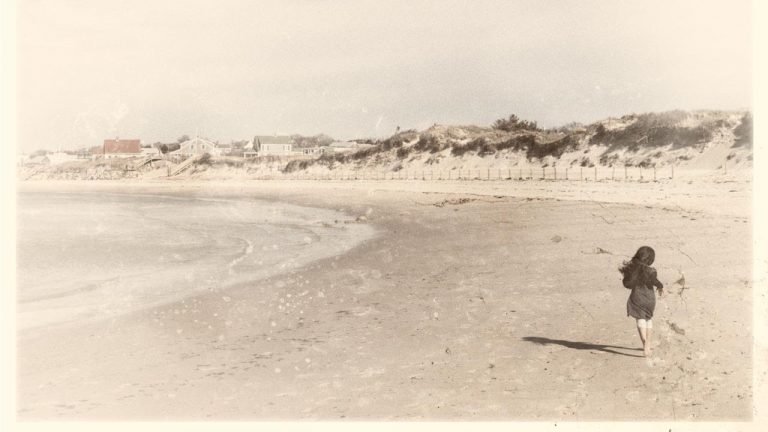
How to Make a Vintage Photo in Photoshop
There are many things that go into making an image appear vintage in Photoshop, and this episode highlights all the techniques you may need to make your photos look aged.

Vintage Coloring
Vintage photos tend to lose a bit of their color over time and take on a brown or sepia tone. We have found the best way to re-create this color is through a gradient map in Photoshop.

We show you how to set your white point and black point to variations of brown. By placing this layer above all other layers in Photoshop, it will color your entire photo.

Adding Texture to a Photo in Photoshop
In this episode we add texture over our image to make it look distressed and old. When using textures over your images be sure to try different layer blending modes. We use a screen blend mode to make the darks disappear and the lights show. You can also adjust your texture levels, making darks even darker or lights lighter. Depending on your changes your texture will either become more or less visible.

———————————————————————————————–

Thanks for watching our free Phlearn Tutorials! If you enjoyed this video be sure to subscribe to our channel to receive free weekly videos.

Subscribe: http://goo.gl/LBIEQU

For more advanced Photoshop Tutorials be sure to check out our Phlearn PRO Tutorials. We offer the best Photoshop tutorials available online starting at just $14.99.
http://phlearn.com/pro-tutorials

———————————————————————————————–

Website: http://phlearn.com
Facebook: https://www.facebook.com/Phlearn
Google+: https://plus.google.com/u/0/116791098…