Home Blog Page 502

How to Make Colors POP in Photoshop

0

Our #1 PRO Tutorial ever is now on Sale! https://phlearn.com/popular

Phlearn discount for Creative Cloud: http://adobe.ly/1MWG5Kq
Stock Images provided by: https://stock.adobe.com/

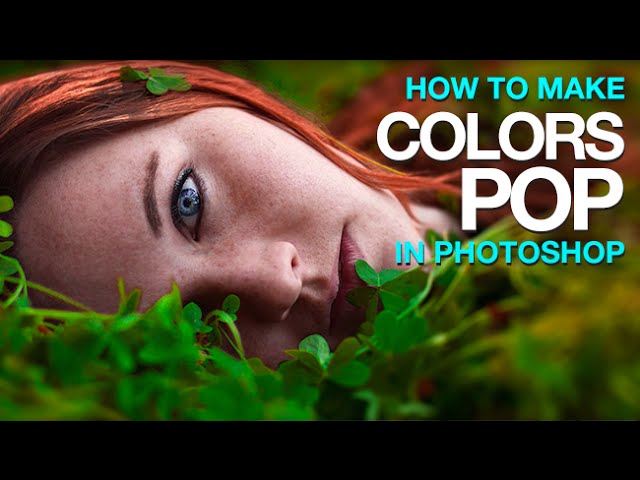
In today’s episode, we show you how to select a specific color range and make those colors come to life! The images we used were from 2 of our awesome fans, Dusan & Morey Spellman!

Create a hue/saturation adjustment layer and select a specific color range from the drop down menu. Our first image has lots of green. So we brought up the saturation for color range in our image. Make sure to select all the tones with the bottom slider in the hue/saturation panel.

Bonus tip! Use an iris blur effect to defocus parts of your image that are distracting. Place the center of the effect where you want the most detail and resize to your liking.

Both techniques are super simple and super quick! Enjoy!

VISIT PHLEARN.COM FOR MORE FREE TUTORIALS

Homepage

SUBSCRIBE TO OUR CHANNEL FOR MORE FREE TIPS AND TRICKS
http://www.youtube.com/subscription_center?add_user=phlearnllc

GET FREE TUTORIALS IN YOUR EMAIL + DISCOUNTS ON OUR PRO TUTORIALS!
https://phlearn.com/mail

BUY THE TABLET AARON USES! https://phlearn.com/tablet

LET’S BE FRIENDS!
Instagram ► https://www.instagram.com/phlearn/
Facebook ► https://facebook.com/phlearn
Twitter ► https://twitter.com/phlearn
Google+ ► https://plus.google.com/116791098059215639405
Phlearn ► https://phlearn.com

How to Composite Photos in Photoshop

0

Composite Photos in Photoshop

There are many reasons why you may want to composite photos together in Photoshop. At times you may want to replace someones face because they had their eyes closed in a group photo. Other times you may want to create a fantasy image or something that couldn’t exist in real life.

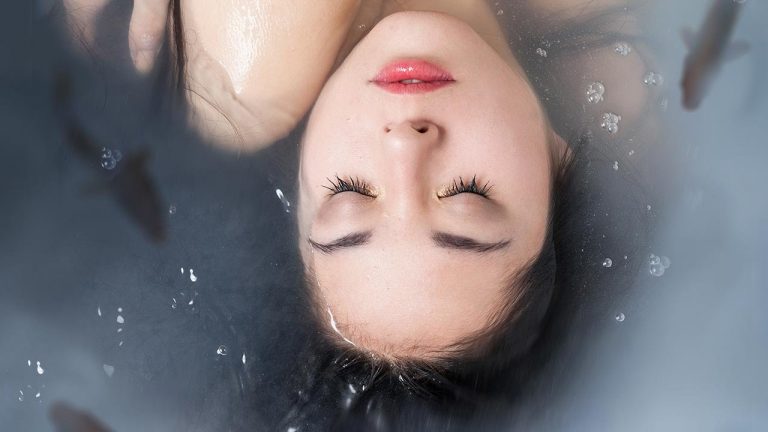
In today’s episode we show you how to add fish to an image of a girl in a bathtub. The compositing process is simple as long as you keep in mind how color, light and depth work. We show you how to make it look as though the fish are actually suspended in the murky water.

Add Bubbles and Details Above the Fish

To make it look as though the fish are really under water we add detail on the top of the water and over the fish. The perfect pieces of detail for this image are the bubbles that already exist in the photo. Using the Clone Stamp Tool we copy areas that contain bubbles, change the blending mode to Screen and then adjust Levels and Hue/Saturation to make it look as though they are transparent.

After creating the bubbles we add them over top of the fish to make it look as though the fish are underwater.

How to Add Depth to Underwater Fish

The water in the original photo is a bit soapy and murky, meaning we can’t see all the way though it. It makes sense that anything in the water will be slightly obscured by the water. We also want to make it look as though the fish go out of focus as they get farther from the camera. To achieve these effects we use a Field Blur and apply a different amount of blur to different areas of the fish.

After adding the blur to the fish we use a Hue/Saturation Adjustment Layer and the Colorize function to make it look as though the color of the water is effecting the color of the fish.

Learn More About Compositing

To learn more about compositing from Phlearn be sure to check out our bestselling PRO Tutorial – The Beginners Guide to Compositing.

———————————————————————————————–

Thanks for watching our free Phlearn Tutorials! If you enjoyed this video be sure to subscribe to our channel to receive free weekly videos.

Subscribe: http://goo.gl/LBIEQU

For more advanced Photoshop Tutorials be sure to check out our Phlearn PRO Tutorials. We offer the best Photoshop tutorials available online starting at just $14.99.
http://phlearn.com/pro-tutorials

———————————————————————————————–

Website: http://phlearn.com
Facebook: https://www.facebook.com/Phlearn
Google+: https://plus.google.com/u/0/116791098…
How to Use the Liquify Tool in Photoshop

0

How to Use the Liquify Tool

The Liquify Tool is one of the most powerful image editing tools in Photoshop. It will allow you to “push and pull” pixels any way you’d like.

It is a common misconception that the Liquify Tool is only used for making people thin. In this episode we show you another great use for the Liquify Tool – fixing and adjusting clothing.

You will learn some of the key techniques to learning the Liquify Tool including:

Change Brush Size Often – Each area of your image will probably require using a different sized brush. The fastest way to change your brush size in Photoshop is to hold Control+Option(Alt) and click and drag your mouse to the left or right. When using a PC be sure to right click.
Brush Pressure – It is better to use a lower pressure and make little adjustments than use a high pressure and have to undo your extreme changes.
Brush Density – Keep your brush density on the higher end. This will allow you to effect a larger area per stroke, creating more natural alterations.
Color Toning Using Levels

In this episode Aaron also shows you how to color tone your image using Levels. If you have never used Levels to adjust color in your images you will be amazed at how much control you can have using a simple Levels slider. When you need to adjust the colors of your shadows and highlights separately the Levels Adjustment Layer is hard to beat.

———————————————————————————————–

Thanks for watching our free Phlearn Tutorials! If you enjoyed this video be sure to subscribe to our channel to receive free weekly videos.

Subscribe: http://goo.gl/LBIEQU

For more advanced Photoshop Tutorials be sure to check out our Phlearn PRO Tutorials. We offer the best Photoshop tutorials available online starting at just $14.99.
http://phlearn.com/pro-tutorials

———————————————————————————————–

Website: http://phlearn.com
Facebook: https://www.facebook.com/Phlearn
Google+: https://plus.google.com/u/0/116791098…

How to Create Professional Photoshop Actions

0

Photoshop actions are created by manually performing a series of steps and recording them in an ATN file. Actions can save a ton of time when you need to perform a task repeatedly in Photoshop. In today’s episode we show you how to create a Photoshop action from scratch.

———————————————————————————————–

Thanks for watching our free Phlearn Tutorials! If you enjoyed this video be sure to subscribe to our channel to receive free weekly videos.

Subscribe: http://goo.gl/LBIEQU

For more advanced Photoshop Tutorials be sure to check out our Phlearn PRO Tutorials. We offer the best Photoshop tutorials available online starting at just $14.99.
http://phlearn.com/pro-tutorials

———————————————————————————————–

Website: http://phlearn.com
Facebook: https://www.facebook.com/Phlearn
Google+: https://plus.google.com/u/0/116791098…
How to Match Skin Tones in Photoshop

0

Our #1 PRO Tutorial ever is now on Sale! https://phlearn.com/popular

How to Match Skin Tones in Photoshop

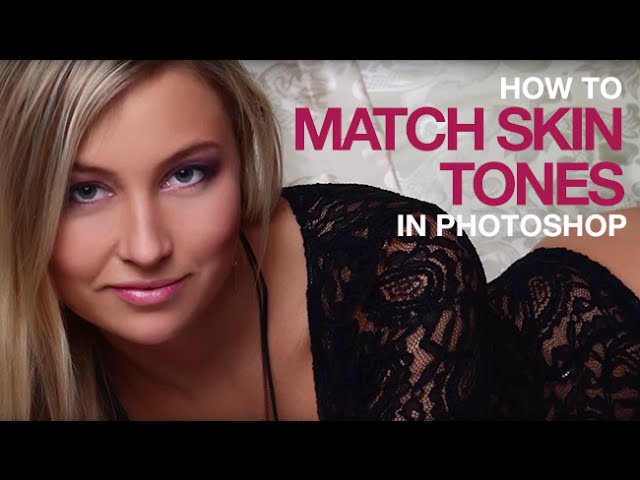
When photographing people, you will often notice the skin tone on their face is slightly different from the tone on their body. This color change happens for many reasons, including makeup, sun tan, blush, skin quality and light quality. If you have never noticed a difference in color, look again! It may surprise you.

Matching skin tone from one area to another can be rather tricky if you don’t analyze color first. In this episode we show you how to analyze skin color from highlights through to shadows. Then we show you how to change mid-tone shadows and highlights to match face color to body color. You will be able to take these techniques with you for most portraits!

Tools for Matching Skin Tone

There are many ways to match skin tone in Photoshop, here is a quick guideline to what Phlearn uses.

Levels – Levels are more powerful than most people realize. Along with adjusting light and dark values they also adjust colors. Levels are our preferred method for matching skin tone in Photoshop.
Hue/saturation – It is common when adding color to skin that too much color is applied. This is not something that can be controlled thought the Levels Adjustment Layer. Instead it is better to use a Hue/Saturation Adjustment Layer and bring the saturation down.
Group Layer Masking

If you plan on creating a few adjustment layers and want them all restricted to the same place on your image try grouping them together first. You can add a mask to a group just as you would a layer. Using a Group Mask allows you to control the visibility of all the layers in a group, saving time and making selections more accurate.

————————————————————————————————

VISIT PHLEARN.COM FOR MORE FREE TUTORIALS

Homepage

SUBSCRIBE TO OUR CHANNEL FOR MORE FREE TIPS AND TRICKS
http://www.youtube.com/subscription_center?add_user=phlearnllc

GET FREE TUTORIALS IN YOUR EMAIL + DISCOUNTS ON OUR PRO TUTORIALS!
https://phlearn.com/mail

BUY THE TABLET AARON USES! https://phlearn.com/tablet

LET’S BE FRIENDS!
Instagram ► https://www.instagram.com/phlearn/
Facebook ► https://facebook.com/phlearn
Twitter ► https://twitter.com/phlearn
Google+ ► https://plus.google.com/116791098059215639405
Phlearn ► https://phlearn.com

————————————————————————————————

Start with Photoshop 101 & 201: http://phlearn.com/product/photoshop-101-201-bundle

Retouch like a pro with The Ultimate Guide to Retouching: http://phlearn.com/product/the-ultimate-guide-to-retouching

Dress the part in a Phlearn Shirt: http://phlearn.com/product-category/gear

Phlearn discount for Creative Cloud: http://adobe.ly/1MWG5Kq
Stock Images provided by: https://stock.adobe.com/

How to Clean Backgrounds in Photoshop

0

The white background has become a standard in the photography world and for good reasons. You can pick up a white seamless background for less than $100, turning any space into a photo studio.

Backdrop paper is also ideal for cutting people out of their backgrounds or eliminating distractions. Many popular celebrity portraits were photographed in hotel rooms using a roll of white seamless paper.

Because your subjects will be standing on a giant sheet of white paper, chances are the paper is going to get dirty. In today’s episode we show you how to clean a backdrop in Photoshop.

Clean Backdrop using Median Filter

The fastest way to clean a background in Photoshop is by using Photoshop’s Filters. We found that the Median filter works very well and saves a ton of time. Go to Filter – Noise – Median and choose a radius that will make all the dirt vanish. Be sure to do this on a copy of your background layer so you can use a layer mask and just have this effect show up over the background.

If you have any areas that the Median Filter missed, take care of them with the healing brush tool and you are good to go!

———————————————————————————————–

Thanks for watching our free Phlearn Tutorials! If you enjoyed this video be sure to subscribe to our channel to receive free weekly videos.

Subscribe: http://goo.gl/LBIEQU

For more advanced Photoshop Tutorials be sure to check out our Phlearn PRO Tutorials. We offer the best Photoshop tutorials available online starting at just $14.99.
http://phlearn.com/pro-tutorials

———————————————————————————————–

Website: http://phlearn.com
Facebook: https://www.facebook.com/Phlearn
Google+: https://plus.google.com/u/0/116791098…
How to Create a Sunset in Photoshop

0

How to Create a Sunset in Photoshop

Shooting later in the day gives you the opportunity to add a warm “sunset style” to your image in Photoshop. In today’s episode we show you how to color your image to give it that warm “sunset” feel.

Choosing the Correct Photo

In order to make this effect appear real it is important to choose a photo that has the correct lighting. The first thing to look for is the placement of the sun. You will want to use an image that was shot later in the day, when the colors in the sky warm up a bit. Next it is important that the light source is visible in the image. A backlit image will work best, but you can also use images that are side-lit.

Coloring the Image

To create the sunset effect we are using a combination of Levels and the Gradient Tool. First we have to make the image look like it was taken later in the day, and that means making the detail darker. Then we add color into the shadows using the Red Channel and the Black Point on the Output Slider.

After adding red to the shadows we warm up the highlights and use a Gradient Tool to center the effect over the light source.

How to Add Movement to Your Photo

To finish this photo we add a bit of motion, making it look like the camera was moving with out subject. For this specific type of motion we need to use a Radial Blur because the movement stems from the center of the image. If the movement came from the camera “panning”, we would use a Motion Blur.

In the Radial Blur settings be sure to change the default from “Spin” to “Zoom”. Then choose the correct amount and the Blur Center. This dialog does not provide a preview, so you may need to test a few different settings before getting it perfect.

After the Radial Blur has been applied we use a layer mask to hide the blur from the center of the image and over the subject.

———————————————————————————————–

Thanks for watching our free Phlearn Tutorials! If you enjoyed this video be sure to subscribe to our channel to receive free weekly videos.

Subscribe: http://goo.gl/LBIEQU

For more advanced Photoshop Tutorials be sure to check out our Phlearn PRO Tutorials. We offer the best Photoshop tutorials available online starting at just $14.99.
http://phlearn.com/pro-tutorials

———————————————————————————————–

Website: http://phlearn.com
Facebook: https://www.facebook.com/Phlearn
Google+: https://plus.google.com/u/0/116791098…
How to Turn Any Image Into an Illustration in Photoshop

0

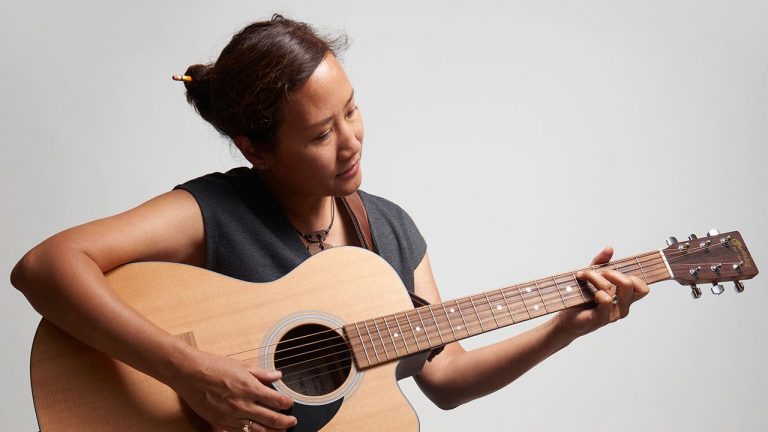
Photoshop is an amazing tool that can help you with more than just retouching photographs; it can be used to create illustrations as well! In today’s episode, we show you how to turn a photo into what looks like a hand-drawn illustration.

Creating a custom brush

The goal for this episode is to create a drawing that looks like chalk on a chalkboard. The first and essential step in this process is to create a custom “chalk brush.” We do this by going into the brush window and altering the characteristics of the brush. We increase the size, flow, opacity and angle jitter, as well as change the tip shape and lessen the spacing. There are many little details in this brush that help create a chalky effect.

Using Levels and Channels to create a selection

There are many ways to create a selection, and for this particular image we use the lights and darks in our image to do so. We bring our dark and white points up with Levels to create a graphic version of the image. A selection is then created from a copy of a Channel layer. This only selects the light parts and not the darks, so we want to inverse the selection. We are left with a lovely selection of the darks from our image.

Turning the selection into a Pen Path

Did you know you can turn any selection into a Pen Path?

All we have to do is click on the paths tab, and then click on the “Make Work Path from Selection” button. This simulates what would happen if we were to actually take a pen and follow the lines of the selection. After our path is created, we can stroke the path with our custom brush! This step is what really turns what was once a regular image into a chalk drawing.

We can always go back into the drawing with our chalk brush to add some finishing touches.

———————————————————————————————–

Thanks for watching our free Phlearn Tutorials! If you enjoyed this video be sure to subscribe to our channel to receive free weekly videos.

Subscribe: http://goo.gl/LBIEQU

For more advanced Photoshop Tutorials be sure to check out our Phlearn PRO Tutorials. We offer the best Photoshop tutorials available online starting at just $14.99.
http://phlearn.com/pro-tutorials

———————————————————————————————–

Website: http://phlearn.com
Facebook: https://www.facebook.com/Phlearn
Google+: https://plus.google.com/u/0/116791098…
How to Add Text to Anything in Photoshop

0

How to Add Text to Anything in Photoshop

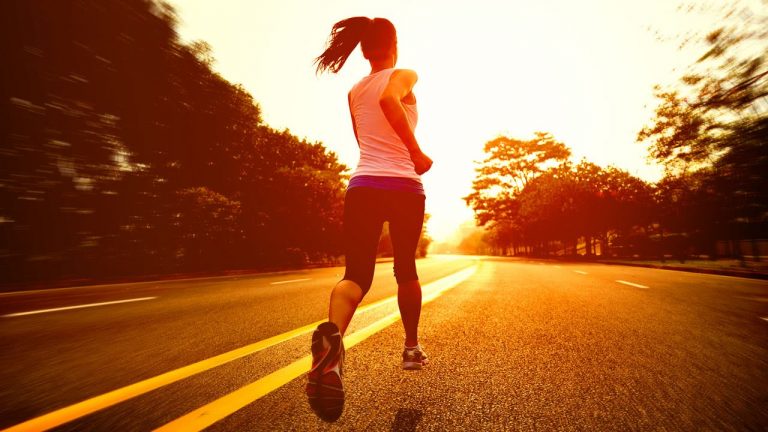
Ditch the struggle to try and figure out perspective manually! In today’s episode, we show you how to use the vanishing point filter to lay text anywhere in a realistic way.

Vanishing Point Filter

After typing the desired text, make sure to copy it onto the clipboard (Cmd+C). This way, when we go into the filter, we can paste it back in (Cmd+V).

To get to the Vanishing Point Filter dialogue, go to Filter — Vanishing Point. Now, we can define the area that we want for our perspective. After that, the perspective is a breeze. Just drag, drop, and resize the text into the defined area.

Layer Effects

Now that we have the proper perspective, it’s important to create layer effects on the text so it looks more realistic. By double clicking on the layer, we can adjust the layer styles. These will change depending on what you want your image to look like. For this episode we choose to give the text a beveled and chiseled look to blend into the stone. We also give the text an inner shadow. Make sure to have the “Use Global Light” box checked in order to keep the light source consistent.

We can adjust the color in the Layer Style Panel as well. We can sample color from the actual image to get a great match.

If things don’t look correct right away, don’t worry! This process is truly just a lot of playing around with the layer effects to see what looks the most natural.

Adding wear & tear

Often times, text that is placed into an image has a much higher quality resolution and may look too sharp. To create a more realistic and worn look for our text, there are a couple of steps we can take:

Gaussian Blur: Make a duplicate of the layer that holds all of the layer effects (Cmd+J), and then make a new layer and merge those two together (Cmd+E). This strips the layer effects away,. Now we can go to Filter — Blur — Gaussian Blur and choose a relatively subtle amount of blurring to help the text appear to be the same quality as the image.

Motion Blur: Duplicate the layer again, then go to Filter — Blur — Motion Blur. We can choose an angle and distance that suggests rain has caused the letters to erode. Then, we can create a black layer mask (by holding Opt + clicking on the layer mask button) and paint with white only where we want the “erosion” to show up.

———————————————————————————————–

Thanks for watching our free Phlearn Tutorials! If you enjoyed this video be sure to subscribe to our channel to receive free weekly videos.

Subscribe: http://goo.gl/LBIEQU

For more advanced Photoshop Tutorials be sure to check out our Phlearn PRO Tutorials. We offer the best Photoshop tutorials available online starting at just $14.99.
http://phlearn.com/pro-tutorials

———————————————————————————————–

Website: http://phlearn.com
Facebook: https://www.facebook.com/Phlearn
Google+: https://plus.google.com/u/0/116791098…

Sin City Inspired Photoshoot (Behind the Scenes)

0

The City: Photography Tutorial

In this Photography tutorial we focus on three key elements necessary to produce this image. You will learn about lighting, styling and props and shooting for a composite.

Lighting

In terms of creating the “Sin City Style” lighting is the most important element. The look developed for the film was adapted from the original comic series and involves high contrast black and white images with harsh lighting. For the film they achieved this look through the use of “rim lighting”. Rim lighting basically means placing lights behind your subject pointed towards the subject. This lighting creates a glow or “rim” of light around the subject, separating them from the background.

In this video we explain how we set up our rim lighting to achieve the “Sin City Style”.

Styling and Props

The styling for this image is relatively simple but remains important in the production of the final image. Because the move was produced mostly in black and white, the wardrobe had to mimic those colors. We see a lot of contrast in the clothing worn by the subjects – large black jackets with white our black shirts worn underneath.

We also shoot with a prop gun to make the final image a bit more true to the original. These details may seem like a no-brainer but they are important in producing a final image that looks like the original.

Shooting for a Composite

You will learn what to do on set when shooting for a composite to make sure your process in Photoshop is quick and seamless. Much of the image was composited together in Photoshop without requiring a photo shoot. These details include the sky, the city, the snow and the text. The only thing we photographed for the image was the subject.

When shooting for a composite it is important to keep your background as clean and consistent as possible. For this shoot that meant shooting on a green screen and lighting the background so that it was evenly colored from one side to another.

Another great tip when shooting for a composite is to keep your lighting close to your subject as needed. When shooting an image on a regular background it is important to keep lighting and grip out of the shot, as they will interfere with the concept. That is not the case when shooting for a composite. Everything will be cut out of its background, so you can have all of these elements in frame if needed.

———————————————————————————————–

Thanks for watching our free Phlearn Tutorials! If you enjoyed this video be sure to subscribe to our channel to receive free weekly videos.

Subscribe: http://goo.gl/LBIEQU

For more advanced Photoshop Tutorials be sure to check out our Phlearn PRO Tutorials. We offer the best Photoshop tutorials available online starting at just $14.99.
http://phlearn.com/pro-tutorials

———————————————————————————————–

Website: http://phlearn.com
Facebook: https://www.facebook.com/Phlearn
Google+: https://plus.google.com/u/0/116791098…