Home Blog Page 503

How to make a Sin City Portrait in Photoshop (Part 1)

0

Creating a Background in Photoshop

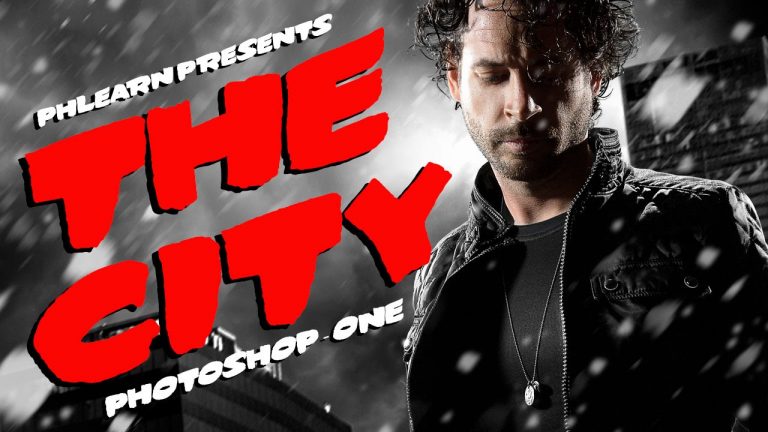
Creating a background for a composite image in Photoshop can be very fun, as you can choose every element that appears in your photo. In order to create a Sin City inspired image we need all of the pieces of the puzzle to appear in the same style, so choosing a sky, buildings, and snow for this image is necessary.

The first thing you will need to do is gather background images, for this we recommend Fotolia. Once you have all of your photos together for creating a background it is time to composite them together.

Start with objects that appear farthest from the camera and work your way forwards, in most cases the sky will be the bottom layer, as it is farthest from the camera.

In this episode we show you how to combine multiple versions of the sky together to create a bit more mood. We also show you how to cut the original sky out of the city image and place the buildings over our chosen sky.

The Magic of Clipping Masks

Clipping masks are an essential part of compositing images together. In this episode we introduce you to clipping masks and the best ways to use them in Photoshop.

We add buildings over the background sky but need to make the buildings darker. If you add a curves adjustment layer over everything it will make the buildings and the sky darker. By clipping the curves adjustment layer to the building layer, it will only effect the buildings. The best part about clipping masks is that you can clip many layers back to the original layer.

Creating a Custom Brush for Snow

If you have ever wanted to create snow or rain in an image, it is as easy as creating a custom brush in Photoshop. In this episode we show you how to create random shapes on a new document and turn them into a Brush Preset. From there you will learn how to alter the settings of the brush to add random patterns, making it look more like snow.

———————————————————————————————
Thanks for watching our free Phlearn Tutorials! If you enjoyed this video be sure to subscribe to our channel to receive free weekly videos.

Subscribe: http://goo.gl/LBIEQU

For more advanced Photoshop Tutorials be sure to check out our Phlearn PRO Tutorials. We offer the best Photoshop tutorials available online starting at just $14.99.
http://phlearn.com/pro-tutorials

———————————————————————————————–

Website: http://phlearn.com
Facebook: https://www.facebook.com/Phlearn
Google+: https://plus.google.com/u/0/116791098…
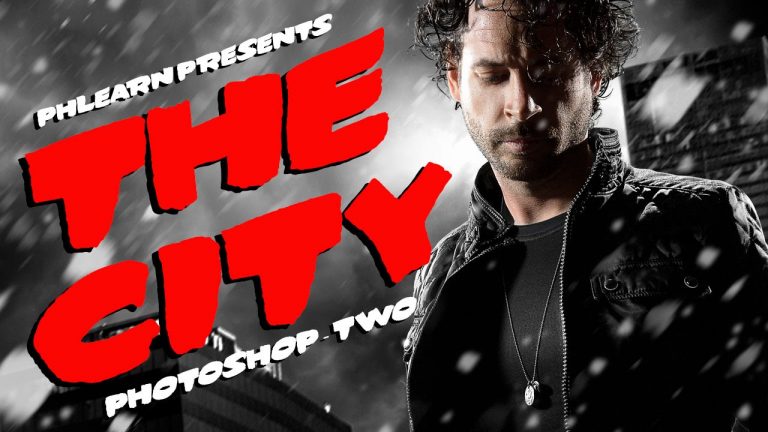
How to make a Sin City Portrait in Photoshop (Part 2)

0

Cutting The Subject out from Green Screen

Shooting on a green screen is a great idea if you know you are going to cut your subject out of the background. In this episode we show you how to select the green color range and define a layer mask with the selection. This technique will allow you to cut your subject out from the background quickly and accurately.

After getting the subject cut out from the background we show you how to remove the green fringing from areas like the hair and edges of the subject.

Adding Style

After placing the subject in the image it is time to add some style. In the case of Sin City, we are looking a high contrast and low saturation. This means making the highlights lighter and the darks darker. We show you how to use curves adjustment layers and clipping masks to isolate the highlights and push them to make them brighter. You will also learn how to add sharpening to the subject, helping him stand out from the background.

Adding Fog Effects

A big part of making composite images come together has to do with layering effects over objects. In this image for instance we place fog over the subject, helping the subject look as though they are a part of the image, not just placed on top of it.

To add the fog to the image we duplicate the background clouds layer and change the blending mode to Screen. Then we apply levels to make the darks darker, making them disappear, leaving only the lights behind.

Creating the Title

To finish the image we need to add a title, just like the original movie poster. We show you how to choose the right font for your project and how to transform it into the correct position and perspective. We add layer effects to separate the text from the background.

Creating a Custom Brush for Snow

If you have ever wanted to create snow or rain in an image, it is as easy as creating a custom brush in Photoshop. In this episode we show you how to create random shapes on a new document and turn them into a Brush Preset. From there you will learn how to alter the settings of the brush to add random patterns, making it look more like snow.

Episodes on cutting out subject: http://phlearn.com/?s=How+to+cut+out+subject

———————————————————————————————

Thanks for watching our free Phlearn Tutorials! If you enjoyed this video be sure to subscribe to our channel to receive free weekly videos.

Subscribe: http://goo.gl/LBIEQU

For more advanced Photoshop Tutorials be sure to check out our Phlearn PRO Tutorials. We offer the best Photoshop tutorials available online starting at just $14.99.
http://phlearn.com/pro-tutorials

———————————————————————————————–

Website: http://phlearn.com
Facebook: https://www.facebook.com/Phlearn
Google+: https://plus.google.com/u/0/116791098…

How to Remove Wrinkles in Photoshop

0

How to Remove Wrinkles in Photoshop

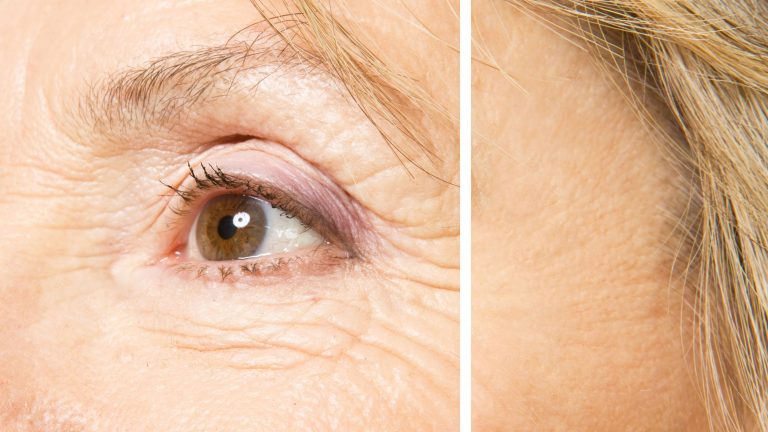
Retouching wrinkles on someone’s face can be a very *touchy* matter! Today we show you how to both completely remove wrinkles as well as reduce them in a more subtle manner.

Complete Removal

The healing brush tool is our best friend in terms of removing wrinkles! Be sure to use a brush size that is slightly larger than the wrinkle, and then sample a color right below the wrinkle to paint over it (Alt/Opt + Click). Make sure to select “Current & Below” for the sampling.

This technique must be used very carefully, as it is easy to make an elderly face look too smooth.

A More Subtle Approach

For a more natural approach, we can use the clone stamp tool. Duplicate the background layer (Cmd + J) to work on a layer with pixels. If you are on a new layer rather than a duplicated one, this technique will not work. Also, be sure to select the “Lighten” Mode; this paints over the wrinkle in a less obvious manner to conceal the lines.

This tends to be a quicker process than using the healing brush tool, because it simply lightens to darkest parts of the wrinkles and does not pull skin texture from other parts of the face.

———————————————————————————————–

Thanks for watching our free Phlearn Tutorials! If you enjoyed this video be sure to subscribe to our channel to receive free weekly videos.

Subscribe: http://goo.gl/LBIEQU

For more advanced Photoshop Tutorials be sure to check out our Phlearn PRO Tutorials. We offer the best Photoshop tutorials available online starting at just $14.99.
http://phlearn.com/pro-tutorials

———————————————————————————————–

Website: http://phlearn.com
Facebook: https://www.facebook.com/Phlearn
Google+: https://plus.google.com/u/0/116791098…
How to Create Snow in Photoshop

0

Follow this link to our website, where you can download our Phlearn Snow Brush:

How to Create Snow in Photoshop

Let it Snow
Have you ever wondered if it is possible to create snow from scratch? In today’s episode, we show you that all you need is a custom brush and some blurs to create your own winter wonderland.

Custom Brush
Creating a brush from scratch is simpler than you might think!
Create a new document (500 x 500 pixels is great) and then create two round shapes apart from each other with the Elliptical Marquee tool.
Click Shift + Delete on a new layer to fill them with black. These will end up being our snowflakes later on. Make sure to select Edit — Define Brush Preset to turn your dots into a brush.

We can then go back into the image document and select the brush tool. Right click to bring up all of the brushes and select the one we just made! Next, go to Window — Brush. This will bring up all of the brush settings we need to make our dots look like actual snow. Here, we adjust elements such as the size, angle, and roundness jitter to create a more random look. We also increase the scattering and opacity jitter.

Piles of Snow
A huge part of making our image look realistic is using multiple layers of snow (literally!). We can use our first layer to create the snow farthest in the distance. These snowflakes will be smaller and should be created with a smaller sized brush.
The next layer will consist of snow that is closer to the camera. This means that it can be painted onto the ground and the subject.
The next layer will have larger snowflakes, and so on and so forth. 5 layers is a good number, but every image is different and this may vary.

Blurry Blizzard
Without a blur, our round flakes look quite Photoshopped. By going to Filter — Blur — Gaussian Blur, we can select whichever amount of blur looks best for the image. This technique looks great and can be used on all of the layers of snow.

To create the illusion that the snow is actually falling, we can also add a motion blur to the snow closest to the foreground. Filter — Blur — Motion Blur will bring up the Motion Blur dialogue. Here, we can choose the angle and the distance of blur.

Final Touches
What is the best part about Photoshopping snow rather than shooting in it? You can erase and move as you please! Don’t be afraid to duplicate the layers and move them around to adjust the position of the snow. We can also press E for the eraser tool to eliminate distracting flakes.

———————————————————————————————–

Thanks for watching our free Phlearn Tutorials! If you enjoyed this video be sure to subscribe to our channel to receive free weekly videos.

Subscribe: http://goo.gl/LBIEQU

For more advanced Photoshop Tutorials be sure to check out our Phlearn PRO Tutorials. We offer the best Photoshop tutorials available online starting at just $14.99.
http://phlearn.com/pro-tutorials

———————————————————————————————–

Website: http://phlearn.com
Facebook: https://www.facebook.com/Phlearn
Google+: https://plus.google.com/u/0/116791098…
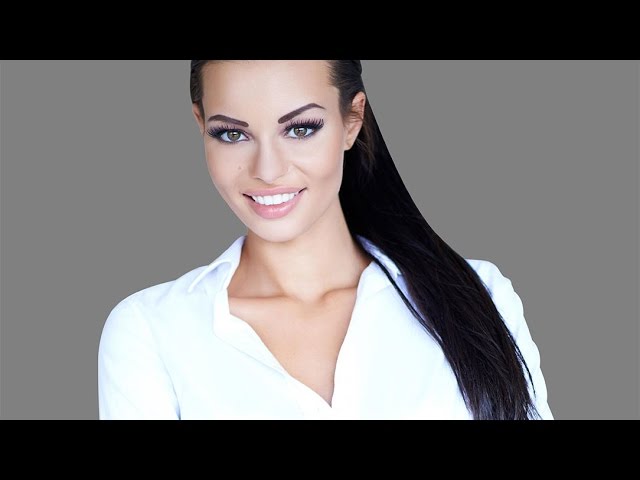
Image: http://www.fotolia.com

How to Change Eye Color in Photoshop

0

Our #1 PRO Tutorial ever is now on Sale! https://phlearn.com/popular

How to Change Eye Color in Photoshop

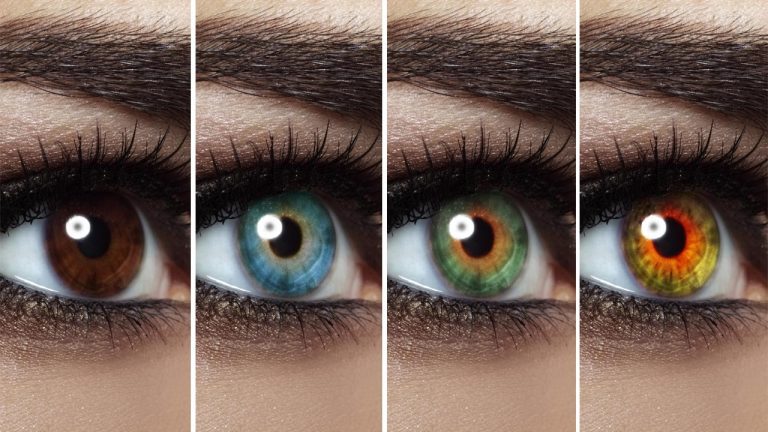
You’ve seen it everywhere, but how is it done? Today we show you how to change the color of eyes in Photoshop!

Selecting the Eye

To start off, make a new layer and then a curves adjustment layer directly above it. Create an upward curve so that the image looks bright. This will help with visibility later on, and it allow us to alter the selection as we go.

Next, select an area just smaller than they eye using the elliptical marquee tool. Invert that selection by clicking on the mask and then press CMD + I. Delete the underlying layer and then invert the mask once more.

Refining the Selection

Since the outline of the eye is very sharp and unrealistic at this point, we need a blur to make it more believable. Go to Filter — Blur — Gaussian Blur, and choose an amount of blur that looks right for the image.

Layer Mask on a Group

This is a big and important step! We want our color work to only be visible directly on the eye, right? To do this, create a group by pressing CMD + G.

Then, to copy the current layer mask onto the group, hold ALT/OPT and drag it on top of the group folder. The mask will now apply to the entire group.

We can fill the old curves adjustment layer mask with white because we no longer need it. To do this, hold SHIFT + DELETE and select ‘Fill with White.’

The Fun Part

Now that we have a group that will only apply to the eye, we can begin to alter the color. Select a Hue/Saturation Adjustment layer. In this layer, the hue slider can be adjusted to whatever color you’d like!

Hint: Blue and green eyes will need a bit of desaturation.

At this point, it is usually quite noticeable that the layer mask is covering part of the eye that it shouldn’t be (pupil, eyelashes, etc.). If this needs to be fixed, go back onto the layer mask and paint over those areas with a white brush.

We can also add another curves adjustment layer to add detail in the eye. By bringing up the different color channels and then adding a layer mask, we can go back in and paint certain areas that we would like more color in.

Infinite Possibilities

Why stop after just one color? To continue with different types of eyes, duplicate the layer by dragging the entire group down to the new layer icon. Then, make the underlying group invisible.

Now we can go back into the adjustments we made previously and alter them however we’d like! Just double click on the adjustment layers and the dialogues will pop up.

Summary

Whew. Here’s the long story short:

– Create a selection where the eye is
– Load that selection as a mask onto a group
– Create adjustment layers inside of that group

————————————————————————————————

VISIT PHLEARN.COM FOR MORE FREE TUTORIALS

Homepage

SUBSCRIBE TO OUR CHANNEL FOR MORE FREE TIPS AND TRICKS
http://www.youtube.com/subscription_center?add_user=phlearnllc

GET FREE TUTORIALS IN YOUR EMAIL + DISCOUNTS ON OUR PRO TUTORIALS!
https://phlearn.com/mail

BUY THE TABLET AARON USES! https://phlearn.com/tablet

LET’S BE FRIENDS!
Instagram ► https://www.instagram.com/phlearn/
Facebook ► https://facebook.com/phlearn
Twitter ► https://twitter.com/phlearn
Google+ ► https://plus.google.com/116791098059215639405
Phlearn ► https://phlearn.com

How to Use the Pen Tool in Photoshop

0

#phlearnmethod – Photoshop Made Simple.
Download Your Free 5 Pack Today – http://bit.ly/1GfvyEq

If you would like more in-depth information on cutting out hair, check out our PRO Tutorial:
http://phlearn.com/product/best-way-cut-hair

———————————————————————————————–

Pen Tool
The pen tool can be very intimidating at first, but all it takes is a little practice and a lot of selecting! In today’s episode, we walk you through the pen tool in Photoshop.

Starting with the Basics
To start from the very beginning, it’s best to practice basic shapes. Select the pen tool from the toolbar (or press P). All you have to do is click to create the edges of your shape. After completing it, you will see a little O if you hover over the first point. You can then click on that first point to close the shape.
To turn this into a selection, right click and go to “Make Selection.”

Whenever you are working with the pen tool, it creates paths. This is why you don’t see your shape on a layer; it is stored in a different place. If you need to alter a selection, go to the Paths tab and click on the Work Path. From here, you can hold down CMD and click on any point to move it around.

Magical tip: Hold ALT/OPT and click on a point to turn it from a curve to a straight line, and vice versa.

The pen tool truly just takes some practice. Spend time playing around with shapes and anchor points!

Pen Paths
If you think about it, the simple shapes you can create from scratch with the pen tool are some of the same shapes that you might use to outline a figure- just simple curves and lines.
When selecting an element in an image, apply the same basic pen tool techniques we just went over. It tends to help if you select just inside the edge of the figure (you can always refine that edge later).

Don’t forget about the magical tip from before! If you need to create a sharp edge or change direction in your curve, hold the ALT/OPT key and alter the point.

You can also hover over any point until you see a little minus symbol, and click to delete that point. The same works in the opposite direction if you need to add a point (you will see a little plus symbol).

Once you are finished, be sure to close up your path by hovering over the first point and clicking it. Again, to create a selection from your path, right click and choose “Make Selection.”

Cutting out subjects
What happens if your subject is on a layer, but you can’t find your pen path? Don’t fret! Just click on the path tab (to the right of the channels tab). You can also go to Window — Paths, and the dialogue you need will pop up right away.
Once your path is turned into a selection (right click to Make Selection, or hold CMD and click on the path thumbnail), it will be active on your layers. If you go back into your layers, you should see marching ants around the subject.
Click on the layer mask icon and your selection will be cut out perfectly from the background. Voila! Then, create a new layer underneath your subject. You can fill it with any color that you’d like.

———————————————————————————————–

Thanks for watching our free Phlearn Tutorials! If you enjoyed this video be sure to subscribe to our channel to receive free weekly videos.

Subscribe: http://goo.gl/LBIEQU

For more advanced Photoshop Tutorials be sure to check out our Phlearn PRO Tutorials. We offer the best Photoshop tutorials available online starting at just $14.99.
http://phlearn.com/pro-tutorials

———————————————————————————————–

Website: http://phlearn.com
Facebook: https://www.facebook.com/Phlearn
Google+: https://plus.google.com/u/0/116791098…
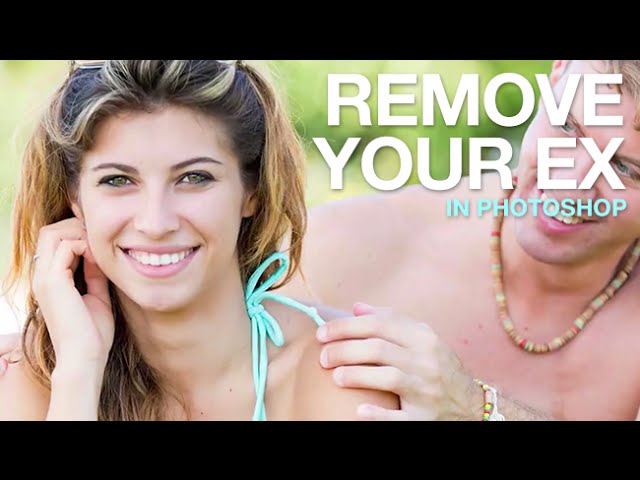
Image: http://www.fotolia.com

How to Remove Your Ex-Boyfriend in Photoshop

0

Our #1 PRO Tutorial ever is now on Sale! https://phlearn.com/popular

How to Remove Your Ex in Photoshop

Have you ever seen a profile picture that is cropped to show just one subject, but the hands of someone else are awkwardly still there? In today’s episode we show you the tools to remove your ex-boyfriend/girlfriend in Photoshop! Ah, if only it was this easy in real life…

Step One: Pen Tool

When removing an obstruction from someone’s skin, the best way to start off is with the pen tool. Create a selection around the area that you need to eliminate from the image, the shoulder where the hands are, in this case. Depending on the picture, you will most likely have to create a body part from scratch! This is not as scary as you might think. The pen tool can make curves as big as you’d like, and you can always redo your pen path. Trace around the outside of where you think the shoulder would be, and be sure to include all of the hand which you are getting rid of.

For a more detailed tutorial on the pen tool, check out our episode from earlier this week: http://phlearn.com/use-pen-tool-photoshop
Right click to make your path into a selection, and feather it out slightly. This generally makes it look more realistic because it is less harsh of a line.

Next, select the brush tool and hold ALT/OPT to sample a color that will replace where the hand was. You can then paint right over the hand without your brush going outside of the selection.

We have a problem though. Most of the hand is gone from the outside edge of the shoulder, but we need to get rid of the hand that covers up the actual skin. To fix this, go to Select — Inverse. Now you are able to paint inside of the shoulder rather than outside of it.

Step Two: Clone Stamp Tool

Time to cover up that creepy floating hand! Use the clone stamp tool to do this and make sure to sample areas that are very close to where you will be painting.

For some added realism, you can go back to the brush tool, sample some color from the background, and paint it ever so slightly over top of the edge of the skin to give it some glow.

Step Three: Brush Tool

The clone stamp tool is the best option and will take care of the entire problem in some cases, but in others there will not be enough information to sample from. After doing what you can with the clone stamp tool, the brush tool will come to the rescue! This might take some time and practice as you are painting in skin from scratch. Here are some tips for painting skin:

• Use a soft edged brush to blend the tones
• Zoom in and out to see the skin from multiple perspectives and evaluate the progress
• Sample colors from close to where you are painting
• Be very cautious if you are doing this on a face; this can completely change the way someone looks because faces are so distinct

VISIT PHLEARN.COM FOR MORE FREE TUTORIALS

Homepage

SUBSCRIBE TO OUR CHANNEL FOR MORE FREE TIPS AND TRICKS
http://www.youtube.com/subscription_center?add_user=phlearnllc

GET FREE TUTORIALS IN YOUR EMAIL + DISCOUNTS ON OUR PRO TUTORIALS!
https://phlearn.com/mail

BUY THE TABLET AARON USES! https://phlearn.com/tablet

LET’S BE FRIENDS!
Instagram ► https://www.instagram.com/phlearn/
Facebook ► https://facebook.com/phlearn
Twitter ► https://twitter.com/phlearn
Google+ ► https://plus.google.com/116791098059215639405
Phlearn ► https://phlearn.com

How to Cut Out Hair in Photoshop

0

OUR #1 PRO TUTORIAL EVER IS NOW ON SALE! https://phlearn.com/product/photoshop-101-301

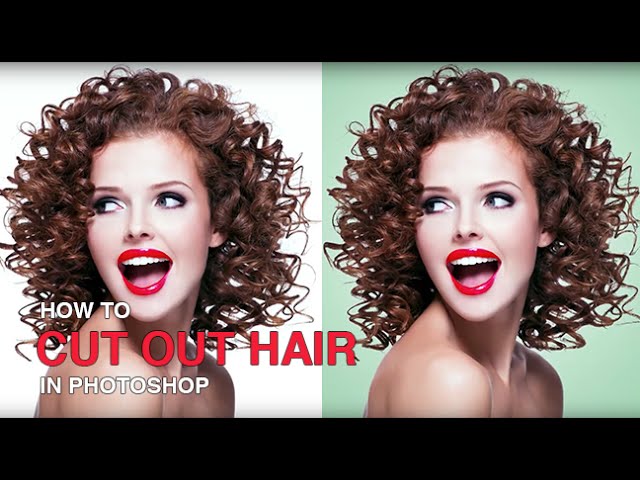
When cutting out hair from a background, it is helpful to keep in mind that it’s much easier to use dark hair against a light background or light hair against a dark background.

Selections

To start, find the color channel which shows the maximum amount of contrast in the hair.
Duplicate that channel and bring up the levels panel (CMD/CNTL + L). We can bring the black point up to create very intense contrast in the image. The darks should be extremely dark but be sure not to overdo it! A good way to check is if the edges of the hair look too coarse, you can decrease the darkness a little bit.
All of this is done in the channels tab, but it needs to be turned into an actual usable selection. Hold CMD/CNTL and click on your channel copy. This selection will remain, and you are able to go back into the layers and edit from there. Click on the layer mask icon, and everything that was dark will turn invisible. All you have to do is invert the selection (CMD/CNTL + I). If parts of the image are transparent that shouldn’t be, you can paint over the layer mask where it needs to be filled in.

To take care of fringing (light or white part around the edges of the hair), clipping masks will come in handy!

-Create a new layer
-Right click, and select “create clipping mask”
-Use the brush tool or clone stamp tool to fill in the white areas

Now, whatever work is done on that layer will only apply to the underlying layer. In other words, your new layer is clipped to what’s under it.

Change the clipped layer from normal to darken- this will only effect the whitest part of the hair. Use the clone stamp tool to paint over the light parts of the hair.

VISIT PHLEARN.COM FOR MORE FREE TUTORIALS

Homepage

SUBSCRIBE NOW FOR MORE FREE TIPS AND TRICKS
http://www.youtube.com/subscription_center?add_user=phlearnllc

GET FREE TUTORIALS SENT TO YOUR EMAIL + DISCOUNTS ON OUR PRO TUTORIALS!
https://phlearn.com/mail

Use the same Tablet as Aaron: http://amzn.to/1Eykaoh

LET’S BE FRIENDS!
Instagram ► https://www.instagram.com/phlearn/
Facebook ► https://facebook.com/phlearn
Twitter ► https://twitter.com/phlearn
Google+ ► https://plus.google.com/116791098059215639405
Phlearn ► https://phlearn.com

How to Create Facial Hair in Photoshop

0

Download Phlearn’s Custom Facial Hair Brush here: http://phlearn.com/make-facial-hair-photoshop

Learn to Become a Master Retoucher: https://phlearn.com/rtfacialhair

Our #1 PRO Tutorial ever is now on Sale! https://phlearn.com/popular

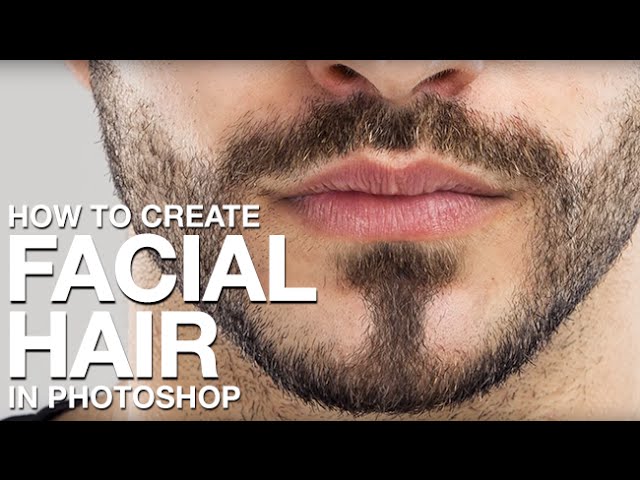
In today’s episode, we give you the gift of facial hair! Whether for fun or for professional retouching, creating hair can always come in handy.

Creating a custom brush: Step One

The first and possibly most important step is to make one single hair with the brush tool. This hair should be as perfect as possible and match the other hairs on the face, because it will become the custom brush. If you want to create stubble, simply make the brush a little smaller to resemble a single spot of stubble.
Create a white background around the hair by using the marquee tool. Then, after selecting the boxed hair, go to Edit – Define Brush Preset. After it is saved, you can open it in the brushes panel.

Creating a custom brush: Step Two

Spend time playing around in the brush menu! Many little adjustments add up to an amazingly realistic look. Make changes such as increasing the angle jitter, roundness jitter, scattering, opacity, spacing, etc. 

A Hairier Face

When you are satisfied with your custom brush, it’s time to paint! All you have to do is paint on the face where you want the hair to be. 
Remember: hair is not always the same color, so a good mixture of lights and darks is important when making realistic facial hair. Hold ALT/OPT and sample multiple colors as you go. You can also paint with white to create some highlights.

VISIT PHLEARN.COM FOR MORE FREE TUTORIALS

Homepage

SUBSCRIBE TO OUR CHANNEL FOR MORE FREE TIPS AND TRICKS
http://www.youtube.com/subscription_center?add_user=phlearnllc

GET FREE TUTORIALS IN YOUR EMAIL + DISCOUNTS ON OUR PRO TUTORIALS!
https://phlearn.com/mail

BUY THE TABLET AARON USES! https://phlearn.com/tablet

LET’S BE FRIENDS!
Instagram ► https://www.instagram.com/phlearn/
Facebook ► https://facebook.com/phlearn
Twitter ► https://twitter.com/phlearn
Google+ ► https://plus.google.com/116791098059215639405
Phlearn ► https://phlearn.com

How to Whiten Teeth in Photoshop

0

Our #1 PRO Tutorial ever is now on Sale! https://phlearn.com/popular

How to Whiten Teeth in Photoshop

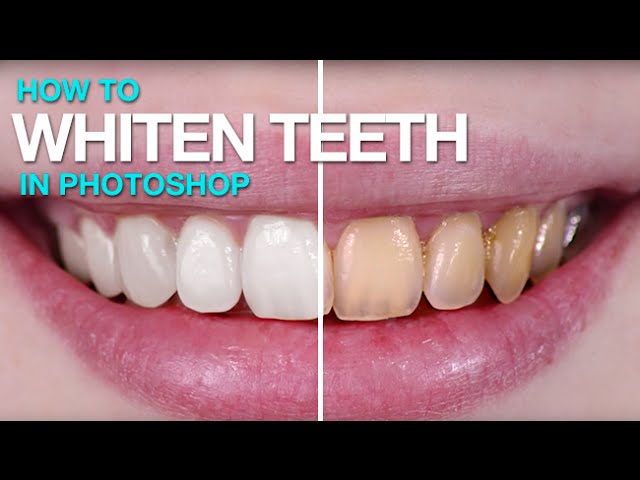
You’ve asked, we’ve answered! In today’s episode, learn how to whiten and straighten teeth in no time!

Selecting the Teeth

Make sure to start off by selecting the teeth, so they can be isolated for the color work. The initial selection doesn’t have to be perfect as you can go back in and refine the mask layer. For this specific image, we use the lasso tool.

Now that we have a selection, we want to turn it into a layer mask. Make a new layer and press CMD/CTRL + G to group that layer with itself. Then, hit the layer mask button. Now, all the changes you make will only apply to the layer mask. This is a very important step and is extremely helpful later on!

Tackling Color

Make a new hue/saturation layer mask, and drag the slider almost all the way to the left. Decrease the saturation a little bit as well. You do want to have a tiny bit of color in the teeth, because no one has completely desaturated teeth. Grey teeth would be a very scary sight.

Lightening the Dark Areas

Make a new curves adjustment layer and drag the middle of the curve very far up. At first this will look really horrible, but don’t worry! Double click on that layer and select the Blend-If window. Here, you can hold ALT/OPT and drag the bottom right slider to the left. If it goes too far though, the darkness will come back into the teeth so be sure to find a happy medium.

Lightening the Light Areas

For this step, use the marquee tool to select a box around all of the teeth. Then hit Shift + Delete and choose Fill With White. Now, use the same Blend-If technique as before but bring the left slider to the right

Straightening

If you need to straighten teeth as well, make a stamp visible layer by pressing SHIFT + OPT + CMD + E. This will be the layer that you alter the shape of the teeth on. Go to Filter – Liquify, and make adjustments with your brush as needed on the teeth.

———————————————————————————————–

VISIT PHLEARN.COM FOR MORE FREE TUTORIALS

Homepage

SUBSCRIBE TO OUR CHANNEL FOR MORE FREE TIPS AND TRICKS
http://www.youtube.com/subscription_center?add_user=phlearnllc

GET FREE TUTORIALS IN YOUR EMAIL + DISCOUNTS ON OUR PRO TUTORIALS!
https://phlearn.com/mail

BUY THE TABLET AARON USES! https://phlearn.com/tablet

LET’S BE FRIENDS!
Instagram ► https://www.instagram.com/phlearn/
Facebook ► https://facebook.com/phlearn
Twitter ► https://twitter.com/phlearn
Google+ ► https://plus.google.com/116791098059215639405
Phlearn ► https://phlearn.com

———————————————————————————————–

Image: http://www.fotolia.com