Home Blog Page 504

Liquid Portrait Pro Tutorial

0

———————————————————————————————

Thanks for watching our free Phlearn Tutorials! If you enjoyed this video be sure to subscribe to our channel to receive free weekly videos.

Subscribe: http://goo.gl/LBIEQU

For more advanced Photoshop Tutorials be sure to check out our Phlearn PRO Tutorials. We offer the best Photoshop tutorials available online starting at just $14.99.
http://phlearn.com/product-category/pro-photoshop-tutorials

———————————————————————————————–

Website: http://phlearn.com
Facebook: https://www.facebook.com/Phlearn
Google+: https://plus.google.com/u/0/116791098…

The Fastest Way to Dodge and Burn in Photoshop

0

Phlearn PRO Photoshop Tutorials
View Our Bestselling Bundles – http://bit.ly/1Abrt1R

We’re old schoolin’ it in today’s episode as we show you the fastest way to dodge and burn in Photoshop!

To start out, duplicate the background layer by pressing Cmd/Ctrl + J. Next, desaturate that layer by pressing Shift + Cmd/Ctrl + U. On that layer, change the blending mode to Vivid Light.

Now, go to Filter — Other — High Pass. This is the same technique you would use to sharpen an image; the only difference is that we are going to bring the radius very far up. This focuses on the details in a broader way.

At first, this effect will probably be much too intense. So, to have more control, create a layer mask and then paint back in what you want to be visible. You can also change the blend mode to something like Soft Light if you want a more subtle look.

That’s all it takes to dodge and burn quickly in Photoshop!

———————————————————————————————–

Thanks for watching our free Phlearn Tutorials! If you enjoyed this video be sure to subscribe to our channel to receive free weekly videos.

Subscribe: http://goo.gl/LBIEQU

For more advanced Photoshop Tutorials be sure to check out our Phlearn PRO Tutorials. We offer the best Photoshop tutorials available online starting at just $14.99.
http://phlearn.com/pro-tutorials

———————————————————————————————–

Website: http://phlearn.com
Facebook: https://www.facebook.com/Phlearn
Google+: https://plus.google.com/u/0/116791098…
Image: http://www.fotolia.com
Phlearn Photoshoot Behind the Scenes: Liquid Portrait

0

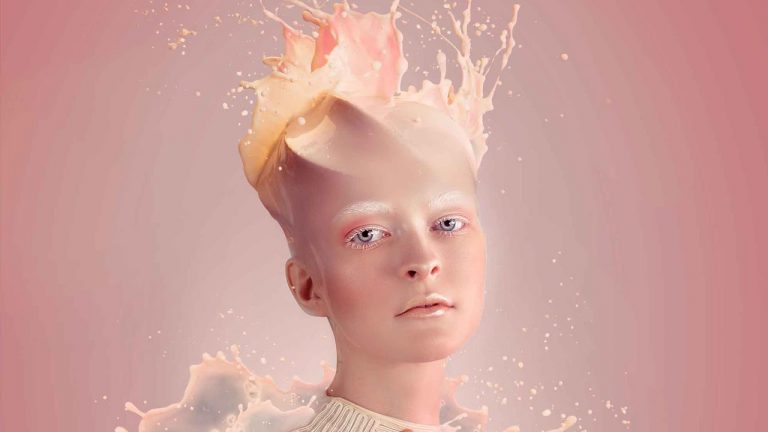
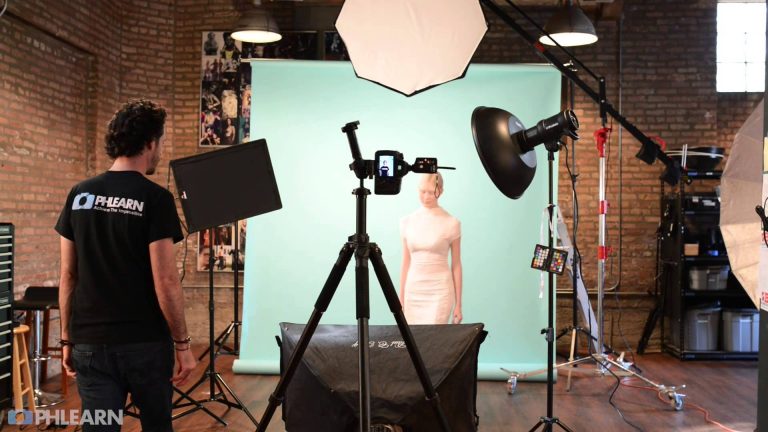
Come behind the scenes with Aaron Nace and the Phlearn team for our latest Pro Tutorial, “Liquid Portrait”. We discuss developing a concept, lighting, photographing splashes and much more!

To purchase this Pro Tutorial, click here: http://bit.ly/1vyjTgL

———————————————————————————————

Thanks for watching our free Phlearn Tutorials! If you enjoyed this video be sure to subscribe to our channel to receive free weekly videos.

Subscribe: http://goo.gl/LBIEQU

For more advanced Photoshop Tutorials be sure to check out our Phlearn PRO Tutorials. We offer the best Photoshop tutorials available online starting at just $14.99.
http://phlearn.com/pro-tutorials

———————————————————————————————–

Website: http://phlearn.com
Facebook: https://www.facebook.com/Phlearn
Google+: https://plus.google.com/u/0/116791098…

How to Fake Depth of Field in Photoshop

0

Fake it ’til you Make it

Everyone wants a beautiful out of focus background once in a while, but what if you can’t achieve the look in-camera? In today’s episode, we show you how to fake depth of field in Photoshop!

1… 2… Done!

1. To start, select out the subject that needs to be separated from your soon-to-be blurry background. Use whatever selection tool you’d like, such as the lasso tool, magnetic lasso tool, or our personal favorite, the pen tool. Then go to Filter – Refine Edge. Here, you can match the softness of the selection with the actual image.

2. Next is the blur! Go to Filter – Blur Gallery – Tilt Shift. In this dialogue, you can choose the perfect settings for your fake depth of field. Enjoy the blurry results!

———————————————————————————————

Thanks for watching our free Phlearn Tutorials! If you enjoyed this video be sure to subscribe to our channel to receive free weekly videos.

Subscribe: http://goo.gl/LBIEQU

For more advanced Photoshop Tutorials be sure to check out our Phlearn PRO Tutorials. We offer the best Photoshop tutorials available online starting at just $14.99.
http://phlearn.com/pro-tutorials

———————————————————————————————–

Website: http://phlearn.com
Facebook: https://www.facebook.com/Phlearn
Google+: https://plus.google.com/u/0/116791098…
Image: http://www.fotolia.com
How to use the Amazing Patch Tool in Photoshop

0

Phlearn PRO Photoshop Tutorials
View Our Bestselling Bundles – http://bit.ly/1Abrt1R

What is it good for?

The Patch Tool is one of the best tools Photoshop has to offer. It can save you a ton of time when trying to make some adjustments to your image. You can use it to remove small or large areas from your photo. You can also use it to duplicate parts of your photo. As long you you have an area in your image to sample, using the patch tool should be very easy to do. In today’s episode, we’ll show you how to use the amazing Patch Tool in photoshop!

How to use it

Just use the Patch Tool to select the part of your photo you want to get rid of. After that, drag your selection over to a part of the photo you’d want to replace your original selection with. The Patch Tool will then take the new texture and replace it with your old selection. The awesome part about this tool is that it will take care of your edges for you. A slight feathering almost makes it seem seamless as you replace your desired part of the photo. Make sure your new selection is an area that’s similar to the area your are trying to patch.

You can also use the Patch Tool to duplicate areas of your photo as you’ll see in the video above. Just change your options from Source to Destination. Now you can select the part of your photo you’d like to duplicate and drag it to another area of your photo.

You can use the Patch Tool to get rid of a ton of distractions in your image!

———————————————————————————————

Thanks for watching our free Phlearn Tutorials! If you enjoyed this video be sure to subscribe to our channel to receive free weekly videos.

Subscribe: http://goo.gl/LBIEQU

For more advanced Photoshop Tutorials be sure to check out our Phlearn PRO Tutorials. We offer the best Photoshop tutorials available online starting at just $14.99.
http://phlearn.com/pro-tutorials

———————————————————————————————–

Website: http://phlearn.com
Facebook: https://www.facebook.com/Phlearn
Google+: https://plus.google.com/u/0/116791098…
Image: http://www.fotolia.com
How to Black Out Eyes in Photoshop

0

Black Out

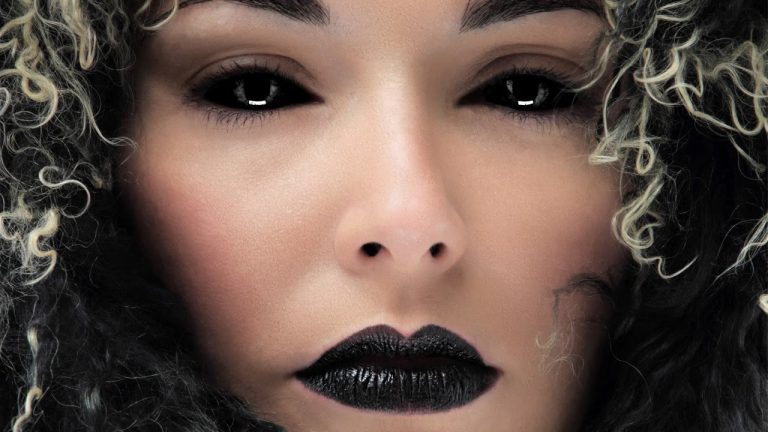
Making eyes all black is faster than you might think, and is definitely a terrifying effect to add to your images! Join us in the spirit of Halloween as we show you how to black out eyes in Photoshop!

The Trick

First and foremost, take a look at the catch lights in the eyes of your subject. Those highlights will need to shine through, which is the ultimate trick to making the effect look realistic.

The Steps

Begin by painting the inside of the eye with a black brush.
Create a curves adjustment layer and drag the curve down to create a very dark adjustment.
Invert the layer, and then choose a white soft edge brush. Now you can paint around the edges of the eye, and there will be a more believable transition between the black and the eyelids. This curves layer should help a little bit, but the eye will still look extremely fake. The depth you need in the eye can be added back using the channels tab.
Find the channel that has the greatest difference between the highlights in the eye and the other tones (this is usually the blue channel).
Duplicate that channel, and then create a levels adjustment layer and bring the highlights up and the shadows down. It should look very contrasty and scary, but don’t worry! Next, take only the highlights and turn them into a selection.
Go back into the layers and create a new layer on top of everything. Paint white with the brush tool to draw in the highlights in the eyes. This is what will truly gives life to your black eyes!
That’s all, folks! Enjoy this spoooooky black effect!

———————————————————————————————

Thanks for watching our free Phlearn Tutorials! If you enjoyed this video be sure to subscribe to our channel to receive free weekly videos.

Subscribe: http://goo.gl/LBIEQU

For more advanced Photoshop Tutorials be sure to check out our Phlearn PRO Tutorials. We offer the best Photoshop tutorials available online starting at just $14.99.
http://phlearn.com/pro-tutorials

———————————————————————————————–

Website: http://phlearn.com
Facebook: https://www.facebook.com/Phlearn
Google+: https://plus.google.com/u/0/116791098…
Image: http://www.fotolia.com
The Power of Using Blending Modes in Photoshop

0

Phlearn PRO Photoshop Tutorials
View Our Bestselling Bundles – http://bit.ly/1Abrt1R

The Power of Blending Modes

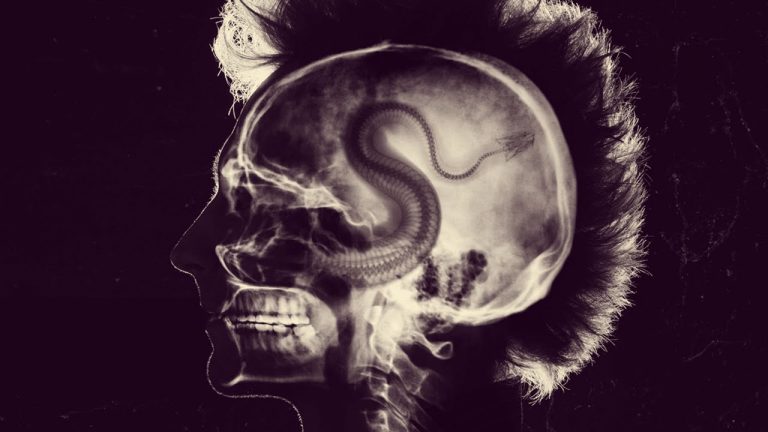
You won’t believe our second special edition Halloween episode! Explore artistic options and learn how quickly you can accomplish them with a simple Blending Mode change!

Getting Started

For this particular image, we start out by using the Screen blending mode on the skull. This is because the screen mode makes all the blacks in an image vanish. We then use the liquify tool to reshape the skull to fit the layer behind it. We also use a layer mask on the skull layer and then paint over the areas that we don’t want to be visible. Masking can be very helpful when layering images like this.

Another helpful tip is to use the linear gradient, because it creates a seamless transition from black to white.

You can also use a levels adjustment layer to add contrast to any layer. This is helpful when the blending mode leaves too many midtones in your layer.

Global Coloring

To immediately blend all of the colors together, create a new gradient map layer on top of everything. This allows you to choose a color for the dark and light point, and color the entire image based on those colors. Now, any layer that is placed underneath will be affected by those colors.

Hints and Reminders

If there is ever an effect you would like but can’t achieve it with just the blending modes, don’t be afraid to invert your image. In this case we did so with the snake; by inverting the colors first and then choosing a multiply blending mode. This way, the snake that was originally light is now dark. There are also no bright areas because the blending mode eliminated them.

For a grungier look, we used some of our distressed paper from our Phlearn Texture Pack, which can be found here: http://phlearn.com/product/distressed-paper

To blend these into the background, we used the same tactics we used with the skull.

To recap, here are the blending modes that we utilized in this episode!

Screen: eliminates darkest areas, enhances lightest areas
Multiply: Enhances darkest areas, eliminates lightest areas

———————————————————————————————

Thanks for watching our free Phlearn Tutorials! If you enjoyed this video be sure to subscribe to our channel to receive free weekly videos.

Subscribe: http://goo.gl/LBIEQU

For more advanced Photoshop Tutorials be sure to check out our Phlearn PRO Tutorials. We offer the best Photoshop tutorials available online starting at just $14.99.
http://phlearn.com/pro-tutorials

———————————————————————————————–

Website: http://phlearn.com
Facebook: https://www.facebook.com/Phlearn
Google+: https://plus.google.com/u/0/116791098…
Image: http://www.fotolia.com
How to Create a Scar in Photoshop

0

Creating Scars in Photoshop

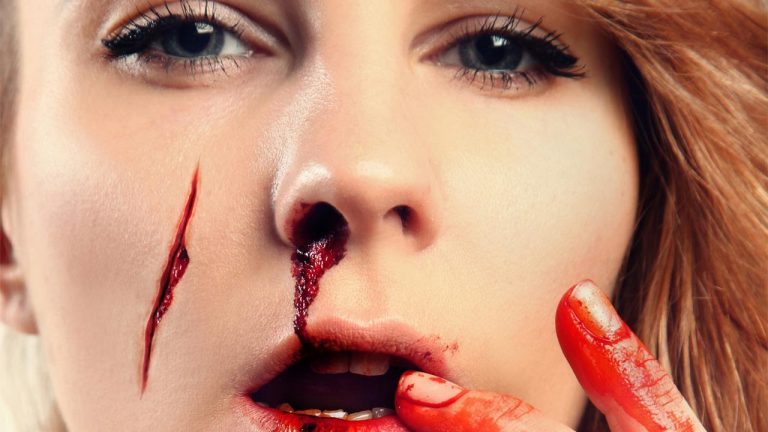
In our third Halloween Episode, we show you how to create realistic scars in Photoshop! Wow humans and zombies alike with this scary gash technique!

From Scratch to Scarface

To begin, draw an outline of the scar with the lasso tool. Don’t worry about making it perfect; a little unsteadiness of the hand will actually make it look more realistic later on. Hit Shift + Delete on the layer and fill the selection with black.

The give the scar its necessary depth, create a new layer and paint over the hard edges with a soft edged clone stamp. Don’t go all the way to the center because this will look like the skin that is inside of the scar. Clip this layer to the underlying one by right clicking and choosing create clipping mask. Hit Ctrl+ M to bring up a curves panel and make this layer much darker.

Next, on new soft light layer, use black and white brushes to dodge & burn and create some depth and add realism to the scar.

On another layer set to an overlay blending mode, continue to add some detail to the scar by painting with a dark red color around it.

If you already have blood in an image, it is very helpful because you can clone stamp it from one section to another. In this particular image, we copy some of the blood from the nose onto the outside of the scar.

Finally, use the blur tool and make sure sample all layers is checked. Paint over top of the scar to blend it into the skin. This is especially helpful if the image is not perfectly in focus.

———————————————————————————————

Thanks for watching our free Phlearn Tutorials! If you enjoyed this video be sure to subscribe to our channel to receive free weekly videos.

Subscribe: http://goo.gl/LBIEQU

For more advanced Photoshop Tutorials be sure to check out our Phlearn PRO Tutorials. We offer the best Photoshop tutorials available online starting at just $14.99.
http://phlearn.com/pro-tutorials

———————————————————————————————–

Website: http://phlearn.com
Facebook: https://www.facebook.com/Phlearn
Google+: https://plus.google.com/u/0/116791098…
Image: http://www.fotolia.com
Turn Teeth into Sharp Fangs in Photoshop

0

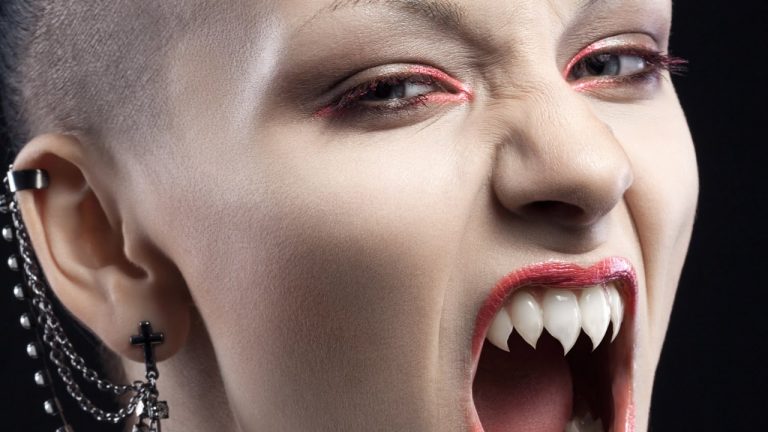
Are you ready for our fourth and final Halloween episode?? Learn how to shape teeth into sharp fangs to give your images some real “bite!”

Shaping and Coloring

Start by sketching out what shape you want the teeth to be. You can do this with just a simple brush tool to get an idea of what you’d like. Then, use the pen tool to trace the outline of the teeth. Once that is complete you can sample colors and paint with the brush tool (Hold alt/opt and click to sample). You can also use the clone stamp tool to sample things like specific highlights.

Tips and Tricks

– If you are clone stamping a highlight, use the lighten blend mode to help eliminate any dark areas.

– The pen tool produces a very sharp result which most likely won’t match the original tooth. It’s important to add the proper amount of blur to make your new teeth look real, and this can be done with a gaussian blur.

– Ultimate rule for faking teeth: don’t make them too perfect!! feel free to add little ridges and imperfections by selecting chunks with the lasso tool and then painting them out with a layer mask.

– For a quicker and not as thorough method, use the liquify tool to shape the teeth. This is best for the bottom row of teeth.

———————————————————————————————–

Thanks for watching our free Phlearn Tutorials! If you enjoyed this video be sure to subscribe to our channel to receive free weekly videos.

Subscribe: http://goo.gl/LBIEQU

For more advanced Photoshop Tutorials be sure to check out our Phlearn PRO Tutorials. We offer the best Photoshop tutorials available online starting at just $14.99.
http://phlearn.com/pro-tutorials

———————————————————————————————–

Website: http://phlearn.com
Facebook: https://www.facebook.com/Phlearn
Google+: https://plus.google.com/u/0/116791098…

Dragon’s Heart Official Trailer

0

———————————————————————————————–

Thanks for watching our free Phlearn Tutorials! If you enjoyed this video be sure to subscribe to our channel to receive free weekly videos.

Subscribe: http://goo.gl/LBIEQU

For more advanced Photoshop Tutorials be sure to check out our Phlearn PRO Tutorials. We offer the best Photoshop tutorials available online starting at just $14.99.
http://phlearn.com/pro-tutorials

———————————————————————————————–

Website: http://phlearn.com
Facebook: https://www.facebook.com/Phlearn
Google+: https://plus.google.com/u/0/116791098…