Home Blog Page 505

How to Transform the Body in Photoshop

0

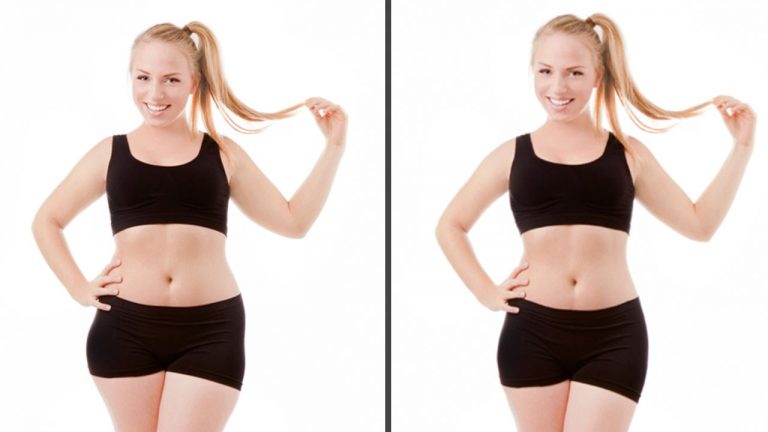
Altering a model’s body proportions is a very controversial topic. In today’s episode, we show you some techniques to get a great transformed body without pushing it too far.

Although tucking the stomach in usually comes to mind first, there are many other helping tricks for shaping bodies in Photoshop. Generally, you are going for increased height in the body. Lengthening the legs and the neck is a great subtle way to do this.

Puppet Warp

Duplicate the background layer and go to Edit – Puppet Warp. With this tool, you can create anchor points for the areas that you would like to stay in place. For this image we create points on her hips and then on the outsides of her feet. Then, we can pull the feet down a little and stretch only the legs out.

You can use puppet warp for stretching the neck as well. Put points around her head so that it doesn’t move, and one on each shoulder. Then lift the head up to lengthen the neck.

At last, tummy slimming! We use the same puppet technique for this as well. Be careful not to over over-exaggerate this transformation.

Liquify

On a duplicate of your top layer, go to Filter – Liquify. We use the Forward Warp Tool which can be found at the top left of the dialogue, and allows you to push and pull the image. Use this tool to bring in her arms and hips a bit.
———————————————————————————————–

Thanks for watching our free Phlearn Tutorials! If you enjoyed this video be sure to subscribe to our channel to receive free weekly videos.

Subscribe: http://goo.gl/LBIEQU

For more advanced Photoshop Tutorials be sure to check out our Phlearn PRO Tutorials. We offer the best Photoshop tutorials available online starting at just $14.99.
http://phlearn.com/pro-tutorials

———————————————————————————————–

Website: http://phlearn.com
Facebook: https://www.facebook.com/Phlearn
Google+: https://plus.google.com/u/0/116791098…
How to Freeze Motion in Natural Light

0

#phlearnmethod – Photoshop Made Simple.
Download Your Free 5 Pack Today – http://bit.ly/1GfvyEq

Freezing Motion in Natural Light

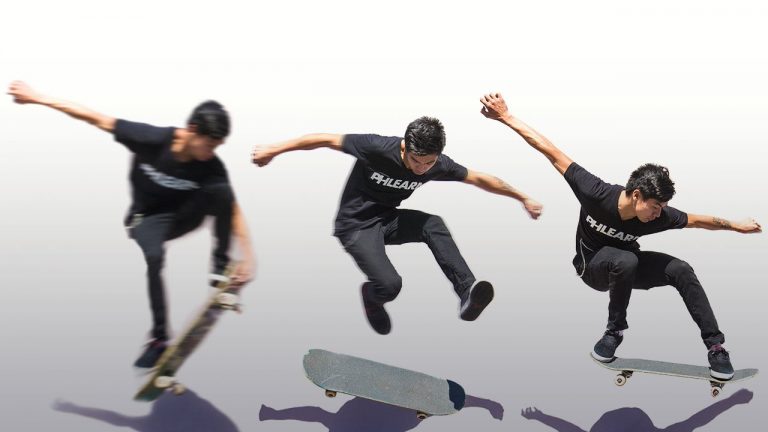
Freezing motion can be incredibly useful in photography because it will allow you to create images that the human eye cannot. By utilizing shutter speed, cameras can freeze a tiny moment in time perfectly.

Close your eyes, blink quickly, and close them again.You will see an flash of an image, but only for a moment. In a nutshell, shutter speed works the same way your eyes do. You can control how long the shutter stays open, which dictates what that image will look like.

Long shutter speeds = motion blur
Short shutter speed = no motion blur
What your shutter speed will be has everything to do with what you are photographing. Slow moving subjects will not need as much of an intense shutter speed to catch them in motion. Fast moving subjects, however, will.

Be aware that you must have enough available light to shoot with a fast shutter speed! If you crank up the speed but don’t change anything else, you will likely get a very dark and underexposed image.

Fast shutter speed = Less light enters the camera
The easiest way to shoot fast moving objects is in Shutter Speed Priority Mode. In this mode, the aperture and ISO are chosen according to what the shutter speed needs to be. As long as you are okay with being flexible in those areas, this is a great option for shooting.

Canon = TV
Nikon = S
Here is a chart to help with visualizing the difference between slow and fast shutter speeds. As you can see, a slow speed like 1/60 will allow for plenty of motion blur. A speed like 1/2000, however, is very fast and will freeze even the fastest cheetah.

———————————————————————————————–

Website: http://phlearn.com
Facebook: https://www.facebook.com/Phlearn
Google+: https://plus.google.com/u/0/116791098…
The Best Way to Use Color in Photoshop

0

Phlearn has some amazing deals happening from now until the end of the year!
Check out some of our awesome photoshop products here: http://bit.ly/1wX5X45

#phlearnmethod – Photoshop Made Simple.
Download Your Free 5 Pack Today – http://bit.ly/1GfvyEq

Color Theory

Join us in today’s episode as we discuss color theory, give you some inside tips and tricks, and put them to use in Photoshop!

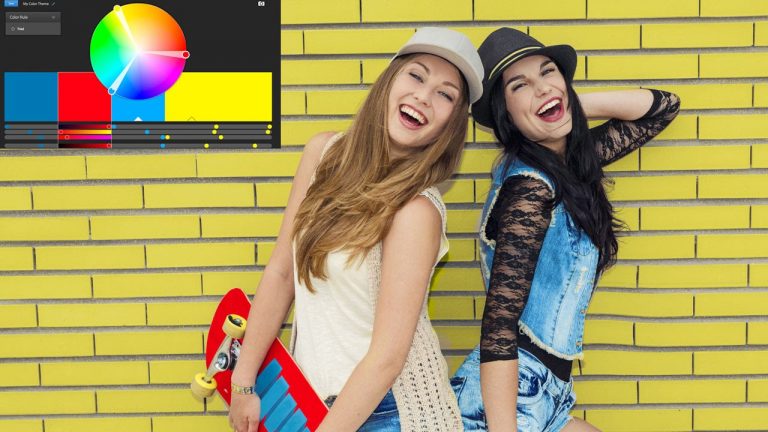
The idea behind Color Theory is to use complementary colors because they work so well with each other visually. You will find them on opposite sides of the color wheel from each other. If you want to use more than three colors, it is called a color triad.

Color.Adobe.com is the resource we use, but there are plenty of other places to find great color wheels as well.

Applying Color Theory to Images

We used the screenshot from Adobe and added it to the actual image. This allows us to sample colors straight form the color wheel!

Create a new layer and go to select – color range. We start with clicking on the magenta color in the image. Then, use the eyedropper or brush tool to sample the red from the screenshot and fill in the selection. Change the blending mode from normal to color so that the shading comes through.

We do the same for the blue in the girl’s jean jacket, and add yellow to the background. This gives us the complete triad of colors with the red, blue, and yellow.

Don’t be afraid to lower the opacity of the colors, because they will likely come out extremely bright and over the top.
———————————————————————————————

Thanks for watching our free Phlearn Tutorials! If you enjoyed this video be sure to subscribe to our channel to receive free weekly videos.

Subscribe: http://goo.gl/LBIEQU

For more advanced Photoshop Tutorials be sure to check out our Phlearn PRO Tutorials. We offer the best Photoshop tutorials available online starting at just $14.99.
http://phlearn.com/pro-tutorials

———————————————————————————————–

Website: http://phlearn.com
Facebook: https://www.facebook.com/Phlearn
Google+: https://plus.google.com/u/0/116791098…
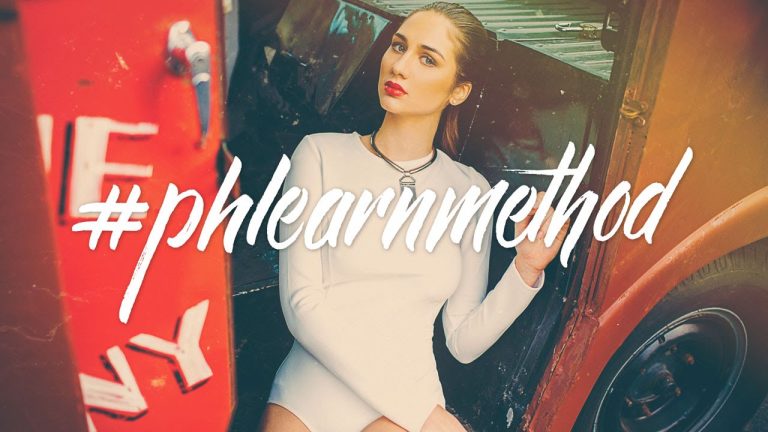
Image: http://www.fotolia.com

The Best Way to Use Lens Flares in Photoshop

0

#phlearnmethod – Photoshop Made Simple.
Download Your Free 5 Pack Today – http://bit.ly/1GfvyEq

Lens Flares

When are flares appropriate in photos? Why can’t you customize the Photoshop lens flare filters?? In today’s episode, we show you the best way to use lens flares in photoshop and answer those burning questions!

Be Appropriate!

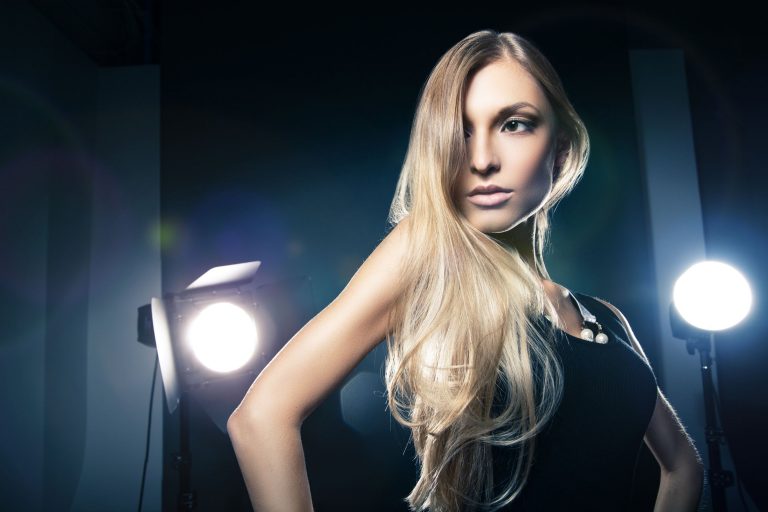
The first step in using lens flares is knowing when they make sense in an image, and when they do not. If the light is coming from anywhere behind the subject (aka backlit), there will be flare in the camera. You can also think in terms of the camera; as long as the camera sees the light source, flare will occur.

Defy the Rules!

Create a new layer and go to Filter – Render – Lens Flare. A dialogue box will pop up telling you that the action you’re trying to complete is not allowed. (Gasp!) So, we have to wiggle around the rules a bit.

Create a stamp visible layer by clicking Shift + Option + Command + E. This is a layer that you can make a lens flare on. Woohoo! Now, hold Shift + Delete and fill the layer with black. Go back to the Filter menu and choose Lens Flare at the very top of the menu (this will repeat the last lens flare you created).

All you have left to do is change the blend mode to screen, and you are able to edit the lens flare however you’d like. Some things we suggest are changing the hue, saturation, and adding a gaussian blur.
———————————————————————————————–

Thanks for watching our free Phlearn Tutorials! If you enjoyed this video be sure to subscribe to our channel to receive free weekly videos.

Subscribe: http://goo.gl/LBIEQU

For more advanced Photoshop Tutorials be sure to check out our Phlearn PRO Tutorials. We offer the best Photoshop tutorials available online starting at just $14.99.
http://phlearn.com/pro-tutorials

———————————————————————————————–

Website: http://phlearn.com
Facebook: https://www.facebook.com/Phlearn
Google+: https://plus.google.com/u/0/116791098…
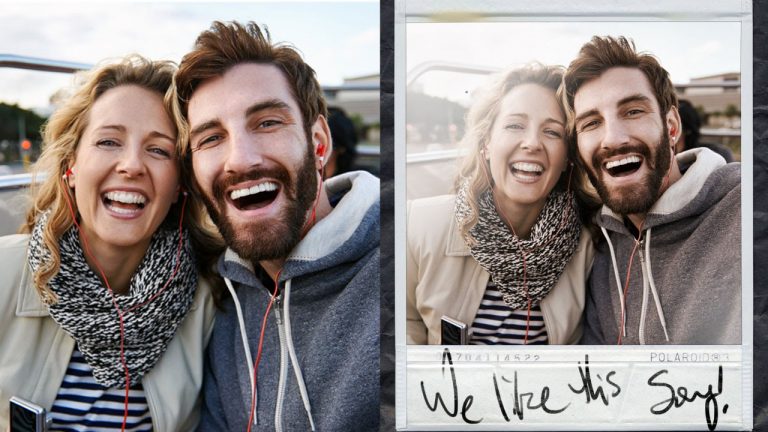
Image: http://www.fotolia.com

#phlearnmethod Photoshop Actions System

0

#phlearnmethod – Photoshop Made Simple.
Download Your Free 5 Pack Today – http://bit.ly/1uhRcSJ

Wardrobe provided by AKIRA: www.shopakira.com
Styled by: Kenneth Marks II
Hair & Makeup by: Tran B. Nguyen

You finished the shoot; uploaded the files…ever lost hours wondering what to do next?

It’s time to recapture those hours–the #phlearnmethod Photoshop actions are here. In a few clicks, edit your images professionally adding unique, themed-styles.

Layer on the perfect lighting for the nostalgic bride or revamp your portfolio with high fashion color. The #phlearnmethod’s 8 bundles allow you to apply frequently-asked-for themes to your photography.

Within each bundle, you’ll get a number of variations on the theme. For instance, in B&W you get charcoal, graphite, ash, inkwell, etc. so you can get the effect you want.

You can use just one action for your image, or layer on a stack of 20. The actions across the bundles work together so the potential combinations are endless. It’s simlar to the effects in Instagram, only much more advanced, and you can use multiple at one time.

As a gift we’ve included 5 FREE Phlearn Method Photoshop Actions in this email! Click the image below to download the sample actions and see how these can simplify your editing process.

———————————————————————————————

Thanks for watching our free Phlearn Tutorials! If you enjoyed this video be sure to subscribe to our channel to receive free weekly videos.

Subscribe: http://goo.gl/LBIEQU

For more advanced Photoshop Tutorials be sure to check out our Phlearn PRO Tutorials. We offer the best Photoshop tutorials available online starting at just $14.99.
http://phlearn.com/pro-tutorials

———————————————————————————————–

Website: http://phlearn.com
Facebook: https://www.facebook.com/Phlearn
Google+: https://plus.google.com/u/0/116791098…
How to Make a Polaroid Framed Picture in Photoshop

0

#phlearnmethod – Photoshop Made Simple.
Download Your Free 5 Pack Today – http://bit.ly/1GfvyEq

Follow the link to download the same Polaroid image used in this episode: http://www.deviantart.com/art/Polaroid-3262470

Polaroid film is becoming harder and harder to come by (*tear*), but what if you still want that retro look? In today’s episode, we show you how to make a polaroid framed picture in Photoshop!

To achieve this fun and retro effect, you will need two things: a picture of your subjects, and a picture of an actual Polaroid.

Move one photo onto the other by simply using the move tool! Click and drag while holding the shift key. Next, select the center square of the Polaroid. In this case, we use the magic wand tool, but you can use any selection tool of your choice. Next click the layer mask button, and your subjects will only show up in the middle of the polaroid.

Give your image an aged and stylized effect by using a hue/saturation layer. Choose a hue that you like (we chose a sepia color) and make sure that the colorize button is checked. Clip it to the underlying layer, and feel free to lower the opacity if the effect looks too strong.

Another step we take is to further the believability of the edges. Put a gaussian blur around the edges to blend the two images in together.
———————————————————————————————–

Thanks for watching our free Phlearn Tutorials! If you enjoyed this video be sure to subscribe to our channel to receive free weekly videos.

Subscribe: http://goo.gl/LBIEQU

For more advanced Photoshop Tutorials be sure to check out our Phlearn PRO Tutorials. We offer the best Photoshop tutorials available online starting at just $14.99.
http://phlearn.com/pro-tutorials

———————————————————————————————–

Website: http://phlearn.com
Facebook: https://www.facebook.com/Phlearn
Google+: https://plus.google.com/u/0/116791098…
How to Create and Replace a Custom Background in Photoshop

0

#phlearnmethod – Photoshop Made Simple.
Download Your Free 5 Pack Today – http://bit.ly/1GfvyEq

Magic Wand

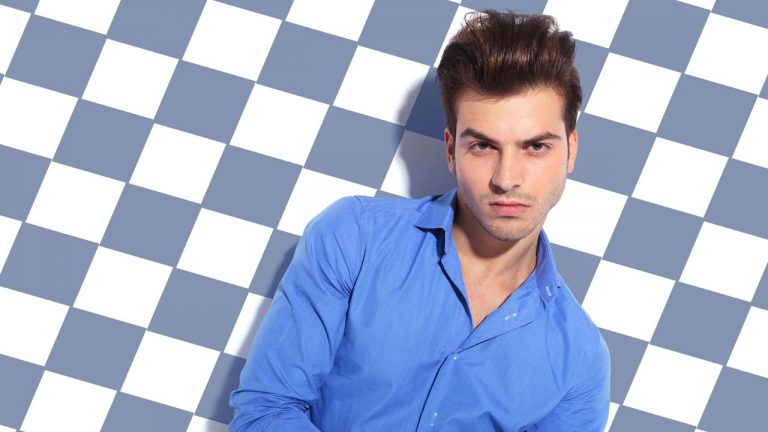
First, the subject needs to be cut out from the background. A great tool for this is the Magic Wand tool! Start selecting, and hold Shift to add to that selection when needed. A helpful aspect of this tool is that you can change the tolerance; if you’re selecting too much, lower the tolerance.

The hair is a little trickier than the rest of the body, and we must refine the edge of the selection. Go to Select – Refine Edge. Choose the best view to help you out; in this case, we use the overlay view. Click on the refine edge tool, and paint over the edges of the hair. Doing this will momentarily “erase” the mask from those edges, but will then select only what is similar to the remaining mask. In other words, it should perfectly select out only the hair.

We are going to use this selection to create a layer mask, and we want that mask to apply to all of our future layers. So, put the layer into a group, and put the layer mask onto that group rather than the layer itself. Now, any layers you add to the group will have the same mask applied to them, and you won’t have to worry about creating a new mask of your subject over and over.
Step and Repeat

To see how this process works, start by creating any shape and filling it with black. Next, turn it into a selection (hold Cmd and click on the layer).

Step: Opt + Cmd + T to select the pattern. Move it to where you’d like and click enter.

Repeat: Hold Shift + Opt + Cmd + T. This will repeat the duplication that you just completed.

Custom Patterns

Dark patterns on a light background are best for making custom patterns. Go to Edit – Define Pattern. Name it and click OK. Nothing will happen until you go back to the image of your subject and apply it there. Create a new fill layer and select Use: pattern. Select your new pattern in the custom pattern drop down. You can choose different options in the scripted pattern section as well.

Helpful hints:

Photographing your subject on a solid colored background is key for this!
To turn any layer into a selection, just hold Ctrl/Cmd and click on the thumbnail of the layer.
Multiply is a great blend mode if you want your pattern to show up but include shadows as well.
———————————————————————————————–

Thanks for watching our free Phlearn Tutorials! If you enjoyed this video be sure to subscribe to our channel to receive free weekly videos.

Subscribe: http://goo.gl/LBIEQU

For more advanced Photoshop Tutorials be sure to check out our Phlearn PRO Tutorials. We offer the best Photoshop tutorials available online starting at just $14.99.
http://phlearn.com/pro-tutorials

———————————————————————————————–

Website: http://phlearn.com
Facebook: https://www.facebook.com/Phlearn
Google+: https://plus.google.com/u/0/116791098…
How to Create a Stylized Portrait Made From Newspapers

0

———————————————————————————————

#phlearnmethod – Photoshop Made Simple.
Download Your Free 5 Pack Today – http://bit.ly/1GfvyEq

How to Create a Stylized Portrait Made From Newspapers

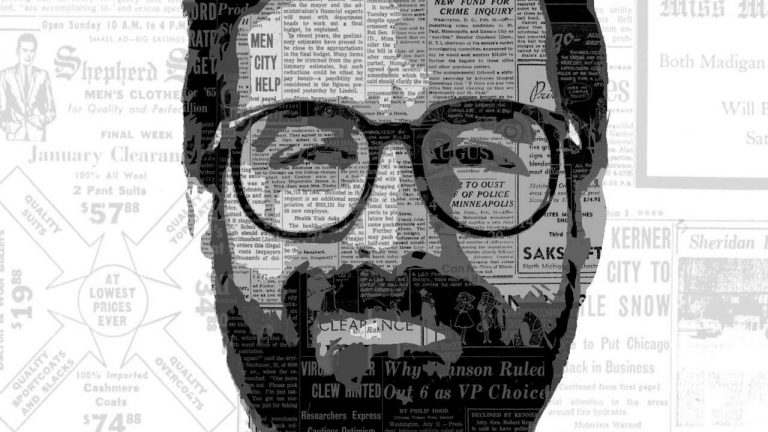
In today’s episode we combine vintage newspapers with a portrait to create a piece of art. Learn how to apply filters to your subject to make them appear like an illustration, then add texture to that illustration in a few easy steps.

Filter Gallery

The Filter Gallery is filled with tons of great ways to add style to your images. If you are looking for a little creativity, the Filter Gallery is a great place to start.

In this episode we start out by applying the “Cutout” filter which will make an image look like an illustration. In the following steps we turn that illustration into a series of selections.

Use the Magic Wand tool to select different areas based on lightness. Be sure the “Contiguous” option is not checked.
After each selection is made, load that selection as a layer mask on a new group.
Place your textures in each group, restricting their visibility to the layer mask selection.
Use Levels to adjust the brightness of your texture (newspaper) layers.
Helpful hints:

Unlink your layer with it’s layer mask. This will allow you to move each independently.
Use Levels to adjust each texture layer, making it appear similar to the original values.
Use any texture of your choice. In this episode we choose to use newspaper, but you are free to use any images!
Thanks for watching our free Phlearn Tutorials! If you enjoyed this video be sure to subscribe to our channel to receive free weekly videos.

Subscribe: http://goo.gl/LBIEQU

For more advanced Photoshop Tutorials be sure to check out our Phlearn PRO Tutorials. We offer the best Photoshop tutorials available online starting at just $14.99.
http://phlearn.com/pro-tutorials

———————————————————————————————–

Website: http://phlearn.com
Facebook: https://www.facebook.com/Phlearn
Google+: https://plus.google.com/u/0/116791098…
How to Master the Transform Tool in Photoshop

0

#phlearnmethod – Photoshop Made Simple.
Download Your Free 5 Pack Today – http://bit.ly/1GfvyEq

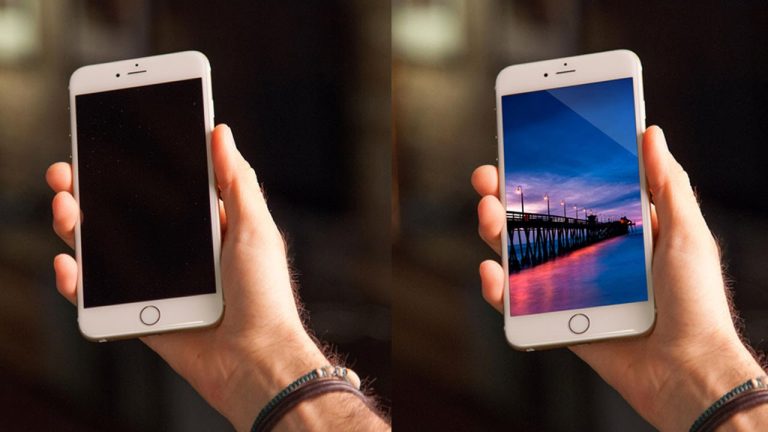
In today’s episode, learn the ins and outs of the Transform tool, and use that knowledge to apply any image to an iPhone! And, don’t miss a very luscious blooper at the end!

To begin, duplicate the background layer and hit Cmd + T. Now you are ready to transform!

Here are some tips for Transforming:

–If you hold shift while turning, it will turn in perfect increments. If you hold shift while scaling, it will scale in proportion to the original image.
–Clicking outside of the image and dragging the mouse will rotate. Clicking inside of the image and dragging will move the whole image around.
–Holding option while scaling will scale from the center point of the image.
–Holding command and dragging corners will allow you to change the perspective.

Adding an image to another and making it look realistic is easier than you might think! For this episode, we add a sunset photo to an iPhone screen. First, we have to make a selection of the screen. We use the polygonal selection tool in this case. Make sure to do this on the background layer, with the image layer above it turned off. Next, turn the top layer on again and select it. Then, click the layer mask button. Voila! The image will only appear inside of your selection.

At this point, the layer mask is locked to the layer. If you want to change this, click the lock icon between the two. Now, the layer can move freely and you can position your image with more control.

Final Touches

Using the tips from earlier, size your image appropriately. Drag the corners to match a realistic perspective (follow the edges of the phone).
Finishing touches include putting a slight blur around the edge of the layer mask, and adding shine to the corner of the image.

———————————————————————————————–

Thanks for watching our free Phlearn Tutorials! If you enjoyed this video be sure to subscribe to our channel to receive free weekly videos.

Subscribe: http://goo.gl/LBIEQU

For more advanced Photoshop Tutorials be sure to check out our Phlearn PRO Tutorials. We offer the best Photoshop tutorials available online starting at just $14.99.
http://phlearn.com/pro-tutorials

———————————————————————————————–

Website: http://phlearn.com
Facebook: https://www.facebook.com/Phlearn
Google+: https://plus.google.com/u/0/116791098…

How to Retouch Mature Skin in Photoshop

0

Check out some of our awesome photoshop products here: http://bit.ly/1wX5X45

#phlearnmethod – Photoshop Made Simple.
Download Your Free 5 Pack Today – http://bit.ly/1GfvyEq

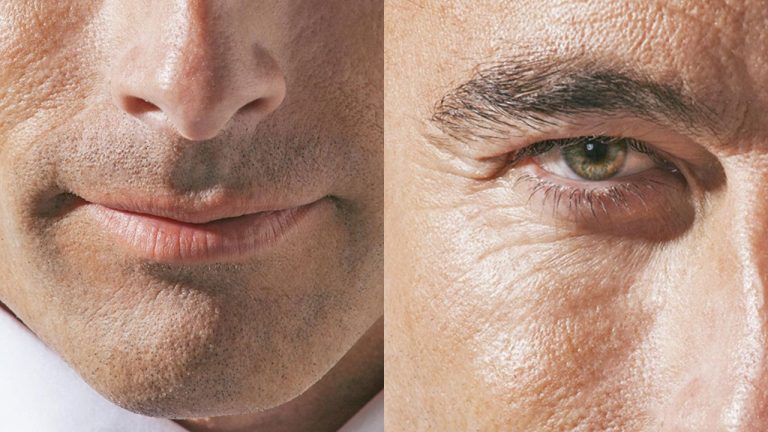
Who wouldn’t want to spend time retouching handsome, mature men!? In today’s episode, learn how to eliminate wrinkles and pores, and add color back to the skin!

Keep the Handsome AND the Mature

Before you begin, remember that it is easy to get carried away with editing out elderly imperfections. You want the skin to be smoother, but not completely devoid of texture. The goal is not to turn a 60 year old man into a 20 year old! Experiment with lessing the intensity of layers, and playing around with how much you edit out.

1. On a copy of the background layer (Cmd+J), go to Image – Adjustments – Shadows and Highlights. This dialogue is very helpful for editing older subjects, because you can control the shadows for a less harsh face.

2. To begin lessening the appearance of things like wrinkles and pores, duplicate the background layer again. Use the spot healing brush tool on this layer to paint over unwanted lines. Be sure that “content aware” is selected at the top of the screen. Once you’re finished, don’t hesitate to lower the opacity of this layer. There’s a good chance your subject will look too plastic if you remove every single imperfection from the face.

3. As time goes on, we tend to lose some color and life in the look of our skin. To add some color back into the image, create a hue/saturation adjustment layer and crank up the saturation. Put a layer mask on this layer, and fill it with black to invert it. Now, with a white brush, you can paint some color into the eyes and lips.
———————————————————————————————–

Thanks for watching our free Phlearn Tutorials! If you enjoyed this video be sure to subscribe to our channel to receive free weekly videos.

Subscribe: http://goo.gl/LBIEQU

For more advanced Photoshop Tutorials be sure to check out our Phlearn PRO Tutorials. We offer the best Photoshop tutorials available online starting at just $14.99.
http://phlearn.com/pro-tutorials

———————————————————————————————–
Image: http://us.fotolia.com
Website: http://phlearn.com
Facebook: https://www.facebook.com/Phlearn
Google+: https://plus.google.com/u/0/116791098…