Home Blog Page 506

How to Swap Heads in Photoshop

0

Phlearn has some amazing deals happening from now until the end of the year!
Check out some of our awesome Photoshop products here: http://bit.ly/1wX5X45

———————————————————————————————

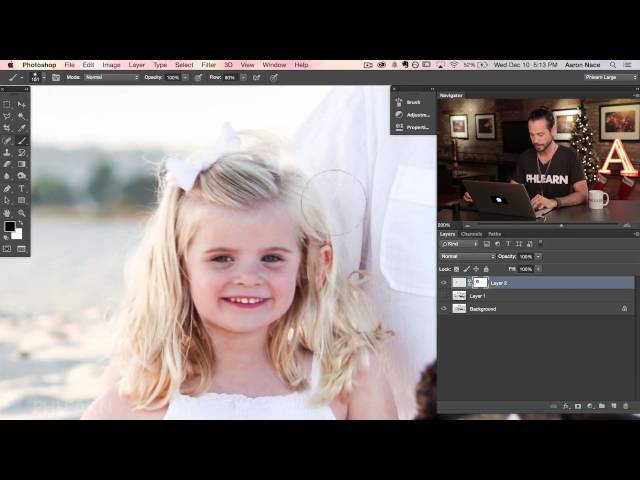
Why in the world would you want to swap out someone’s face?? Besides it being tons of fun, it can be extremely helpful in things like family portraiture. If you want to replace someone’s closed eyes with open ones, or replace a crying baby with a happy one, this is the technique to use.

First, drag the image with the good face on top of the image with the not so good face. Make a selection around the head, and hold Cmd + J. This will duplicate whatever is selected onto a new layer.

Now, lower the opacity of the layer so that you can place it directly over the other face. If needed, transform it to be larger or smaller so that it matches perfectly. Create a layer mask on the layer. Then, paint with black wherever you don’t want the layer to show up.

One tricky thing you’ll most likely run into is knowing where to stop. Ideally, you’ll keep as much of the original image as possible. Play around with blending in things like hair and clothes to help you out. If there are problem areas, you can use the clone stamp tool as a back up, cloning in any areas that need to be covered.

You can also play with exposure and coloring to match the new image with the old one.

———————————————————————————————

Thanks for watching our free Phlearn Tutorials! If you enjoyed this video be sure to subscribe to our channel to receive free weekly videos.

Subscribe: http://goo.gl/LBIEQU

For more advanced Photoshop Tutorials be sure to check out our Phlearn PRO Tutorials. We offer the best Photoshop tutorials available online starting at just $14.99.
http://phlearn.com/pro-tutorials

———————————————————————————————–

Website: http://phlearn.com
Facebook: https://www.facebook.com/Phlearn
Google+: https://plus.google.com/u/0/116791098…
How to Master Smart Objects in Photoshop

0

Phlearn has some amazing deals happening from now until the end of the year!
Check out some of our awesome photoshop products here: http://bit.ly/1wX5X45

#phlearnmethod – Photoshop Made Simple.
Download Your Free 5 Pack Today – http://bit.ly/1GfvyEq

———————————————————————————————–

Smart Objects

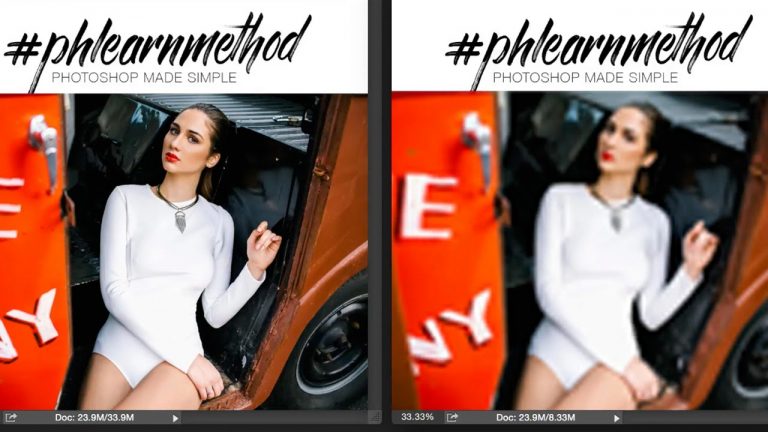
The main reason for converting to smart objects is that you’re able to retain the original size of the image. If you don’t convert to a smart object, pixels will be lost when scaling up and down.

You can test this out by transforming your image. Hold Cmd + T, shrink your image, and click enter. Now hold Cmd + T again and bring it back to a larger size. Sadly, the image will start to be completely blurred and pixelated. By converting it to a smart object instead, you have more flexibility in editing because you won’t lose any of the image during transformations.

To create a smart object, right click on the layer and select “Convert to Smart Object.” It’s that simple!

Smart Filters

Once your layer has been turned into a smart object, you can work with smart filters. All this means is that any filter or effect you apply to a smart object will automatically become a ‘smart filter.’ You will see it stacked under the layer, and are able to go into it and edit it. You can also turn the effect on and off, and even change the blending mode!

Linked Objects

Linked objects can be extremely helpful for when you need to reference and update multiple documents at once. If a change is made on the original document, it will be applied to all of the linked documents when saved.

All you have to do is go to File – Place Linked. Choose the file you’d like to use, and hit place. Now, your original image’s changes will appear on all of the linked files. Hooray!

———————————————————————————————–

Thanks for watching our free Phlearn Tutorials! If you enjoyed this video be sure to subscribe to our channel to receive free weekly videos.

Subscribe: http://goo.gl/LBIEQU

For more advanced Photoshop Tutorials be sure to check out our Phlearn PRO Tutorials. We offer the best Photoshop tutorials available online starting at just $14.99.
http://phlearn.com/pro-tutorials

———————————————————————————————–

Website: http://phlearn.com
Facebook: https://www.facebook.com/Phlearn
Google+: https://plus.google.com/u/0/116791098…
How the #phlearnmethod Makes Photoshop Simple!

0

In today’s episode, we go over some of the amazing things you can do using the #phlearnmethod!

Photoshop Made Simple

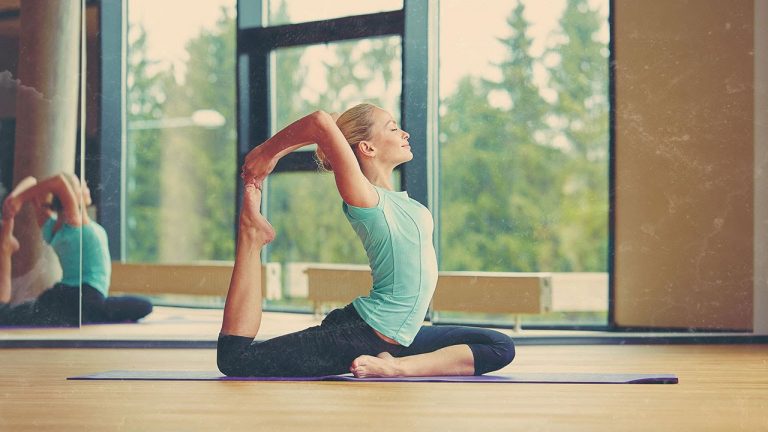
We created the #phlearnmethod to make photoshop easier for new users. Not only do you get to use these amazing actions to spruce up your photos, you can also open up each layer and see exactly what went into creating that action. This is a great way for you to tweak certain features and get the look you are going for. It’s also a good way to get familiar with photoshop and learn what combination of photoshop techniques work best when trying to achieve a specific look.

Try it out for yourself…for FREE!

You don’t have to spend money to decide if the #phlearnmethod is for you, you can download our FREE sample 5 pack HERE.

Unlimited Possibilities

You can open up every single photoshop layer in the #phlearnmethod and tweak it to fit your needs. Meaning there are literally over 1 MILLION different combinations possible by using the #phlearnmethod, and this is only the beginning. Be on the lookout for more free goodies as well as extensions to the #phlearnmethod. Use the power of over 100 Photoshop actions! Mix and match to create your favorite combinations. You’ll be amazed at what you can do with just a couple clicks!

———————————————————————————————

Thanks for watching our free Phlearn Tutorials! If you enjoyed this video be sure to subscribe to our channel to receive free weekly videos.

Subscribe: http://goo.gl/LBIEQU

For more advanced Photoshop Tutorials be sure to check out our Phlearn PRO Tutorials. We offer the best Photoshop tutorials available online starting at just $14.99.
http://phlearn.com/pro-tutorials

———————————————————————————————–

Website: http://phlearn.com
Facebook: https://www.facebook.com/Phlearn
Google+: https://plus.google.com/u/0/116791098…
Phlearn 2014 Recap

0

—————————————————————————————–

Thanks for watching our free Phlearn Tutorials! If you enjoyed this video be sure to subscribe to our channel to receive free weekly videos.

Subscribe: http://goo.gl/LBIEQU

For more advanced Photoshop Tutorials be sure to check out our Phlearn PRO Tutorials. We offer the best Photoshop tutorials available online starting at just $14.99.
http://phlearn.com/pro-tutorials

———————————————————————————————–

Website: http://phlearn.com
Facebook: https://www.facebook.com/Phlearn
Google+: https://plus.google.com/u/0/116791098…
How to Make a Panorama in Photoshop

0

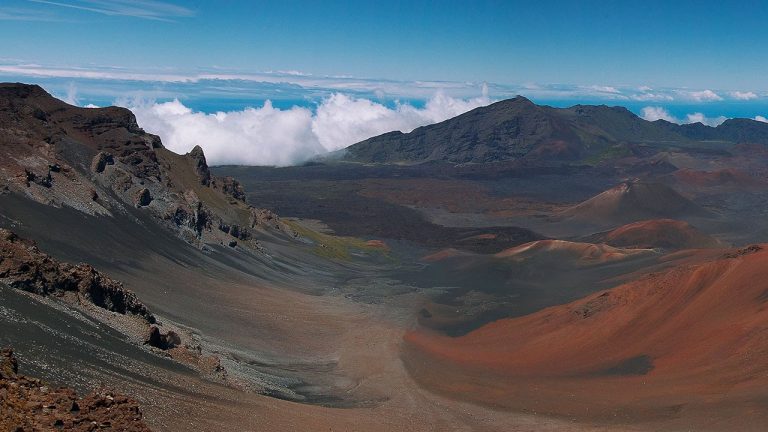
Today’s episode is filled with goodies! Not only do we show you how to create a panorama in photoshop, we also give you some expert tips on shooting those panoramic images. David J. Crewe lends us his knowledge as we give you six amazing tips. To top it all off, we have a gear article specially prepared to compliment today’s episode. Now you can see the gear some of the pros are using, or just check out some budget options to get you started.

Tips From the Pros

Here are some tips for you when you’re out shooting panoramas:

1) Use a sturdy Tripod and try to stay “level” when changing positions.

2) Overshoot / Shoot wider than you need so you can crop safely.

3) Use a longer lens (50mm or higher) since you’re stitching anyway. Wider lenses give you more distortion so your images will be more realistic/normal with a longer lens.

4) Shoot higher than F8. Most time-lapser and pano shooters will swear by the F8 to F11 zones for clarity and sharpness.

5) Manually Focus to make sure everything is the same (no shifts from frame to frame).

6) Slow Shutter Speeds (or ND Filters) to reduce and eliminate distracting elements (people, animals, random motion).
———————————————————————————————

Thanks for watching our free Phlearn Tutorials! If you enjoyed this video be sure to subscribe to our channel to receive free weekly videos.

Subscribe: http://goo.gl/LBIEQU

For more advanced Photoshop Tutorials be sure to check out our Phlearn PRO Tutorials. We offer the best Photoshop tutorials available online starting at just $14.99.
http://phlearn.com/pro-tutorials

———————————————————————————————–

Website: http://phlearn.com
Facebook: https://www.facebook.com/Phlearn
Google+: https://plus.google.com/u/0/116791098…
How to Light an Amazing Portrait with a Low Cost DIY Lighting Kit

0

Click here for low cost 12 inch lights: http://amzn.to/14SRfih
Click here for low cost 23 inch lights: http://amzn.to/1C0RWlU

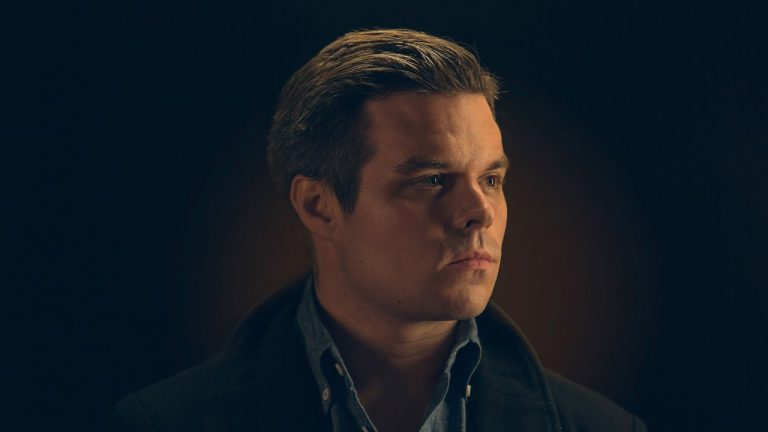
In today’s episode, learn how to Light an Amazing Portrait with a low cost DIY Lighting Kit. Our kit is under $50!

Introduction to Portrait Lighting

If this is your first time using lights for a portrait, being able to see how the lights interact with your subject will amaze you! The slight movement of a light can have a large impact on the mood of your photo. When you are taking a portrait, everything should revolve around your subject. Your choice in lighting should match the tone of the subject.

What We Cover

In this photography episode, we go over the specific lights we chose for our DIY (Do It Yourself) lighting kit. We also cover some lighting basics and the purpose of each light we used. Then we give you some awesome tips on working with your subject. We cover some things you can do and say to make your subject feel more comfortable.

Stay tuned for our next episode as we edit one of these head shots. The RAW file that Aaron is editing will be available for you to download and follow along.

———————————————————————————————

Thanks for watching our free Phlearn Tutorials! If you enjoyed this video be sure to subscribe to our channel to receive free weekly videos.

Subscribe: http://goo.gl/LBIEQU

For more advanced Photoshop Tutorials be sure to check out our Phlearn PRO Tutorials. We offer the best Photoshop tutorials available online starting at just $14.99.
http://phlearn.com/pro-tutorials

———————————————————————————————–

Website: http://phlearn.com
Facebook: https://www.facebook.com/Phlearn
Google+: https://plus.google.com/u/0/116791098…
How to Retouch a Dramatic Male Headshot in Photoshop

0

If you’d like to follow along with Aaron’s edit, visit this episode on Phlearn.com to download the image: http://phlearn.com/how-to-retouch-a-dramatic-male-headshot-in-photoshop

To see this episode’s prequel which includes our DIY lighting kit and on-set instruction, click here:http://phlearn.com/light-amazing-portrait-low-cost-diy-lighting-kit

———————————————————————————————–

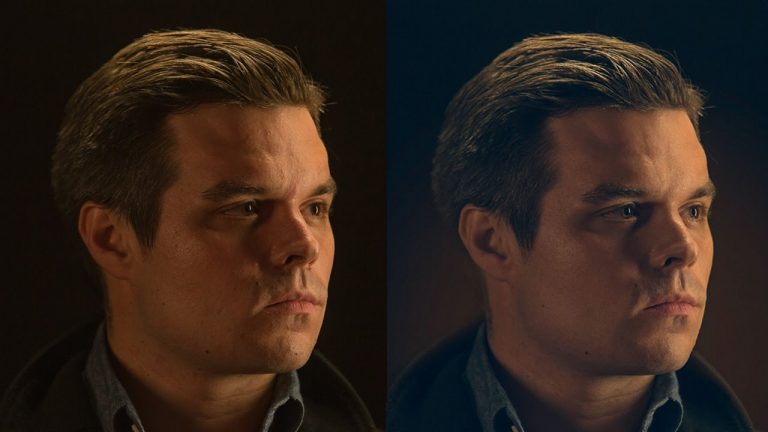
In today’s episode, learn How to Retouch a Dramatic Male Headshot in Photoshop! Fix blemishes and redness, and add classic color styling to your photographs!

Blemishes & Imperfections

To begin, use the healing brush tool to clean up small imperfections on the skin. Sample points that have a desirable texture and then paint over the unwanted spots. We recommend keeping permanent aspects of the face in the image, such as moles and scars in some cases.

Redness

Color variation is very common is people’s skin, and it’s usually just a slight red tone that needs to be fixed. To target that skin tone, create a new hue/saturation layer and change the menu from Master to Reds. Crank the hue and saturation up to a crazy bright color (we go for green). You should see the red blotchiness of the skin showing through as a different color. Now, slide the bottom slider so that it fills in those areas with green. Then, change the hue and saturation to zero and slowly drag the hue slider to counteract the red.

Style

Time to add some subtle glow! Create a new Levels Layer. For a nice stylized look, select different channels and slide the black levels slider to the left. It will brighten and color the blacks in the image.

Next, put an inverse mask over the layer so that it’s invisible. Select the gradient tool and paint white from the center of the image. A glow will show up from your levels layer. You can mask out the glow over the subject as well.

———————————————————————————————–

Thanks for watching our free Phlearn Tutorials! If you enjoyed this video be sure to subscribe to our channel to receive free weekly videos.

Subscribe: http://goo.gl/LBIEQU

For more advanced Photoshop Tutorials be sure to check out our Phlearn PRO Tutorials. We offer the best Photoshop tutorials available online starting at just $14.99.
http://phlearn.com/pro-tutorials

———————————————————————————————–

Website: http://phlearn.com
Facebook: https://www.facebook.com/Phlearn
Google+: https://plus.google.com/u/0/116791098…
How to Remove Red-Eye in Photoshop

0

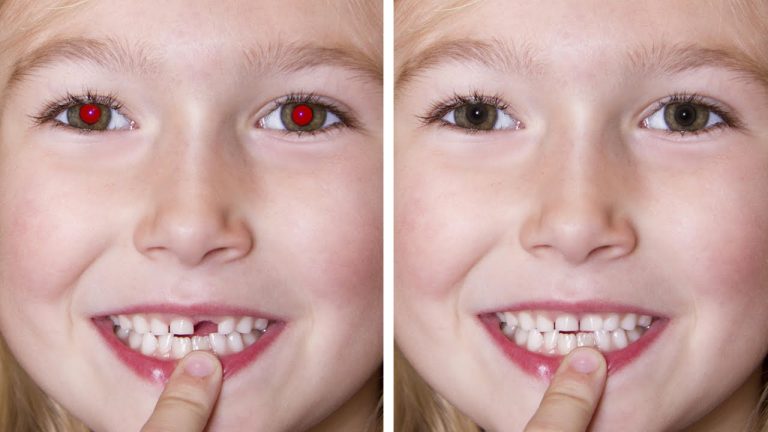
You wont believe how quick and easy it is to remove red-eye in Photoshop! Learn how to fix those creepy pupils in today’s episode!

The Problem

Red-Eye occurs when a photo is taken with a flash that is too close to the subject. This is very common for on-camera flashes for that reason. To avoid the problem altogether, try using a larger flash such as a speedlight. Or, photograh in natural light instead.

The Solution

Click on the spot healing brush tool and go down to the bottom of the menu to select the red-eye tool. This tool works best when set to a 50% pupil size and a 50% darken amount. Click and drag around the eye, and let go. Voila! That’s all there is to it, folks.

———————————————————————————————–

Thanks for watching our free Phlearn Tutorials! If you enjoyed this video be sure to subscribe to our channel to receive free weekly videos.

Subscribe: http://goo.gl/LBIEQU

For more advanced Photoshop Tutorials be sure to check out our Phlearn PRO Tutorials. We offer the best Photoshop tutorials available online starting at just $14.99.
http://phlearn.com/pro-tutorials

———————————————————————————————–

Website: http://phlearn.com
Facebook: https://www.facebook.com/Phlearn
Google+: https://plus.google.com/u/0/116791098…
How to Repair an Old Torn Photo in Photoshop

0

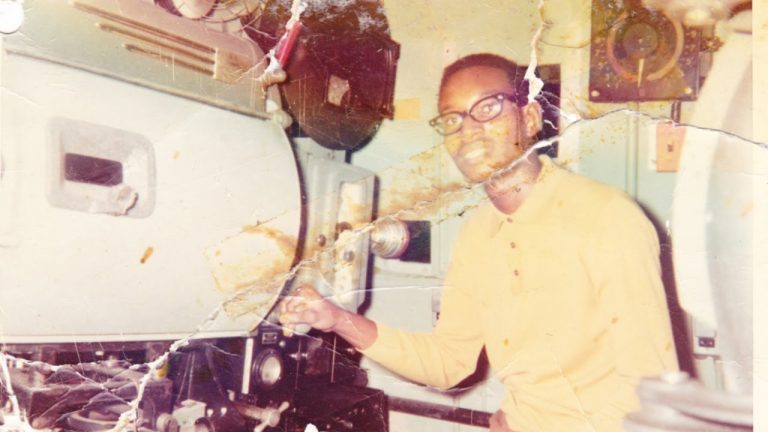
The results of this episode will absolutely astound you! Learn how to completely repair an old torn photo in Photoshop!

Reassembling the Photo

If you want to put together an old torn photo, you’ll need to start by scanning it in to a computer. Don’t worry if it’s in multiple pieces- we can fix that! Just be sure to Begin by selecting the pieces of the photo. Duplicate the background layer while they are selected so that you don’t work on the background layer. Then, cut and paste the pieces to be on their own individual layers. You can now use the move tool to bring them back to their original positions. Be sure to align all of the elements of the photo.

Dust and Scratches Begone!

Here are the tools to use for editing out tears, scratches, and any other blemish that can be found on your old photo:

Spot healing brush tool:
-Samples from a source automatically
-Best used for small, isolated blemishes
-Be sure to select “content aware” at the top of Photoshop

Clone stamp tool:
-You choose the source sample, which allows for much more control
-Be cautious of duplicating obvious spots

Brush tool:
-Only use if there are next to no options for sampling
-Takes a good eye and and a steady hand (this is essentially hand painting)
-Might require added noise to look realistic
-Much easier with a tablet than with a mouse

Fixing Discoloration

If you are working with an old aged photo, often times there will be a lot of discoloration in the image. To balance the colors we use a selective color adjustment layer, because it make it very easy to target specific colors (as well as whites, blacks, and neutrals) and then alter them.

———————————————————————————————–

Thanks for watching our free Phlearn Tutorials! If you enjoyed this video be sure to subscribe to our channel to receive free weekly videos.

Subscribe: http://goo.gl/LBIEQU

For more advanced Photoshop Tutorials be sure to check out our Phlearn PRO Tutorials. We offer the best Photoshop tutorials available online starting at just $14.99.
http://phlearn.com/pro-tutorials

———————————————————————————————–

Website: http://phlearn.com
Facebook: https://www.facebook.com/Phlearn
Google+: https://plus.google.com/u/0/116791098…

How to Add Clouds to a Sky in Photoshop

0

The trickiest part of this whole process might be the very first step! If you are adding a different sky to an image, make sure it compliments the rest of that photo. The two images should match up really well in terms of color, contrast, and tone.

To begin, use the move tool (v) to drag and drop your new sky onto the image with the old sky. Turn that layer off for now. Then, select only the sky. You can use any selection tool you’d like and in this episode, we chose the magic wand tool. When the selection is complete and refined, turn the top layer back on. If the selection stays active, you will be able to click the layer mask button and it will mask in just the sky. To position the new sky right where you want it, unlink the layer with its mask so that you can freely move the cloud layer freely.

Remember: The colors of the original sky play into the colors of the original photo. It’s important to adjust the coloring of the new sky so that the image looks realistic! We use a selective color adjustment layer to fine-tune the colors as well as the highlights, midtowns, and shadows. Clip this selective color layer to the clouds, so that it doesn’t effect other elements in the image. Feel free to play with other adjustment layers to match your new sky with your old image. We use a curves layer to darken the sky in this case.

———————————————————————————————

Thanks for watching our free Phlearn Tutorials! If you enjoyed this video be sure to subscribe to our channel to receive free weekly videos.

Subscribe: http://goo.gl/LBIEQU

For more advanced Photoshop Tutorials be sure to check out our Phlearn PRO Tutorials. We offer the best Photoshop tutorials available online starting at just $14.99.
http://phlearn.com/pro-tutorials

———————————————————————————————–

Website: http://phlearn.com
Facebook: https://www.facebook.com/Phlearn
Google+: https://plus.google.com/u/0/116791098…