Home Blog Page 507

Fstoppers Workshops 2015 – Photography and Compositing Essentials

0

Click here for more information: https://fstoppersworkshops.com/event-registration/?ee=56

This class is designed for the beginner photographer looking to enter the world of compositing and conceptual photography. A successful composite image requires a strong concept, solid lighting and posing fundamentals, and quality Photoshop skills. Based off the workflow of one of the best-known conceptual photographers, this class will teach you the essential skills to create your own composite images.

You’ll learn all the different aspects of creating a successful composite image through hands on learning and walk away with the ability to apply those skills to any future photo shoot.This class is going to cover a lot! That’s why the whole Phlearn team is coming! You will have seven instructors working hard to bring you an amazing workshop, that’s one Phlearn team member for every two students!

How to Use the Vanishing Point Filter in Photoshop

0

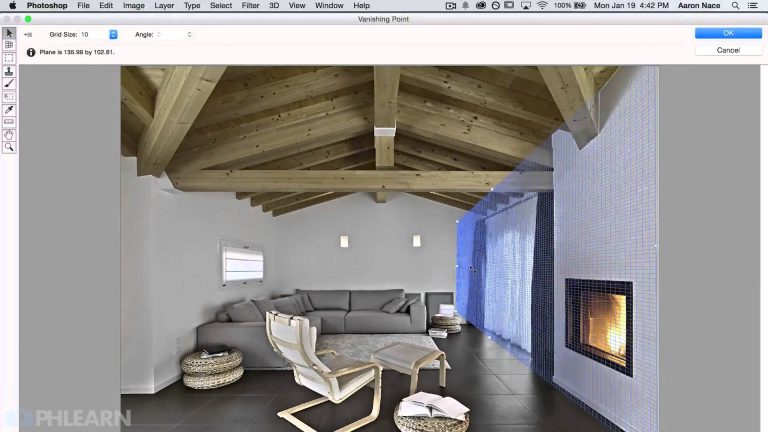
In today’s episode, Learn How to Use the Vanishing Point Filter in Photoshop! Trust us, it will take all of your perspective troubles away!

After duplicating the background layer, copy whatever you will be adding to your image onto your clipboard. Then, simply go to Filter – Vanishing Point. Create a box around the plane that you will be copying into. Be sure to follow the lines of the image- for example, if you will be pasting something onto a wall, carefully follow the lines of both the floor and the ceiling. Then paste your object from the clipboard, and drag it right onto your perspective box.
You will be able to move your object all around in that box, and it will stay perfectly in perspective.

———————————————————————————————–

Thanks for watching our free Phlearn Tutorials! If you enjoyed this video be sure to subscribe to our channel to receive free weekly videos.

Subscribe: http://goo.gl/LBIEQU

For more advanced Photoshop Tutorials be sure to check out our Phlearn PRO Tutorials. We offer the best Photoshop tutorials available online starting at just $14.99.
http://phlearn.com/pro-tutorials

———————————————————————————————–

Website: http://phlearn.com
Facebook: https://www.facebook.com/Phlearn
Google+: https://plus.google.com/u/0/116791098…

How to use Lighting Effects in Photoshop

0

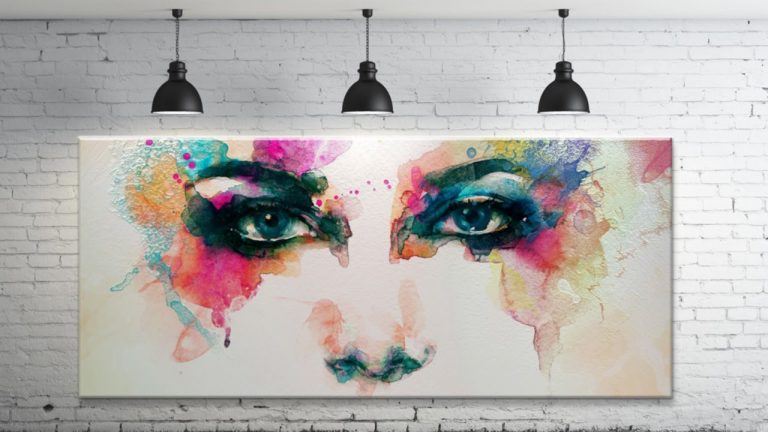
In today’s episode, watch and learn as we transform a flat piece of art into a textured, 3-D masterpiece using Lighting Effects in Photoshop!

To start out, crop and place your image to be where you’d like it to be. Then, go to Filter- Render- Lighting Effects.

In this dialogue, there are a lot of unfamiliar settings to play with. The main three light sources are:

-Point (flat light, like a flashlight)
-Spotlight (angled, makes sense for this specific image)
-Infinite (Infinitely bright light, choose the angle)

For your image, be sure to imitate the light in the environment. If there are individual light sources it’s important to emulate those, but don’t forget about the ambient light! If the room is relatively dark, adjust the ambience slider accordingly so that it looks realistic. You can also adjust the type of material as well as the texture.

If you’d like to add something like a drop shadow to a painting on a wall, layer effects are what you’re looking for! Double click on the layer and the layer style dialogue will come up. There, you can play with bevel and emboss options as well as many other details.
———————————————————————————————–

Thanks for watching our free Phlearn Tutorials! If you enjoyed this video be sure to subscribe to our channel to receive free weekly videos.

Subscribe: http://goo.gl/LBIEQU

For more advanced Photoshop Tutorials be sure to check out our Phlearn PRO Tutorials. We offer the best Photoshop tutorials available online starting at just $14.99.
http://phlearn.com/pro-tutorials

———————————————————————————————–

Website: http://phlearn.com
Facebook: https://www.facebook.com/Phlearn
Google+: https://plus.google.com/u/0/116791098…

How to Create an Album Cover in Photoshop

0

How to Make an Album Cover in Photoshop

For this specific look, you will need three elements:

-Side view portrait
-Painted background
-Hat (If not already on the subject)

Use various selection tools to select and position your images where you would like them to go. Keep in mind that album covers are generally in a 1:1 ratio (a square). We suggest unchecking “delete cropped pixels” so you can recover your image if you need to.

When your portrait is ready, it’s time to make it into a sort of silhouette! Turn it into a layer mask by holding Crtl/Cmd and clicking on your subject to select it, and then clicking the layer mask button.

From here on out, this technique is mostly just playing with blending modes. We inverted the blue color so that it appears bright orangeish red, so that’s something you might want to experiment with. For this specific image, we utilized the subtract blending mode. We also played around with the size and position of the painted background layers to get different effects. Don’t forget that you can unlink your layer masks for more control!

Quick Tip: To flip through the blending modes, hold Shift and press the plus or minus keys (make sure you are on the move tool first)

Feel free to play around with text as well. You can make adjustments in the character panel for things like tracking, caps, font, and size. We use Helvetica Neue for this episode. If you’d like to add a drop shadow, double click on the text layer and go down to drop shadow. After tweaking it to your liking, you can actually drag that drop shadow onto other layers while holding Alt/Opt and it will copy it over for you!
———————————————————————————————–

Thanks for watching our free Phlearn Tutorials! If you enjoyed this video be sure to subscribe to our channel to receive free weekly videos.

Subscribe: http://goo.gl/LBIEQU

For more advanced Photoshop Tutorials be sure to check out our Phlearn PRO Tutorials. We offer the best Photoshop tutorials available online starting at just $14.99.
http://phlearn.com/pro-tutorials

———————————————————————————————–

Website: http://phlearn.com
Facebook: https://www.facebook.com/Phlearn
Google+: https://plus.google.com/u/0/116791098…

How to Use Displacement Maps in Photoshop

0

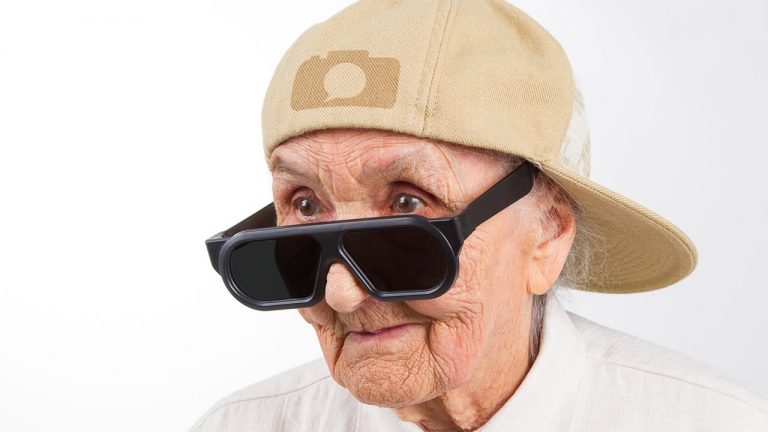
Learn how to use displacement maps in today’s episode and help this rad granny out by adding the Phlearn logo to her hat!

You will need two elements for this technique:
-Logo or some sort of design
-Image to place the design on

To start, transform your logo onto the image. You can hold Cntl/Cmd + T, right click, and select Warp to really hone in on the correct angles and perspective. Next, go to Channels and find the one that has the most contrast (this is often the blue). Then, right click on that channel. Select New under the Document Menu. Title it appropriately and hit OK. Now, go to File – Save As, and save it as a PSD. This document is now your displacement map.

Back to the original image we go! Select RGB in the Channels tab so that all of them are selected. Now, go back to the layer tab. While on your logo layer, go to Filter – Distort – Displace. Set the horizontal and vertical scale to 10. It will ask you to load your displacement map, which is the other document that we just saved out. It will automatically start to integrate the texture into the logo!

Amazing quick tip: If you press the logo above the layers next to the word “Lock,” anything you do will ONLY affect the pixels on that layer. You can think of it as a mask for your logo! This is called Locking the Transparency.

Feel free to play around! Try filling the logo with a color and then experimenting with blend modes. In this case, we chose to use Overlay.
———————————————————————————————–

Thanks for watching our free Phlearn Tutorials! If you enjoyed this video be sure to subscribe to our channel to receive free weekly videos.

Subscribe: http://goo.gl/LBIEQU

For more advanced Photoshop Tutorials be sure to check out our Phlearn PRO Tutorials. We offer the best Photoshop tutorials available online starting at just $14.99.
http://phlearn.com/pro-tutorials

———————————————————————————————–

Website: http://phlearn.com
Facebook: https://www.facebook.com/Phlearn
Google+: https://plus.google.com/u/0/116791098…

How to Use the Refine Edge Tool in Photoshop

0

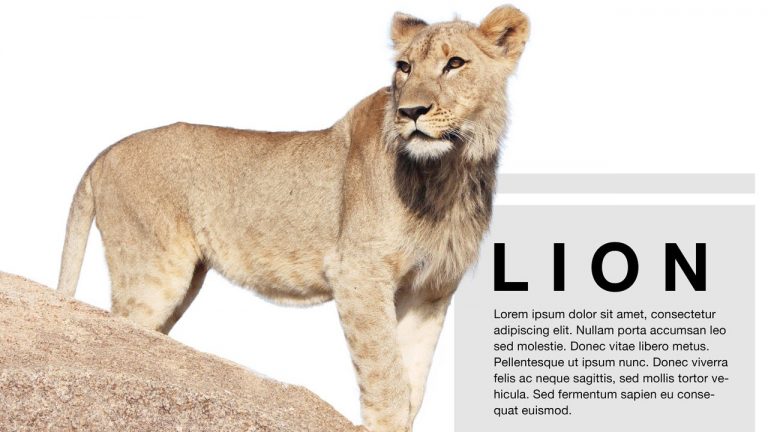
If you have a complicated selection to make such as hair, let us introduce you to your new best friend: the refine edge tool! Learn how to master the tool and get flawless results in today’s episode!

Begin by using whichever selection tool you prefer. In this episode, we use the magic wand tool to select the sky around the lion, and then invert that selection. because the lion has so much detailed fluff, a lot of the sky shows through and the hair is not defined at all. To mend this, go to Select- Refine Edge.

In this dialogue box you can choose which view is most helpful to you. You might want to soften the edge a little, and you can do this by feathering. Play around with the contrast and shift edge as well. Keep looking for what makes the hair more defined and realistic looking- it might be helpful to shift the edge inwards a little bit.

Hint: If you’d like to use the “output to” option to output to a different location such as a layer mask, be sure that you are not on the background layer (You can hold Alt/Opt and double click on the background to change it to a regular layer).

To use the edge detection tool, check the smart radius box and paint around the edge of the hair. Photoshop does an amazing job of determining what is the background and what is the fur, and eliminates the unwanted parts of the background sky.

If you plan to put a new background underneath whatever you are cutting out, it makes sense to match the general tone from old to new. If you had an originally light background, it’s much more successful to use a light colored background for the final image.
———————————————————————————————–

Thanks for watching our free Phlearn Tutorials! If you enjoyed this video be sure to subscribe to our channel to receive free weekly videos.

Subscribe: http://goo.gl/LBIEQU

For more advanced Photoshop Tutorials be sure to check out our Phlearn PRO Tutorials. We offer the best Photoshop tutorials available online starting at just $14.99.
http://phlearn.com/pro-tutorials

———————————————————————————————–

Website: http://phlearn.com
Facebook: https://www.facebook.com/Phlearn
Google+: https://plus.google.com/u/0/116791098…
Images: http://www.fotolia.com

How to Remove Glare from Glasses in Photoshop

0

Our #1 PRO Tutorial ever is now on Sale! https://phlearn.com/popular

How to Remove Glare from Glasses in Photoshop

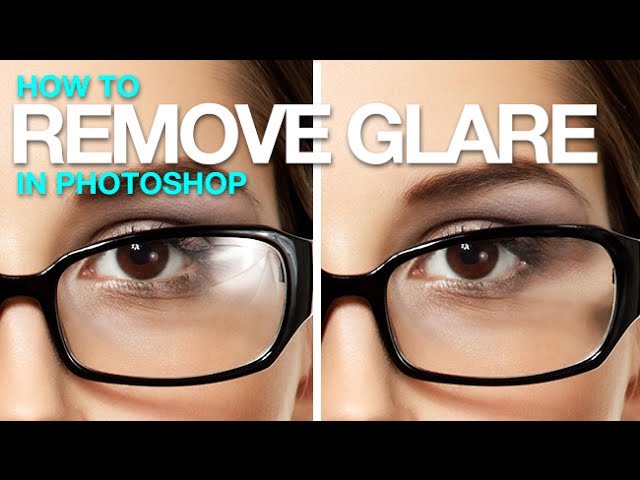
It’s always a sad time when you end up with unwanted reflections in someone’s glasses 🙁 Learn how to utilize the clone source dialogue to remove glare in today’s episode!

Short and Sweet

For this technique, you will need to make sure that there is one eye that is relatively clear of reflection, so that we can use it to copy to the other eye.

The clone stamp settings we use (found on the top bar) are:

– Opacity – 100%
– Flow – 100%
– Sample: Current and Below

To get to the Clone Source Dialogue, go to Window – Clone Source. This is where we can really get down to the nitty gritty details. Here, some helpful things to do are:

– Turn on “Show Overlay” to reveal a preview of what you are cloning
– Flip the Width so that the cloning is flipped horizontally

Then, we clone from the left eye over to the right eye to take care of the majority of the glare. Be sure to match up the glasses as closely as you can; the preview is helpful for this! Feel free to use layer masks to fix any areas that were cloned too much.

We also use a lower opacity clone stamp (50%) to smooth out some rougher areas.

———————————————————————————————–

VISIT PHLEARN.COM FOR MORE FREE TUTORIALS

Homepage

SUBSCRIBE TO OUR CHANNEL FOR MORE FREE TIPS AND TRICKS
http://www.youtube.com/subscription_center?add_user=phlearnllc

GET FREE TUTORIALS IN YOUR EMAIL + DISCOUNTS ON OUR PRO TUTORIALS!
https://phlearn.com/mail

BUY THE TABLET AARON USES! https://phlearn.com/tablet

LET’S BE FRIENDS!
Instagram ► https://www.instagram.com/phlearn/
Facebook ► https://facebook.com/phlearn
Twitter ► https://twitter.com/phlearn
Google+ ► https://plus.google.com/116791098059215639405
Phlearn ► https://phlearn.com

How to Automatically Remove Objects from Photos in Photoshop

0

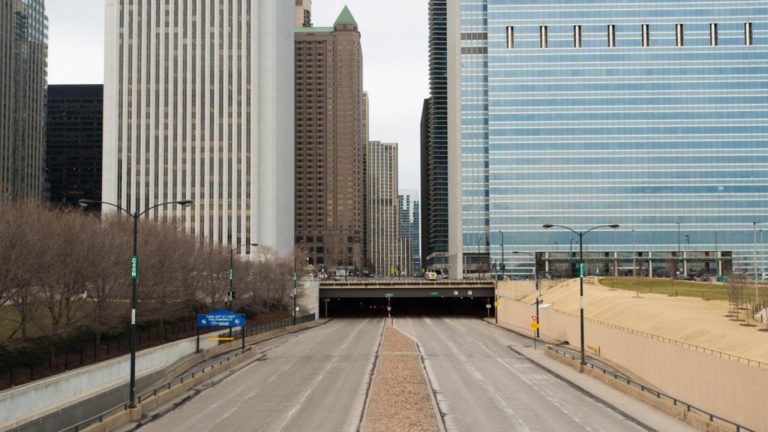
You will be stunned by the simplicity and effectiveness of this technique! Learn how to auto-remove objects from your images in no time!

Be sure that your images are shot on a tripod for this, or it will not work. They must be lined up perfectly so that the photos can be combined.

Manual

This process can be done manually, which would be to load all of the images and use layer masks to eliminate parts of certain photos. Go to File – Scripts – Load Files into Stack. You can then select your files and click OK. They will load as individual layers, which allows you to add or eliminate elements with layer masks (black conceals, white reveals).

Automatic

This process does all of the masking for you! Go to File – Scripts – Statistics. The Stack Mode should be “Median.” This means that it will locate all of the “different” elements in the files and remove those differences (ie. cars, people, random moving objects). Click Browse to open your images, and check the “Attempt to Automatically Align Source Images” box; this ensures that the photos will be lined up just right. Click OK, and watch the magic happen! It will get rid of all of the differences in the photos and combine it into one clean image.

Photoshop also compresses this layer into one Smart Object, so you can double click on it and open up each individual layer if you need to.
———————————————————————————————–

Thanks for watching our free Phlearn Tutorials! If you enjoyed this video be sure to subscribe to our channel to receive free weekly videos.

Subscribe: http://goo.gl/LBIEQU

For more advanced Photoshop Tutorials be sure to check out our Phlearn PRO Tutorials. We offer the best Photoshop tutorials available online starting at just $14.99.
http://phlearn.com/pro-tutorials

———————————————————————————————–

Website: http://phlearn.com
Facebook: https://www.facebook.com/Phlearn
Google+: https://plus.google.com/u/0/116791098…
Stock Images: http://us.fotolia.com/

How to Add a Reflection to Sunglasses in Photoshop

0

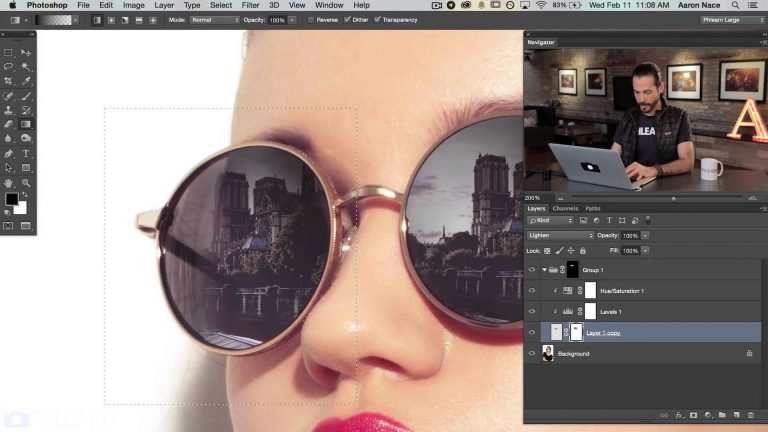
Adding a little Paris to your studio portraits is simpler than you might think! Learn how to add a reflection to sunglasses in today’s episode.

Start by scaling the scenery down to the right size. Lower the opacity to see how it will look inside of the lenses. Be aware that only one of the lenses needs to look good, because it will be copied!

Next, select the area right around the lens with the Marquee tool. Go to Select – Inverse, then press the delete key. Now you should have a little square of reflection over one eye. Copy that layer and move it over to be on top of the second eye. Now make the reflection layer invisible and select the Magic Wand tool. We use this to select out the lenses (be sure that “sample all layers” is checked). Use the refine edge tool to soften or bring the edge in a bit. Group those layers with themselves and hit the layer mask button.

To style the reflection so that it doesn’t look fake, create a levels adjustment layer. Darken the darks and mess with the output levels so that it looks more like a reflection. You can add a Hue/Saturation level as well, to match the color from the original lens. In this case, we make it a little bluer and lessen the saturation.

Being able to see through the glasses a little bit is extremely helpful in terms of realism. We use a black to transparent gradient to select areas to be darker, and others to be more see-through.

Now the part you’ve all been waiting for…time to blow some minds! Select the layer that the reflection is on with the Marquee tool. Go to Filter – Distort – Spherize. From here it’s very simple to adjust the slider to a certain amount of curve. This bulges the image out and makes it appear less flat!

———————————————————————————————–

Thanks for watching our free Phlearn Tutorials! If you enjoyed this video be sure to subscribe to our channel to receive free weekly videos.

Subscribe: http://goo.gl/LBIEQU

For more advanced Photoshop Tutorials be sure to check out our Phlearn PRO Tutorials. We offer the best Photoshop tutorials available online starting at just $14.99.

http://phlearn.com/product-category/pro-photoshop-tutorials

———————————————————————————————–

Website: http://phlearn.com
Facebook: https://www.facebook.com/Phlearn
Google+: https://plus.google.com/u/0/116791098…
Stock Images: http://us.fotolia.com/
How to Make a Call of Duty Title Screen in Photoshop

0

Video Game lovers, rejoice! In today’s episode, learn How to Make a Call of Duty Title Screen in Photoshop, and take away some versatile font techniques too!

Preparing the background-

Begin by dragging your texture onto the image of the subject. You can group the layers and turn them off for now. Crop the image to your liking, and be sure that ‘Delete Cropped Pixels’ is unchecked!

If you find that you need to add a solid color layer beneath your image, like we did in this episode because of the cropping, we suggest creating a Color Fill Adjustment Layer. This will interact with the crop tool so that there is always color on the background.

Rough and Rugged-

For this image we simply downloaded a free Call of Duty font from dafont.com.

The character panel is where you will find all of your text options for things like color, tracking, and point size (if you don’t see this, go to Window – Character). There are also tools at the top bar of Photoshop that will help with aligning more than 1 line of text together.

To get the rough and rugged texture we added previously to show up on just the font, right click on the texture layer and select “create clipping mask.” This will make the texture show up ONLY where those letters are, so you don’t have to worry about masking or anything.

For some added detail, go to Filter – Filter Gallery – Spatter. Play with this filter to increase the grunginess of the texture, and customize the edges of the font (be sure to be doing so on a stamp visible layer).

———————————————————————————————–

Thanks for watching our free Phlearn Tutorials! If you enjoyed this video be sure to subscribe to our channel to receive free weekly videos.

Subscribe: http://goo.gl/LBIEQU

For more advanced Photoshop Tutorials be sure to check out our Phlearn PRO Tutorials. We offer the best Photoshop tutorials available online starting at just $14.99.
http://phlearn.com/pro-tutorials

———————————————————————————————–

Website: http://phlearn.com
Facebook: https://www.facebook.com/Phlearn
Google+: https://plus.google.com/u/0/116791098…
Stock Images: http://us.fotolia.com/