Home Blog Page 510

Inside Phlearn’s 2015 Fstoppers Workshop: By Nick Amrhein

0

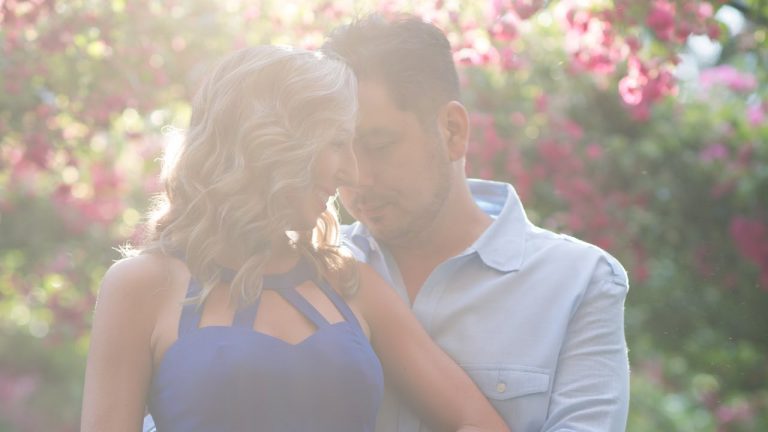
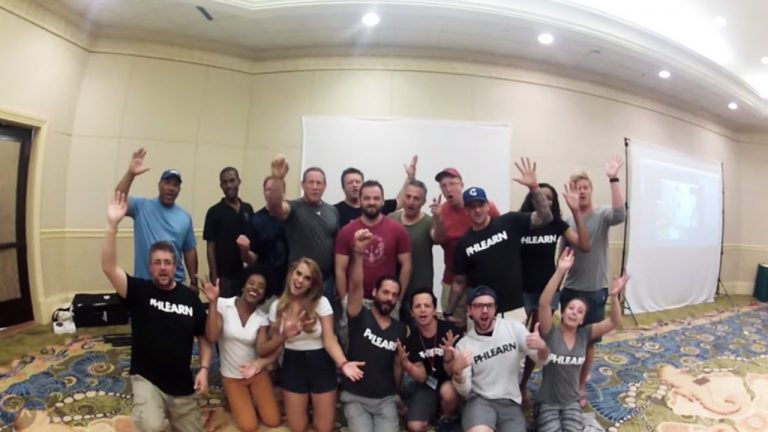
Everyone on the Phlearn Team knew who Nick was before he even showed up in the Bahamas. He made sure to find us all on Facebook and let us know how excited he was, which is a perfect representation on his personality! Nick was so much fun to work with, and kept a lively and positive mood throughout the few days we all spent together.

After traveling back to Ohio, he put together this awesome recap of the workshop! It embodies the spirit of the experience, and we hope it will give you a little taste of what went on down in Nassau.

If you’d like to know more about Nick or check out his work, click here to visit his website: http://www.nickamrhein.com/

———————————————————————————————-

Thanks for watching Phlearn! If you enjoyed this video be sure to subscribe to our channel so you don’t miss a thing!

Subscribe: http://goo.gl/LBIEQU

For more advanced Photoshop Tutorials be sure to check out our Phlearn PRO Tutorials. We offer the best Photoshop tutorials available starting at just $24.99.

http://phlearn.com/product-category/pro-photoshop-tutorials

———————————————————————————————-

Stock Images provided by: http://us.fotolia.com/
How to Create Title Screens for Video in Photoshop

0

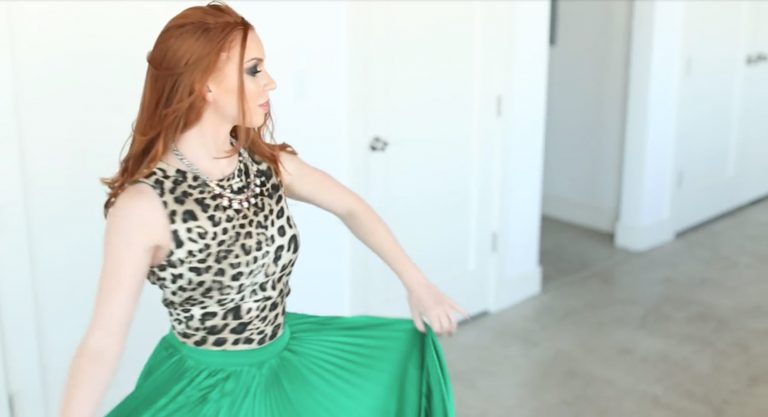
In today’s episode, we show you how to create title screens for video in photoshop. Not only that, we’ll also show you how to create a layer mask that animates throughout time. To finish everything off, we’ll show you how to animate layer effects in video. This is the final installment on our series of episodes teaching you how to edit video in photoshop.

Section 1: Adding a Title Screen and Layer Mask

Title screens are a great way to brand your video. In our example, we use our Phlearn Logo for our title. If you’ve been following along with our series, all of this should feel familiar. We start by creating a new video group. We then grab the file we want for our title, in this case it’s our Phlearn logo, and we drag that into the new video group. We then transform our logo to the exact size we want it to be. In our timeline, our title is on top of all our footage. So we see the logo on top of our whole video. In order to add a bit more interest to our title, we add a layer mask to our title. We use keyframes on our layer mask to animate what’s visible with our logo at a specific time.

Section 1: Using Layer Effects Animations

Now that we have our layer mask, we show you how animate a layer effect throughout time. We choose a drop shadow for our layer effect. Then we play with the blending modes, opacity, and distance. Now that we have our layer effect visible, we keyframe the movements of our drop shadow. We change the angle of the drop shadow from one side to the other. Because it’s keyframed, we see the drop shadow move as time goes on. This is just a basic example of how you could animate layer effects for video in photoshop.

We end things off by reviewing our final video, then we show you guys some settings so you can export your video and get it up on the web!

———————————————————————————————-

Thanks for watching Phlearn! If you enjoyed this video be sure to subscribe to our channel so you don’t miss a thing!

Subscribe: http://goo.gl/LBIEQU

For more advanced Photoshop Tutorials be sure to check out our Phlearn PRO Tutorials. We offer the best Photoshop tutorials available starting at just $24.99.

http://phlearn.com/product-category/pro-photoshop-tutorials

———————————————————————————————-

Stock Images provided by: http://us.fotolia.com/
How to Create a Stunning Black and White Portrait in Photoshop

0

To download this image and follow along with us, visit this episode on Phlearn.com: http://phlearn.com/how-to-create-a-stunning-black-and-white-portrait-in-photoshop

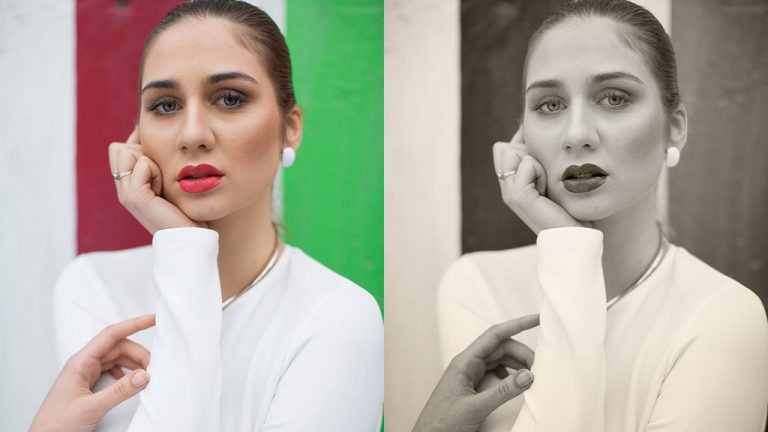
If you think black and white images are simple, think again! Learn how to create a stunning black and white portrait in Photoshop in today’s episode!

Converting to Black & White

There are many different ways to convert an image to black and white in Photoshop. For the purposes of this episode, we use the most complete method which is a black and white adjustment layer. This allows an incredible amount of flexibility in terms of editing the tones of the portrait.

To start off (you guessed it) create a black and white adjustment layer. You will notice there are sliders for each color in the image. When working with the skin tones, you will be focusing on the red and yellow sliders. It is really about finding a balance between the two; each photo is different and it will take time and practice to know which colors need to be increased/decreased. For this particular photo, it looks best to increase the yellows and decrease the reds.

If there are other specific colors in the photograph that you would like to change, you can use the sliders for those as well. A helpful trick is to use the hand tool to actually click and drag left and right on the image. Keep in mind, these are global adjustments! If you click and drag on a green stripe in the image, it will also affect all of the other greens throughout.

Tints & Presets

Next up: play with tints! Check the tint box, and then click on the color block to change the color. It tends to look nicer and more natural if the saturation is relatively low. We chose a yellow-orange color and a saturation of around 6% for this image. It creates a really nice warm, sepia look!

Something that many people may not know about black and white adjustment layers in Photoshop is that you can save your adjustments as a preset! This can be very very helpful for instances like batch editing, or if you just like the look you created on your image and would like to use it in the future. Simply click on the icon in the upper right corner of the adjustment window. Then, select “Save Black & White Preset.” Name the preset and select the location you would like to save it in. Now, you can go back and select that specific preset for other photos! There are basic presets that Photoshop provides as well.

Flair & Final Touches

Create another new black and white adjustment layer. Next, change the blending mode from Normal to Luminosity. This changes the way the sliders affect the tones in the image, and we have found that it’s an efficient and successful way to edit the skin in portraits.

Another nice touch is to use gradients to create vignettes to add on the subject. Choose a radial gradient that goes from black to white, and create the gradient on a new layer (set the blending mode to Soft Light). It’s very easy to remake the gradient if you don’t like it – all you have to do is click and drag again.

There are infinite possibilities for black and white editing in Photoshop! Hopefully this tutorial inspired you to create some stunning black and white portraits.

———————————————————————————————

Thanks for watching Phlearn! If you enjoyed this video be sure to subscribe to our channel so you don’t miss a thing!

Subscribe: http://goo.gl/LBIEQU

For more advanced Photoshop Tutorials be sure to check out our Phlearn PRO Tutorials. We offer the best Photoshop tutorials available starting at just $24.99.

http://phlearn.com/product-category/pro-photoshop-tutorials

———————————————————————————————-

Stock Images provided by: http://us.fotolia.com/
How to Turn on Headlights in Photoshop

0

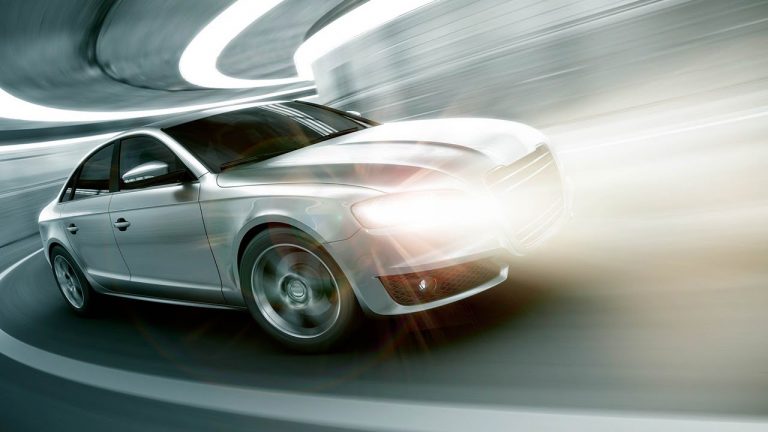
This episode is a real turn on! Car lovers rejoice: Learn How to Turn on Headlights in Photoshop! Learn all the tricks to creating realistic light, including lens flares and light streaks made from scratch.

A great way to start is to really analyze and sketch out your ideas for the photo. This can clarify what will need to be done to complete a realistic effect.

For this picture, we plan out where the beam of light will be and in which direction it will shine. We also decide that it makes sense for the light to be brighter closer to the actual headlight, and gradually decrease as it gets farther from the car. We notice that the headlight should be shown shining on the road as well. And for a special touch, a lens flare will complete the look!
Creating the Beam of Light

Select the polygonal lasso tool and create a shape that will encompass the main beam of light. Fill it with white. Now, go to Filter – Blur Gallery – Field Blur. You will see a little dial pop up, which can be adjusted to add less or more blur. You can click on another area and add an additional blur dial. This is very useful because it allows you to make the beam of light blurrier as it gets father from the car! If you need to, you can transform the beam (Cmd + T) to be at a slightly different angle, or stretch it out.

Adding Effects to the Light

To give the high-beam a glow, double click on the layer and check the “Outer Glow” box. You can choose the color for the glow – we chose a yellowish tint here. Feel free to adjust the amount of glow as well as the opacity to get just the look you are going for! Add a layer mask and create a gradient over it to lessen the glow as it gets farther from the car.

Adding Subtle Light Streaks

This is a small adjustment but will go a long way in terms of impact! Using the brush tool, click all over and make random dots and marks on a new layer. Then, go to Filter – Blur – Radial Blur. Select “Zoom” and adjust the amount of blur. It will make the dots look like they are moving at warp speed, which will later turn into light streaks! Place the center of the layer right over the headlight. Change the Blend Mode from Normal to Screen. Then, create a Hue/Saturation layer if you need to change the color of the light. Again, don’t be afraid to transform this layer to adjust its angle or size. Go with what looks right (it might take some time to be able to recognize what looks most correct. Keep practicing!).

Adding Light to the Road

This is the same concept we used for the initial beam of light. Create oval shapes on the ground using the elliptical marquee tool, and fill it with the same yellowish color we used for the light streaks. Add a gaussian blur to the layer and duplicate it so that it appears to be coming from each headlight. The color can be tweaked by using a Hue/Saturation adjustment layer.

Special Touches: Lens Flares & Gradients

Now the real fun begins! Create a stamp visible layer (Shift +Opt + Cmd + E). Go to Filter – Render – Lens Flare. You are able to choose the size and position of the flare. However, it is very limiting to place the lens flare directly onto the stamp visible layer. To get past this problem, place the lens flare on a black layer and change the Blend Mode to Screen.

Gradients are simple but quite impactful. Click on the Gradient Tool and create a gradient that goes from black to a bright yellowish orange color. Then change the Blend Mode to Soft Light. The black part of the gradient serves as a sort of vignette, and the bright part of the gradient will reflect what is happening with the bright headlights.

As you can tell, there are many little details in this technique that work together to create a realistic final look. If you take the time with each step, there will be no question that your headlights are truly turned on!

———————————————————————————————-

Thanks for watching Phlearn! If you enjoyed this video be sure to subscribe to our channel so you don’t miss a thing!

Subscribe: http://goo.gl/LBIEQU

For more advanced Photoshop Tutorials be sure to check out our Phlearn PRO Tutorials. We offer the best Photoshop tutorials available starting at just $24.99.

http://phlearn.com/product-category/pro-photoshop-tutorials

———————————————————————————————-

Stock Images provided by: http://us.fotolia.com/
How to Create Perfect Selections Using Channels in Photoshop

0

How to Create Perfect Selections Using Channels in Photoshop

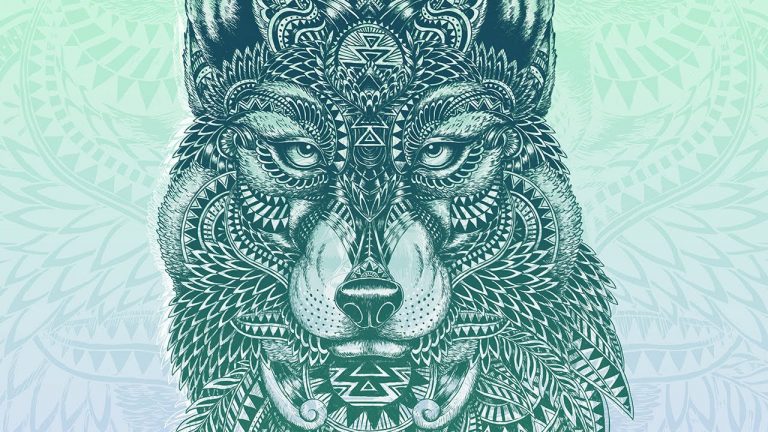
Channels are a great way to make extremely accurate selections! Prepare to make magic happen- even with highly detailed line drawings!

Although there are many different techniques that could yield similar results, Channels can provide the most accurate selections of all.

Section 1: Making Selections

To begin, click over to the Channels tab (if it is not showing up, go to Window – Channels).

Since our image is black and white, we can use any of the Channels to get the selection we want (we use the Blue Channel for this particular example). However, this will change if your image is in color. Click on each Channel to see which selects the most of what you need, and then duplicate it by either Holding Cmd + J or dragging the Channel down to the new layer icon.

Hold Ctrl/Cmd and click on the duplicate layer to create the selection. This selects the lightest areas, so if you need the dark areas selected simply go to Select – Inverse.

Section 2: Adding Color to Selection

With the selection active, create a new Solid Color Adjustment layer. This will automatically make a layer mask and fill the selection with whatever color you choose! That is why you can capture incredible detail with this method; it fills everything in seamlessly.

Section 3: Design Details

To begin really turning this into a piece of art, we crop the image into a square to give it some visual breathing room.

Then, we start to play with color! We create another Solid Color Adjustment layer and place it underneath the illustration layer to act as the background.

At this point, you should discover why this technique is so efficient: you can change the color of those color fill layers as much as you’d like!

You can also have lots of fun playing with the styling of the image. We duplicate the layer of the wolf and move it up a bit, which gives a sort of screenprint effect. We then add a blue Color Fill layer on top of the already present orange layer. Then, we add a Gradient from black to transparent which acts as a mask for part of the color. The result is a beautiful fade from one color to another! And, as you already know, you can always go back in and adjust those colors. In this case we decide to stick with a cool palette, and use blue and green.

For a final artistic touch, we create a white Color Fill copy of the wolf and scale it up (Cmd + T) as another layer of the background. You are able to see through it, but we lower the opacity even more so that the effect is nice and subtle.

We end up with a beautiful graphic image by simply playing with Channels and colors!!

———————————————————————————————-

Thanks for watching Phlearn! If you enjoyed this video be sure to subscribe to our channel so you don’t miss a thing!

Subscribe: http://goo.gl/LBIEQU

For more advanced Photoshop Tutorials be sure to check out our Phlearn PRO Tutorials. We offer the best Photoshop tutorials available starting at just $24.99.

http://phlearn.com/product-category/pro-photoshop-tutorials

———————————————————————————————-

Stock Images provided by: http://us.fotolia.com/
Lightroom 101 & 201 Trailer (Teaser)

0

Click here to check out Lightroom 101 & 201: http://phlearn.com/product/lightroom-101-201-bundle
Photoshop Expert Aaron Nace brings years of teaching experience to Lightroom to create a tutorial unlike any other! Learn your way around every button, tool, and menu item in the program. Then, follow along with Aaron’s workflow as he edits 25 images from start to finish. This even includes the ins and outs of HDR images and Panoramas.

———————————————————————————————-

Thanks for watching Phlearn! If you enjoyed this video be sure to subscribe to our channel so you don’t miss a thing!

Subscribe: http://goo.gl/LBIEQU

For more advanced Photoshop Tutorials be sure to check out our Phlearn PRO Tutorials. We offer the best Photoshop tutorials available starting at just $24.99.

http://phlearn.com/product-category/pro-photoshop-tutorials

———————————————————————————————-

Stock Images provided by: http://us.fotolia.com/
How to Stretch Images using Content Aware Scale

0

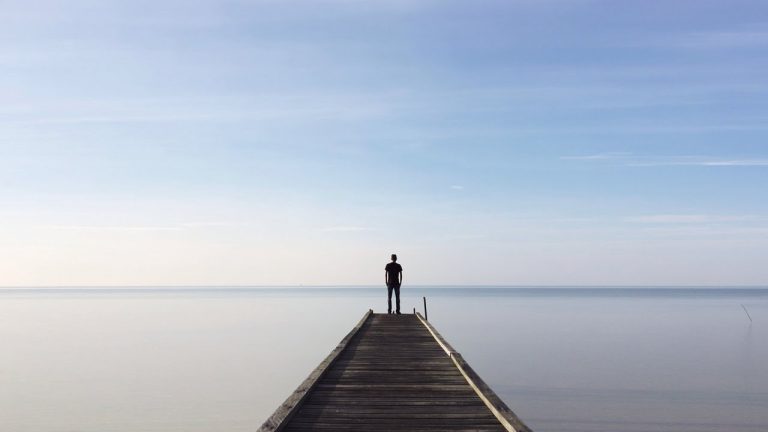
Have you ever really needed to extend the background of your image, but not wanted to spend hours with the clone stamp tool? If so, today’s episode is for you! Learn How to Stretch Images Using Content Aware Scale!

Preparation

We start out with a square image that we would like to extend. It is a great example because we want to stretch out the water and sky, but not the person standing in the center. If you have a highly detailed photo that you want to stretch, the content aware scale tool will not be the best option. If it’s simple open space, however, like a sky or the ground, it will most certainly help you out! You can do this both horizontally and vertically.

Start by extending the canvas behind your image. You can do this by using the crop tool and just widening the background. Hold the edge and drag it to the left or right.

TIP: Hold Alt/Opt while doing this to extend out evenly from the center.
Duplicate the background layer by holding Cmd + J. To test out how incorrect the photo will look with the normal transform tool, you can press Cmd + T and stretch the image out to the new width. Yuck!! It will not look good at all. This is where Content Aware Scale comes in!

Content Aware Scale

Go to Edit – Content Aware Scale. Now, you can drag the edges of the images outwards and the most important information will stay intact (human figure and the pier) while the more simple information (sky and water) will be extended to hit the new borders. It creates a much more natural look than the previous example!

Protect Your Important Information!

You might notice that when you used the Content Aware Scale tool, there were parts of your image that were warped or slanted a bit. To truly make sure the items you don’t want to stretch stay protected, it will just take a few extra steps.

Make a selection of the object you would like to “protect.” In this case, it is the man and the pier.
Load this selection as a Channel. To do this go to the Channels tab, and create a new channel. Your objects should still be selected!
You will see a completely black screen with marching ants around your objects. Hold Shift + Delete and select Use – White. Now, your objects will be white on a black background.
Go back to your regular layers tab. Go to Edit – Content Aware Scale, and select your Alpha 1 channel under the Protect drop down menu.
Scale the image just as you did before! The objects you chose to “protect” should not move, and you will have a more successful final image.
As you can see in our example, the before and after images are only different in their cropped size. The goal is to have the end image look completely natural, and not give away the secret that you’ve stretched it out!

TIP: Sometimes you just can’t scale as much as you’d like. A helpful hint is to scale it halfway, stop, and then start over and scale it the rest of the way.

———————————————————————————————-

Thanks for watching Phlearn! If you enjoyed this video be sure to subscribe to our channel so you don’t miss a thing!

Subscribe: http://goo.gl/LBIEQU

For more advanced Photoshop Tutorials be sure to check out our Phlearn PRO Tutorials. We offer the best Photoshop tutorials available starting at just $24.99.

http://phlearn.com/product-category/pro-photoshop-tutorials

———————————————————————————————-

Stock Images provided by: http://us.fotolia.com/
Behind the Scenes: Lightroom 101 & 201

0

Dive behind the scenes with the Phlearn team as we discuss how we came up with the imagery for our Lightroom 101 & 201 tutorial! To see more awesome episodes, click here: http://phlearn.com/

———————————————————————————————-

Thanks for watching Phlearn! If you enjoyed this video be sure to subscribe to our channel so you don’t miss a thing!

Subscribe: http://goo.gl/LBIEQU

For more advanced Photoshop Tutorials be sure to check out our Phlearn PRO Tutorials. We offer the best Photoshop tutorials available starting at just $24.99.

http://phlearn.com/product-category/pro-photoshop-tutorials

———————————————————————————————-

Stock Images provided by: http://us.fotolia.com/
How to Add Special Effects in Photoshop

0

Click Here to Download Practice Images: https://s3.amazonaws.com/MiscUploads/Phlearn+Special+Effects+Photos.zip

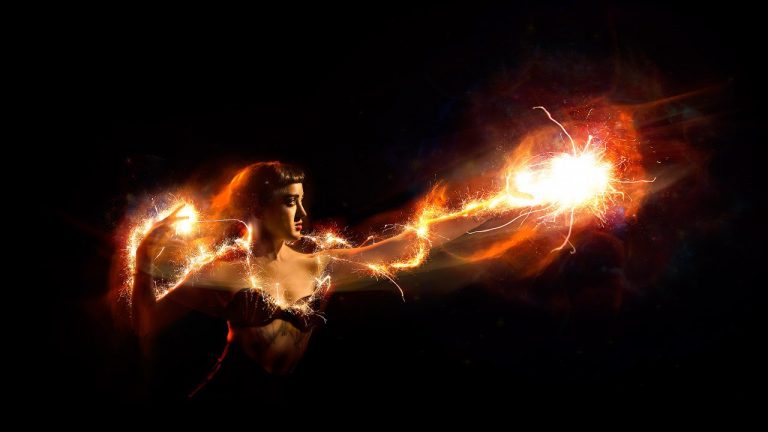
Adding Special Effects to images can actually be incredibly simple! All it takes is a little practice with blend modes, adjustment layers, and layer masks. Learn How to Add Special Effects in Photoshop in today’s episode!

To create an awesome final product, we use multiple images from a recent photoshoot. They are available for download in the link above!

The base image comes directly from the photoshoot; we used sparklers to light paint around the model. From there, we can add elements from other photos to enhance the overall effect. Don’t be afraid to keep outtake images, because bits and pieces can often be taken from them and prove quite useful.

Layering using Blend Modes

To start, load all of your files into Photoshop. A quick way to do this is by going to File – Scripts – Load Files into Stack. Then, you can Shift + Click on all of the files and then open them at once. Once your images are loaded, it is really just about playing around!

To eliminate the darks in a layer, change the Blend Mode to Screen. For the image we work on in this episode, the Screen mode is vital to get the look we want. It leaves just the glow of the sparklers as well as other exciting bright elements! We end up adding some blurs that came from outtakes with people moving, as well as small pops of light. You can think of it as making a collage in Photoshop!

You will most likely need to mask out unwanted areas even after the Screen Blend Mode has been selected. You can create a layer mask on the layer, and then paint over it with black (using the brush tool) to hide those unwanted spots.

Transform & Duplicate

Don’t be afraid to experiment with the size and position of your layers. Hold Ctrl/Cmd + T to do this. You can also duplicate any layer by holding Ctrl/Cmd + J, which can add exciting detail when you start to layer images on top of each other.

Levels Adjustment Layer

For an added wow factor, we bring in a galaxy image from Fotolia. It has some light blue haze that we don’t want in the final image, so to fix that we change the Blend Mode to Screen again and then create a Levels Adjustment layer. Hold Ctrl/Cmd + L to do so. Then, drag the black slider in towards the center of the Levels graph. This should eliminate those dark/midtones that were too distracting before. You can use a layer mask once again to include only certain areas.

As you can see, there’s not much to adding special effects! The keys are Blend Modes, Adjustment Layers, and Layer Masks. Remember to keep on experimenting by duplicating and transforming your layers! There is no limit to what you can create in Photoshop.

———————————————————————————————-

Thanks for watching Phlearn! If you enjoyed this video be sure to subscribe to our channel so you don’t miss a thing!

Subscribe: http://goo.gl/LBIEQU

For more advanced Photoshop Tutorials be sure to check out our Phlearn PRO Tutorials. We offer the best Photoshop tutorials available starting at just $24.99.

http://phlearn.com/product-category/pro-photoshop-tutorials

———————————————————————————————-

Stock Images provided by: http://us.fotolia.com/
How to Add and Remove Fog in Photoshop

0

Learn How to Add and Remove Fog in Photoshop in today’s episode! This super quick and easy tutorial will turn you into a fog wizard. Guaranteed.

Removing Fog/Haze

This part of the episode occurs in Lightroom. The feature we use is called “Dehaze” and is a brand new addition for Lightroom CC 2015. Be sure to update your program if you aren’t seeing it.

Go to the Develop Module and scroll down to Effects. When you click on that section, you will see a Dehaze slider. Sliding this to teh left will add more haze, and sliding it to the right will remove the haze. It’s that simple! It really is amazing how quick and easy this process is!

Also, be aware that this tends to add some odd saturation or color to the image, since so much correction happens when you remove haze. To fix this, you will most likely need to play with the colors and saturation a little bit. In this case, we chose to decrease the saturation to make the colors look more realistic. We also warmed the temperature up quite a bit because it was much too blue after the dehazing.
Adding Fog/Haze

This second section of the episode occurs in Photoshop. To complete the technique, create a new layer and fill it with 50% gray (Shift + Delete and fill with gray). Then, go to Filter – Render – Difference Clouds. You will get a funky looking black and white layer that fills your image. Here is where Blend Modes come in handy!

The Screen Blend Mode makes all of the darks in an image disappear. If you are a Phlearn follower, you should have this down by now! 🙂 So, change the Blend Mode to Screen and you will see the blacks magically disappear.

The clouds that you see left will be just the whites. You can now transform these to be as big or small as you’d like, and use layer masks to paint in specific areas.

———————————————————————————————-

Thanks for watching Phlearn! If you enjoyed this video be sure to subscribe to our channel so you don’t miss a thing!

Subscribe: http://goo.gl/LBIEQU

For more advanced Photoshop Tutorials be sure to check out our Phlearn PRO Tutorials. We offer the best Photoshop tutorials available starting at just $24.99.

http://phlearn.com/product-category/pro-photoshop-tutorials

———————————————————————————————-

Stock Images provided by: http://us.fotolia.com/