Home Blog Page 511

How to Create Collage Templates in Photoshop

0

Click Here to Download Phlearn’s Collage Templates: http://phlearn.com/how-to-create-collage-templates-in-photoshop

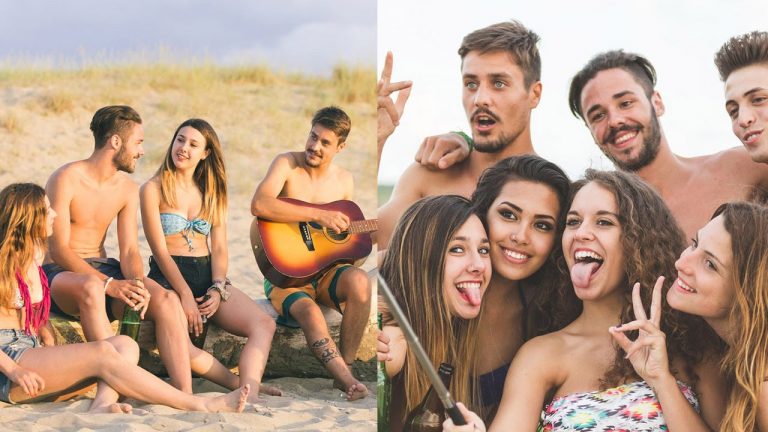
Learn How to Create Collage Templates in Photoshop in this episode! This is a priceless technique for anyone with a blog, website, or someone just wanted to combine a few images together into one.

Section 1: Prepping the Images

Start with a blank document and load your images into Photoshop. We choose to go to File – Scripts – Load Files into Stack. This pulls all of the photos in at once. Then, group the images together (Ctrl/Cmd + G).

Section 2: Utilizing Groups & Layer Masks

Pull the first image that you want to work with out of the Group you just created. Then – this will sound odd – group it with itself (click on the layer and press Ctrl/Cmd + G). Next put a layer mask on that group.

This process alone is what allows us to create the sections separately, and you will see later how convenient it makes everything!

Next, fill that group layer mask with black (making the image invisible). Grab the marquee tool and create a rectangular section anywhere you’d like.Now select the layer mask and fill it with white (Shift + Delete). You will see the image show up only where that marquee selection was made. You can scale the image however you’d like, and it will stay right inside of that selection! Woohoo.

Section 3: Defining Precise Sections

If you’d like an image to be split directly in half, you can create a new Color Fill Layer and hold Ctrl/Cmd + T. Then move the center point over to one side, and change the width or height to be 50%. This will split that color layer right in half! This is a quick and easy way to get proper measurements.

If you’d like an image to only be visible in that Color Fill Layer, group it with itself just as we did before. Then, Ctrl/Cmd + Click on that Color Layer. That will create a layer mask right where you need it.

Section 4: Playing with Section Shapes

Keep in mind that you can make these shapes to be whatever you want! For our last example, we use the same technique but use the Polygonal Lasso Tool to make slanted diagonal shapes. This can create some fresh and fun looks for a website or blog.

Have fun with this! Combining multiple photos together into one image can have a really lovely effect!
———————————————————————————————-

Thanks for watching Phlearn! If you enjoyed this video be sure to subscribe to our channel so you don’t miss a thing!

Subscribe: http://goo.gl/LBIEQU

For more advanced Photoshop Tutorials be sure to check out our Phlearn PRO Tutorials. We offer the best Photoshop tutorials available starting at just $24.99.

http://phlearn.com/product-category/pro-photoshop-tutorials

———————————————————————————————-

Stock Images provided by: http://us.fotolia.com/
How to Style Hair in Photoshop

0

Our #1 PRO Tutorial ever is now on Sale! https://phlearn.com/popular

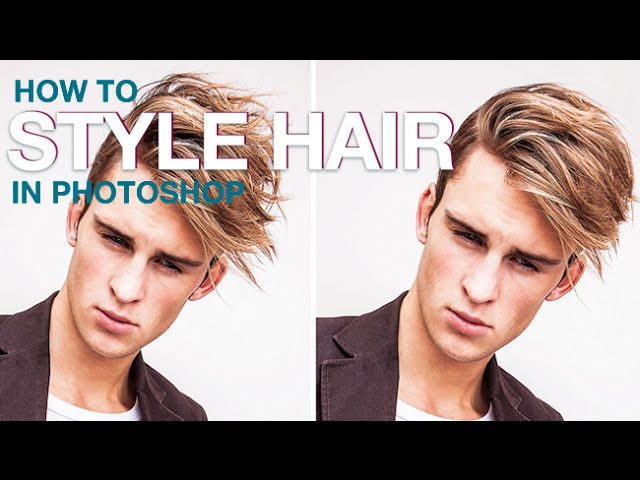
How to Style Hair in Photoshop

From flyaways to frizzies, hair seems to never do exactly what we want it to. Learn how to shape and style hair in Photoshop in today’s episode!

How to Shape the Hair

The liquify tool will allow you to push and pull pixels. This is really great, but you never want to do this directly on the background layer. So, duplicate the background layer and work from that one. Then go to ‘Filter – Liquify’ to bring up the Liquify dialogue.

The only tool you really need to use for shaping hair with Liquify is the Forward Warp Tool in the upper left corner. You will notice there are many options for size, pressure, density, etc. (If you are not seeing those options, click on Advanced). For hair, we use a density and pressure of about 25.

The size you should use varies greatly from photo to photo; you don’t want it to be too small and make a harsh warp trail, but you also don’t want it too large because it will move much more than you’d like. Play around with what size works best for the hair in your photo. Ctrl/Cmd + Z is your friend here!

We use this forward warp tool to push the hair down into a more orderly style. It makes the look a little more cohesive and “put together”.

As you can see, the liquify tool does the majority of the work!

How to Clean Up Flyaways

Next up is clean up! First, create a new layer. we have some residual hair floating above the model’s head, so we use the clone stamp tool to get rid of that. This works for flyaways as well! The hardness of our brush is around 85% so that it’s not too fuzzy.

To clean up the little light hairs that cross over dark hair and look distracting, create a new layer and use the clone stamp tool. The difference here is: change the Blending Mode from Normal to Darken. This magic technique gets rid of those light areas as soon as you paint over them! This can be tedious, but you can spend as much or as little time on this as you want.

How to Fill in Blank Areas

Create a new layer and use the clone stamp tool to paint in another copy of just the hair. Then, bring in that new hair over on top of the actual hair. Then, add a layer mask and paint with white in the area that you want to fill in.
By default, layers and layer masks are linked together. But, you can unlink the two and move each one separately. To do this click on the little chainlink that appears between the layer and the mask. Then, select just the layer and you will see how easy it is to move just the new hair around! You can even use the Transform tool (Ctrl/Cmd + T) to rotate or adjust the hair inside of that blank area.

One more technique for styling the hair is creating more copies of the hair with different blend modes.
———————————————————————————————-

VISIT PHLEARN.COM FOR MORE FREE TUTORIALS

Homepage

SUBSCRIBE TO OUR CHANNEL FOR MORE FREE TIPS AND TRICKS
http://www.youtube.com/subscription_center?add_user=phlearnllc

GET FREE TUTORIALS IN YOUR EMAIL + DISCOUNTS ON OUR PRO TUTORIALS!
https://phlearn.com/mail

BUY THE TABLET AARON USES! https://phlearn.com/tablet

LET’S BE FRIENDS!
Instagram ► https://www.instagram.com/phlearn/
Facebook ► https://facebook.com/phlearn
Twitter ► https://twitter.com/phlearn
Google+ ► https://plus.google.com/116791098059215639405
Phlearn ► https://phlearn.com

———————————————————————————————-

Stock Images provided by: http://us.fotolia.com/

How to Remove a Tattoo in Photoshop

0

Learn to Retouch Like a Pro: https://phlearn.com/rtremovetatoo

Our #1 PRO Tutorial ever is now on Sale! https://phlearn.com/popular

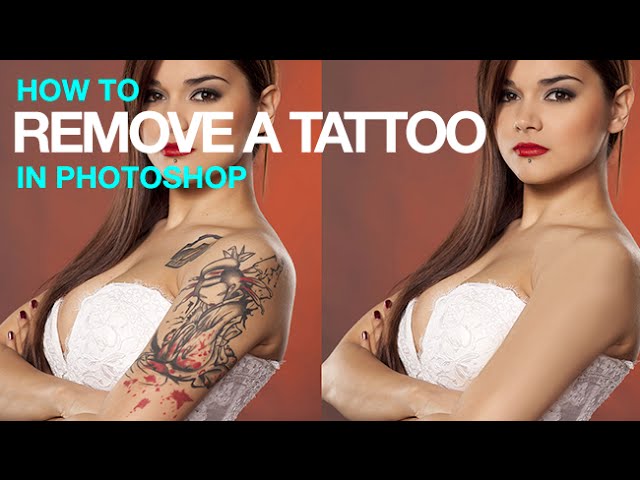
How to Remove a Tattoo in Photoshop

“Do you think we got any bloopers..?” I don’t know, you tell us! And learn how to remove a tattoo in Photoshop while you’re at it.

Basic Removal

For this first step, we use the Spot Healing Brush Tool. Be sure that this tool is set to the Normal Mode, and that the Type is set to Content Aware. Sample All Layers should also be checked.

On a new layer, paint right over top of the tattoo. It’s that simple! This works best if you do small sections at a time, making sure to include part of the original skin texture in your section. Sometimes the tool will pull areas from other parts of the photo that do NOT belong on skin! If this happens, don’t worry at all. All you have to do is paint right over it again.

After spending some time with this tool the skin will look blotchy and uneven. As explained in the episode, you might get the “toaster oven” effect. But, as long as the ink is gone, you are ready to move on to the second step!

Painting the Skin

Retouchers are also painters! It’s time to bring out those paint brushes.

In this very important step, we will be sampling the skin and painting over the blotchiness that is left over from step one.

Select the brush tool and use a soft round brush. The size of the brush will depend on the area of the skin that you are working on, and also will take a little bit of trial and error.

To paint, sample a color of the natural skin by holding alt/opt and clicking on it. Then, your brush will pick up that color and you can paint over the uneven skin. This will take some practice so that the body doesn’t look completely flat! Just remember that highlights, shadows, and midtowns should all be paid attention to and treated differently. Look for the shadows and how they fall onto the skin – sometimes it is just a small detail but it can make all of the difference. For this example, we bring each tone all the way up the arm and into the shoulder.

Remember that this is a gradual and gentle process. Set the Flow of your brush to be very low – somewhere between 5 and 20 percent is a good place to start. With a low flow, you are able to slowly build up the color of the skin. This helps to make it look more natural.

Adding Skin Texture

After painting over the skin, it will look much too smooth and artificial. Step 3 is adding skin texture back into the image so that it looks completely normal.

Start by making a new layer and selecting the area around the body part you have been working on. Then, go to Edit – Fill – 50% Gray. Change the Blend Mode from Normal to Overlay. This is the base layer for the texture.

Now, go to Filter – Noise – Add Noise. Change the settings depending on what looks best for your image. We choose to select Uniform.

To add to the look of the texture, go to Filter – Blur – Gaussian Blur. We add just a touch of blur (about 1 pixel).

Now, go to Filter – Stylize – Emboss. This is where the texture will really turn from just looking like noise to looking like skin! Go for an amount that makes it look as natural as possible.

Lastly, create a black layer mask on your current layer. Then, use the brush tool to paint with white where you’d like the skin texture to show up. You can use a low flow or opacity to build it up gently if you’d like.

———————————————————————————————-

VISIT PHLEARN.COM FOR MORE FREE TUTORIALS

Homepage

SUBSCRIBE TO OUR CHANNEL FOR MORE FREE TIPS AND TRICKS
http://www.youtube.com/subscription_center?add_user=phlearnllc

GET FREE TUTORIALS IN YOUR EMAIL + DISCOUNTS ON OUR PRO TUTORIALS!
https://phlearn.com/mail

BUY THE TABLET AARON USES! https://phlearn.com/tablet

LET’S BE FRIENDS!
Instagram ► https://www.instagram.com/phlearn/
Facebook ► https://facebook.com/phlearn
Twitter ► https://twitter.com/phlearn
Google+ ► https://plus.google.com/116791098059215639405
Phlearn ► https://phlearn.com

———————————————————————————————-

Stock Images provided by: http://us.fotolia.com/

The Difference Between Flow and Opacity in Photoshop

0

Today’s episode is all about the difference between Flow and Opacity in photoshop. Both Flow and Opacity are settings used for the Brush Tool. The Brush Tool is one of the most commonly used tool in photoshop. Knowing the difference between Flow and Opacity while using the Brush Tool will make your life so much easier when editing. There are moments when using Flow is the perfect choice, and there are moments when it might not the best option. Today we will discuss both settings, as well as show you a few different examples.

Flow vs Opacity, round 1!

So let’s break this down.

FLOW: Flow allows you to build up ink over and over again. A lot like ink on a piece of paper. The more times you go over something with Flow as your setting while using your Brush Tool in Photoshop, the more ink you are building us. Imagine the effect a marker has on a piece of paper. Every stroke lays down more in.
OPACITY: Opacity is more of a computer generated way of painting. If you painted a canvas with 50% Opacity, you couldn’t lay more ink down on your canvas until you picked up your brush and applied it again. This method can be super useful in some cases, in others it might be extremely limiting.
So both Flow and Opacity can be great settings for the Brush Tool. The key is to know when to use which setting and why.

And the winner is…

It’s a tie! Both settings are extremely helpful when using the brush tool. Now get out there and master them both!

———————————————————————————————-

Thanks for watching Phlearn! If you enjoyed this video be sure to subscribe to our channel so you don’t miss a thing!

Subscribe: http://goo.gl/LBIEQU

For more advanced Photoshop Tutorials be sure to check out our Phlearn PRO Tutorials. We offer the best Photoshop tutorials available starting at just $24.99.

http://phlearn.com/product-category/pro-photoshop-tutorials

———————————————————————————————-

Stock Images provided by: http://us.fotolia.com/
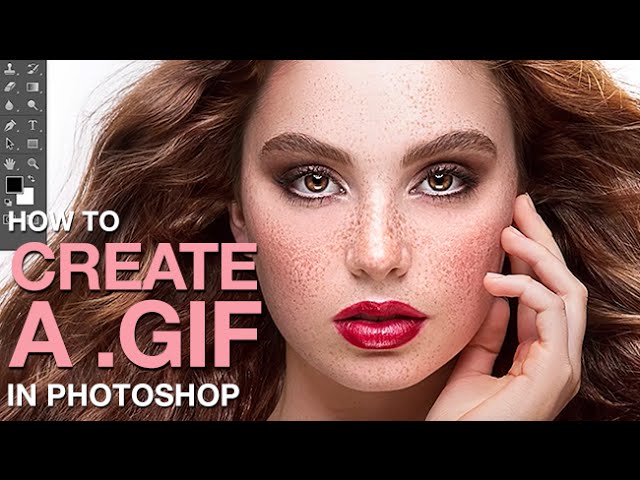
How to Create a .GIF and Upload It to Instagram

0

Our #1 PRO Tutorial ever is now on Sale! https://phlearn.com/popular

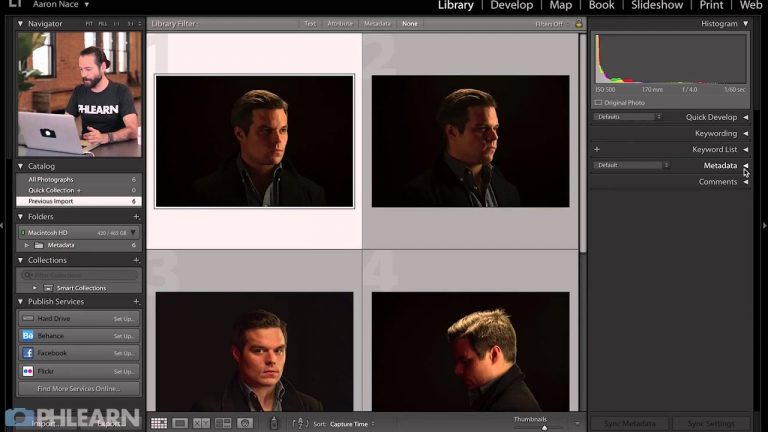
How to Create a .GIF and Upload It to Instagram

In today’s episode, we show you how to create a before and after image in Photoshop. After that, we show you how to animate it as an animated gif. Then to top it all off, we show you how to upload your .gif to Instagram.

GETTING STARTED

We start off with a normal .psd file. We strip all of the adjustments off of the image until we are down to the original. After that, we create a new layer within Photoshop. On that new layer we go to Image — Apply Image. From there you want to make sure your settings reflect the settings you see in the video. Once you hit OK, you will get a copy of everything you see, on a new layer. Now you have a before & after. Next is adding the animation!

ADDING ANIMATION

Since our final destination in this case is Instagram, we need to create a format that we know will work well for the application. After we have our desired dimensions, we have 3 layers to work with. A background layer, an original layer of our image with no changes, and the final image with the changes we’ve made in photoshop. Turning these layers on and off will help identify which is our before and after. Now it’s time to animate our image. We use the video timeline to create a frame animation. Frame animation just allows us to create individual frames. Now we click — Make frames from layers. Now we have 2 frames in our animation, the before frame and the after frame. We set the duration to 2 seconds, meaning every 2 seconds the frame will switch from before to after.

EXPORT SETTINGS

Now that we have our frames loaded into our animation, it’s time to make sure our export settings are perfect. We changed the duration of the timeline to forever. So now the image we see will constantly shift from the before to after.

UPLOADING TO INSTAGRAM

Next we show you how to email the file to yourself and upload the image to Instagram. From there you can choose any filters or other options that Instagram offers.

———————————————————————————————-

VISIT PHLEARN.COM FOR MORE FREE TUTORIALS

Homepage

SUBSCRIBE TO OUR CHANNEL FOR MORE FREE TIPS AND TRICKS
http://www.youtube.com/subscription_center?add_user=phlearnllc

GET FREE TUTORIALS IN YOUR EMAIL + DISCOUNTS ON OUR PRO TUTORIALS!
https://phlearn.com/mail

BUY THE TABLET AARON USES! https://phlearn.com/tablet

LET’S BE FRIENDS!
Instagram ► https://www.instagram.com/phlearn/
Facebook ► https://facebook.com/phlearn
Twitter ► https://twitter.com/phlearn
Google+ ► https://plus.google.com/116791098059215639405
Phlearn ► https://phlearn.com

———————————————————————————————-

Stock Images provided by: http://us.fotolia.com/

How to Use Advanced Color Tools in Photoshop

0

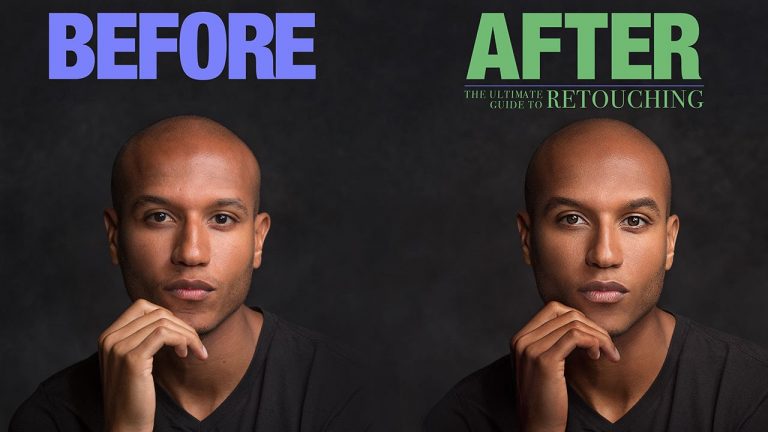
In today’s episode, we show you how to use advanced color tools in photoshop. We’ll show you a unique set of tools that allow you to choose complimentary colors easily. We’ll also show you how to spice up an advertisement and how to work with your color library and color swatches in photoshop.

THE POWER OF COLOR

Colors are always a huge part of an image. Sometimes it can be extremely difficult to choose the colors for your desired output. The method we show you today should make this process a lot easier. Think of it as a color wheel on steroids. On the color wheel you’ll see each of the colors and their complimentary colors. The photoshop version of this is a lot more precise because it calculates the exact complimentary color based off the color you choose.

GETTING STARTED

The image we work on today is one of our ads from The Ultimate Guide to Retouching. We start off with white text in our ad. The goal is to change the colors to colors that compliment our image. In order to do this, we need all of our color windows in an organized format. We start off by going to Window — Library. That pulls up our color library panel. Next we go to Window — Color Themes. We move our color theme next to our library panel. Finally, we go to Window — Color.

Make sure to keep your workspace as clean as possible. It will make you more efficient in the long run.
SAMPLING COLORS

Next we grab our eyedropper and we click on the skin tone of our subject in the image. Then we choose our preferred option from our adobe color themes. Next we click on the “set selected color from active color” button. From there we choose complimentary colors. Now our adobe color themes panel shows us the complimentary colors based off of the tone we chose with our eyedropper. Long story short, this enables you to sample any color in any document and find it’s complimentary colors based off of adobe’s precise calculations. Now we click on the “add to library” tab and all of those colors will show up in our color library.

———————————————————————————————-

Thanks for watching Phlearn! If you enjoyed this video be sure to subscribe to our channel so you don’t miss a thing!

Subscribe: http://goo.gl/LBIEQU

For more advanced Photoshop Tutorials be sure to check out our Phlearn PRO Tutorials. We offer the best Photoshop tutorials available starting at just $24.99.

http://phlearn.com/product-category/pro-photoshop-tutorials

———————————————————————————————-

Stock Images provided by: http://us.fotolia.com/
How to Use a Smart Object to Create an Ad in Photoshop

0

Today’s episode is full of tips and tricks as we show you how to use a smart object to create an ad in Photoshop! We’ll be taking an image, making it into a smart object and then placing it over an iPad. This technique would work great for anyone who wants to create a mockup and see what it’d look like in real space.

GETTING STARTED

We start off by gathering our source materials. We move our images over into the same document. While examining our images we find out how much work we’ll actually have to do. We know we want our image to fit into the iPad screen seamlessly. That means we need to match the angle, blur, and characteristics that already exist with the iPad screen. There is a bit of glare and fingerprints we’d like to include.

WORKING WITH SMART OBJECTS

Smart Objects can be really powerful when used correctly. In order to turn your image into a smart object, simply right click and go to “Convert to Smart Object.” The great thing about Smart Objects is that you can transform the image all you want and it won’t effect the original image. This method comes in handy because now we can transform our image to fit into our iPad screen perfectly. After stretching and rotating our image, it’s time to do some final adjustments.

ADDING A BLUR

Now it’s time for us to create a blur. Because we have already created a Smart Object, our blur is a Smart Filter. This is amazing because we can change the blur after the fact. So you can go into the image anytime and edit your Smart Filter.

FINISHING TOUCHES

To finish everything off, we add fingerprints by selecting a Color Range. We sample the color in the fingerprinted areas, we throw a layer mask on top, then we paint on top of our image so the fingerprints show up. We lower our Opacity and viola! To finish up, we add some text alongside our image and we are good to go!

———————————————————————————————-

Thanks for watching Phlearn! If you enjoyed this video be sure to subscribe to our channel so you don’t miss a thing!

Subscribe: http://goo.gl/LBIEQU

For more advanced Photoshop Tutorials be sure to check out our Phlearn PRO Tutorials. We offer the best Photoshop tutorials available starting at just $24.99.

http://phlearn.com/product-category/pro-photoshop-tutorials

———————————————————————————————-

Stock Images provided by: http://us.fotolia.com/
How to Color an Illustration in Photoshop

0

Our #1 PRO Tutorial ever is now on Sale! https://phlearn.com/popular

How to Color an Illustration in Photoshop

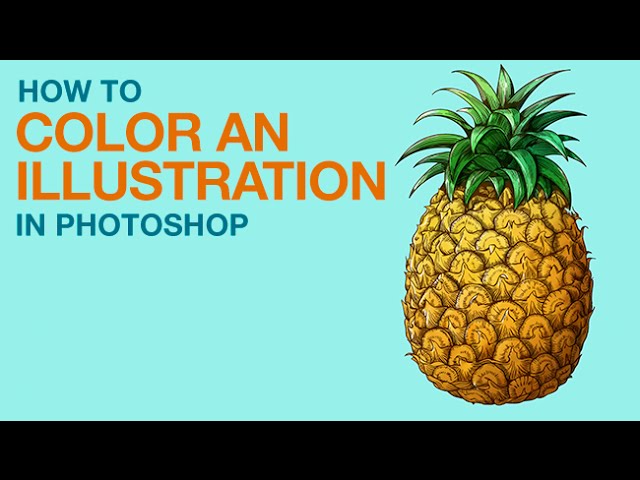
Anyone can be an illustrator in Photoshop! Learn How to Color an Illustration in Photoshop in today’s episode.

Start by downloading an image from a stock website like Fotolia, or scanning in your very own work! If you want to follow along with this episode, click HERE to purchase Fotolia’s pineapple: https://us.fotolia.com/id/62812427

Coloring in the lines

Let’s travel back in time to coloring books and crayons….be sure to color in those lines! To make this job much easier, use a selection tool to select just the background of the illustration (this will depend on what type of image you have. If it makes more sense, feel free to select the illustration itself instead). Then, turn the selection into a layer mask. You will need to invert the mask (Cmd/Ctrl + I) if you selected the background originally. That mask will be applied to a group that holds all of your layers.

Now, when you paint on top of the image, you will only be able to color inside of the lines. Yay.

Time to have some fun! Select whatever color you want to start with and have at it! Your mask will restrict you to staying within the lines, but that can always be turned off. It’s also helpful to put each color you paint with on a different layer, so that you can go back in and edit them individually.

Highlight & Shade

Art tip #1: Figure out where the light source is! We decided that on the pineapple, the light/sun will be coming from the upper left corner. This means that the parts closest to that angle will be the brightest and have highlights. It also means that shadow would fall on the opposite side of the fruit. Highlights and shadows will help to make your illustration look much more realistic.

We recommend using the color palette to use a darker version of your illustration colors for the shading, and a lighter version for the highlights. Using a dark color is much better than just using a grey or black.

Don’t Forget the Details

To add some really nice and subtle detail, we paint some reds and yellows over top of the pineapple and change the blending mode to Soft Light (this is on a new layer). We do the same in the leaves of the fruit, and it makes the illustration much more interesting and dynamic!

Although we already painted in some general highlights and shadows, some tiny little strokes will add a nice effect too. We create a new layer and draw some tiny white highlights on the tops of the leaves and the round parts of the pineapple bumps. The same is done for the shadows, by adding some dark strokes underneath the leaves and on the underside of the pineapple bumps.

That’s all there is to it! You can really have some fun with this technique, so don’t be afraid to experiment with crazy colors and drawings!

———————————————————————————————-

VISIT PHLEARN.COM FOR MORE FREE TUTORIALS

Homepage

SUBSCRIBE TO OUR CHANNEL FOR MORE FREE TIPS AND TRICKS
http://www.youtube.com/subscription_center?add_user=phlearnllc

GET FREE TUTORIALS IN YOUR EMAIL + DISCOUNTS ON OUR PRO TUTORIALS!
https://phlearn.com/mail

BUY THE TABLET AARON USES! https://phlearn.com/tablet

LET’S BE FRIENDS!
Instagram ► https://www.instagram.com/phlearn/
Facebook ► https://facebook.com/phlearn
Twitter ► https://twitter.com/phlearn
Google+ ► https://plus.google.com/116791098059215639405
Phlearn ► https://phlearn.com

———————————————————————————————-

Stock Images provided by: http://us.fotolia.com/
How to Make a Billboard Advertisement in Photoshop

0

In today’s episode, learn how to create a billboard advertisement in Photoshop!
To check out Aaron’s exciting new business, click here: http://chicagocandlefactory.com/

Defining the Shape

The first thing we do is define the shape of our billboard. We do that by using the Rectangle Marquee Tool to precisely define our borders. Next we convert our selection into a Smart Object. Creating a Smart Object allows us to edit the content within the Smart Object.

Next, we transform our Smart Object into perspective so it matches the billboard we are referencing. We then use the Pen Tool and create a layer mask to cut out the lamp posts in front of the billboard.

Editing the Billboard

Now the real fun begins! We double click the billboard and determine what content goes inside. Because it’s a Smart Object, we are able to go in and edit our billboard as if it were a normal document. The exciting part is that our Smart Object will update in real time! This means that we can see instantly what our billboard would look like with the elements we choose inside. From there we can go and grab different images and logos to spice things up. This techniques works great if you ever have a client who wants to see what their image would look like in real life.

———————————————————————————————-

The Chicago Candle Factory

Hand cut, hand sanded, and hand poured, these candles are made with true frenetic passion. The rugged edges reflect the maker’s personality, which is balanced by the high quality soy wax and essential oils used. Each candle has a unique mixture of scents and designs; no two candles are exactly the same.

———————————————————————————————-

Thanks for watching Phlearn! If you enjoyed this video be sure to subscribe to our channel so you don’t miss a thing!

Subscribe: http://goo.gl/LBIEQU

For more advanced Photoshop Tutorials be sure to check out our Phlearn PRO Tutorials. We offer the best Photoshop tutorials available starting at just $24.99.

http://phlearn.com/product-category/pro-photoshop-tutorials

———————————————————————————————-

Stock Images provided by: http://us.fotolia.com/