Home Blog Page 509

How to Render an Apple Watch From Scratch in Photoshop

0

Check out our Text & Graphics Playlist for more tutorials like this! https://www.youtube.com/playlist?list=PL7JpMMpENaD0an-7VlXq8hSRhb8MrXUux

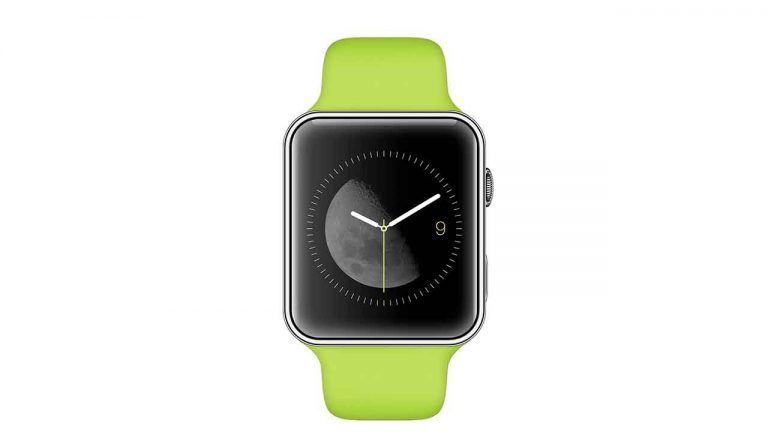
Have you ever had an idea for a product but didn’t know the exact steps to take after sketching out your idea? Well in today’s episode, we show you a possibility for your next step. You can create your product in photoshop. Learn how to render an apple watch from scratch in today’s episode!

Section 1: Creating the Watch Inner Surface (3:32)

We kick things off by creating the inner surface of the watch. In this section, the Rounded Rectangle Tool will become your best friend. This tool gives us the options to really make the corners on our rounded rectangle smooth and precise. The Layer Style options also come in handy because it allows us to create that inner glow. This give the illusion of a shiny surface. The Rounded Rectangle Tool is even used to create the shine we see surrounding our inner surface.

Section 2: Creating the Watch Case (10:52)

Now that we have an inner surface created, we begin to work on the case that would be holding our inner surface. Our goal in mind was to create a shiny, metal crown surrounding our inner surface. The Rounded Rectangle Tool is the hero again in this section as we perfectly outline a case for our inner surface. We return to our Layer Style options to give our case a metal look. We also use the Rounded Rectangle Tool to create the buttons on the side of the watch. Then we get really fancy and use some Step and Repeat methods to create the grooves in the dial.

Section 3: Creating the Watch Strap (23:10)

The watch straps are created with a slightly different method. First we begin with a rough sketch to give us an idea of what we want. Then we use the pen tool to create one side of the strap. After we are satisfied with the side of the strap, we duplicate that layer, flip it over, and move it to finish off the strap on top of the watch face. Then we duplicate that layer, flip it over upside down, and use it for the bottom strap. (This might sound confusing but it’s easier than you think.) We use Layer Style to give the straps a bit of dimension. This makes them appear as though they are pieces of rubber.

Section 4: Creating the Watch Face (31:00)

Now the fun part begins. The cool thing about apple watches is that the face of the watches vary. So we were able to get a bit creative in this section. We started by using the Step and Repeat method to create the second hand markers. Then we used some cool layer tricks to define the visibility of our second hand markers. Finally, we used some alignment tools to ensure that everything was perfectly center.

Section 5: Creating the Hands of the Watch (37:40)

There are 3 different hands to make for the watch. The minute hand, the second hand, and the hour hand. The minute and hour hand are basically the same thing. We used the Rounded Rectangle Tool to create the shape of those. It’s easier to create things in photoshop that are vertical or horizontal. If you want something to be at an angle, create it vertically or horizontally first, then change the angle of it later. We use the Elipse Tool to create a circle in the middle of the watch, then connect all our hands around that circle.

Section 6: Adding a Graphic to the Inner Surface (44:29)

For the grand finale, we add a moon to the inner surface of the watch. This helps give the product a bit of character (and it’s just fun to do). We use some blending modes to void the colors we don’t want. Then we align the moon in the center of our watch. We adjust the size so it fits perfectly and viola! We have a beautifully rendered apple watch.

———————————————————————————————

Thanks for watching Phlearn! If you enjoyed this video be sure to subscribe to our channel so you don’t miss a thing!

Subscribe: http://goo.gl/LBIEQU

For more advanced Photoshop Tutorials be sure to check out our Phlearn PRO Tutorials. We offer the best Photoshop tutorials available starting at just $24.99.

http://phlearn.com/product-category/pro-photoshop-tutorials

———————————————————————————————-

Stock Images provided by: http://us.fotolia.com/
How to Create Graphic Art in Photoshop

0

It’s our first episode in our brand new studio and boy is it a good one. Learn how to create graphic art in photoshop! Today’s episode is for all those artist out there. We show you some basic techniques you can use to create some awesome graphic art. From color fill adjustment layers to layer masks, to transforming selections and saving custom color swatches. This episode has a little something for the whole phamily!

Section 1: Creating a Color Fill Layer (4:27)

We kick things off by using a Color Fill Adjustment layer. Then we use a layer mask to define the visibility of that layer. A key point to remember here is that painting white on a layer mask makes that layer visible. Painting black on the layer mask makes that layer invisible. This concept is constant throughout the episode because it determines what is actually showing on our layer. Using our Fill Dialog box, we choose to fill the layer with white.

Section 2: Creating a Target (6:28)

So now that the basics are out of the way, it’s time for us to begin creating our target. We start off by choosing the color of our target. Let’s say you come across a color that you really like and want it to be accessible for a while, you can do that by going to Window—Swatches, name the color whatever you want, and then hit enter. Now that color will always show up in your Color Box Dialog. Once we have chosen the red we want for our target, we use our Elliptical Marquee Tool to create a perfect circle. We hold down Shift and click and drag to create a perfect circle. We then inverse our selection a couple times to ensure the red rings of our target only show up where we want them to.

Section 3: Creating the Arrows (11:52)

Now that we’ve got our target, we need to create some arrows. We use our Marquee Selection Tool to define the shape of our arrow. We then grab our adjustment layer and choose the color we want to fill our selection with. We use the exact same process to create the feathers of the arrow. This time we load our selection into a new Color Fill layer. This time we fill the selection with white. In order to duplicate our arrow we just grab our layers and group them together and drag them to the new group icon and viola! We now have to arrows. We use our Transform tool to rotate one of our arrows to make it look like two arrows have hit the bullseye.

Section 4: Creating the Shadow (14:25)

For the grand finale, we create a shadow for our target to pull it all together. We start off by using the Polygonal Lasso Tool, which is nested right under the regular Lasso Tool. Next, we define the shape for the shadow of our target. Once we close off our selection, we create a solid color adjustment layer right above our background layer. We choose a color we see fit for the shadow of our target and hit enter. We then crop our document a bit to make our graphic a bit more focused and centered.

———————————————————————————————

Thanks for watching Phlearn! If you enjoyed this video be sure to subscribe to our channel so you don’t miss a thing!

Subscribe: http://goo.gl/LBIEQU

For more advanced Photoshop Tutorials be sure to check out our Phlearn PRO Tutorials. We offer the best Photoshop tutorials available starting at just $24.99.

http://phlearn.com/product-category/pro-photoshop-tutorials

———————————————————————————————-

Stock Images provided by: http://us.fotolia.com/

How to Make a Panorama in Lightroom

0

In today’s episode, we show you how to make a panorama in Lightroom. Adobe just recently announced it’s update to the software and one of the main attractions was it’s ability to create Panoramas while in Lightroom. If you already have the creative cloud subscription, just go to your Creative Cloud icon in the top right hand corner and click update on your Lightroom program.

So what is a Panorama?

A Panorama is when you put multiple photos together to create one wide (Panoramic) view. Panoramas are very commonly used in landscape photography. A few years ago, there wasn’t much software that would allow you to do Panoramas besides Photoshop and other smaller programs. That has all changed in the past couple years. Now even an iPhone can take a Panorama photograph.

Panoramas in Lightroom

Now you’ll be able to create a Panorama in Lightroom! This means you’ll be able to take high quality images from your camera and edit them into one high quality image in Lightroom. Today we’ll show you how to import the images into Lightroom. Then we’ll go over how to merge the photos using the Panorama option. Lightroom will then take a second to auto-project your selection. You are given different options for your Panorama. After choosing between Spherical, Cylindrical and Perspective, you can click on auto-crop and you’re good to go. Now the file is a .dng which enables you to edit it right there in Lightroom.

———————————————————————————————

Thanks for watching Phlearn! If you enjoyed this video be sure to subscribe to our channel so you don’t miss a thing!

Subscribe: http://goo.gl/LBIEQU

For more advanced Photoshop Tutorials be sure to check out our Phlearn PRO Tutorials. We offer the best Photoshop tutorials available starting at just $24.99.

http://phlearn.com/product-category/pro-photoshop-tutorials

———————————————————————————————-

Stock Images provided by: http://us.fotolia.com/
How to Create an HDR Image in Lightroom

0

What is HDR?

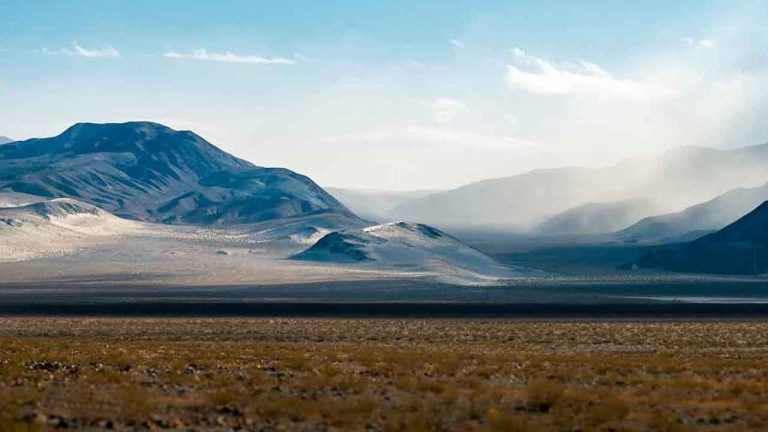
HDR stands for High Dynamic Range. This means that there are more highlights and more shadows that stretch beyond the normal range of a camera. Typically, either the bright parts of an image will be exposed or the dark parts of the image will be exposed. Creating a High Dynamic Range Image allows for the full potential of each end of the spectrum.

When shooting for an HDR photograph, be sure to use a tripod and not bump your camera at all. You will want to bracket for each exposure that you will later combine, while keeping your camera in the exact same place. This allows for seamless merging later on in Lightroom.

Creating the Photo

First, make sure that your version of Lightoom has been updated (If you have the Creative Cloud). HDR in Lightroom is a new feature of CC 2015. Next, load your images into Lightroom.

Then, Shift click on all of your exposures. Right click and go to Photo Merge – HDR.

It will take a moment for the next window to come up. When it loads, check Auto Align (this makes sure that all of your photos are in the exact same place and will eliminate movement) and Auto Tone (Brings in information from both the highlights and the shadows). You are also able to choose the amount of “Deghosting” to apply to your image. An example of ghosting would be cars passing by while you were shooting, or a person walking in front of the camera. If you have a lot of that going on in your images, it would be best to select Medium or High Deghosting. If you don’t have any at all, there is no need for it and you can select “None.”

When you are satisfied with how your HDR image is looking, click Merge.

The big advantage that Lightroom has over Photoshop for creating HDR images is that it creates a new RAW file. This allows you to go in and edit the photo as you normally would, but with a huge dynamic range!!

After pressing Merge, you will be left with a single RAW file in .dng form. From here, you can go to the Develop module and edit your image. For this specific image, we adjust the exposure, clarity, vibrance, as well as the black and white points. To change those points, hold the Shift key and double click on the words “Whites” and “Blacks.” You can always go back and edit these as well, so don’t worry that it is a permanent edit!

That’s it! If you would prefer to edit your photo in Photoshop as opposed to Lightroom, feel free to do so. Just make sure to complete the first steps of actually merging the HDR image in Lightroom, because the RAW image that it produces can be very useful!

———————————————————————————————-

Thanks for watching Phlearn! If you enjoyed this video be sure to subscribe to our channel so you don’t miss a thing!

Subscribe: http://goo.gl/LBIEQU

For more advanced Photoshop Tutorials be sure to check out our Phlearn PRO Tutorials. We offer the best Photoshop tutorials available starting at just $24.99.

http://phlearn.com/product-category/pro-photoshop-tutorials

———————————————————————————————-

Stock Images provided by: http://us.fotolia.com/
How to Create a Cinemagraph in Photoshop

0

Phlearn Phamily, you are in for a real treat! In today’s episode, we show you how to create a cinemagraph in photoshop. We don’t stop there, we also give you some tips for creating a cinemagraph in camera. Sit back, grab some popcorn and enjoy the ride!

What is a Cinemagraph?

Cinemagraphs are commonly produced by taking a series of photographs or a video recording, and, using image editing software, compositing the photographs or the video frames into a seamless loop of sequential frames. This is done such that motion in part of the subject between exposures (for example, a person’s dangling leg) is perceived as a repeating or continued motion, in contrast with the stillness of the rest of the image.

Capturing Footage for a Cinemagraph

At first we planned on just teaching you how to create a cinemagraph in photoshop. Then we realized that it’s just as important to know how to shoot a cinemagraph with your camera before taking it into photoshop.

Here are some things you’ll need in order to capture footage for your cinemagraph:

A camera that can record video (Anything from a DSLR to an iPhone)
A sturdy tripod (You’ll need your scene to be relatively still in order to really achieve this effect. A sturdy tripod is one of the best ways to ensure your framing is consistent.)
A subject (Something or someone that is doing something with a continuous movement. In our case we used a record player. As long as there is a distinct starting and stopping point.
It will take a little practice to find the perfect subject, but get out there and have fun trying to create your own cinemagraph!

Using Photoshop to Edit Your Cinemagraph

After you’ve went out and shot your footage to create your cinemagraph, it’s time to bring it into Photoshop. That’s right, Photoshop does also offer video editing features!

We start by importing our footage into Photoshop just like we would with any other still image. Once you’ve brought your footage into Photoshop, it should pop up with your video timeline. If you don’t see your timeline, just go up to Window, and down to Timeline. The editing of your footage for a cinemagraph revolves around one concept. Your end frame needs to be the same as your beginning frame. That way it will create a continuous loop that looks completely seamless.

Once we have our clips set up how we want, we need to use keyframes to adjust the visibility of the layers, or the Opacity. We set up our top clip with the opacity set at %100 and we gradually fade it out to %0. This will cause your top clip and bottom clip to blend together perfectly.

Next we use a Stamp Visible Layer and paint black over the areas we want visible. In this case with the footage we are using, we painted black only over where the waves are. This is what really helps sell the effect. Sometimes everything in your scene won’t work for a continuous motion, so creating a Stamp Visible Layer is a great way to control where the motion is coming from.

Saving & Exporting

Now that you have finished editing your Cinemagraph in photoshop, it’s time for the export. You want to make sure you go to your menu and click “Save for Web”. After that make sure that the file type is a GIF. PNG files and JPEG files do now support motion so it won’t work if you don’t export your file as a GIF. One of the cool features is you can simply click and drag your export Cinemagraph file into google and see how it would look on the web.
———————————————————————————————
Thanks for watching Phlearn! If you enjoyed this video be sure to subscribe to our channel so you don’t miss a thing!

Subscribe: http://goo.gl/LBIEQU

For more advanced Photoshop Tutorials be sure to check out our Phlearn PRO Tutorials. We offer the best Photoshop tutorials available starting at just $24.99.

http://phlearn.com/product-category/pro-photoshop-tutorials

———————————————————————————————-

Stock Images provided by: http://us.fotolia.com/

How To Do Focus Stacking in Photoshop

0

In today’s episode, we show you how to do Focus Stacking in Photoshop. We also give you some pointers on how actually shoot the images you’d need in order for Focus Stacking to work. We even briefly jump into Lightroom to show you how to prep your images. With a little help from our Game of Thrones figurines, we are ready to deliver an awesome episode!

What is Focus Stacking?

Focus Stacking is a technique where you can combine many different photos taken at various focal points. It’s commonly used in macro photography where you have a very shallow depth of field. By combining multiple photos together you are able to extend your depth of field and get more in focus within a small frame. Focus Stacking is a great way to control what’s in focus in your image.

Capturing Images for Focus Stacking

Focus Stacking is done in Photoshop, but in order for Focus Stacking to work you need to know how to shoot the images. So in today’s episode, we give you a brief rundown of how we captured the images we used. With the help of some Game of Thrones characters we were able to create a little scene perfect for an example. We definitely encourage our Phamily members to get out there and have some fun with Focus Stacking. Not just in Photoshop but also in the Photoshoot process.

Here are some things you’ll need in order to capture footage for your Focus Stacking:

A sturdy tripod (You’ll need your scene to be relatively still in order to really achieve this effect. A sturdy tripod is one of the best ways to ensure your framing is consistent.)
A couple pocket wizards (This is totally option, but it was another way for us to get our hands off the camera, ensuring that the camera is shifting positions. We connected the pocket wizard with a shutter release cable and we were good to go!)
Shoot in “MF” also known as “Manual Focus” (Shooting in Manual Focus will allow us to move the focal ring of the lens while taking the pictures. The reason that we aren’t shooting in Auto Focus is because Auto Focus would override what we are trying to accomplish by slightly moving the focal ring. Manual Focus gives us complete control of our depth of field.)
Capture images for Focus Stacking (There is a technique when it comes to Focus Stacking. Our advice is to choose your earliest stacking point, take a picture, rotate the focus ring a little bit, take another picture and repeat this process.)
Bringing Your Images into Lightroom

So now that we have our images for our Focus Stack, it’s time to prepare them for photoshop. Our first stop is Lightroom, now only are you able to get an idea of the images you want to use for your Focus Stack, but you can also select the exact images you want to export to photoshop. We export and resize our images and now we are ready to rock in Photoshop.

Stacking Files in Photoshop

Now in Photoshop, we are ready to load all our images together. If we go to File – Script – Load Files Into Stack. This allows us to load all our images into one big stack instead of loading them individually. From there you can browse your files and choose the folder with the images you selected from Lightroom. There is an option in the Load Files Into Stack dialog box that says “Attempt to Automatically Align Source Images.” We do recommend having that box checked. Once you hit OK, Photoshop loads all of those images into one stack. Now that we have the images loaded, we need to combine them all into one image.

Focus Stacking in Photoshop

The first thing we do is select all our files. We click on the first, hold down Shift, and then click the last to select all our images. Next we go to Edit – Auto Blend Layers. The two options that are now available to us our Panorama and Focus Stacking. We check the option “Seamless Tones and Colors” and hit OK. Now Photoshop goes to work, it takes the parts of each image that is in focus, then it creates a Layer Mask only revealing the part of the image that is in focus. Photoshop will use this technique on every photo in your Focus Stack. This automated process would be nearly impossible for us to do on our own. At the end of the process, we have our very own Focus Stacked image!
———————————————————————————————
Thanks for watching Phlearn! If you enjoyed this video be sure to subscribe to our channel so you don’t miss a thing!

Subscribe: http://goo.gl/LBIEQU

For more advanced Photoshop Tutorials be sure to check out our Phlearn PRO Tutorials. We offer the best Photoshop tutorials available starting at just $24.99.

http://phlearn.com/product-category/pro-photoshop-tutorials

———————————————————————————————-

Stock Images provided by: http://us.fotolia.com/

How to Edit Video in Photoshop

0

Follow along with our video clips! Download them here: https://s3.amazonaws.com/PhlearnUploads/Random+Uploads/Phlearn+Sample+Videos.zip

In today’s special episode, we show you how to edit video in Photoshop! This is the first of a 4 part series on working with video in Photoshop, and covers all of the basics. You can also follow along with our video clips! Don’t forget to download them here.

Why would you use Photoshop to edit video?? Well, a professional video editor is most likely going to use a video centric program rather than Photoshop (Adobe Premiere Pro, Adobe After Effects, Final Cut, etc.) However, it can be very useful to color grade your videos and apply filters to them- especially if Photoshop is the only program available to you. For someone familiar with Photoshop, this should come surprisingly easy. This is because you can think of editing video in exactly the same way as editing photos! It’s practically an identical process, which can be a huge advantage.

Part I: Importing Video into Photoshop

1. For the first method for importing footage, go to File – Scripts – Load Files into Stack. From there, select the clips you are planning on working with by clicking Browse. After clicking OK, they will load into the same document.

If you are currently thinking, “Hey! Where do I see my actual footage?!” we have an answer for you! Simply go to Window – Timeline, and you will see the full length of each clip stretch out across Photoshop. This Timeline is the base for all of your video editing, and is where you will cut and arrange your clips.

By default, each clip is stacked up on top of each other. But this is not what we want! We need the clips to sit one after another in one solid sequence. To fix this, select all of your clips in the layers panel. Then, click on the little film strip icon on the timeline and select ‘New Video Group from Clips.’ You will see them group into one folder in the layers panel, and they will also be laid out horizontally on the Timeline.

2. The second method for importing footage starts by clicking Ctrl/Cmd + O (Open). Then, select which clips you would like to use. If you would like to add any more later, click on the film icon on the timeline and select ‘Add Media.’ Then, the additional footage is placed after the other footage in a linear fashion.

Part II: Using the Timeline

One of the first things you will want to know is how to rearrange video clips! This can be done by moving the layers around in the layers panel, or just dragging them left and right in the Timeline. To navigate through the footage, click and drag the red slider to scrub back and forth.

Part III: Editing Video

Next up is cutting and moving footage around. To cut a clip in half, place the red slider in the middle of it and press the scissors icon. Voila! It will be cut right down the middle. To delete any unwanted sections, just select them and press delete.

One nice thing about this is that you can always get back footage after it’s gone! Hold your cursor over the beginning or end of the clip – wherever you cut it previously – and drag it out to include more video. This works the same for dragging the clip to be shorter as well.

Part IV: Using Keyframes

Keyframes are used to control certain changes over a period of time. A good example of this is making a clip slowly fade from transparent to opaque. Open the video group up on the Timeline by clicking the arrow. If you’d like to alter the opacity, pull your red slider to where the change should begin. Then, click the little timer icon to create a keyframe. A diamond will show up on the Timeline, which can be clicked on and adjusted manually. In this case, we leave the opacity at 0%. Then, drag the slider to where the change should end and create another keyframe. Click on it and adjust it again – in this case we change it to 100%. This causes the clip to slowly fade in, because we had a solid color fill layer underneath the clips. Keyframes can always be moved around and adjusted as well.

———————————————————————————————

Thanks for watching Phlearn! If you enjoyed this video be sure to subscribe to our channel so you don’t miss a thing!

Subscribe: http://goo.gl/LBIEQU

For more advanced Photoshop Tutorials be sure to check out our Phlearn PRO Tutorials. We offer the best Photoshop tutorials available starting at just $24.99.

http://phlearn.com/product-category/pro-photoshop-tutorials

———————————————————————————————-

Stock Images provided by: http://us.fotolia.com/
How to Color Grade Video in Photoshop

0

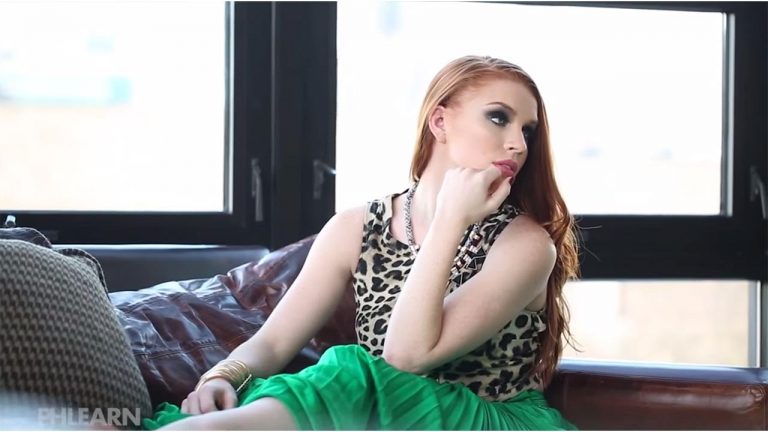
In today’s episode, we show you how to color grade video in Photoshop! This is the second section of our 4 part video editing series, and it picks up directly from where we left off in the first section. If you haven’t seen that first episode (How to Edit Video in Photoshop), click here: https://www.youtube.com/watch?v=s-dpnyRe5EU
To follow along with the same clips we work with in this episode, download them here: https://s3.amazonaws.com/PhlearnUploads/Random+Uploads/Phlearn+Sample+Videos.zip

Why would you use Photoshop to edit video?? Well, a professional video editor is most likely going to use a video centric program rather than Photoshop. However, it can be very useful to color grade your videos and apply filters to them- especially if Photoshop is the only program available to you. For someone familiar with Photoshop, this should come surprisingly easy. This is because you can think of editing video in exactly the same way as editing photos! It’s a practically identical process. Why not have a little fun!

Part I: Using Local Adjustments to Color Grade

Local Adjustments: Affects individual clips
To start off, select the layer you would like to make adjustments to. In the same way you would add adjustments to a photo, we can do the same for that video layer! Try it out by creating a new curves adjustment layer. After you adjust the contrast with curves, you will notice that it will clip directly to the single video layer you applied it to (be sure your clips are grouped into one folder). You can add multiple adjustments to the same layer, just like you could with a photo…cool!

Part II: Using Global Adjustments to Color Grade

Global Adjustments: Affects an entire group of clips (ie everything!)
To adjust all of your video footage at once, make sure that your clips are grouped into one folder (if they are not, you can select all the layers and press Cmd + G). Then, create an adjustment layer and place it on TOP of that video group. This will apply that same adjustment to everything consistently.

Part III: Color Grading Techniques

Let’s get started with color grading! Create a levels adjustment layer, and select only the blue channel. Drag the black slider in to the right, and blue will be added into the shadows. Yellowish highlights tend to look great with cool shadows, so bring the white slider in towards the left to compliment them. Again, the more color editing knowledge you can pull from your regular photo editing skills, the better!

What if you create a global adjustment, but decide you only want it to affect some of your footage? Have no fear!! Notice that the adjustment layers stack on top of the video in the timeline. You are actually able to click and drag those adjustments and make them last as long or as short as you would like them to.

Part IV: Applying Filters to Video

In order to apply any filters onto video in Photoshop, it must first be converted to a smart object. So, select the layer you would like to affect, right click, and choose ‘Convert to Smart Object.’ Next, go to Filter – Filter Gallery. A preview window will load with an array of options. Feel free to play with the intensity and edges of the filters; you can always adjust the filter later as well. When you are happy with the way the filter looks, select OK. Then, you will need to render the clip. This is done by simply playing the clip. It will take a moment, and you will know it’s done rendering by the little green line that appears on top of the clip afterwards,

And that’s all folks! As you can see, there’s no need to relearn much for editing video in Photoshop. Have a blast editing your own clips, or download ours for some great practice.

———————————————————————————————-

Thanks for watching Phlearn! If you enjoyed this video be sure to subscribe to our channel so you don’t miss a thing!

Subscribe: http://goo.gl/LBIEQU

For more advanced Photoshop Tutorials be sure to check out our Phlearn PRO Tutorials. We offer the best Photoshop tutorials available starting at just $24.99.

http://phlearn.com/product-category/pro-photoshop-tutorials

———————————————————————————————-

Stock Images provided by: http://us.fotolia.com/
How to Add Transitions and Audio to Video in Photoshop

0

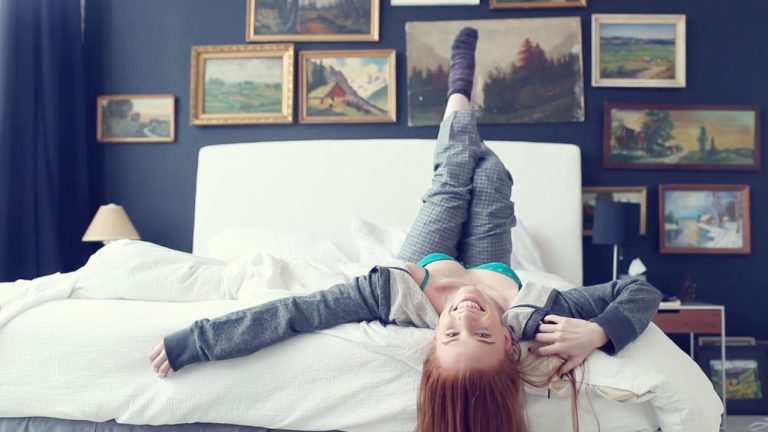
Learn How to Add Transitions and Audio to Video in Photoshop in today’s episode!
This is Part 3 of our Photoshop Video Series. If you haven’t seen the previous episodes, be sure to check them out!

Part 1: http://phlearn.com/how-to-edit-video-in-photoshop

Part 2: http://phlearn.com/how-to-color-grade-video-in-photoshop

If you’d like to follow along with these episodes, click here to download our video footage: https://s3.amazonaws.com/PhlearnUploads/Random+Uploads/Phlearn+Sample+Videos.zip

And keep your eyes peeled for Part 4!

Let’s get in to today’s episode!

Section 1: Adding Transitions

Transitions are commonly used by video editors everywhere! They allow flexibility when moving from one clip to another, and can completely change the feel of a video. Harsh cuts between scenes can be great, but they are not always the right fit. Examples of transitions include a cross fade between two clips, and a fade to black.

Transitions can be found in Photoshop by clicking on the square icon to the right of the Timeline Control Panel. You can change the duration immediately, or wait for later. Simply drag the transition you would like down onto the Timeline between two clips. From there, you can pull the transition to be longer or shorter if you’d like.

Again, you don’t always need transitions! They are just creative tools for you to utilize in whatever ways you choose.

Section 1: Adding Audio

You can turn the audio off or on by pressing the speaker icon on the control panel. However, this is only temporary and will affect the entire Timeline. If you’d like to mute the clips, right click on them and then tab over to the Audio Section (music note icon). Check ‘Mute Audio.’ This will need to be done for each clip. After that is finished, you will notice that the video will be silent even if you turn on the speaker icon. This is helpful because you won’t have to worry about the audio that was captured in camera anymore- especially if you will be adding music.

To add additional audio to your video, go to the Audio Track at the bottom of the Timeline and click on the music note icon. Select ‘Add Audio.’ From there, you can locate the files you would like to use. After previewing the file to be sure it is the correct one, press Open. You can shorten the audio if you need to by clicking and dragging; this is the same technique we used for editing the video.

To fade the audio in or out, right click on the track and adjust the Fade In/Fade Out sliders.
———————————————————————————————-

Thanks for watching Phlearn! If you enjoyed this video be sure to subscribe to our channel so you don’t miss a thing!

Subscribe: http://goo.gl/LBIEQU

For more advanced Photoshop Tutorials be sure to check out our Phlearn PRO Tutorials. We offer the best Photoshop tutorials available starting at just $24.99.

http://phlearn.com/product-category/pro-photoshop-tutorials

———————————————————————————————-

Stock Images provided by: http://us.fotolia.com/