Home Blog Page 184

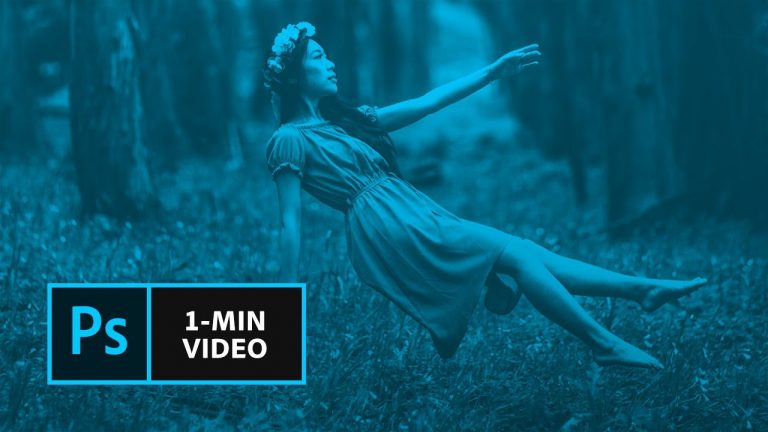
How to Create a Levitation Effect in Photoshop | Adobe Creative Cloud

Learn how to make your subject look like it’s floating in the scene.

Start from scratch, or download practice files (https://adobe.ly/2skskAq) for a head start.

Prep your project:
For this effect, you’ll need two photos: One of an empty scene and one of the same scene with a person posed on a stool or a chair.
1. Set up your camera on a tripod or other stable surface. It’s helpful to photograph the scene using Manual mode on your camera so that settings like exposure and white balance stay consistent between both photos.
2. Take a photo with a person posed within the scene.
3. Remove the model and any other props from the scene and take another photo. Try not to move your camera at all to keep the masking process simple.

Create the levitation effect in Photoshop:
1. Open “Photo 1, empty scene.jpg” in Photoshop.
2. Open “Photo 2, scene with model.jpg”. To add it to the empty scene document, Select All, Copy, make the empty scene document active, and Paste. Or, simply drag and drop the image file into the open “Photo 1, empty scene” document.
3. Click the “Photo 2, scene with model.jpg” layer to select it.
4. Click Add layer mask from the Layers panel.
5. Select the Brush Tool from the toolbar.
6. Click the double arrow to set the foreground color to black in the toolbar.
7. Click the white mask icon on the model layer. Paint over the legs of the stool to reveal the empty scene layer below. Adjust the brush size and hardness as needed.
Tip: Use the Zoom tool (magnifying glass) from the toolbar and click on the stool to zoom in on it.

That’s it!

Photography by Martin Hoang [https://www.behance.net/martinhoangdesign]

Subscribe: https://www.youtube.com/user/adobecreativecloud?sub_confirmation=1

LET’S CONNECT
Facebook: http://facebook.com/adobecreativecloud
Twitter: http://twitter.com/creativecloud
Instagram: http://www.instagram.com/adobecreativecloud/

Adobe Creative Cloud gives you the world’s best creative apps so you can turn your brightest ideas into your greatest work across your desktop and mobile devices.
Get Started with Digital Painting in Photoshop CC | Adobe Creative Cloud

Learn the basics of how to paint in Photoshop CC using the original brushes of Edvard Munch. This video tutorial features Photoshop expert Kyle T. Webster.

Level: Beginner

Hidden Treasures of Creativity:
Discover the project and take part in The Adobe 5th Scream Contest for a chance to win: http://adobe.ly/2saCrIg

Download the brushes for free now: http://adobe.ly/2sai3Hf

Subscribe: https://www.youtube.com/user/adobecreativecloud?sub_confirmation=1

LET’S CONNECT
Facebook: http://facebook.com/adobecreativecloud
Twitter: http://twitter.com/creativecloud
Instagram: http://www.instagram.com/adobecreativecloud/

Adobe Creative Cloud gives you the world’s best creative apps so you can turn your brightest ideas into your greatest work across your desktop and mobile devices.
Paint a Self-Portrait in Photoshop CC | Adobe Creative Cloud

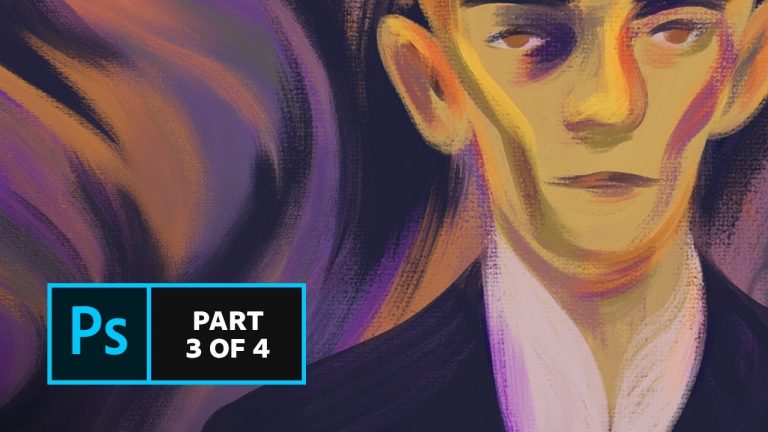
Learn from Photoshop expert Kyle T. Webster how to paint your own portrait using the original brushes of Edvard Munch.

Level: Intermediate

Hidden Treasures of Creativity:
Discover the project and take part in The Adobe 5th Scream Contest for a chance to win: http://adobe.ly/2saCrIg

Download the brushes for free now: http://adobe.ly/2sai3Hf

Subscribe: https://www.youtube.com/user/adobecreativecloud?sub_confirmation=1

LET’S CONNECT
Facebook: http://facebook.com/adobecreativecloud
Twitter: http://twitter.com/creativecloud
Instagram: http://www.instagram.com/adobecreativecloud/

Adobe Creative Cloud gives you the world’s best creative apps so you can turn your brightest ideas into your greatest work across your desktop and mobile devices.
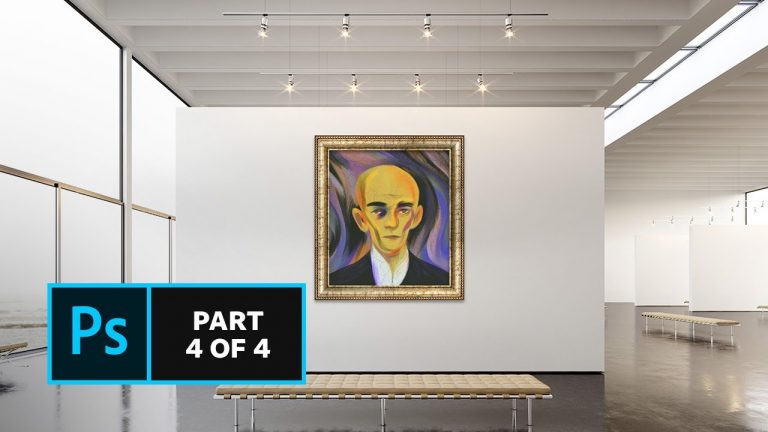
Paint like a Master in Photoshop CC | Adobe Creative Cloud

Learn from Photoshop expert Kyle T.Webster how to use mixer brushes and mimic Edvard Munch’s characteristic color blending techniques.

Level: Advanced

Hidden Treasures of Creativity:
Discover the project and take part in The Adobe 5th Scream Contest for a chance to win: http://adobe.ly/2saCrIg

Download the brushes for free now: http://adobe.ly/2sai3Hf

Subscribe: https://www.youtube.com/user/adobecreativecloud?sub_confirmation=1

LET’S CONNECT
Facebook: http://facebook.com/adobecreativecloud
Twitter: http://twitter.com/creativecloud
Instagram: http://www.instagram.com/adobecreativecloud/

Adobe Creative Cloud gives you the world’s best creative apps so you can turn your brightest ideas into your greatest work across your desktop and mobile devices.

Give Your Artwork an Antique Look with Adobe Stock | Adobe Creative Cloud

Learn from Photoshop expert Kyle T. Webster how to mount your artwork in a frame and give it an antique look & feel with textures using images from Adobe Stock.

Hidden Treasures of Creativity:
Discover the project and take part in The Adobe 5th Scream Contest for a chance to win: http://adobe.ly/2saCrIg

Download the brushes for free now: http://adobe.ly/2sai3Hf

Subscribe: https://www.youtube.com/user/adobecreativecloud?sub_confirmation=1

LET’S CONNECT
Facebook: http://facebook.com/adobecreativecloud
Twitter: http://twitter.com/creativecloud
Instagram: http://www.instagram.com/adobecreativecloud/

Adobe Creative Cloud gives you the world’s best creative apps so you can turn your brightest ideas into your greatest work across your desktop and mobile devices.
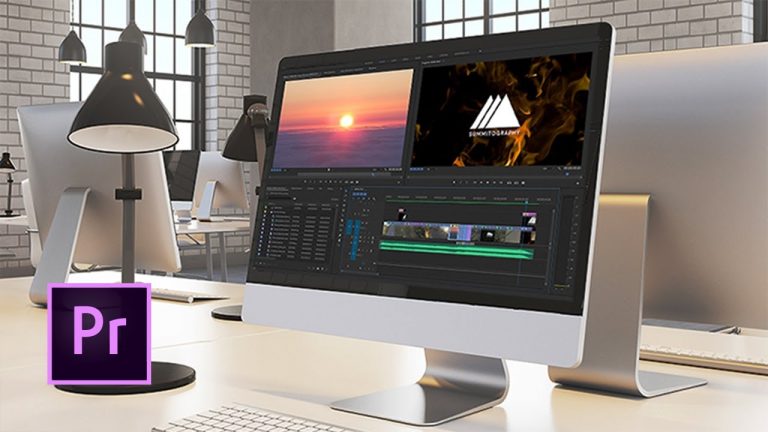
How to Make a Movie Title in Premiere Pro | Adobe Creative Cloud

Learn how to apply a text mask, or track matte, to a video sequence for a cool title effect.

Start from scratch, or download practice files (https://adobe.ly/2t0IQsE) for a head start.

Steps below.
1. Create a new project in Premiere Pro (File – New – Project).
2. Import the Truck Clip.mov file (File – Import).
3. Right-click the Truck Clip asset in the Project panel and choose “New Sequence From Clip.”
4. Switch to the Graphics workspace (Window – Workspaces – Graphics). Choose the Type Tool and type a title directly in the Program monitor.

Note: The sample in the video uses text centered vertically, alignment set to flush left, with the following text properties: Pragmatica Extended Black, 300 pt. (available from Typekit.com), -80 tracking and -120 leading.

5. Scrub over the Scale setting and enlarge the text in the Essential Graphics panel to 200%. In the sample, the text obscures the car so that, later, it’ll appear within the letters.
6. Switch back to the Editing workspace (Window – Workspaces – Editing). Move the title graphic up to V3 (Option + up arrow) and extend the clip to match the length of the Truck Clip. Drag a duplicate Truck Clip (Option + drag) to V2.
7. Trim the Truck Clip (V1) by dragging the left edge to about the 8 second mark.
8. Open the Effects panel. Search for the Track Matte Key. Drag the Track Matte Key effect to the middle Truck Clip (V2). 
9. In the Effect Controls panel, set the Matte to target Video 3. As soon as you do this, the background video appears where your text was.
10. Right-click the left edge of the lower Truck Clip (V1) and select “Apply Default Transitions” to add a fade-in effect.

That’s it! Play your sequence to see the complete movie title.

Subscribe: https://www.youtube.com/user/adobecreativecloud?sub_confirmation=1

LET’S CONNECT
Facebook: http://facebook.com/adobecreativecloud
Twitter: http://twitter.com/creativecloud
Instagram: http://www.instagram.com/adobecreativecloud/

Adobe Creative Cloud gives you the world’s best creative apps so you can turn your brightest ideas into your greatest work across your desktop and mobile devices.
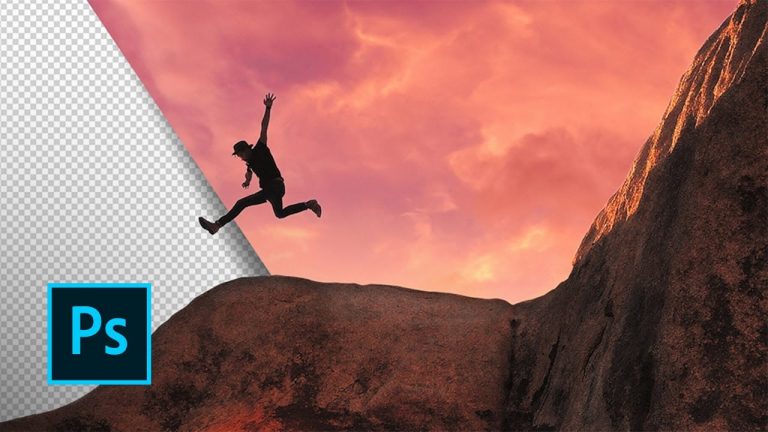
How to Quickly Remove & Replace a Background in Photoshop | Adobe Creative Cloud

Sometimes an average photo can be greatly improved by replacing a drab background with a dramatic one. It’s easy to swap skies or other background elements using the Select and Mask tool and layers in Adobe Photoshop.

Subscribe: https://www.youtube.com/user/adobecreativecloud?sub_confirmation=1

LET’S CONNECT
Facebook: http://facebook.com/adobecreativecloud
Twitter: http://twitter.com/creativecloud
Instagram: http://www.instagram.com/adobecreativecloud/

Adobe Creative Cloud gives you the world’s best creative apps so you can turn your brightest ideas into your greatest work across your desktop and mobile devices.

How to Create a Demo Reel in Premiere Pro | Adobe Creative Cloud

Learn the ins and outs of assembling a demo reel in Adobe Premiere Pro using clips from your best videos and a matching soundtrack.

Also be sure to read Demo reel best practices ( for dos and don’ts on putting together a dynamic and engaging reel that showcases your best work.

Subscribe: https://www.youtube.com/user/adobecreativecloud?sub_confirmation=1

LET’S CONNECT
Facebook: http://facebook.com/adobecreativecloud
Twitter: http://twitter.com/creativecloud
Instagram: http://www.instagram.com/adobecreativecloud/

Adobe Creative Cloud gives you the world’s best creative apps so you can turn your brightest ideas into your greatest work across your desktop and mobile devices.
How to Make a Mobile Device Mockup in Adobe Photoshop CC Using Stock Assets | Adobe Creative Cloud

Learn how to use a product placement image from Adobe Stock to craft a narrative for your brand and skip the time and expense of staging a photo shoot.

Start from scratch, or download practice files (https://adobe.ly/2t5LFo4) for a head start. Steps below.

1. Search Adobe Stock for a mockup image (e.g., “phone mockup”) from the Libraries panel in Photoshop (Window – Libraries).
Optional: Use “blank-phone.jpg” from our practice files.
2. Hover over the image you’d like to use and click the shopping cart icon to license it.
Optional: You can also click the cloud icon to preview with a watermark before you buy it.
3. Double-click the image from your library to open it.
4. Choose File – Place Linked and add “app-layout.png” to the mockup.
5. Hold shift and drag a corner of the image to scale it proportionally. Drag from the center to reposition it closer to the phone screen.
6. Choose Edit – Transform – Distort, grab a corner of the layout image, and drag it to match the phone screen to get your app image in perspective. Repeat for each corner, then press (Return or Enter) to commit the changes.
7. In the Layers panel, click the Effects icon and choose Bevel & Emboss. Play with the settings to create a subtle interior shadow.
8. In the Layers panel, click the New Layer icon, then Option/Alt+click on the line between the new layer and the app-layout layer to create a clipping mask.
9. Choose the Gradient tool with the foreground to background setting in black and white to create highlights and shadows. Drag over the phone screen.
10. Set the gradient layer Blend Mode to “Overlay” and reduce its Opacity.
11. Choose File – Save As to save your image.

That’s it!

Subscribe: https://www.youtube.com/user/adobecreativecloud?sub_confirmation=1

LET’S CONNECT
Facebook: http://facebook.com/adobecreativecloud
Twitter: http://twitter.com/creativecloud
Instagram: http://www.instagram.com/adobecreativecloud/

Adobe Creative Cloud gives you the world’s best creative apps so you can turn your brightest ideas into your greatest work across your desktop and mobile devices.

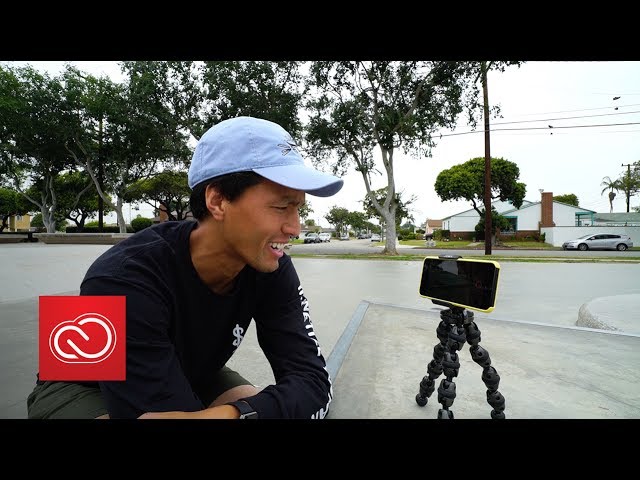
Make it: Make Content on the Go with John Hill | Adobe Creative Cloud

Here’s a tutorial highlighting how to make content on the go! Start by filming on your iPhone, and then fire up Premiere Pro to create that polished video. Combine clips, add music, and then upload to YouTube! Hope you found the tutorial helpful! If you want to use some of the skills learned in this tutorial, try Adobe Creative Cloud for free here: https://adobe.ly/2sLzkGP

Subscribe: https://www.youtube.com/user/adobecreativecloud?sub_confirmation=1

LET’S CONNECT
Facebook: http://facebook.com/adobecreativecloud
Twitter: http://twitter.com/creativecloud
Instagram: http://www.instagram.com/adobecreativecloud/

Adobe Creative Cloud gives you the world’s best creative apps so you can turn your brightest ideas into your greatest work across your desktop and mobile devices.