Home Blog Page 508

The Beginners Guide To Levitation (Teaser)

0

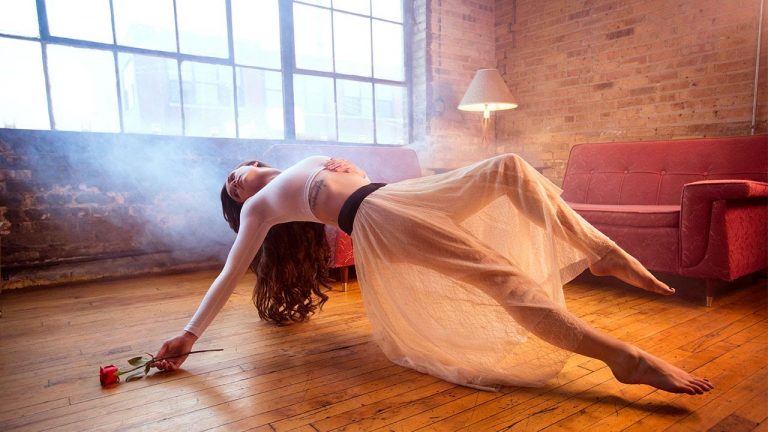
The Beginners Guide To Levitation is the most comprehensive levitation photography and Photoshop tutorial available anywhere.

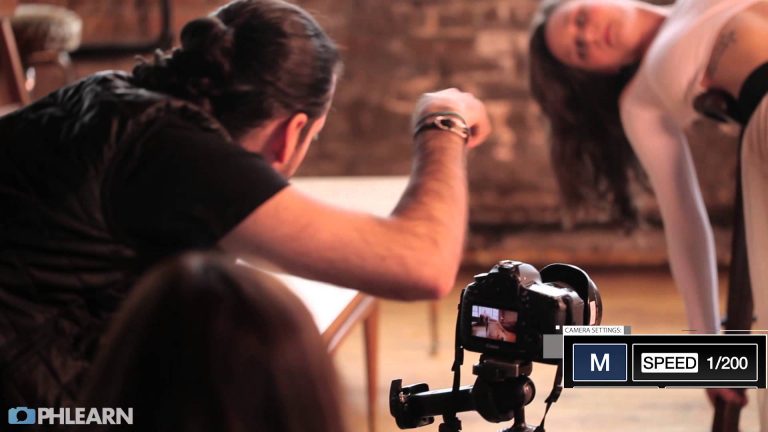
Learn the entire process, photography and Photoshop, 3 different times for 3 different images. This guide includes over 5 hours of video tutorials, images to follow along, and even custom Photoshop brushes.

The Beginners Guide to Levitation

———————————————————————————————

Thanks for watching our free Phlearn Tutorials! If you enjoyed this video be sure to subscribe to our channel to receive free weekly videos.

Subscribe: http://goo.gl/LBIEQU

For more advanced Photoshop Tutorials be sure to check out our Phlearn PRO Tutorials. We offer the best Photoshop tutorials available online starting at just $14.99.
http://phlearn.com/product-category/pro-photoshop-tutorials

———————————————————————————————–

Website: http://phlearn.com
Facebook: https://www.facebook.com/Phlearn
Google+: https://plus.google.com/u/0/116791098…
Stock Images: http://us.fotolia.com/
The Beginners Guide to Levitation (Full Trailer)

0

———————————————————————————————

Thanks for watching our free Phlearn Tutorials! If you enjoyed this video be sure to subscribe to our channel to receive free weekly videos.

Subscribe: http://goo.gl/LBIEQU

For more advanced Photoshop Tutorials be sure to check out our Phlearn PRO Tutorials. We offer the best Photoshop tutorials available online starting at just $14.99.
http://phlearn.com/pro-tutorials

———————————————————————————————–

Website: http://phlearn.com
Facebook: https://www.facebook.com/Phlearn
Google+: https://plus.google.com/u/0/116791098…
Stock Images: http://us.fotolia.com/
How to Create a Futuristic Eye in Photoshop

0

How to Create a Futuristic Eye in Photoshop

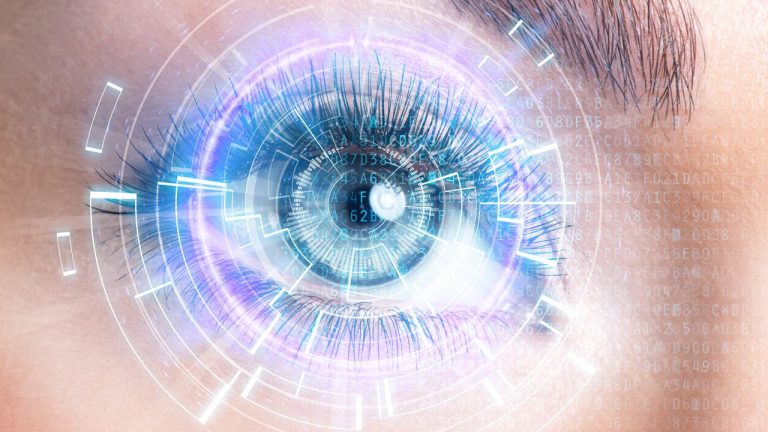
Start by making a new square document. This is very important for the next step! Create any lines or patterns that you would like, keeping in mind that they will soon be spun into a circle. Go to Filter – Distort – Polar Coordinates. Select “Rectangular to Polar” if you want a circle effect. These will be layered over the eye later, so play with different geometric shapes and placements!

For another layer of graphics, we found some cool pictures that resemble sound waves. You can apply the same Polar Coordinate Effect to these images as well! Drag them right onto the image and place them around the eye.

Blending Mode Tips:

If you want only the darks to show up from an image, use the Multiply blend mode.
If you want only the lights to show up from an image, use the Screen blend mode.
Soft light will help graphics blend in to your eye a little better.
Double click on a layer to bring up the Layer Style Dialogue. Select outer glow and make sure the blending mode is on “screen,” Feel free to bring the size and the opacity up, and change the color if you’d like. This will, as the name suggests, give your layer a nice outer glow.

———————————————————————————————

Thanks for watching our free Phlearn Tutorials! If you enjoyed this video be sure to subscribe to our channel to receive free weekly videos.

Subscribe: http://goo.gl/LBIEQU

For more advanced Photoshop Tutorials be sure to check out our Phlearn PRO Tutorials. We offer the best Photoshop tutorials available online starting at just $14.99.
http://phlearn.com/pro-tutorials

———————————————————————————————–

Website: http://phlearn.com
Facebook: https://www.facebook.com/Phlearn
Google+: https://plus.google.com/u/0/116791098…
Stock Images: http://us.fotolia.com/
How to Create Email Signature in Photoshop

0

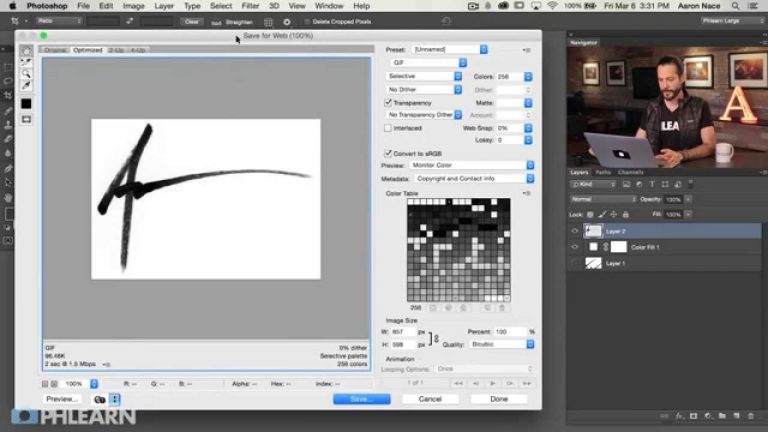
In today’s episode, we show you how to create an email signature in photoshop. Having your own signature at the end of your emails is a great way to leave a professional impression. No matter what type of business you are in, having an email signature is the perfect way to sign off. Join us as we take you step by step through the entire process.

———————————————————————————————

Thanks for watching our free Phlearn Tutorials! If you enjoyed this video be sure to subscribe to our channel to receive free weekly videos.

Subscribe: http://goo.gl/LBIEQU

For more advanced Photoshop Tutorials be sure to check out our Phlearn PRO Tutorials. We offer the best Photoshop tutorials available online starting at just $14.99.
http://phlearn.com/pro-tutorials

———————————————————————————————–

Website: http://phlearn.com
Facebook: https://www.facebook.com/Phlearn
Google+: https://plus.google.com/u/0/116791098…
Stock Images: http://us.fotolia.com/

How to Create A Signature Watermark in Lightroom

0

If you are looking to add some security to the images you are uploading online, this episode is perfect for you! Today we’ll show you how to create a watermark to place on your images. It could be your signature, logo, or really anything you desire. Having a watermark is a great way to protect your images and direct people back towards your brand.

We’ll start in photoshop, getting your watermark just the way you like it. Then we’ll hop into Lightroom where we’ll create a preset. This preset will enable you to watermark your images automatically. Finally, we’ll show you a quick and easy way to export your images and have them ready for the web. Enjoy!

———————————————————————————————

Thanks for watching our free Phlearn Tutorials! If you enjoyed this video be sure to subscribe to our channel to receive free weekly videos.

Subscribe: http://goo.gl/LBIEQU

For more advanced Photoshop Tutorials be sure to check out our Phlearn PRO Tutorials. We offer the best Photoshop tutorials available online starting at just $14.99.
http://phlearn.com/pro-tutorials

———————————————————————————————–

Website: http://phlearn.com
Facebook: https://www.facebook.com/Phlearn
Google+: https://plus.google.com/u/0/116791098…
Stock Images: http://us.fotolia.com/

How to Select and Change Colors in Photoshop

0

Want to Become a Master Retoucher? https://phlearn.com/rtchangecolors

OUR #1 PRO TUTORIAL EVER IS NOW ON SALE! https://phlearn.com/product/photoshop-101-301

Selecting Color Range

To select out the different colors, create a new layer and go to Select – Color Range. Click on the color you want to sample with the regular eyedropper tool. You can play with the fuzziness to get more of an accurate selection. Also, if you need to add or take away from your selection, you can use the eyedroppers with the plus and minus symbols next to them to do so.

Next, go to Layer – New Adjustment Layer – Hue/Saturation. This will load your selection directly into the Hue/Saturation layer so that you can adjust the hue sliders and change only the colors you want to change!

Refining Layer Masks

If you have small unwanted parts in a selection, you can always paint over it with a brush tool on the layer mask.

Tip: If you hold alt/opt and click on a layer mask, it will appear as black and white. This can be very helpful for seeing tiny stray colors in your selections.

VISIT PHLEARN.COM FOR MORE FREE TUTORIALS

Homepage

SUBSCRIBE NOW FOR MORE FREE TIPS AND TRICKS
http://www.youtube.com/subscription_center?add_user=phlearnllc

GET FREE TUTORIALS SENT TO YOUR EMAIL + DISCOUNTS ON OUR PRO TUTORIALS!
https://phlearn.com/mail

Use the same Tablet as Aaron: http://amzn.to/1Eykaoh

LET’S BE FRIENDS!
Instagram ► https://www.instagram.com/phlearn/
Facebook ► https://facebook.com/phlearn
Twitter ► https://twitter.com/phlearn
Google+ ► https://plus.google.com/116791098059215639405
Phlearn ► https://phlearn.com

How to Create an iOS 8 Icon in Photoshop

0

The Rounded Rectangle Tool

How often do you use the rounded rectangle tool? Almost never right? In today’s episode, the rounded rectangle tool comes in handy as we create our icon. The rounded rectangle tool helps us create are shape and there are enough options available for us to be really specific.

Sampling Colors

Next we sample colors from the actual iOS 8 app and use a gradient to color our rounded rectangle.

Logo and Finishing Touches

Next we place our logo right in the center of our shape using some alignment tools. And to finish it all off we add a drop shadow, turn the background transparent, and save it out as a png file.

———————————————————————————————

Thanks for watching our free Phlearn Tutorials! If you enjoyed this video be sure to subscribe to our channel to receive free weekly videos.

Subscribe: http://goo.gl/LBIEQU

For more advanced Photoshop Tutorials be sure to check out our Phlearn PRO Tutorials. We offer the best Photoshop tutorials available online starting at just $14.99.
http://phlearn.com/pro-tutorials

———————————————————————————————–

Website: http://phlearn.com
Facebook: https://www.facebook.com/Phlearn
Google+: https://plus.google.com/u/0/116791098…
Stock Images: http://us.fotolia.com/

How to Create Handwritten Text in Photoshop

0

In today’s episode, learn how to create handwritten text in photoshop. You will learn about a great website where you can download fonts for free, as well as how to warp and transform fonts to make them look like they actually fit into your image.

Choosing the right image:

This won’t work on every image. We’ll show you the type of images that will work perfect for this type of effect. Then we’ll show you the fonts that will help sell it even more.

Photoshop:

In photoshop we transform and warp our text box to make it fit right on the page. Then we add a blur and layer mask to really bring it to life.

———————————————————————————————

Thanks for watching our free Phlearn Tutorials! If you enjoyed this video be sure to subscribe to our channel to receive free weekly videos.

Subscribe: http://goo.gl/LBIEQU

For more advanced Photoshop Tutorials be sure to check out our Phlearn PRO Tutorials. We offer the best Photoshop tutorials available online starting at just $14.99.
http://phlearn.com/pro-tutorials

———————————————————————————————–

Website: http://phlearn.com
Facebook: https://www.facebook.com/Phlearn
Google+: https://plus.google.com/u/0/116791098…
Stock Images: http://us.fotolia.com/
How to Create a Text Banner in Photoshop

0

Check out the awesome banners Fotolia has to offer: https://us.fotolia.com/search?k=banner&filters%5Bcontent_type%3Aall%5D=1&submit.x=0&submit.y=0

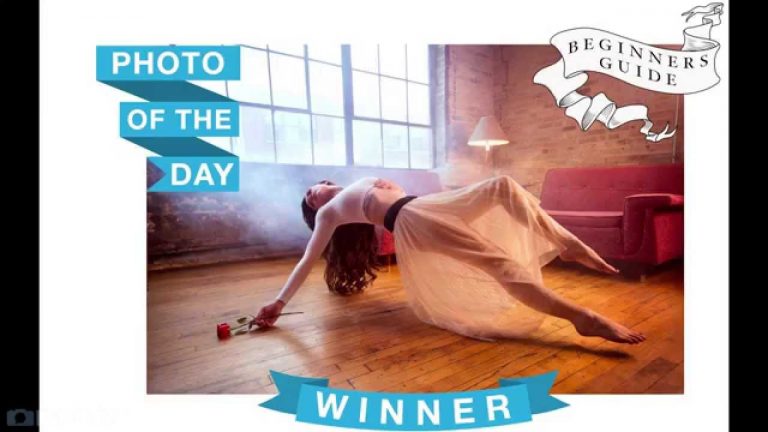
In today’s episode, we show you how to create a text banner in photoshop. Banners are used in a variety of different ways, but you can’t just put simple text on a banner and be done with it. In this episode we’ll show you where to get a banner, how to transform your text to fit on the banner and how to place those banners on your images.

We start off by downloading a template from fotolia.com. Then we bring the banner into photoshop and show you how to lay words over the different shapes and sizes of the banner. Sometimes the text in your banners require a bit of transformation to make it look like it belongs on your banner. We’ll show you the right tools to use when transforming text. Finally, we’ll place the banners we’ve created onto an image for a more polished look.

———————————————————————————————

Thanks for watching Phlearn! If you enjoyed this video be sure to subscribe to our channel so you don’t miss a thing!

Subscribe: http://goo.gl/LBIEQU

For more advanced Photoshop Tutorials be sure to check out our Phlearn PRO Tutorials. We offer the best Photoshop tutorials available starting at just $24.99.

http://phlearn.com/product-category/pro-photoshop-tutorials

———————————————————————————————-

Stock Images provided by: http://us.fotolia.com/

Learn with Phlearn in the Bahamas! (5 spots left)

0

Click here for more information: https://fstoppersworkshops.com/event-registration/?ee=56

This class is designed for the beginner photographer looking to enter the world of compositing and conceptual photography. A successful composite image requires a strong concept, solid lighting and posing fundamentals, and quality Photoshop skills. Based off the workflow of one of the best-known conceptual photographers, this class will teach you the essential skills to create your own composite images.

You’ll learn all the different aspects of creating a successful composite image through hands on learning and walk away with the ability to apply those skills to any future photo shoot.This class is going to cover a lot! That’s why the whole Phlearn team is coming! You will have seven instructors working hard to bring you an amazing workshop, that’s one Phlearn team member for every two students!
———————————————————————————————

Thanks for watching Phlearn! If you enjoyed this video be sure to subscribe to our channel so you don’t miss a thing!

Subscribe: http://goo.gl/LBIEQU

For more advanced Photoshop Tutorials be sure to check out our Phlearn PRO Tutorials. We offer the best Photoshop tutorials available starting at just $24.99.

http://phlearn.com/product-category/pro-photoshop-tutorials

———————————————————————————————-

Stock Images provided by: http://us.fotolia.com/