Home Blog Page 512

How to Stylize a Magazine Cover in Photoshop

0

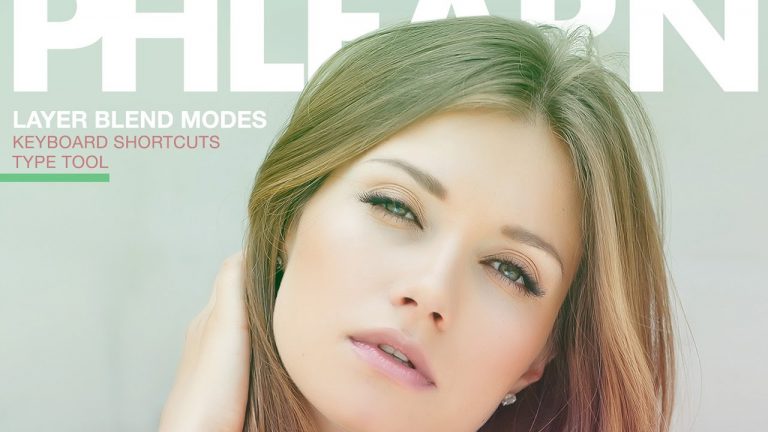
In today’s episode, we show you how to stylize a magazine cover in Photoshop!

Getting Started

We start today’s episode off by pulling in an image from Fotolia.com. This image will serve as our magazine cover. After we have our image pulled into Photoshop we are ready to begin stylizing.

Adding Style

We add style to our magazine cover by using a color gradient. There are so many awesome options in the Gradient Fill dialog box that you can really get in and play around a bit until you find something you like. In our case, we decided that we wanted our color gradient to go from green to magenta.

Masking

Next we bring in our Phlearn logo. We want this logo to appear behind our subject. We create an adjustment layer and use a brush to mask out the areas we don’t want appearing on top of our subject.

Finishing Touches

We finish off by using some type and alignment tools in photoshop to add some text to our magazine cover.

———————————————————————————————-

Thanks for watching Phlearn! If you enjoyed this video be sure to subscribe to our channel so you don’t miss a thing!

Subscribe: http://goo.gl/LBIEQU

For more advanced Photoshop Tutorials be sure to check out our Phlearn PRO Tutorials. We offer the best Photoshop tutorials available starting at just $24.99.

http://phlearn.com/product-category/pro-photoshop-tutorials

———————————————————————————————-

Stock Images provided by: http://us.fotolia.com/

How to Create a Reflection in Photoshop

0

If you’d like to check out the free font from this episode: http://www.dafont.com/woodcut.font
If you’d like to purchase the background image, click here: https://us.fotolia.com/id/63212991

Learn how to create a reflection in Photoshop in this episode! We use a fun font and beautiful background to demonstrate how to flip the text and apply some ripple effects.

Section 1: Creating & Placing a Smart Object

If you’ve been watching Phlearn for a while, this trick might already be up your sleeve: Smart Objects & Filters! These allow changes to be made to filters even after they are applied to a layer, and come in handy for many reasons.

To create a smart object on a separate document, right click on the background layer and Duplicate it. Be sure to check “New” for the destination, and save it under a new file name. Now, on your background image, go to File – Place Linked and select your newly saved Smart Object.
Now, any changes made to the Smart Object will update immediately on the background image! This is great for after the reflection has been placed, because it will update both the original text and the reflection accurately and at once.

Section 2: Filter Gallery Basics

If you apply filters directly onto a white object or white text, nothing will happen. The filter needs some contrast in order to create an effect. So, we can place a black background behind the text (On the Smart Object file) and then use the Blending Mode “Screen.”
Now, if you go to Filter – Filter Gallery and choose a ripple effect that suits your photograph, it will actually show changes.

Section 3: Applying & Editing the Ripple

From here, it’s up to you to edit the effects however you’d like! In this case, we decreased the ripple size and increased the magnitude so that the effect matched up with the actual lake in the photograph.

We also applied a bit of a gaussian blur, because the lake reflection isn’t perfectly clear. You can do this by going to Filter – Blur – Gaussian Blur.

We also changed the color of the reflection to be a nice subtle blue. This can be done by adding a Hue/Saturation layer, pressing the colorize button, and altering the hue, saturation, and lightness.

The final step is minor adjustments, like a linear gradient that goes from black to white on a layer mask to subtly blend away the reflection.

———————————————————————————————-

Thanks for watching Phlearn! If you enjoyed this video be sure to subscribe to our channel so you don’t miss a thing!

Subscribe: http://goo.gl/LBIEQU

For more advanced Photoshop Tutorials be sure to check out our Phlearn PRO Tutorials. We offer the best Photoshop tutorials available starting at just $24.99.

http://phlearn.com/product-category/pro-photoshop-tutorials

———————————————————————————————-

Stock Images provided by: http://us.fotolia.com/

How to Make a Repeatable Pattern in Photoshop

0

———————————————————————————————-

Thanks for watching Phlearn! If you enjoyed this video be sure to subscribe to our channel so you don’t miss a thing!

Subscribe: http://goo.gl/LBIEQU

For more advanced Photoshop Tutorials be sure to check out our Phlearn PRO Tutorials. We offer the best Photoshop tutorials available starting at just $24.99.

http://phlearn.com/product-category/pro-photoshop-tutorials

———————————————————————————————-

Stock Images provided by: http://us.fotolia.com/
How to Create a Frame Animation in Photoshop

0

In today’s episode, we show you how to make a Frame Animation in Photoshop
Getting Started

First we start off by making a selection using the Pen tool. We then load that selection as a layer mask and bring in a couple images we want in our Frame Animation.

Creating a Frame Animation

Next we open up our Timeline and go to Frame Animation. We then put our images into the order we want. When we play our animation, it looks as if we are cycling through different prints.

Finishing Touches

We end it all with exporting our animation so we can view our work online.

———————————————————————————————-

Thanks for watching Phlearn! If you enjoyed this video be sure to subscribe to our channel so you don’t miss a thing!

Subscribe: http://goo.gl/LBIEQU

For more advanced Photoshop Tutorials be sure to check out our Phlearn PRO Tutorials. We offer the best Photoshop tutorials available starting at just $24.99.

http://phlearn.com/product-category/pro-photoshop-tutorials

———————————————————————————————-

Stock Images provided by: http://us.fotolia.com/
How to Make Custom Shapes in Photoshop

0

In today’s episode, we show you how to create Custom Shapes in Photoshop!

Getting Started

First we start off by going over the shape tool. We show you some of the different options we have for creating shapes. From the rectangle tool to the polygon tool. We adjust our fill and stroke to get the look we are going for.

Creating Your Own Custom Shape

After we get comfortable with the different options within the shape tool, we show you how to create your own custom shape using the pen tool. This can come in handy when you want to make special shapes specifically for you. We also show you how to save the shape you made to your shape library.

Finishing Touches

To finish things off, we bring in an image and add a couple different shapes. From there we are able to adjust the shapes to how we see fit.

———————————————————————————————-

Thanks for watching Phlearn! If you enjoyed this video be sure to subscribe to our channel so you don’t miss a thing!

Subscribe: http://goo.gl/LBIEQU

For more advanced Photoshop Tutorials be sure to check out our Phlearn PRO Tutorials. We offer the best Photoshop tutorials available starting at just $24.99.

http://phlearn.com/product-category/pro-photoshop-tutorials

———————————————————————————————-

Stock Images provided by: http://us.fotolia.com/

How to Use Step and Repeat in Photoshop

0

Using Step and Repeat, you can create patterns from scratch! And that’s exactly what you’ll learn in today’s episode.

Step and Repeat is simply a series of Keyboard shortcuts that allows an automatic repeat of shapes.

Click here to download the practice image from Adobe Stock: https://stock.adobe.com/stock-photo/beautiful-girl-in-a-hat-and-glasses/78007189

SECTION I: Step and Repeat Basics

Without Step and Repeat, creating a perfectly spaced pattern is not a fun venture. It would include manually duplicating and placing each shape, which takes quite some time. Step and Repeat makes it easy!

The Step: Start with a shape or some sort of element that you’ll be repeating over and over again. Hold OPT + CMD + T, and then drag the element somewhere else. You can also scale and rotate that element if you’d like. Once you click ENTER, the “Step” is complete.

The Repeat: This is the exciting part! Hold SHIFT + OPT + CMD + T, and the transformation that was just made (the step) will repeat. Continue holding those keys, and it will repeat again every time you press T.

*The above method works great if you want each new transformation to appear on a different layer. It can be useful, but it can also start to stack many layers up too quickly. To create all of the repeated moves on the same layer, just hold down the CTRL/CMD key and click on the layer (it must have your original shape on it) before you start the Step and Repeat process.

SECTION II: Creating Patterned Backgrounds

To create a nice abstract backdrop for a portrait, we made a long horizontal selection with the marquee tool, filled it with black, and used the Step and Repeat method to make a striped pattern. We then used the Transform tool to play around with the angles of the lines.

To select the subject out from the background, we used the magic wand tool and then made it into a layer mask. Un-clicking the chain link icon will allow the background to move independently from the subject. This is extremely helpful if you’re not fully confident in the exact design of the background yet – you can continue to play around with the pattern until you’re satisfied!

We hope you enjoyed learning how to use step and repeat in Photoshop!

Again, CLICK HERE to download the practice image from Adobe Stock: https://stock.adobe.com/stock-photo/beautiful-girl-in-a-hat-and-glasses/78007189
———————————————————————————————-

Thanks for watching Phlearn! If you enjoyed this video be sure to subscribe to our channel so you don’t miss a thing!

Subscribe: http://goo.gl/LBIEQU

For more advanced Photoshop Tutorials be sure to check out our Phlearn PRO Tutorials. We offer the best Photoshop tutorials available starting at just $24.99.

http://phlearn.com/product-category/pro-photoshop-tutorials

———————————————————————————————-

Stock Images provided by: https://stock.adobe.com/

How to Swap a Person Out in Photoshop

0

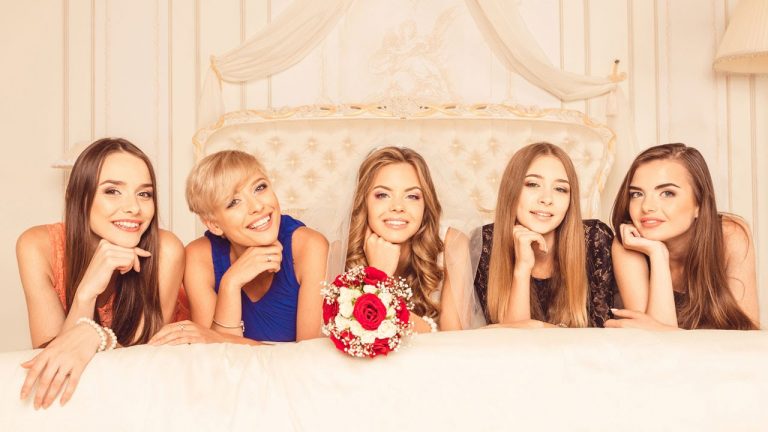
Learn how to swap a person out in today’s episode! This is helpful for group shots; especially for instances such as bridal parties.

To download practice images from Adobe Stock, click here: https://stock.adobe.com/Search?serie_id=90423829&filters%5Bcontent_type%3Aphoto%5D=1

To see our episode on swapping heads, click here: https://www.youtube.com/watch?v=SZg4csZb_OM
———————————————————————————————-

Thanks for watching Phlearn! If you enjoyed this video be sure to subscribe to our channel so you don’t miss a thing!

Subscribe: http://goo.gl/LBIEQU

For more advanced Photoshop Tutorials be sure to check out our Phlearn PRO Tutorials. We offer the best Photoshop tutorials available starting at just $24.99.

http://phlearn.com/product-category/pro-photoshop-tutorials

———————————————————————————————-

Stock Images provided by: https://stock.adobe.com/

How to Use Hue/Saturation in Photoshop

0

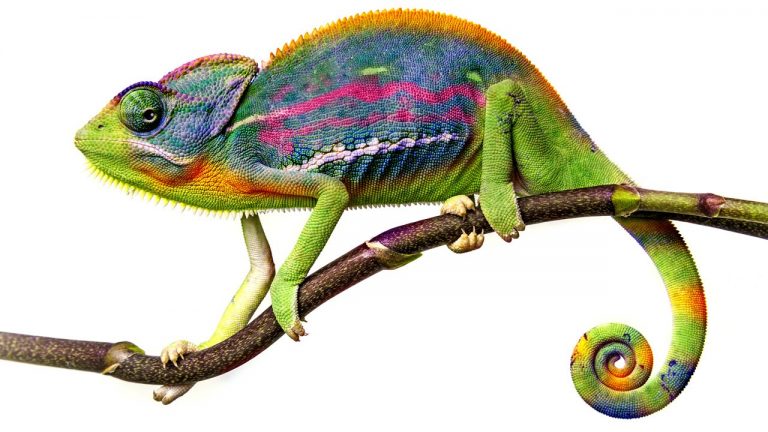
This episode was designed for beginners, but it’s good to brush up on your skills no matter what level you are. Learn how to Use Hue/Saturation in Photoshop!

Download our practice image from Adobe Stock here: https://stock.adobe.com/stock-photo/chameleon/60473435

Global Saturation Adjustments:

In order to work non-destructively, it’s best to create a new Hue/Saturation adjustment layer rather than adjusting from the menu bar.

By default, the Hue/Saturation dialogue box will change ALL of the colors in an image when the sliders are adjusted. But this can be changed!

Local Saturation Adjustments:

To do so, go the the “Master” drop down menu. You will see many other colors, which can be selected and adjusted individually.

This method will select, again, ALL of that specific color found in the image. But what can you do if you only want a certain shade of green to change? You can use the Eyedropper tool! We use it by pressing the icon on the left. Once your cursor turns into an eyedropper, you can click on one point in the image and it will target just that exact color. You can also click and drag the grey slider that appears between the two colored bars.

Colorizing:

Create a new Hue/Saturation layer and check the “Colorize” button. This will change the entire image to the same color! This is handy if you’d like to change, for example, a red shirt to a green shirt. There isn’t much variation in the color, however. If you’re looking for some more variation you can turn down the opacity of the layer so that some of the original image comes through.

Painting on an image

If you’re looking to add some color in a unique design, you can do that too! We create a new blank layer and then use the brush tool to paint some bright pink onto the image. At this point, the pink looks very obviously Photoshopped. To play with how the color blends into the photo, try using different Blending Modes. The “Color” blending mode yields a beautiful result, as does “Hue” and “Overlay.”

———————————————————————————————-

Thanks for watching Phlearn! If you enjoyed this video be sure to subscribe to our channel so you don’t miss a thing!

Subscribe: http://goo.gl/LBIEQU

For more advanced Photoshop Tutorials be sure to check out our Phlearn PRO Tutorials. We offer the best Photoshop tutorials available starting at just $24.99.

http://phlearn.com/product-category/pro-photoshop-tutorials

———————————————————————————————-

Stock Images provided by: https://stock.adobe.com/

How to Use the Video Timeline in Photoshop

0

Download practice image: https://stock.adobe.com/stock-photo/vintage-tin-toy-robot/61370614

Start with Photoshop 101 & 201: http://phlearn.com/product/photoshop-101-201-bundle
Retouch like a pro with The Ultimate Guide to Retouching: http://phlearn.com/product/the-ultimate-guide-to-retouching
Get Aaron’s Favorite Tablet: http://amzn.to/1Eykaoh
Dress the part in a Phlearn Shirt: http://phlearn.com/product-category/gear

Facebook: https://www.facebook.com/Phlearn/
Twitter: https://twitter.com/Phlearn
Instagram: https://www.instagram.com/phlearn/
Snapchat username: Phlearn

Phlearn discount for Creative Cloud: http://adobe.ly/1MWG5Kq
Stock Images provided by: https://stock.adobe.com/

Subscribe: http://goo.gl/LBIEQU

How to Place Art on a Wall in Photoshop

0

This episode is brought to you by Bay Photo! Check out their website for easy ordering of prints and beautiful results: https://www.bayphoto.com/

Start with Photoshop 101 & 201: http://phlearn.com/product/photoshop-101-201-bundle
Retouch like a pro with The Ultimate Guide to Retouching: http://phlearn.com/product/the-ultimate-guide-to-retouching
Use the same Tablet as Aaron: http://amzn.to/1Eykaoh
Dress the part in a Phlearn Shirt: http://phlearn.com/product-category/gear

Facebook: https://www.facebook.com/Phlearn/
Twitter: https://twitter.com/Phlearn
Instagram: https://www.instagram.com/phlearn/
Snapchat username: Phlearn

Phlearn discount for Creative Cloud: http://adobe.ly/1MWG5Kq
Stock Images provided by: https://stock.adobe.com/

Subscribe: http://goo.gl/LBIEQU

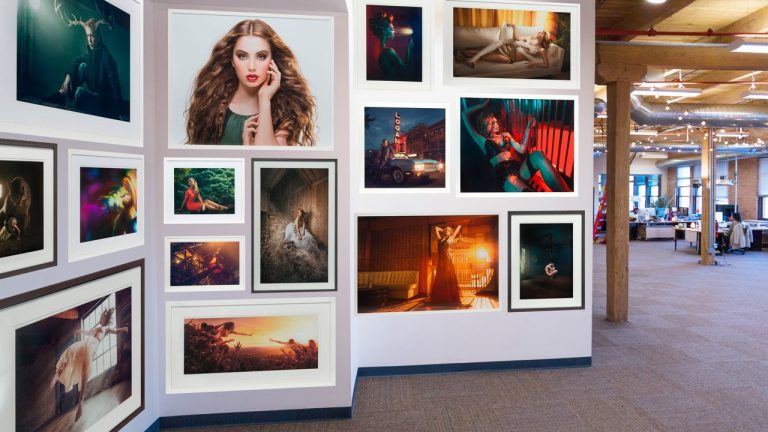
Are you looking to get some photos up in your home or office, but don’t know where to start? Learn how to take the first step and place art on your walls in Photoshop, so that you can visualize the final product!

Start with a photo of the space you plan to decorate, as well as digital files of the photos you’re going to print.

Once your black wall image is opened in Photoshop, go to File – Scripts – Load Files into Stack. This allows you to select all of your digital photos and load them directly into the same document, as opposed to opening each image individually.

After those photos have loaded, you can begin placing them and playing around with layouts that you like. Uncheck “Auto-Select” at the top left toolbar, and then hold down Ctrl/Cmd to click and drag individual layers.

Possibly the most important part of placing images on walls is getting them into the proper perspective! When you reach a good stopping point and like your layout, select all of the layers and hold Ctrl/Cmd + T. Then, simply hold Ctrl/Cmd and drag the corners of the transform box. Match the angles of the transform box to the angles of the wall edges, and your photos will be perfectly in perspective.