Home Blog Page 514

How to Use Adobe Camera Raw in Photoshop

0

Start with Photoshop 101 & 201: http://phlearn.com/product/photoshop-101-201-bundle
Retouch like a pro with The Ultimate Guide to Retouching: http://phlearn.com/product/the-ultimate-guide-to-retouching
Use the same Tablet as Aaron: http://amzn.to/1Eykaoh
Dress the part in a Phlearn Shirt: http://phlearn.com/product-category/gear

Facebook: https://www.facebook.com/Phlearn/
Twitter: https://twitter.com/Phlearn
Instagram: https://www.instagram.com/phlearn/
Snapchat username: Phlearn

Phlearn discount for Creative Cloud: http://adobe.ly/1MWG5Kq
Stock Images provided by: https://stock.adobe.com/

Subscribe: http://goo.gl/LBIEQU
How to Use the Lasso Tools in Photoshop

0

Start with Photoshop 101 & 201: http://phlearn.com/product/photoshop-101-201-bundle
Retouch like a pro with The Ultimate Guide to Retouching: http://phlearn.com/product/the-ultimate-guide-to-retouching
Use the same Tablet as Aaron: http://amzn.to/1Eykaoh
Dress the part in a Phlearn Shirt: http://phlearn.com/product-category/gear

Facebook: https://www.facebook.com/Phlearn/
Twitter: https://twitter.com/Phlearn
Instagram: https://www.instagram.com/phlearn/
Snapchat username: Phlearn

Phlearn discount for Creative Cloud: http://adobe.ly/1MWG5Kq
Stock Images provided by: https://stock.adobe.com/

Subscribe: http://goo.gl/LBIEQU
In today’s episode, we show you How to Use the Lasso Tools in Photoshop. We’re talking about the Magnetic, Standard and Polygonal Lasso Tools!

Standard Lasso Tool

The Standard Lasso Tool has it’s advantages and disadvantages. It’s not great for areas that require a very precise, calculated selection. The Standard Lasso Tool is great for areas that are more of random selections. If there is an area of your image or if you want to create an area of your image that doesn’t require a precise selection, the Standard Lasso Tool is the best tool to use. Selecting things like mountains or puddles are perfect examples of when the Standard Lasso Tool would come in handy. In our example, we color the inside of a flower with the Standard Lasso tool. It’s perfect for random, unpredictable areas of your image.

Polygonal Lasso Tool

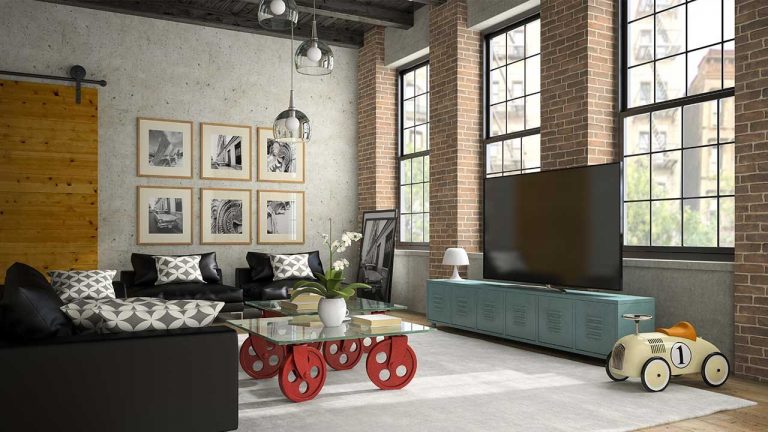
The Polygonal Lasso Tool will allow you to create polygons. This is great for straight lights and sharp corners. When selection out buildings or different types of architecture, the Polygonal Lasso Tool is a great choice! In our example, we select the outline of the tv in our image. Now because this is a selection, we group it with a New Layer and place an image inside our tv selection. With a bit of transforming and perspective matching, we were able to place an image on the tv seamlessly.

Magnetic Lasso Tool

The Magnetic Lasso Tool is perfect for tracing around an object. The Magnetic Lasso Tool basically finds the edge of the selection you are trying to make. There are more options involved with the Magnetic Lasso Tool. From the Width, Contrast and Frequency, the Magnetic Lasso Tool gives us enough variety to use the tool to our advantage.

Conclusion

In conclusion, all of the tools in Photoshop can be extremely useful when used correctly. The Lasso Tools are no exception. They are commonly used to create selections. Rather that selection be a spill on the carpet, which in that case you’d use the Standard Lasso Tool. Or if that selection requires getting around corners and dealing with straight lines, which in that case you’d use the Polygonal Lasso Tool. Or if it’s just an object in your image that you want to cut out. In that case the Magnetic Lasso Tool might be the perfect for the job. These three Lasso Tools are great for creating any type of selection that you desire.

How to Remove Stretch Marks in Photoshop

0

Want to Get Better at Retouching? Learn From the Master https://phlearn.com/rtstretch

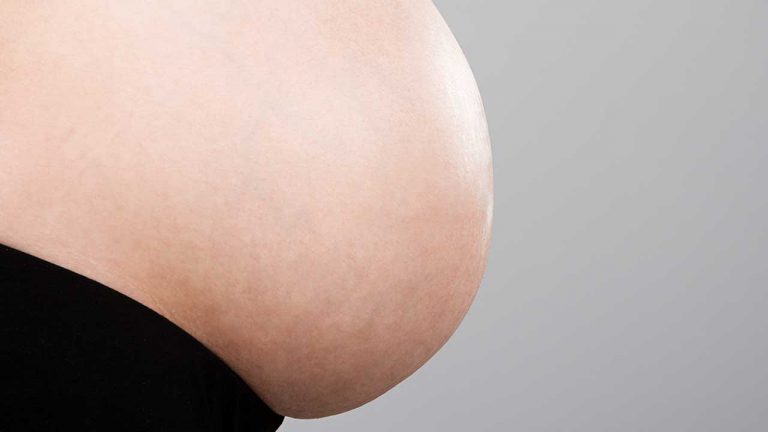
In today’s episode, we show you how to remove stretch marks in Photoshop.

Getting Started

Stretch marks are just a part of life. You might have a client who requests you to remove their stretch marks. If that’s the case, you’ve found the perfect tutorial for the job. Join us as we match skin tones, targeting red areas of the photo matching the color of the skin your desired tone. We also use the Healing Brush tool to duplicate the textures of other areas of the skin and applied it over where the stretch marks were.

Hue/Saturation

We start off by using our Hue/Saturation. We bump up the Saturation a bit which helps us target the specific areas that we want to change. We use our bottom sliders really narrow down the area we want to adjust. We use the Hue to get the color to match the rest of the belly. This helps us target the specific reds from the stretch marks. The awesome thing is that we don’t effect the rest of the image while adjusting these colors.

Healing Brush Tool

We chose the regular Healing Brush Tool over the Spot Healing Brush Tool because the Spot Healing Brush will choose the sample point for you. We didn’t want the Spot Healing Brush Tool to sample a different stretch mark from the image. So with the Healing Brush Tool, we go over the areas where we see stretch marks. We paint in the direction of the stretch mark, grabbing parts of the image with good skin and covering up the stretch marks.

How to Create Light Rays in Photoshop

0

Our #1 PRO Tutorial ever is now on Sale! https://phlearn.com/popular

Getting Started
It’s getting hot in here! Before we dive into Photoshop we had to ask ourselves the question, why Sun Rays? The truth is, sometimes it’s the most subtle of effects that really makes an image stand out. Dust particles, slight color changes, even Sun Rays are a great way to draw attention to your image. Now we’d suggest you try your absolute hardest to capture these elements in camera, during the actual photo shoot. But sometimes you just can’t, that’s where we come in.

We start off with selecting our image. The image we chose was perfect because the sun is actually visible in the image. Next we sample a color from the sun in the image. We do this so that the color of our light rays are the same color as the sun. This makes the effect look more believable. After having our color sampled and on a New Layer, we begin to create a Custom Brush. The Brush Tool typical writes in lines. But we want each stroke of our Brush Tool to leave a trail of little dots. We are able to do this by adjusting our Brush Options

Creating a Custom Brush
We start of by adjusting our Shape Dynamics. We boost our Size Jitter all the way to 100%. Then we bring our Minimum Diameter all the way down. The idea when creating a Custom Brush is to get as much unpredictability as possible. We also adjust our Scattering so our dots are farther apart. We then adjust our Spacing and that really helps spread out our dots. Keep in mind that the idea is for each of the dots to become a light ray.

Creating Light Rays
So now it’s time for us to create light rays on our image. We start off by scattering a bunch of little dots across our image. We do this in the most random fashion possible. Next we decide to add a Radial Blur to our dots. We play with our options in our Radial Blur to see what we’re working with. We click on the Zoom option and bring the amount to 100%. Next we choose our Blur Center. It’s a good idea to place your Blur Center right on top of the light source in your image. We adjust the Lightness of our light rays and we are good to go!

VISIT PHLEARN.COM FOR MORE FREE TUTORIALS

Homepage

SUBSCRIBE TO OUR CHANNEL FOR MORE FREE TIPS AND TRICKS
http://www.youtube.com/subscription_center?add_user=phlearnllc

GET FREE TUTORIALS IN YOUR EMAIL + DISCOUNTS ON OUR PRO TUTORIALS!
https://phlearn.com/mail

BUY THE TABLET AARON USES! https://phlearn.com/tablet

LET’S BE FRIENDS!
Instagram ► https://www.instagram.com/phlearn/
Facebook ► https://facebook.com/phlearn
Twitter ► https://twitter.com/phlearn
Google+ ► https://plus.google.com/116791098059215639405
Phlearn ► https://phlearn.com

Intro To Compositing Teaser

0

The ability to place your subject into any background frees your creativity and expands your options for clients.
Our goal is to make it simple. We show you how to match light, camera angles & color in camera, then finish the job in Photoshop.

Intro to Studio Compositing

How to Color, Sharpen, and Save for Web in Photoshop

0

How to Color Images for Web

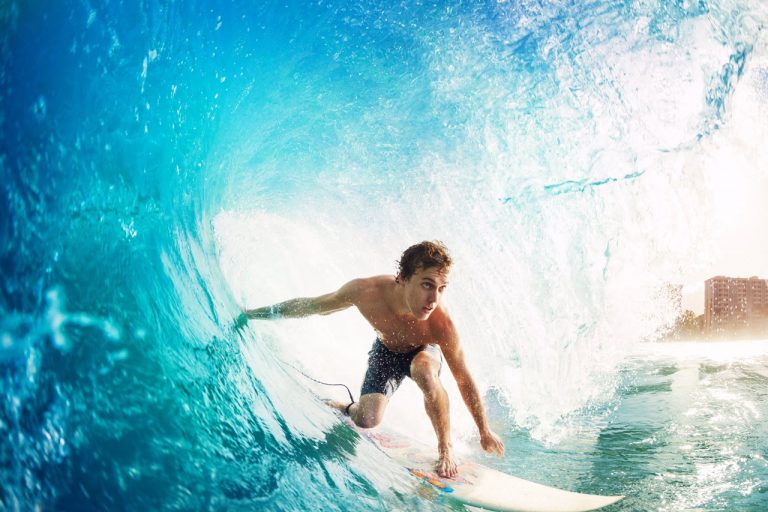
In this episode we use a couple of different adjustment layers to color the image before saving it out to the web. We start with a Color Balance adjustment layer and add green and blue into the waves. Then we add another Color Balance layer to bring some red and yellow into our subject and the background, adding a nice contrast to the blue. After getting our color right, it is time to work on the exposure. We use a Curves Adjustment Layer to bring up the shadow level and keep the highlights where they are. then we mask that layer to only be visible over the subject.

How to Sharpen Images for Web

After getting our color perfect, it is time to sharpen your image. It is important to resize your image before you sharpen, so the image will be sharp at the display size. Avoid resizing your original image, it is much better to make a copy and resize the copy. To do this we create a new layer on the top of everything, and go to Image – Apply Image. Use the default settings in the dialog box and you will get an exact copy of your image on the new layer. From there, right click on the layer and select Duplicate Layer, and select a new document.

Once you have a new document, resize it to the output resolution, in this case we use 1200 px wide.

Now it is time to sharpen. Go to Filter – Sharpen – Unsharp Mask. Choose a radius that provides the optimum level of sharpening without going overboard. My recommendation is to go a little too far then back it off to get the right amount.

How to Save Images for Web

Once you have your image colored, resized and sharpened, it is time to Save for Web. Go to File – Export – Save for Web. You want to make sure you have “Convert to sRGB” checked, this is the color space that most internet browsers use, and converting to this color space will ensure your colors look great on the web.

If you want to see a preview of your image online, click on the Preview button on the bottom left of the dialog box, it will open your default internet browser and display your image. This is the best way to see how your image looks online!

Facebook: https://www.facebook.com/Phlearn/
Twitter: https://twitter.com/Phlearn
Instagram: https://www.instagram.com/phlearn/
Snapchat username: Phlearn

Phlearn discount for Creative Cloud: http://adobe.ly/1MWG5Kq
Stock Images provided by: https://stock.adobe.com/

Subscribe: http://goo.gl/LBIEQU
How to Create Keyboard Shortcuts in Photoshop

0

How to Create Keyboard Shortcuts in Photoshop

Keyboard shortcuts are designed to save you time when working in Photoshop, and in my experience there is no better way to work in Photoshop. If you are serious about working quickly in Photoshop, start learning your keyboard shortcuts today!

To edit your keyboard shortcuts in Photoshop go to Edit – Keyboard Shortcuts. From this dialog box you can change and add new shortcuts to every command in Photoshop. First, find the command you want to change, it will be listed in the same way as your menu bar. For instance you can go to File – Save and enter a new shortcut for save.

If there is an existing shortcut that you want to change, click on the shortcut and hold down the keyboard keys of your desired shortcut. If there is a conflict, Photoshop will allow you to accept and go to the conflict, or cancel the change.

Create a List of Keyboard Shortcuts

If you have ever wanted to view all of your keyboard shortcuts in one file, you are in luck – Photoshop will generate that file for you.

Just go to Edit- Keyboard Shortcuts and click on “Summarize” – it will create an HTM document listing all of your shortcuts. The best thing about this list is that it uses YOUR keyboard shortcuts, so if you change a few shortcuts, your changes will be reflected on the list.

How to Reduce Noise in Photoshop

0

How to Reduce Noise in Photoshop

The best way to reduce noise in an image is to shoot with a low ISO in camera. The camera creates an exposure based on three values – ISO, Aperture, and Shutter Speed. ISO is the only variable that will result in noise. Ideally, one would adjust the shutter speed and aperture (to let in enough light to create an exposure) at a low ISO to prevent image noise.

The best ISO settings to use for lower noise levels are 100, 200, 400 and 800. Anything above that is likely to create noise on the image. Cameras are getting better all the time, and there will come a day when ISO 6400 looks perfectly clean, but until then, keep ISO as low as possible!

Reduce Noise Filter

The first step in removing noise in your image is to use the ‘Reduce Noise Filter’. In the ‘Reduce Noise Dialog’ one can control strength, preserve details, reduce color noise, and sharpen details. The strength of the filter determines how much it reduces noise – go as high as you need to remove noise, but don’t over-do it. Bringing the ‘Reduce Noise’ lower will make the filter more effective, but will also reduce detail in the image – find the balance that works best.

If there is a lot of color noise, use the ‘Reduce Color’ noise option to remove it. Also, there is an option in ‘Advanced Settings’ to reduce noise on each color channel individually. ‘Sharpen Details’ will add artificial sharpening to your image after the ‘Reduce Noise’ filter is added, so it’s best to keep this at zero.

Using the Surface Blur to Reduce Noise

If there is still noise after the ‘Reduce Noise’ filter is used, adding a Surface Blur may help. The key to using a Surface Blur to reduce noise in photos is to balance the radius and threshold. If the threshold is too low, the image will not be effected. Threshold controls where the blur will stop. It uses differences in tone to find edges, and tries to preserve those edges. The higher the threshold, the more separate elements in the image will blur into each other. The Blur radius determines the area that will be blurred – the larger the radius, the more blur.

It’s best to bring both of these values as high as possible without destroying image details.

Check out more free tutorials at phlearn.com

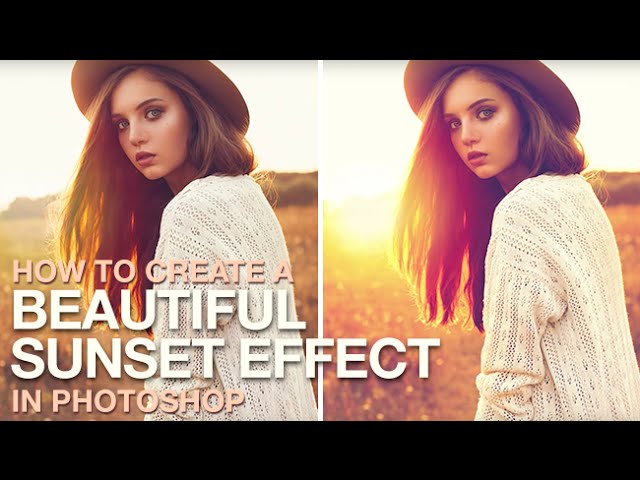
How to Create a Beautiful Fantasy Sunset Effect in Photoshop

0

Our #1 PRO Tutorial ever is now on Sale! https://phlearn.com/popular

How to Create a Beautiful Fantasy Sunset Effect in Photoshop

Adding a sunset effect to a photo can be done in a couple of easy steps, and makes a huge difference in a back-lit image. First, make sure the image is lit from behind so the sun is visible. Next, create a custom radial gradient to mimic the sun. The gradient should go from white, to orange, to red. Then, add a layer mask so the sun only shows up in small circe. Blur the circle, and the sun is complete! Follow the rest of the tutorial to color-match the image to the sunset.

Coloring the Image to Match the Sunset

After applying the sunset gradient to the photo, it is important to color match the rest of the photo. Use a ‘Color Balance’ adjustment layer and click on “Highlights’ to increase red and green levels, and to decrease blue levels. If needed, mask in the area around the sunset for better color matching.

Add Blue to the Shadows

Blue and gold look great together, and adding color into the shadows of an image is a great way to introduce complimentary colors. To create a ‘Cross Process’ color effect, start by making a new ‘Solid Color’ adjustment layer and choosing a dark blue. Change the blend mode to ‘Lighten’ and it will only show up in the shadows of your image. After creating the ‘Solid Color’ adjustment layer, it is easy to change the color. Double click on the adjustment layer and choose a new color from the color picker window.

—————————————————————————————————

VISIT PHLEARN.COM FOR MORE FREE TUTORIALS

Homepage

SUBSCRIBE TO OUR CHANNEL FOR MORE FREE TIPS AND TRICKS
http://www.youtube.com/subscription_center?add_user=phlearnllc

GET FREE TUTORIALS IN YOUR EMAIL + DISCOUNTS ON OUR PRO TUTORIALS!
https://phlearn.com/mail

BUY THE TABLET AARON USES! https://phlearn.com/tablet

LET’S BE FRIENDS!
Instagram ► https://www.instagram.com/phlearn/
Facebook ► https://facebook.com/phlearn
Twitter ► https://twitter.com/phlearn
Google+ ► https://plus.google.com/116791098059215639405
Phlearn ► https://phlearn.com

—————————————————————————————————

Download the Custom Gradient Here!

How to Create a Beautiful Sunset Effect in Photoshop

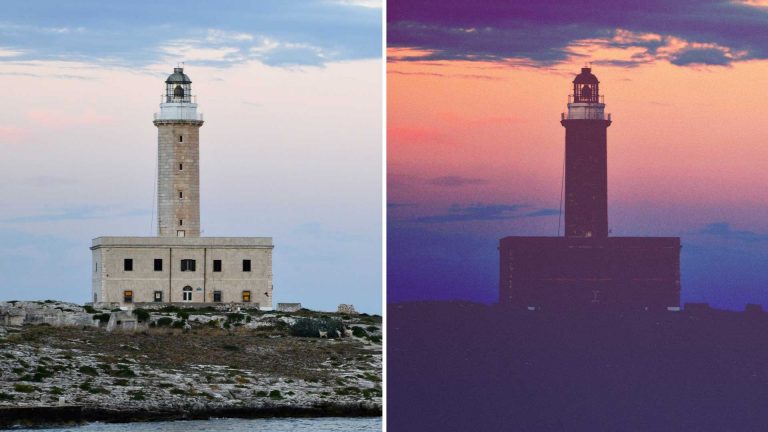
How to Create a Dark Film Look in Photoshop

0

Input and Output Levels

When using ‘Levels’ adjustment layers it is important to note the differences between input and output levels. Input levels allow you to change black levels, white levels and mid-tones. This can be used to add contrast to an image and make the darks darker or lights lighter.

Output levels adjust how dark ‘black’ is in an image and how light ‘white’ is. Using the output levels, it is possible to change the ‘black’ point to grey, giving the image a less contrasted look.

Adjusting Colors using Levels

Levels adjustment layers can also be used to change color in an image. To change colors, click on the color channel drop down – by default it will be on RGB. From here the Red, Green and Blue channels can be adjusted individually.

For instance – to add blue into the shadows of and image, select the ‘Blue’ color channel and slide the dark point to the right on the output levels.

Finishing Touches

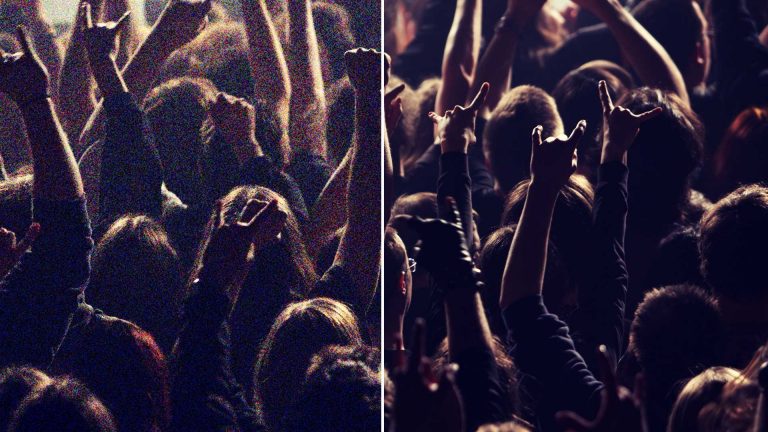
To finish the image and give it that ‘Film’ look, a slight gaussian blur was applied. This makes the image look like it was taken with a lower quality lens. Next noise was added to the image to simulate film grain.