Home Blog Page 515

How to Make Desktop Wallpapers in Photoshop

0

Download the Desktop Wallpapers Here

How to Create Desktop Wallpapers in Photoshop

Learn how to create custom desktop wallpapers in Photoshop by following a couple simple steps. Start by creating a new document in the size of the target desktop wallpaper – for instance if you are creating wallpaper for a 15″ Macbook, use 1440 x 900 pixels. Next, open all the images that will become desktop wallpapers and drag them into the original sized document. Resize the images if necessary.

After the images are properly sized, go to File – Export – Layers to Files. This will make each layer its own file, allowing many images to be saved at once.

How to Correct Overexposure in Lightroom

0

How to Correct Over Exposed Images in Lightroom

Learn how to create multiple versions of the same image and combine them together to form an HDR Photo in Lightroom!

16-bit RAW Images in Lightroom

In order to achieve this effect, be sure to use 16-bit RAW images in Lightroom. 8-bit JPEGs don’t have enough information stored in the file to accurately change exposure and make up for missing information.

Create Virtual Copies and Merge to HDR

Start by creating a virtual copy of your image, then adjust the exposure slider down until the over-exposed areas become properly exposed. At this point the rest of the image may be too dark, but don’t worry about the dark areas – this image is only used for the highlight information.

Next shift-click on both the original image and the virtual copy the right-click and go to Photo Merge – HDR… Lightroom will treat both of these images as separate photos and merge the exposures together to retina information from the highlights, mid-tones and shadows. This way you can create an HDR Photo from one source image and pull information from over-exposed areas!

How to Use the Histogram in Photoshop

0

How to Use the Histogram in Photoshop

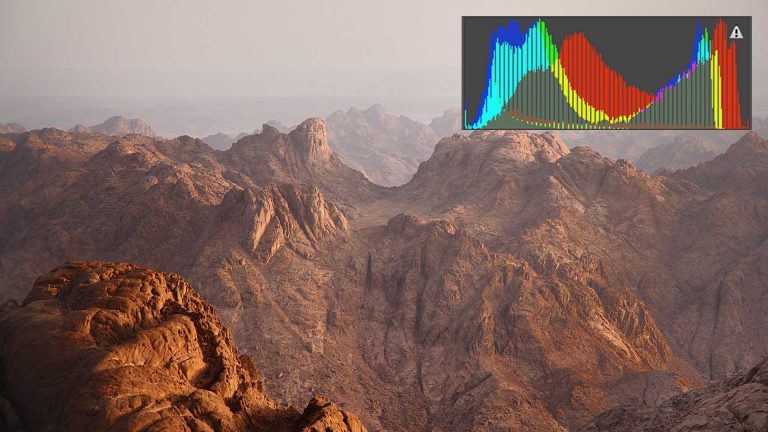
The histogram is a graph that displays exposure and color information on your images. It can be used to correct exposure, color, and evaluate missing information. This episode explains how to read the histogram and how to fix common issues using ‘Levels’ adjustment layers.

How to Use the Histogram in Your Camera

The histogram in photoshop mirrors the histogram on a modern DSLR. Because a histogram displays color and light information, it is very useful for correcting exposure. A common problem photographers face is over-exposure or under-exposure. An image that is either over-exposed or under-exposed will result in a lack of information in the highlights or shadows. Images that are over-exposed are commonly referred to as ‘blown out’.

Looking at the image of an LCD, it can be difficult to properly see the exposure of an image. The histogram displays exposure information, and when properly used can aid in creating a proper exposure without ‘blown out’ highlights or completely black shadows.

Levels and Histogram

The histogram is a great tool for understanding exposure and color in an image, but it won’t change exposure values in an image – that is where ‘Levels’ come in. Levels are used to change the white point, black point and mid-tones of an image.

For instance, if and image doesn’t contain true blacks and the histogram is shifted to the right, increasing the black levels in the image will compensate for the lack of blacks and correct the exposure. When adjusting exposure it is always best to use a RAW 16-bit image, rather than an 8-bit JPEG.

How to Fix Baby Skin Color in Photoshop

0

How to Fix Baby Skin Color in Photoshop

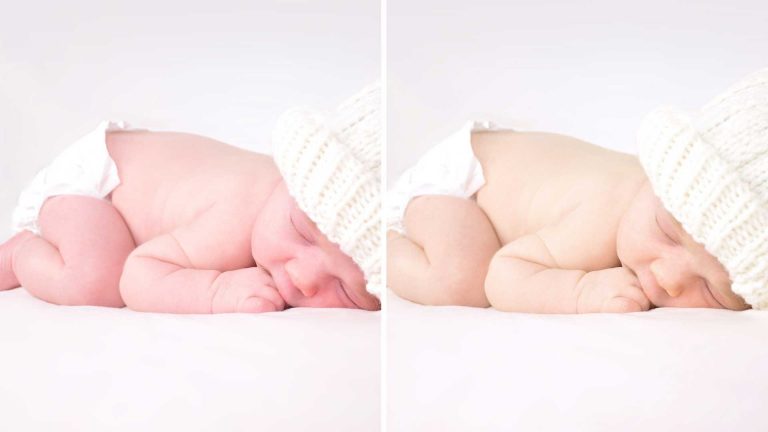
Sometimes babies and newborns will have too much red or blue in their skin, which doesn’t look great in photos. Learn how to use a reference image to analyze skin tone and apply those changes to correct skin tone!

Use a reference image to compare color

It helps to have a reference image to judge ‘good’ skin tone. To find a reference image, search on stock websites like Adobe Stock or just browse through google images. You will only be using the reference image to analyze color, so you don’t need to find the ‘perfect’ photo—just one with good skin color.

To properly analyze skin tone it helps to have a large area of ‘averaged’ color. To get the average color of an area of skin first make a selection around the skin using the marquee tool. Then go to Filter – Blur – Average. This will take all of the color in the selection and average them into one color – perfect for analyzing average skin tones.

Do this for both the sample image and the image you wish to edit.

How to color match with a Hue/Saturation layer

After creating ‘average’ skin tone blocks in Photoshop, click on the color picker and use the eyedropper to analyze the color. Look for differences in HSL (Hue, Saturation and Lightness). In this case the Hue was different by 17degrees.

To correct skin color, create a Hue/Saturation adjustment layer and click on ‘reds’. Next change the values to match the target skin tone. In this example we change the hue by 17 degrees, saturation +2 and Value by -5.

How to Make Hair Color POP in Photoshop!

0

How to Make Hair Color POP in Photoshop

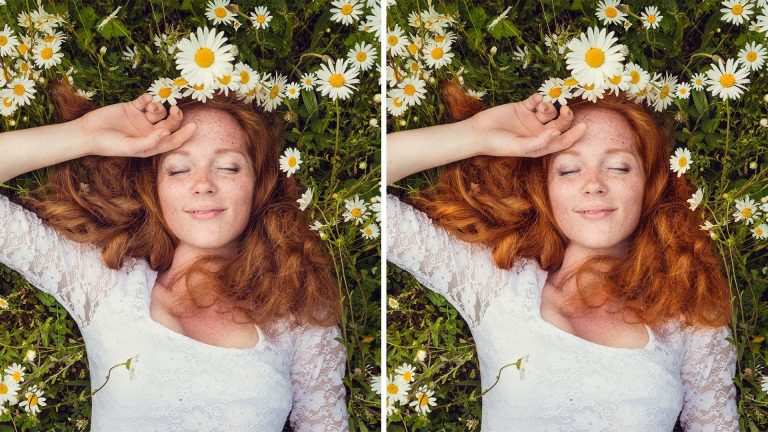
Having a dull hair day? Don’t fret, we can make that hair color POP in Photoshop!

Learn how to enhance hair color using a color balance adjustment layer and how to add a new color just to the highlights of hair. Next learn how to dodge and burn hair to add volume and shape.

Add More Color to Hair Highlights

To give the hair a bit more shine and color, add a color fill adjustment layer. In this example we start off with green, making it easy to see what areas become effected. Next it is time to limit this layer to just the highlights. Double-click on the layer and in the blending options, go to ‘Blend-If’. Hold ALT/OPTN and click and drag the left slider on the ‘Underlying Layer’ slide. This will make this layer disappear from the shadows and only show up in the highlights.

Next change the blend mode of this layer to ‘Vivid Light’ or ‘Overlay’ and adjust the color to make a more natural highlight color in the hair.

Dodge and Burn Hair for More Depth

After making color adjustments on the hair, create a new layer and change the blend mode to ‘Soft Light’. Next, grab the brush tool and set the flow to 10%, this makes it easier to build up the dodge and burn effect and not over-do it!

The key here is to paint black over the shadow areas and white over the highlights. This enhances depth and allows you to give the hair a smooth transition from lights to darks.

Press ‘D’ to change to default colors — white and black. Press ‘X’ to switch between foreground and background colors, making it easy to dodge and burn quickly. If the effect is too strong, simple press ‘E’ for the eraser tool, and erase away the effect.

How to Get a Tan in Photoshop

0

How to Get a Tan in Photoshop

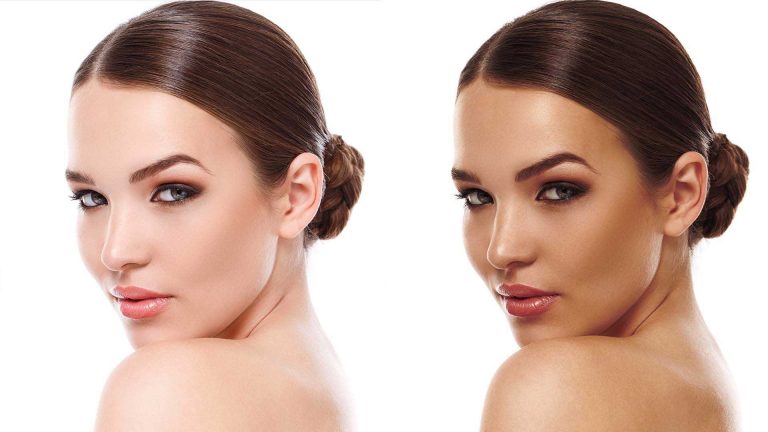
Are those winter months taking a toll on your complexion? Learn how to transform pale skin into beautiful bronze in Photoshop!

Color Highlights and Shadows Separately

The real key to changing skin tone is to focus on the highlights and shadows separately. Some effects will look great over the highlights, but will be too strong on the shadows.

Learn how to use the ‘Blend if’ sliders to adjust layer visibility based on highlight and shadow.

Fine Tune Color

After coloring skin it is important to make fine adjustments to get it right. Use a ‘Selective Color’ adjustment layer and choose ‘Reds’ from the drop-down list. Using the sliders, fine tune the amount of cyan, magenta, yellow and black.

How to Create Our Birthday Celebration Photo!

0

Phlearn.com/sale

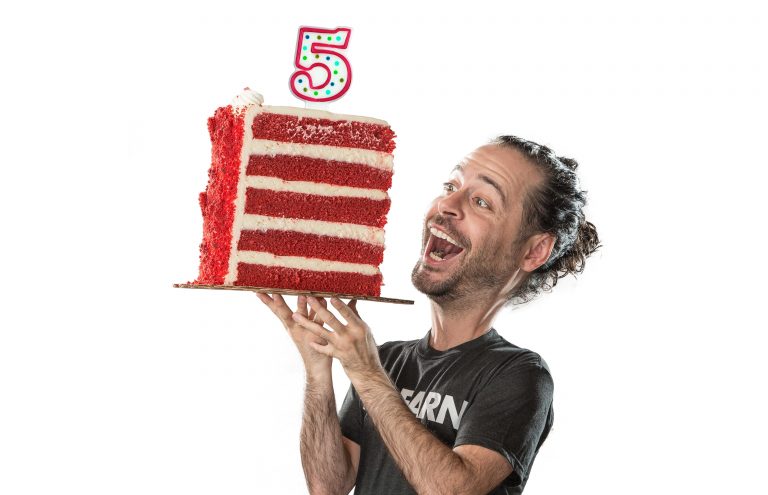
Phlearn just turned 5 years old!
To celebrate, everything on phlearn.com is 30% off!

How to Remove Eye Wrinkles and Crows Feet in Photoshop

0

How to Remove Eye Wrinkles and Crows Feet in Photoshop

Eye wrinkles let us know that you smile a lot, and that’s a good thing. With time, eye wrinkles can become more pronounced, creating shadows around the eyes.

Learn how to simply remove eye wrinkles in a natural and subtle way, leaving your subject refreshed and looking great.

Healing Brush and Fade Command

The key to removing eye wrinkles is to leave a little bit of the original folds of skin, making the transition more realistic. Wrinkles come naturally with age, and removing them completely can look odd, especially on an older adult.

First, use the healing brush tool to paint over a wrinkle. Be sure to paint on a new layer and choose ‘sample: current and below’ from the healing brush tool options. Sample skin close to the wrinkle by holding ALT/OPTN, then paint over the wrinkle. Use a soft-edged brush about twice the size as the wrinkle.

After painting over the wrinkle, it should disappear completely. In most cases you will want to reduce the wrinkle, rather than remove it completely. This is where the ‘fade’ command comes in.

Navigate to Edit – Fade… or press SHIFT + CMD + F. This will allow you to ‘fade’ out the last command you made in Photoshop, and, in this case, it will be used to fade the healing brush stroke.

Choose the right opacity for each wrinkle; you may want some to be more visible than others.

Repeat these steps over each eye wrinkle and soon you will have a wrinkle-free photo!
How to Create a Gritty Sports Portrait in Photoshop

0

How to Create a Gritty Sports Portrait in Photoshop
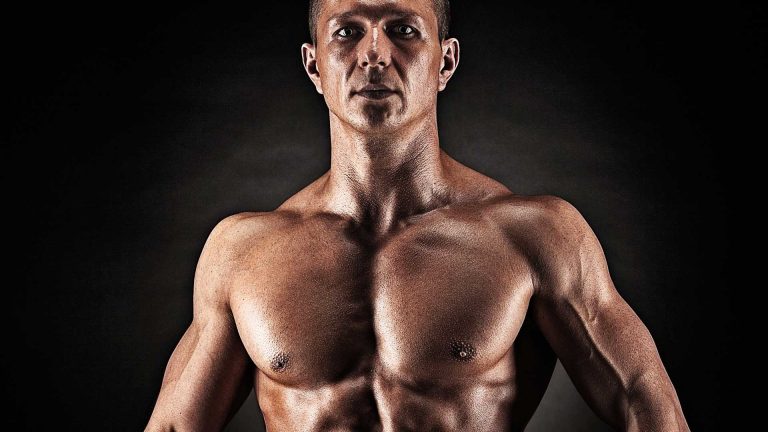
Sometimes it’s better to be nasty, as in the case with sports portraits. Learn how to make a sports portrait even more gritty by using dodge and burn and advanced sharpening in today’s episode.

Create Different Levels of Sharpening
A great way to help define detail in an image is to add sharpening. To create a gritty sports portrait, use different levels of sharpening to enhance both small and large details.

Start by creating a duplicate of the background layer and desaturating it by pressing SHIFT + CMD + U. This will make sure that it only effects sharpening and not color. Then convert this layer into a smart object so it can be used with smart filters. Change the blending mode to either ‘soft light’ or ‘vivid light’. Next, go to Filter – Other – High Pass. Choose a small radius to start.

This will create the first sharpening layer. To add more sharpening, simply duplicate this layer and change the radius in the high pass filter. Because the layer is a smart object, the high pass filter is applied as a smart filter, allowing it to be changed at any time.

How To Make Light Rays Through Clouds In Photoshop

0

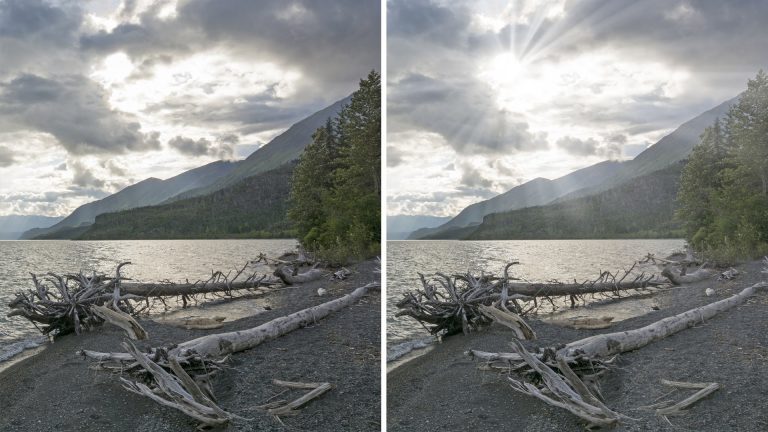
Light rays are fun to create, and can make a big difference in your photos! Learn how to identify the best place to put light rays and how to create them using a brush tool and a radial blur filter.

Use the Radial Filter to Create Light Rays

It is important that light rays come from a light source. Start by identifying the light source in an image, then duplicate the background layer.

Next, convert the duplicate to a smart object, this will make it possible to use a smart filter. Smart filters can be changed at any time, making them easier to work with than regular filters.

Go to ‘filter – blur – radial blur’ and choose ‘zoom’. Next change the zoom level of the blur, anything over 90 should be good. Choose a blur center and hit ‘ok’.

Chances are, the blur center you chose isn’t perfectly in place. To adjust the blur center, double click on the smart filter and move the blur center. Repeat until you nail the center of the light source.

Now that the blur is set in place, it is time to make the light rays. Create a new layer and use the brush tool to paint daubs of white around the light source. Press CMD+F to apply the radial blur filter to the paint daubs, stretching them into light rays. Paint and blur until the light rays look perfect!