Home Blog Page 516

How to Create and Upload Social Media Banners in Photoshop (Included Download)

0

Download the Phlearn Social Media Templates here –
http://www.phlearn.com/socialmedia

Why Use Templates?

When uploading a new image as a social media banner, some areas will be covered by items like avatar photos and account information. Using a template will allow you to know exactly where these icons appear, allowing you to design around them. Using banners will ensure your social media banners look great every time.

Use the provided templates to create your social media banners and get more traction on your upcoming projects!

Intro to Nik Filters in Photoshop (Free Download)

0

Download Here-
https://www.google.com/nikcollection/

Recently Google bought Nik software and decided to release all of their filters for free! In today’s episode, we go through each of the filters and discuss what we like and point out key features of the collection.

Analog Efex Pro
Explore the look and feel of classic cameras, films, and lenses.

Silver Efex Pro
Master the art of black-and-white photography with darkroom-inspired controls.

HDR Efex Pro
From natural to artistic, explore the full potential of HDR photography.

Dfine
Improve your images with noise reduction tailored to your camera.

Color Efex Pro
A comprehensive set of filters for color correction, retouching, and creative effects.

Viveza
Selectively adjust the color and tonality of your images without complicated masks or selections.

Sharpener Pro
Bring out hidden details consistently with the professional’s choice for image sharpening.

How to Create Northern Lights in Photoshop

0

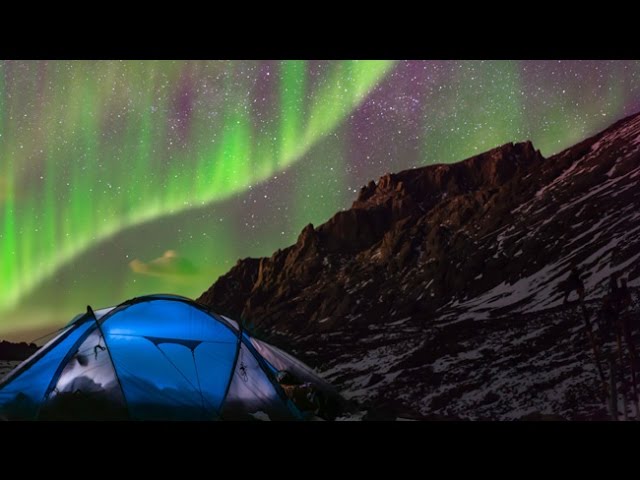
How to Create Northern Lights

Northern Lights are actually collisions between electrically charged particles from the sun that enter the earth’s atmosphere. Add this effect to any night photo in a few simple steps.

Painting Northern Lights

The key to painting Northern Lights is to start with a simple shape and then warp it into the final form of the lights. In this case, we create a special brush that scatters brush strokes, giving a more random pattern to the lights.

After scattering brush strokes, a motion blur is applied to make it look like the brush strokes are streaks of light. It can be helpful to re-apply the blur filter to give a more scattered look.

Once you have created a ‘strip’ of Northern Lights, it is time to warp it into place. To warp, press CTRL+T to bring up the transformation dialog. Then right-click on the layer and select ‘warp’.

How to Create Cloud Shapes in Photoshop (Free Download)

0

Download our free Photoshop brush to create any shape out of clouds! – www.phlearn.com/clouds

Use a Reference Image

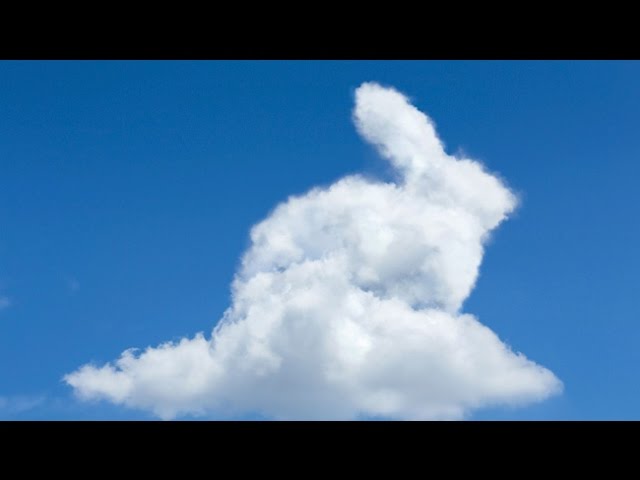
You can create any shape you want out of clouds, all you need is a reference image. In this example, we use a bunny photo to define the shape of the clouds. Simply bring a reference image into Photoshop and cut the object out of the background using the magic wand tool. Once the shape is roughly cut out, it is time to copy clouds over the shape. Make sure to use enough clouds to fill the shape.

To copy clouds, go to ‘select – color range’ and click on the white of the clouds. Then create a new layer and fill the selection with white. This will make a cloud with a transparent background that you can move around the image. Duplicate this layer and move it to cover the original shape if needed.

Use a Custom Brush to Define the Edge of Clouds

After covering the original shape with clouds, use a layer mask to define the edges of the clouds to fit the edges of the shape. To make the new edges of the clouds look right, use a brush made from other cloud shapes. We show you how to create the brush in this episode, but you can also download the brush below.

How to Create a Kiss Brush in Photoshop (Free Download)

0

Download the Kiss Brush Here
http://www.phlearn.com/kiss

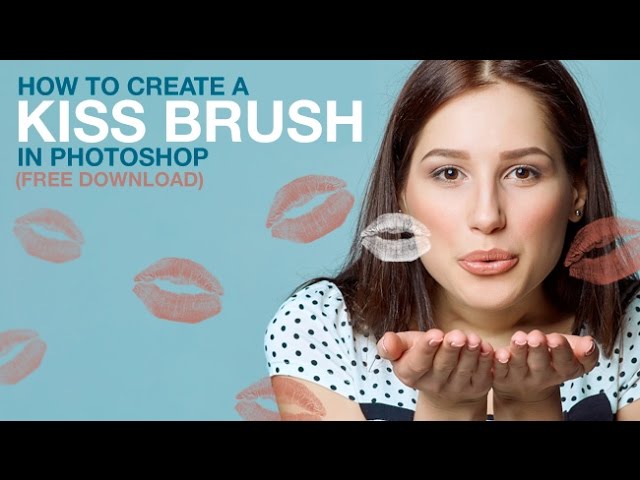
Creating a Kiss Brush in Photoshop is easy and fun, all you need is a piece of paper, lipstick, and this tutorial!

Capture that Kiss!
The first step in creating a kiss brush in Photoshop is to get a picture of a kiss. Just put some lipstick on and kiss a piece of paper a couple of times until you get a kiss you like. Next, it’s time to get that kiss digitized. Either scan it into your computer or take a photo and load it into Photoshop. Once you have your kiss in Photoshop, creating the brush is easy!

Creating the Kiss Brush
To make a custom brush in Photoshop, all you need is a black and white image. Brushes work best when the brush shape is black on a pure white background. In this case, we convert the kiss shape to black and place it on a white background.

Next, go to ‘edit-define brush preset’ to make the kiss shape into a brush.

Don’t feel like creating a brush? No problem, simply download the kiss brush here.
htp://www.phlearn.com/kiss

Phlearn Tee Shirt Design Template

0

Download the Template Here
https://phlearn.com/tee

Tee Shirt Design Template
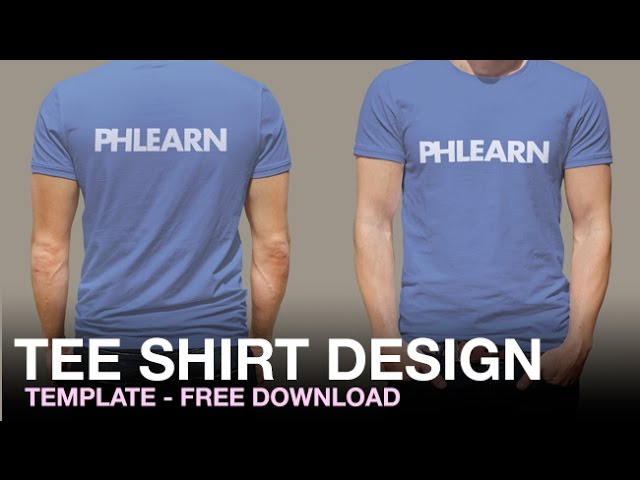
Learn how to use our free tee shirt design template in this episode, then create mock-ups of your own shirt designs!

How to Use the Tee Shirt Design Template
Our template will allow you to change the shirt color and design quickly. To change the shirt color, double click on the ‘Hue/Saturation’ adjustment layer and change the hue, saturation, and brightness.

To change the design on the shirt, double click on one of the smart object layers. This will open a new document with two layers in it. The bottom layer contains an image of a shirt. Use this layer to line up your design. The top layer is an example of a shirt design, in this case, the PHLEARN logo.

To change the design, remove the PHLEARN logo and replace it with your design. Line it up with the pink shirt on the lower layer. Then make the pink shirt invisible, save the document, and it will automatically update on the original template, wrinkles and shadows included!

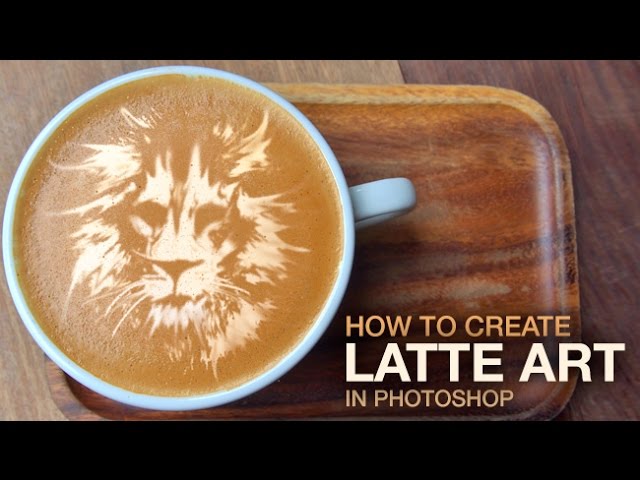
How to Create Latte Art in Photoshop

0

How to Create Latte Art in Photoshop
Learn how to take any photo and convert it into latte art using our free custom brush and the smudge tool!

How to Remove Original Designs
Removing the original latte art design may be necessary, depending on the image you start with. In this example, we created a custom brush made of tiny dots. Using the brush dialog ‘Window-Brush’, we add size jitter, angle jitter, and scattering.

This creates many different dots of color as you paint, recreating the latte texture and allowing you to remove any existing latte art. Download the brush we use in this episode below.

Use Filters to Convert Photos to Art
In this example we use a photo of a lion to create latte art. Because latte art is made of foam, we need the design to be one color, and as simple as possible. Using the ‘cutout’ filter in the ‘filter gallery’, we simplified the shape and color of the original photo, making it perfect for latte art. You can use this filter with any image in photoshop.

Use the Smudge Tool to Create Streaks
The next step is to make the latte art look as though it was created by hand – not Photoshop. To create latte art, a barista will drag a small tool through the foam to create a design in the cup. In this case we are using a digital version of the same tool – the smudge tool. Start by creating small streaks to get the hang of it, and when you are ready, make large bold streaks.

Finishing Steps
To add more texture at the end, use a ‘spatter’ filter in the ‘filter gallery’ to give the edges a more realistic look. Then use the brush we created at the beginning of the episode to add small dark spots, imitating bubbles in the latte!
How to Make a Mothers Day Card in Photoshop (Free Download)

0

Download the Mothers Day Card Template Here
http://www.phlearn.com/mother

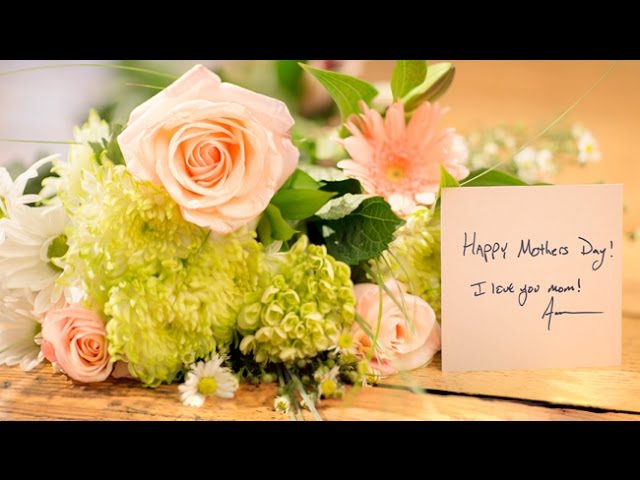
How to Create a Mothers Day Card in Photoshop
Download our FREE Mothers Day Card template and learn how to include your own hand-written message!

Type a Message in Photoshop
To type a message in Photoshop, double-click on the smart object labeled ‘card’. This will open the smart object in a new window ready for editing. Use the Type tool to write a message, then save the smart object. Your changes will automatically update on the final photo.

Use Your Own Handwritten Text
Add more personalization to this Mother’s Day card by including a handwritten message. First, write your message on a white piece of paper. Next, take a photo of the paper or scan it into your computer with a scanner.

Open the photo in Photoshop and transfer it to the smart object labeled ‘card’. To open the smart object, double-click on the thumbnail. Any changes you make to the smart object will automatically update on the final image.

If you want the white background to disappear, change the blending mode of the smart object to ‘darken’.

How to Create a Batman Poster in Photoshop

0

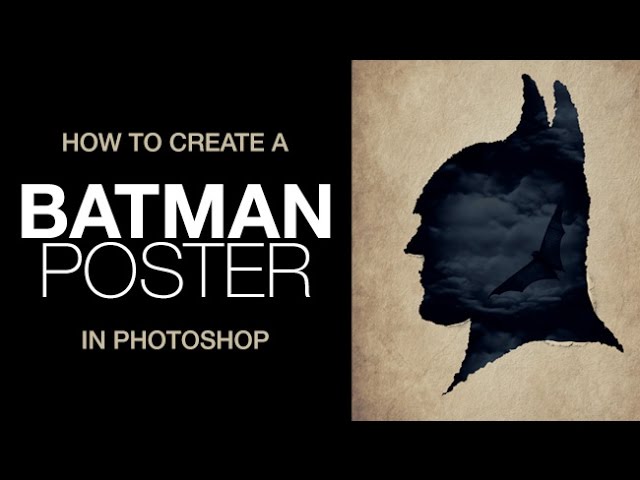
How to Create a Batman Poster in Photoshop
Learn how to create a ripped paper silhouette Batman poster in today’s episode!

How to Create the Ripped Paper Effect
To create a ripped paper effect, first, you will need a silhouette image on a white background. Make sure the silhouette and the background are on the same layer – the filter gallery needs the contrast between black and white to create the ripped paper effect.

To create the effect, go to Filter – Filter Gallery. Here you will be able to choose from many different filters that will add effects to your image. In this case, we need to add some distortion, so click on ‘distort – glass’ enter the settings you want to distort your image. In the example, we use the ‘canvas’ texture and duplicate the glass filter for more distortion.

To add more detail, use the spatter filter under ‘brush strokes’. This will make any smooth line look like ripped paper.

Curl the Paper
To curl the paper, create a selection with a smooth edge on the interior and a ‘ripped’ edge on the exterior. Invert the selection and use a soft-edged brush and paint black over the selected area.

Include a Background Image
To include a background image in the silhouette, first, select the black area with the magic wand tool and load the selection as a layer mask. Then place a background image under the silhouette image and you are done!

How to Fix an Aged Photo in Photoshop

0

Original post: https://phlearn.com/aged

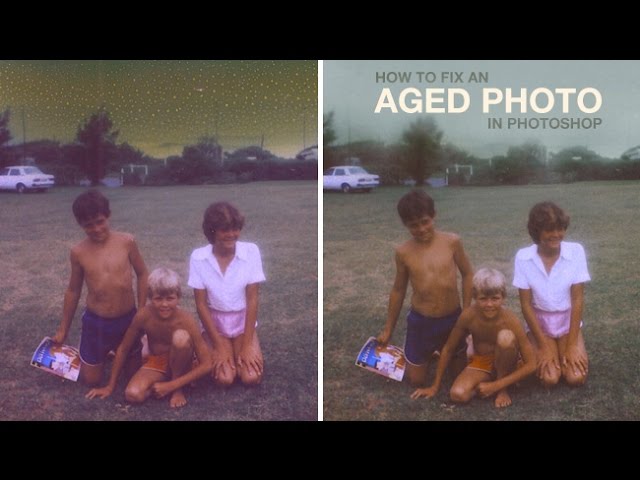
How to Fix an Aged Photo in Photoshop
Learn how to remove dust and scratches and color correct an aged photo in today’s episode!

How to Remove Dust and Scratches
To remove dust and scratches from an aged photo, try using the ‘dust and scratches’ filter. Go to ‘Filter – Noise – Dust and Scratches’ and fine tune the radius and threshold to remove the unwanted marks. Avoid using a high radius to keep detail in the photo.

Color Correct and Lighten the Sky
To lighten the sky, view the image in black and white, that way you can focus on just the lights and darks. Create a ‘Black and White’ adjustment layer, then use a curves adjustment layer to brighten the sky. In this example we use the gradient tool to paint white on the layer mask, lightening the sky.

Next, it is time to color correct. Create a ‘Hue/Saturation’ adjustment layer and click on ‘Colorize’. Choose the desired blue for the sky and then mask in the area that needs color correction.

General Color Correction
Use a ‘Color Balance’ adjustment layer to color correct the entire image. Using this filter, you can adjust colors in the shadows, mid-tones, and highlights. Start by adjusting the colors in the mid-tones. If that doesn’t fix everything, move on to the shadows and highlights.