Home Blog Page 517

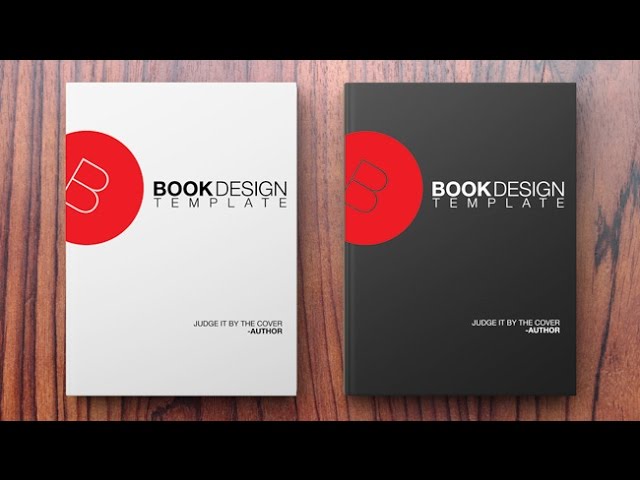
How to Create a Book Design Template in Photoshop

0

Download the Template!
http://www.phlearn.com/book

How to Create and Use Design Templates in Photoshop
Learn how to create a design once, and apply it to many different objects in Photoshop. Each time you make adjustments to the design, those changes will automatically update on every image.

Place the Design into Images Using Linked Smart Objects
Once you are happy with your original design, save it as a .TIF or .PSD file, that way you can edit the layers at any time.

Next, open an image where you would like your design to show up. Go to ‘File – Place Linked Object’ and choose your design. Transform and scale it into place to match the photo.

To change the perspective of the design, first, rotate and scale it into place. Next, hold CTRL/CMD and click on one of the corners and drag it into perspective. Use visual guides like the corners of a book to guide your perspective transformation.

Repeat these steps as many times as you need. Each time you make changes to the original design, those changes will automatically update on the new documents.

Change Color On Each Instance
If you want to change the color of the design on each image, it is best to do that on the image, not the original design. Use Layer FX like ‘Color Overlay” to change the color of an entire design, or clipped layers to change colors in certain areas.

Any changes you make to the original design will appear automatically, and the new colors applied on the image will update as well.

This will allow you to test different color schemes on different objects, like using light text on a dark background or dark text on a light background.

How to Use Content-Aware Scale in Photoshop

0

How to Use Content Aware Scale in Photoshop
Need more room in your photo? In this episode, we show you how to extend a photo using content-aware scale.

Regular Scale vs. Content Aware Scale
To apply a regular scale to an image, go to ‘Edit – Transform – Scale’ and stretch the image. This will stretch every pixel of the photo, including details like people.

The Content-Aware Scale tool will stretch areas with less detail first, leaving more detailed areas untouched. In this example, we use the Content-Aware Scale tool to stretch the background, while leaving the subject in place. To apply a Content Aware Scale, select an area of the photo then go to ‘Edit – Content Aware Scale’.

How to Use Warp in Photoshop
To create more room for type in this image, we use the warp tool to move the clouds. To use the warp tool, start by creating a selection around the area to be stretched. Make sure to select more than needed, allowing more flexibility with the warp tool.

After making a selection, go to ‘Edit – Transform – Warp’. Next, click and drag your image to apply the warp.

One Million Subscriber Contest

0

Enter the Phlearn 1 Million Subscriber Contest – http://phlearn.com/contest

Here are the Grand Prizes!

Wacom Intuos PRO Small Tablet – https://us-store.wacom.com/Catalog/Pen-Tablets/Intuos-pro/intuos-pro-s01
Wacom Bamboo Spark – http://www.wacom.com/en-us/products/mobile-accessories/bamboo-spark
B& H Photo Gift Cards – http://www.bhphotovideo.com/?BI=7848&KBID=8369
Peak Design CaptureLENS – https://www.peakdesign.com/product/clips/capturelens/
Moment Lens – https://momentlens.co/
Nix Color Sensor – https://nixsensor.com/purchase-the-nix-pro/ –Use code “Phlearn” to get $50 off a Nix
CamFi Wireless Controller – http://www.cam-fi.com/en/index.html
LSTN Zebrawood Troubadour Headphones – http://lstnsound.co/collections/headphones/products/zebra-wood-troubadours

AND….

$150 Gift Card to Phlearn.com
Any Phlearn or Aaron Nace 8″x11″ print –hand signed by Aaron–
Phlearn Shirt
8GB Phlearn USB Drive
Phlearn Stickers

It’s time for the biggest celebration in Phlearn history. This celebration is all about you. 1,000,000 of you to be exact. Today, June 6th, 2016, we crossed one million subscribers on our Youtube channel.

It’s humbling for the entire Phlearn team to see how much the Phamily has grown.

In five years Phlearn has evolved from nothing more than an idea, into the #1 Photoshop tutorial site with fans in 140 countries around the world learning Photoshop side-by-side.

That’s crazy!

To show how much we appreciate you all, for the next five days we are going to give back to the community that has given so much to us.

We have reached out to all of our favorite brands that we use right here at Phlearn and asked them to join in this weeklong celebration. The end result? We have some amazing stuff to giveaway! All sorts of gadgets and gift cards, just for you!

Plus, we have a couple fun tricks up our sleeves.

Enter now: http://phlearn.com/contest

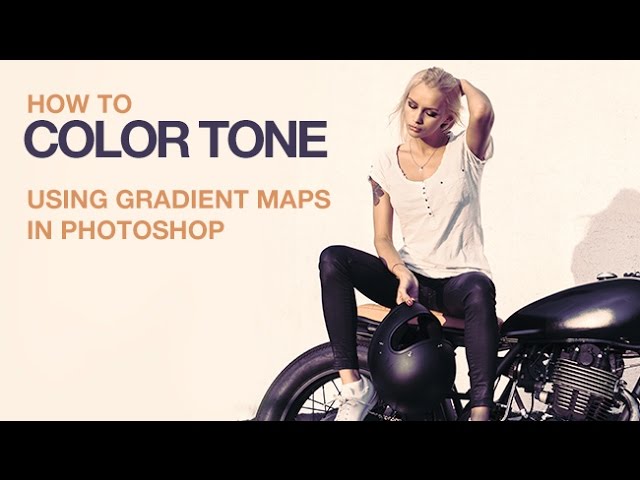
How to Color Tone Using Gradient Maps

0

How to Color Tone Using Gradient Maps
Quickly color tone your images using gradient maps. Create your own custom gradients or choose from many pre-loaded options!

How do Gradient Maps Work?
A gradient map matches light levels to different colors. It analyzes the highlights, mid-tones, and shadows in your image and maps them to different colors.

The original colors in a photo will be replaced with the colors in the gradient map.

How to Adjust Gradients
To adjust a gradient map, double-click on the layer thumbnail and then click on the gradient. You can choose from pre-defined gradients or create your own. To edit an existing gradient, click on the color swatches below the gradient, which will bring up another color box. Click on that color box and use the color editor to choose a new color. You can also move the color swatches by clicking and dragging them from left to right.

To add a new color swatch, click right below the gradient in the location you would like to add a new color.

How to Load More Gradient Maps
Photoshop comes pre-loaded with a few gradients. To add more gradients, click on the gear icon in the gradient editor. You can choose to load gradients from your computer or add them from a list at the bottom. Click on the list you would like to add, then choose ‘append’ to add them to the list of available gradients.

In this episode, we use ‘Color Harmonies 1’ and ‘Photographic Toning’.

Deer Dad – A Father’s Day Tribute

0

Download the Template and Brush

Deer Dad – A Fathers Day Tribute

How to Make a Deer Dad Card
Have you ever wanted to replace a person’s head with an animal head? Well if so, you are in luck. In this tribute to Father’s Day, we show you how to turn your dear dad into your DEER DAD.

How to Cut Out the Deer
The first step to creating the composite is to cut the deer (or another animal) out of its background. In this case, we start by using the magic wand tool to cut out the area over the sky. Because the background is simple, the cut-out process goes quickly.

Use the Lasso Tool to make a selection around the lower part of the deer and then paint black on the layer mask to remove the deer from the background.

Refine the Selection Edge
After cutting the deer out from the background, go to ‘Select – Refine Edge’ and add some feathering and bring in the edge of the mask. This will reduce the white fringing around the edge and give a more realistic look.

Create Animal Hair from Scratch
After the deer is cut out from its background, the next step is to paint in ‘deer hair’ around the edges to make the deer look more realistic. To paint deer hair, first, you will need to create a ‘deer hair brush’.

Start by using a small (3px) brush with a hardness around 80%. Paint a thin line resembling a deer hair. After you are happy with your hair shape, use the marquee tool and make a square selection around the hair and on a new layer, fill that selection with white.

The best way to create a custom brush is to have the brush shape in black and the background pure white.

Next, make a selection around the white background and go to ‘Edit – Define Brush Preset’. This will turn the hair shape into a custom brush.

Next, open the brush menu – ‘Window – Brush’ and define settings to make the hair appear more random when painted. Use Size Jitter, Angle Jitter, Direction and Scattering.

After making the custom brush, go to the menu in the Brush Window and go to – ‘New Brush Preset…”. Then you can use this same brush with the Clone Stamp Tool and paint real hair!

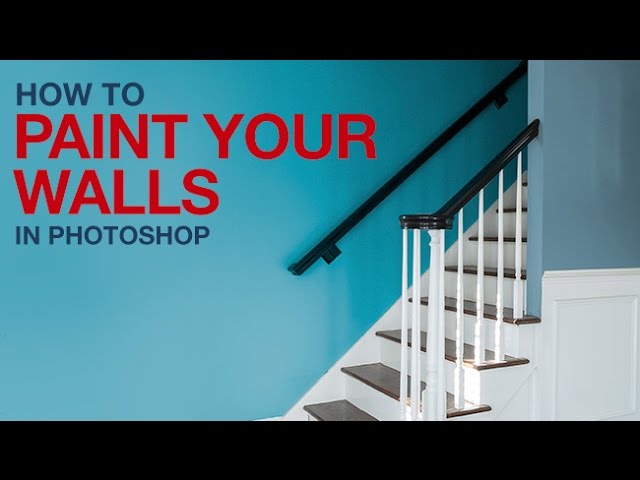
How to Paint Your Walls in Photoshop

0

How to Paint Your Walls in Photoshop
Before spending time painting your walls, test out different colors in Photoshop! This tutorial makes changing wall color easy and fun!

Use the Pen Tool to Make Selections
The simplest way to make selections around walls is with the pen tool. Select the pen tool and click on each corner of the walls. If you need to change a point, hold CTRL/CMD and click and drag the point to the desired location.

Once you have completed the path around the wall, right-click inside the path and go to ‘make-selection’. Feather the radius by .5 px to make a realistic edge.

Change Color with Hue/Saturation
After making a selection around the wall, go to ‘Layers – New Adjustment Layer – Hue/Saturation’. The selection you made with the pen tool will automatically load as a layer mask for the Hue/Saturation adjustment layer.

Click on the ‘Colorize’ button, then adjust the hue, saturation and lightness to set your desired color.

If there is something on the wall you don’t want to colorize, use the pen tool to create a path around it then right-click and make the path into a selection. Once the selection is active, go to ‘Edit – Fill’ and choose black. This will make the layer mask black in the selection, hiding the Hue/Saturation adjustment layer in that area.

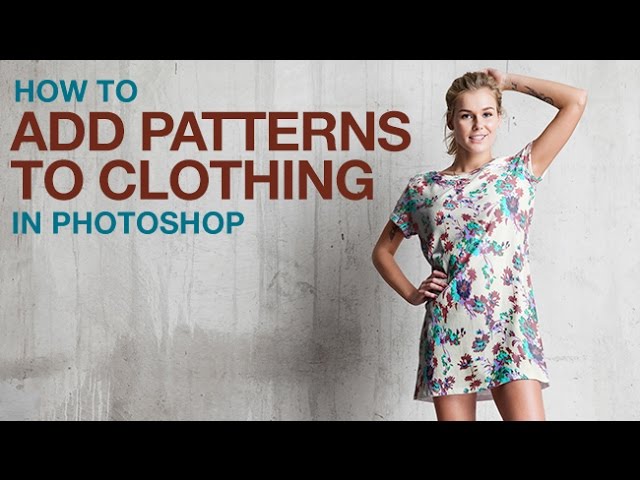
How to Add Patterns to Clothing in Photoshop

0

OUR #1 PRO TUTORIAL EVER IS NOW ON SALE! https://phlearn.com/product/photoshop-101-301

Scale Pattern into Place

Start by scaling and rotating the pattern into place. In this example, we also invert the pattern to change colors by pressing CTRL/CMD + I. Make sure to make the pattern a bit larger than the piece of clothing so it can be warped into place.

Use the Pen Tool to Cut Out Clothing

It is important to have an accurate cut out of the clothing, so the pattern looks seamless. In this example, we use the Pen Tool to cut out the original shirt. Create a pen path around the clothing by clicking and dragging to create curves.

After completing the pen path, right-click and turn it into a selection and feather the edge by 0.5 pixels. Next, load the selection as a layer mask for the pattern, making it only visible where the original piece of clothing is.

Liquify the Pattern to Fit the Clothing

To make the pattern look like it flows with the fabric, it must be warped into place. Use the liquify tool to bring in the edges of the pattern, making it look like the pattern wraps around the piece of clothing.

To re-create folds of fabric, use the freeze mask tool to paint over one-half of the fold. Then use the forward warp tool to push the pattern under the freeze mask. If done correctly, it will look like the original pattern curves around the folds of fabric.

Add Highlights and Shadows from Original Photo
The last step is to blend the pattern into the original image. In this example, we change the blend mode to ‘Multiply’ and lower the opacity to 90%.

Next, add shadows and highlights from the original piece of clothing. Duplicate the background layer and place it on top of the fabric layer. Right-click on the layer and select “create clipping mask”, then change the blend mode to ‘Multiply’.

To add highlights, duplicate the background layer and clip it to the fabric, just like the previous layer. This time set the blend mode to ‘Screen’. If needed, adjust the brightness of this layer by using a Levels adjustment – CTRL/CMD + L. Drag the black point slider to the right until the layer only appears over the highlights.

VISIT PHLEARN.COM FOR MORE FREE TUTORIALS

Homepage

SUBSCRIBE NOW FOR MORE FREE TIPS AND TRICKS
http://www.youtube.com/subscription_center?add_user=phlearnllc

GET FREE TUTORIALS SENT TO YOUR EMAIL + DISCOUNTS ON OUR PRO TUTORIALS!
https://phlearn.com/mail

Use the same Tablet as Aaron: http://amzn.to/1Eykaoh

LET’S BE FRIENDS!
Instagram ► https://www.instagram.com/phlearn/
Facebook ► https://facebook.com/phlearn
Twitter ► https://twitter.com/phlearn
Google+ ► https://plus.google.com/116791098059215639405
Phlearn ► https://phlearn.com

Photoshop 101 (Trailer) – Our New PRO Tutorial for Beginners

0

Buy the course here: https://phlearn.com/product/photoshop-101

BRAND NEW for July 2016!

Five years in the making, this is the most comprehensive and detailed introduction to Photoshop that Phlearn has ever created.

If you want to learn Photoshop quickly, while picking up the best techniques, this is the perfect class for you. Learn, side-by-side with the #1 Photoshop instructor in the world, Aaron Nace.

Photoshop 101 covers nearly every tool and menu available to you in detail. This is your starting point for getting introduced to the incredible editing possibilities in Photoshop. Learn how to edit quickly, build confidence in your skills, and ensure your images come out looking great!

BONUS: We have included all the files you need to make it easy to learn and practice at the same time!

Buy the course here: https://phlearn.com/product/photoshop-101

BRAND NEW for July 2016!

Five years in the making, this is the most comprehensive and detailed introduction to Photoshop that Phlearn has ever created.

If you want to learn Photoshop quickly, while picking up the best techniques, this is the perfect class for you. Learn, side-by-side with the #1 Photoshop instructor in the world, Aaron Nace.

Photoshop 101 covers nearly every tool and menu available to you in detail. This is your starting point for getting introduced to the incredible editing possibilities in Photoshop. Learn how to edit quickly, build confidence in your skills, and ensure your images come out looking great!

BONUS: We have included all the files you need to make it easy to learn and practice at the same time!

Make your workspace your own.
Start your Photoshop journey by covering all the basics that will help you build the best habits and prepare you to be more proficient from the get go. In this Phlearn PRO Tutorial we’ll get you set up with a custom workspace to best suit your needs. You will also learn about color profiles and how to get the most out of your images.

Learn Proper Workflow

Photoshop is an expansive program and it can be difficult figuring out where to start. With so many options for editing and saving, how do you make the right choice? The workflow section helps keep you focused and moving forward with confidence.

Color Profiles Explained

Discover the many color profiles and which ones should you use. With Adobe RGB, ProPhoto RGB, sRGB and others the choice can be quite confusing. Some are best for editing while others are best for web.

Layers, Masking and Groups

Learn the best ways to properly work with layers to save time and headache. Layers are one of the primary building blocks of Photoshop. We dedicate an entire section to working with layers, masking and groups.

Define Keyboard Shortcuts

Keyboard shortcuts will greatly increase your efficiency in Photoshop. While many are preset, you can create your own shortcut for just about everything. Learn how to view all the keyboard shortcuts and then how to create your own.

Type, Selections and Filters made simple.

Find the answers you’re looking for so you can focus on what really matters—your images! If you have ever found yourself confused by all the options of the Type Tool or have wishes there was a simpler way to learn how to make amazing selections with ease, prepare to expand your Photoshop horizons. The Photoshop 101 Phlearn PRO Tutorial even breaks down the barriers to working with filters like a pro.

Create Advanced Selections

Selections allow you to make changes to specific areas of your images. See how to create and combine selections using a variety of tools. Then learn how to edit and save selections to work more accurately giving you better results.

Select with Quick Masks

Quick masks allow you to create custom selections expanding your options for creating and editing selections. Quick masks also allow you to use filters like blur on selections. Learn how to create quick masks and edit selections.

Buy the course here: https://phlearn.com/product/photoshop-101

Photoshop 101-301 Trailer – The Ultimate Masterclass on Photoshop

0

BUY IT HERE: https://phlearn.com/popular

Our Longest & Most Detailed Tutorial Ever

Five years in the making, this is our biggest tutorial release.

The most comprehensive instruction PHLEARN has ever covered in one series, plus Aaron shares all of his most optimized techniques in vivid detail.

Nearly 22 hours of HD video instruction!

Never before seen photoshoots, created just for this course.

Several brand new exercises designed to push your creative skills
further, with Aaron guiding you step-by-step.

Nearly every tool & menu in Photoshop is covered in detail!

Designed to take someone with zero Photoshop knowledge to advanced level techniques quickly.

This is PHLEARN at it’s absolute best. This is the course that tens of thousands of you have contacted us for five years to create. We finally did it!

This is the Photoshop course that you have been waiting for.

Learn Proper Workflow

Photoshop is an expansive program and it can be difficult figuring out where to start. With so many options for editing and saving, how do you make the right choice? The workflow section helps keep you focused and moving forward with confidence.

Color Profiles Explained

Discover the many color profiles and which ones should you use. With Adobe RGB, ProPhoto RGB, sRGB and others the choice can be quite confusing. Some are best for editing while others are best for web.

Layers, Masking and Groups

Learn the best ways to properly work with layers to save time and headache. Layers are one of the primary building blocks of Photoshop. We dedicate an entire section to working with layers, masking and groups.

Define Keyboard Shortcuts

Keyboard shortcuts will greatly increase your efficiency in Photoshop. While many are preset, you can create your own shortcut for just about everything. Learn how to view all the keyboard shortcuts and then how to create your own.

Learn Every Adjustment Layer

Adjustment layers allow you to change color, exposure and more. Plus, they are non-destructive which allows you to easily go back and change their effects. There are countless adjustment layers to choose from which is why there is an entire section teaching adjustment layers.

Create and Script Patterns

Learn how to create patterns from scratch in Photoshop using any shape. Once you create a pattern, learn how to fill your image with different variations of the pattern. You will be amazed at what you can do with patterns in Photoshop.

Save Time with Actions

Actions allow you to save time by recording your steps in Photoshop. Once you record a sequence of steps, you can apply the exact same sequence to any image. Creating actions can be tricky because they need to work on different images. Learn the best way to create and use actions in Photoshop.

Retouch, Quick and Simple

Learn simple retouching techniques that you can use on any portrait. We focus on making a big difference in a short amount of time. Work on what matters without wasting time on what doesn’t.

Pen Tool and Paths

The pen tool is one of the most powerful and complex tools in Photoshop. Learn the details of working with anchor points and how easy it can be to make adjustments to every point and curve. These paths will give you more editing power than ever before.

Make Perfect Cutouts

Follow along as we explain the correct tools and techniques to cut out any subject. Learn how to use the Pen Tool to create paths and turn the paths into selections. Create incredible selections and speed up your background cleanup.

Create Precise Selections

Pen paths can be easily turned into selections and edited over and over again. If you are not happy with the first selection, simply edit the path, and then convert it into a selection again. This process allows you to be incredibly precise when creating selections from paths.

Vector Masks

Vector masks allow you to control the visibility of a layer based on a pen path. The advantage of using a vector mask is that they automatically update when you update a path. Discover greater flexibility with your masks.

How to Use Artboards in Photoshop (UX / UI / Web Design in Photoshop)

0

How to Use Artboards in Photoshop

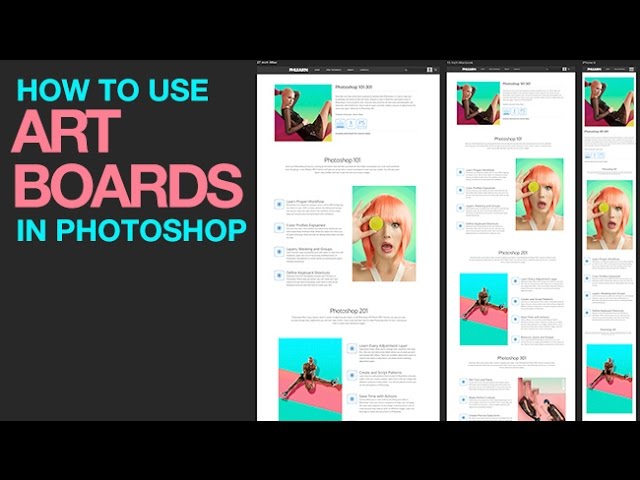
Artboards are a great tool for UX / UI / Web designing across multiple devices. If you want to see what a webpage would look like on a 27″ iMac, a 15″ MacBook PRO and an iPhone, you can use artboards to create design previews of each! Learn how to use artboards to design quickly and efficiently in today’s episode!

How to Create Artboards

Preview your design at different resolutions by going to ‘File – New’ and choosing Artboard from the dialogue box. Here, you can select the resolution you want to preview on (27″ iMac). With the Artboard tool selected, hold ‘Alt/Option’ and click on an edge icon to duplicate the artboard.

Artboards are useful for allowing you to duplicate your designs across artboards as well, so you don’t have to reimport your elements.

How to Use Linked Smart Objects in Artboards
Smart Objects are the best way to adjust and resize your design without losing information. Right click on a layer and go to ‘Convert to a Smart Object’ to make one. To place them onto your artboard, simply duplicate your design layers. If you need to resize the artboard, click and drag the edges with the Artboard tool.

After you’ve arranged the Smart Objects to your liking, you can repeat the process on more artboards. Duplicate the current artboard to make new ones, which you can set to be the sizes of a 15″ MacBook PRO and an iPhone. The Smart Objects will make sure you re-adjust all of your elements non-destructively.