Home Blog Page 7

2 Speed Tricks with 2 Keys in Photoshop + BONUS Trick?

0

Make those sliders move fast, slow, and easy with ease with two awesome tricks using the Shift and Alt or Option Key in Photoshop! In this tutorial, we will learn how to make both precise and quick adjustments using shortcuts in Photoshop.

In the end, there is a Bonus trick which I’m not sure whether is a trick or not. That is for you to judge. Hope this helps. Thank you so much for watching 🙂

â–º HELP US CREATE MORE FREE VIDEOS:
Support us at Patreon: https://www.patreon.com/piximperfect

â–º SHARE: https://goo.gl/IUhnUl

â–ºLET’S CONNECT:
Facebook: http://facebook.com/piximperfect
Twitter: https://twitter.com/piximperfect
Instagram: https://www.instagram.com/piximperfect
Google+: https://plus.google.com/+UnmeshDinda
Make the Perfect Head Swap in Photoshop

0

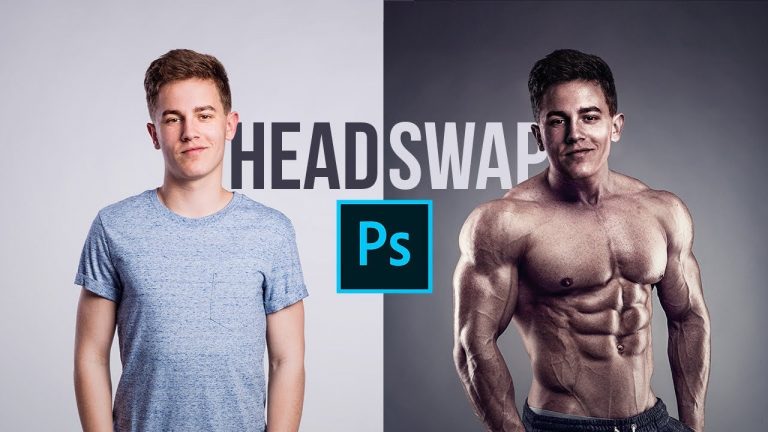
The Complete Guide to Swapping Heads or Faces in Photoshop! Learn in-depth techniques to match the skin tone, the lighting, and the position to get the head match with the body.

â–º TIMESTAMPS:
02:30 The Placement
15:39 Matching Brightness
21:14 Matching Color
24:09 Dodging and Burning
31:22 Finishing Touch
34:36 Summary

We’ll start by the extensive use of Layers and Masks to make the right placement of the head in the new body. Using the Clone Stamp tool to erase the previous head to avoid distractions.

Then, we will match the luminosity or the brightness of both the elements using the power of Curves and Check Layers. This will be followed by matching the color using the Hue/Saturation adjustment layer and the Color Blend Mode.

We’ll take advantage of dodging and burning to perfect the lighting. In the edit, we will add some special effects and filters to make the head and the body one. For both the elements to match having a similar skin tone, similar lighting, and similar if not the same angle is extremely essential.

Hope this tutorial helps you. Thank you for watching 🙂

â–º DOWNLOADS:
1. Sample Images: http://piximp.com/4AEM
2. Finished PSD: http://piximp.com/4AEN (Only for our Patreon Family)

â–º HELP US CREATE MORE FREE VIDEOS:
Support us at Patreon: https://www.patreon.com/piximperfect

â–º SHARE: https://goo.gl/IUhnUl

â–ºLET’S CONNECT:
Facebook: http://facebook.com/piximperfect
Twitter: https://twitter.com/piximperfect
Instagram: https://www.instagram.com/piximperfect
Google+: https://plus.google.com/+UnmeshDinda
1-Minute Photoshop – Create Dramatic Black & White

0

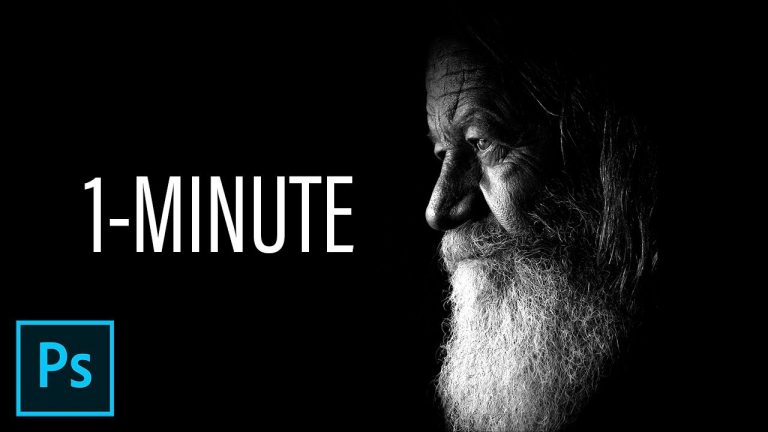
Learn How to Create Highly Dramatic Black and White Images in Just One Minute with Photoshop! In this tutorial, we will use Calculations, Blend Modes, and Channels to construct the image with the most drama.

â–º DOWNLOADS:
1. Sample Images: http://piximp.com/4AEO
2. Finished PSD: http://piximp.com/4AEP (Only for our Patreon Family)

â–º HELP US CREATE MORE FREE VIDEOS:
Support us at Patreon: https://www.patreon.com/piximperfect

â–º SHARE: https://goo.gl/IUhnUl

â–ºLET’S CONNECT:
Facebook: http://facebook.com/piximperfect
Twitter: https://twitter.com/piximperfect
Instagram: https://www.instagram.com/piximperfect
Google+: https://plus.google.com/+UnmeshDinda
Remove Fringes After Cutting Out Hair in Photoshop

0

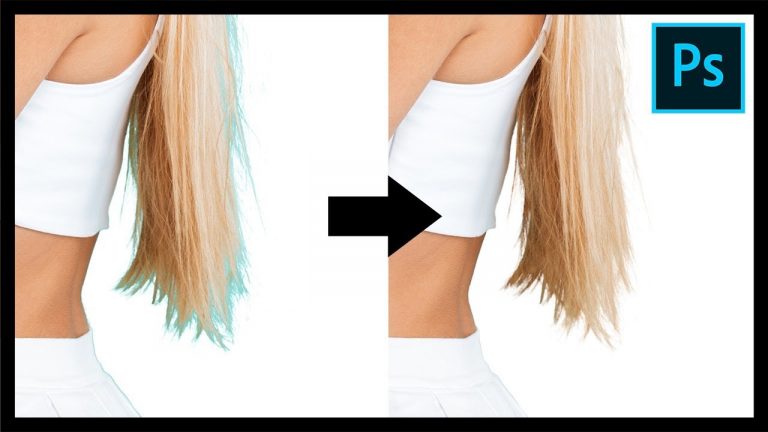
Remove Annoying Edge Fringe After Hair Masking in Photoshop! Learn how to use Clipping Masks to remove color edges or fringes to select hair better and create a cleaner composite. In this tutorial, we will use several techniques to erase or replace the fringe in Photoshop.

Using simple tools like the brush tool, and the clone stamp tool, after selecting the hair, we will learn how to cover the unwanted edges in a realistic fashion. I hope this tutorial helps you. Thank you so much for watching 🙂

â–º DOWNLOADS:
1. Sample Image: http://piximp.com/4AEQ
2. Finished PSD: http://piximp.com/4AER (Only for our Patreon Family)

â–º HELP US CREATE MORE FREE VIDEOS:
Support us at Patreon: https://www.patreon.com/piximperfect

â–º SHARE: https://goo.gl/IUhnUl

â–ºLET’S CONNECT:
Facebook: http://facebook.com/piximperfect
Twitter: https://twitter.com/piximperfect
Instagram: https://www.instagram.com/piximperfect
Google+: https://plus.google.com/+UnmeshDinda
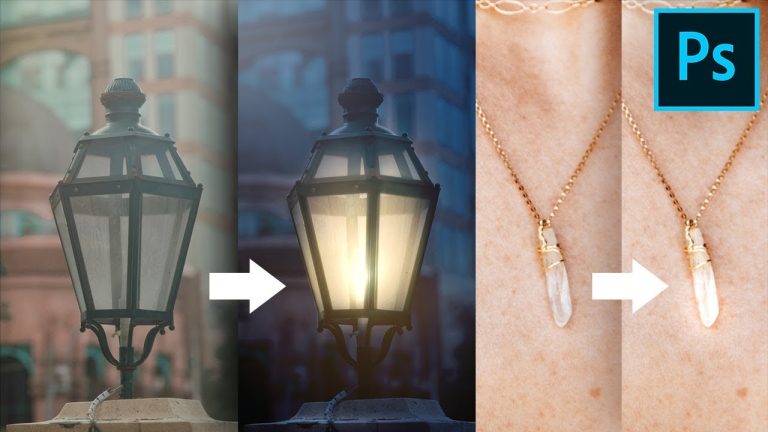
One Trick to Add Light or Shine to Anything in Photoshop

0

Add Amazing Shine or Light to Anything Like Jewellery or Streetlights in Photoshop! Learn the most natural way to add a bright light or hotspot, that fits into your image in a very realistic fashion.

In this tutorial, we will learn how to use the magic of blend modes, especially Color Dodge to mimic the properties of light source or shine. Hope this tutorial helps. Thank you for watching 🙂

â–º DOWNLOADS:
1. Sample Images: http://piximp.com/4AET
2. Finished PSD: http://piximp.com/4AES (Only for our Patreon Family)

â–º HELP US CREATE MORE FREE VIDEOS:
Support us at Patreon: https://www.patreon.com/piximperfect

â–º SHARE: https://goo.gl/IUhnUl

â–ºLET’S CONNECT:
Facebook: http://facebook.com/piximperfect
Twitter: https://twitter.com/piximperfect
Instagram: https://www.instagram.com/piximperfect
Google+: https://plus.google.com/+UnmeshDinda
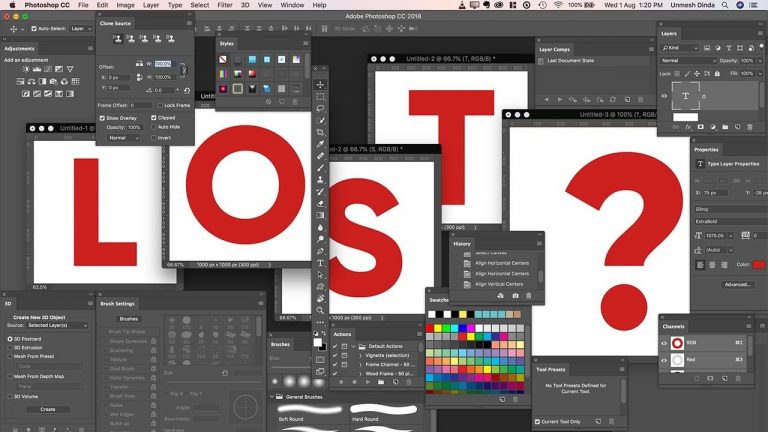
Lost in Photoshop? This Will Help You Find a Way

0

Learn How to Search Anything in Photoshop! From Filters to Adjustments, and Even Tools, along with Stock Photos, this feature lets you search everything inside Photoshop and also things outside Photoshop like Adobe Stock, your Lightroom Photos, or Tutorials from Adobe.

Hope this video helps you clear your confusion, whether you are a beginner or an advanced user. Thank you for watching 🙂

â–º HELP US CREATE MORE FREE VIDEOS:
Support us at Patreon: https://www.patreon.com/piximperfect

â–º SHARE: https://goo.gl/IUhnUl

â–ºLET’S CONNECT:
Facebook: http://facebook.com/piximperfect
Twitter: https://twitter.com/piximperfect
Instagram: https://www.instagram.com/piximperfect
Google+: https://plus.google.com/+UnmeshDinda
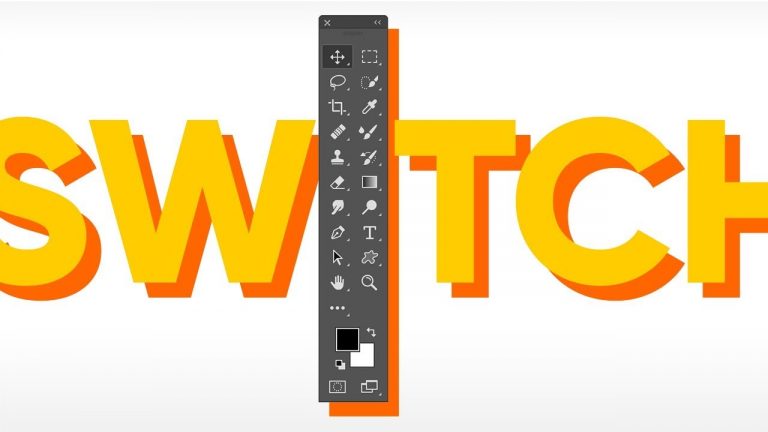
1-Minute Photoshop – The MOST IMPORTANT Tool Trick

0

Learn How to Work Much Faster with Tools in Photoshop by Using this Technique! In the video, we will learn how to switch between multiple tools with just one key quickly.

Hope this tutorial helps. Thank you for watching 🙂

â–º HELP US CREATE MORE FREE VIDEOS:
Support us at Patreon: https://www.patreon.com/piximperfect

â–º SHARE: https://goo.gl/IUhnUl

â–ºLET’S CONNECT:
Facebook: http://facebook.com/piximperfect
Twitter: https://twitter.com/piximperfect
Instagram: https://www.instagram.com/piximperfect
Google+: https://plus.google.com/+UnmeshDinda
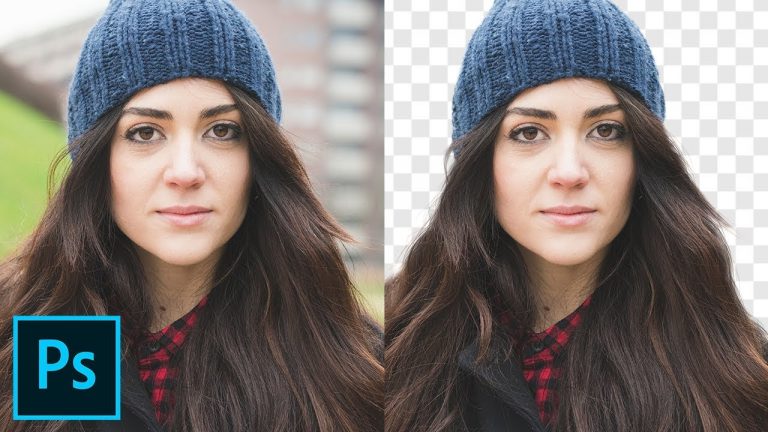
Cut Out Hair with Very Busy Background in Photoshop

0

Advanced Technique to Mask Hair No Matter How Busy the Background in Photoshop! Learn to select hair with extremely messy background by using brushes and painting.

In this tutorial, we will learn how to create hair brushes to paint back hair and cover some techniques to make it look natural. Hope this tutorial helps you. Thank you for watching 🙂

â–º DOWNLOADS:
1. Sample Images: http://piximp.com/4AEU
2. Finished PSD: http://piximp.com/4AEV (Only for our Patreon Family)

â–º HELP US CREATE MORE FREE VIDEOS:
Support us at Patreon: https://www.patreon.com/piximperfect

â–º SHARE: https://goo.gl/IUhnUl

â–ºLET’S CONNECT:
Facebook: http://facebook.com/piximperfect
Twitter: https://twitter.com/piximperfect
Instagram: https://www.instagram.com/piximperfect
Google+: https://plus.google.com/+UnmeshDinda
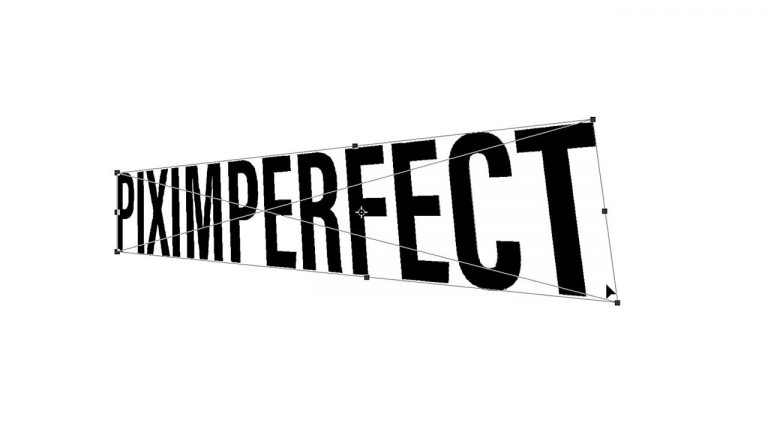
1-Minute Photoshop – Distort Text Without Rasterizing

0

Modify, Distort, or Add Filters to Text without Rasterizing it in Photoshop! Learn how to use smart objects to keep the text completely customizable.

Hope this tutorial helps. Thank you!

â–º HELP US CREATE MORE FREE VIDEOS:
Support us at Patreon: https://www.patreon.com/piximperfect

â–º SHARE: https://goo.gl/IUhnUl

â–ºLET’S CONNECT:
Facebook: http://facebook.com/piximperfect
Twitter: https://twitter.com/piximperfect
Instagram: https://www.instagram.com/piximperfect
Google+: https://plus.google.com/+UnmeshDinda
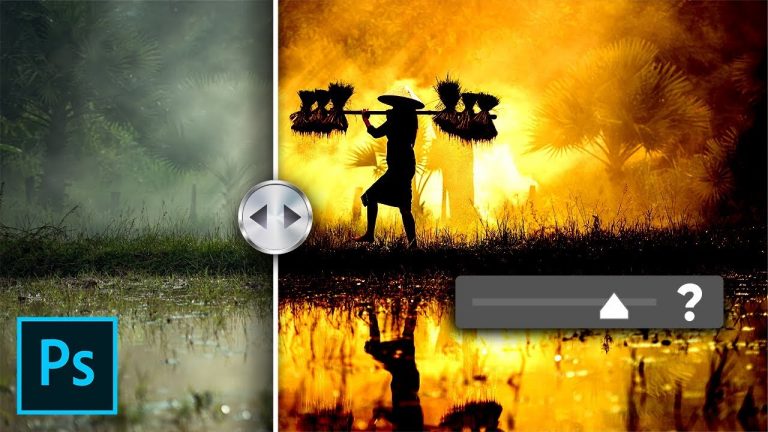
The Blend Mode Slider You Never Used | Photoshop Secrets

0

This Amazing Slider controls and modifies the projection of several uncommon blend modes. Now we can actually use the blending modes in ways we never thought possible.

This control opens doors to an unlimited amount of filters or effects, giving you the option to use it whether you are stylizing your photos, creating a composite, or performing a photo manipulation.

Hope this video helps you. Thank you for watching 🙂

â–º KNOW MORE ABOUT BLEND MODES:

â–º DOWNLOADS:
1. Sample Images: http://piximp.com/4AEW
2. Finished PSDs: http://piximp.com/4AEX (Only for our Patreon Family)

â–º HELP US CREATE MORE FREE VIDEOS:
Support us at Patreon: https://www.patreon.com/piximperfect

â–º SHARE: https://goo.gl/IUhnUl

â–ºLET’S CONNECT:
Facebook: http://facebook.com/piximperfect
Twitter: https://twitter.com/piximperfect
Instagram: https://www.instagram.com/piximperfect
Google+: https://plus.google.com/+UnmeshDinda